
Design Flow for SBR+ Solution Type
The SBR+ Solution type simplifies design creation for SBR+ designs for use with EMA3D's Shooting Bouncing Ray technology with optional UTD and PTD correction. With this selection, you do not create explicit SBR+ Regions, and there is a reduced Solution Setup that includes a frequency sweep definition. Near field and far field reports, as well as antenna parameters are available. Matrix reports and Network Data Explorer are available if the design includes a parametric- or file-based antenna. 3D fields, near fields, and port displays are not available. Plot fields, and SAR settings do not apply. An SBR+ only design and its equivalent Modal/Terminal design should have comparable if not identical results.
Prerequisites
Requirements for SBR+ solutions:
- Must have at least one Incident Plane Wave or Antenna Component excitation. An Antenna Component is either a link to a source design, a built-in parametric antenna, or an imported far-field antenna gain pattern (.ffd) file.
- Ports are not allowed.
- Infinite ground planes are not supported.
- SBR+ can trace rays inside dielectric regions of non-uniform thickness, following Snell’s laws of reflection and refraction, including for lossy non-conductive dielectrics. For volumetric SBR+, only conformal meshes are supported. There is no lightweight, dynamic or tolerant mesh support. Meshes must represent volume regions (that is, objects) in HFSS. Sheets cannot be assigned materials, but only boundaries. Supported materials are pure dielectrics, with zero conductivity and without excessive loss.
- No spatially dependent boundaries.
- For near fields and far fields, the setup for sample points must be defined before simulation. This can be done through the Field Observation Domain area of the Options tab. You can create new Near Field Lines, Rectangles, boxes, or Spheres, or Far Field Infinite spheres and edit existing domains.
- SBR+ near field analysis will be aborted if one or more encrypted components are included.
- SBR+ designs that include blockages have an enhanced work flow described in Configure Simulation with SBR+ Antenna Geometry Blockage (SBR+ Solution Type)
Using SBR+ Solution Type for HFSS
- When you select the SBR+ Solution type, you do not need to set SBR+ Regions in the design.
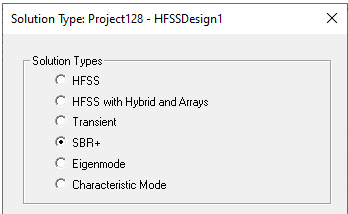
- SBR+ Solutions support the following boundaries:
- Perfect E
- Perfect H
- Finite Conductivity
- Layered Impedance
- Impedance
For the supported boundaries, only the material property, impedance, and thickness are used. Surface roughness and shell elements are disabled. If you convert an existing design to SBR+, unsupported excitations and boundaries are deleted, and any unsupported boundary properties are removed. You can Undo to restore the original settings.
- Set the SBR+ Options
The Project Tree for the SBR+ Solution type does not include a Hybrid Regions icon, nor a Port Field display. It does include SBR+ Options where you can specify Wedge Settings and enable or disable Wedge Visibility. These options are described below. See this link for Set Current Source Option.
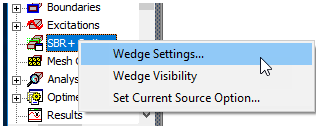
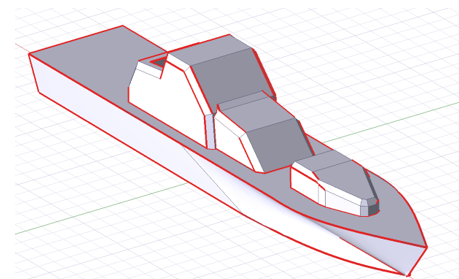
If visible, wedges are shown as thick red lines in 3D model window. Visualization is turned off when there is design edits that invalidate the initial mesh.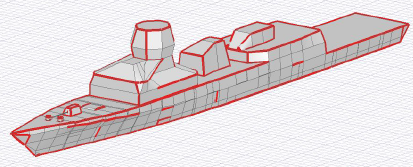
The SBR+ Wedge Settings dialog contains the Automatic Wedge Generation parameters and the Interactive Wedge Editing feature. Wedges for PTD and UTD are based on the user-specified wedge settings and the initial mesh. The initial mesh is automatically generated on launch of the SBR+ Wedge Settings dialog box, if needed. The dialog box will not launch if an initial mesh is not available and cannot be generated.
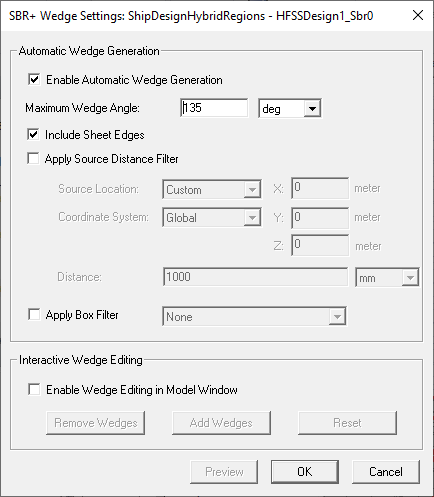
The Wedge Generation parameters are used to determine the candidate set of wedges to be included, with optional filters that can restrict their location on the geometry. The final set of wedges to be used in the SBR+ simulation is the intersection of all the wedge generation criteria, and the effects of any optional Interactive Wedge Editing. complete flexibility in specifying where the wedges are to be used for the simulation. This is important since adding many wedges on very large geometry structures (aircraft, vehicles, etc.) can significantly impact the SBR+ simulation time.
Enable Automatic Wedge Generation.
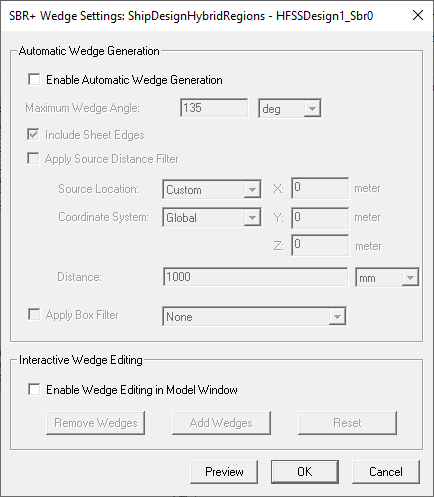
By default, the checkbox is enabled, allowing access to the automatic features and parameters. If you un-check it, the automatic features are disabled. You can independently enable Wedge Editing.
Wedges added through Automatic Wedge Generation are displayed in red.
Maximum Wedge Angle:
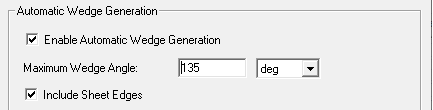
An angular criteria can be specified for the maximum wedge angle to help filter the desired set of wedges - default value is 135 deg. This wedge angle ranges from minimum 0 deg to maximum 180 deg. All wedges are included that are less than or equal to the specified maximum angle. An angle equal to 0 deg would be created by a “collapsed” wedge (like a closed hinge), while an angle equal to 180 deg would be created by a completely “open” wedge (like a fully open hinge). You can assign a design variable to Maximum Wedge angle, but you cannot create a design variable within the dialog.
Include Sheet Edges:
You can choose to include or exclude the edges from sheets (non-connected edges, also known as “knife edges”). The default value is true which includes these edges. Sheet edges are triangle edges with no adjacent/connected triangle along that edge. In the physical object we are modeling these may represent extremely thin surfaces such as metal “fins”, etc.
Optional parameters:
Apply Source Distance filter:
A “source distance filter” is a way to specify the inclusion of wedges within a finite 3D distance from a point (the “source”).
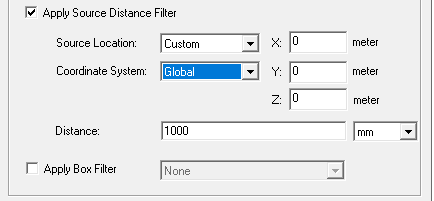
You can choose model Points from drop down as source location, or specify the absolute X, Y, Z in model units. X, Y, Z can be specified in global coordinates or relative to a custom CS. When you select a geometry Point, its coordinate system and X, Y, Z are displayed.
The Distance default is 1 <model unit>. You can assign an existing design variable to the Distance. Default value is false (no Source Distance Filter).
Apply Box Filter:
You can select any non-model box that is aligned with the Global Coordinate System axes via a drop-down menu, within which wedges will be included. Default value is false (no Box Filter).
Optional Interactive Wedge Editing
This feature provides complete flexibility in specifying where the wedges are to be used for the simulation. This is important since adding many wedges on very large geometry structures (aircraft, vehicles, etc.) can significantly impact the SBR+ simulation time.
Checking the Enable Wedge Editing the Model Window box enables the buttons for removing wedges from selected geometries (faces, objects, etc.) , adding wedges to selected geometries, and resetting edits.
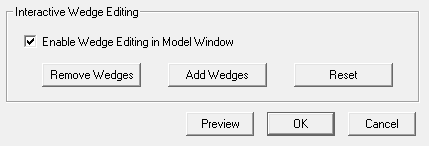
After you select a geometry and Add Wedges, the interactively added wedges appear in blue. Allowed geometry selections include entire geometry objects, faces on objects, and edges on objects.
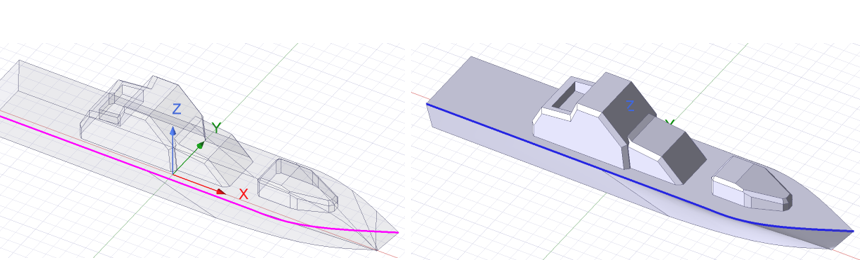
If you select Remove Wedges, all wedges on the selected geometry objects are removed. These can be automatically generated wedges or interactively added wedges.
Click Reset Wedges to undo all interactive wedge editing operations. A confirmation dialog appears. Press Yes to reset all wedge editing operations. The reset button is disabled if no wedge edit operations are present.
Current Limitations on PTD/UTD Wedge Generation/Editing
Situations where wedges cannot be generated:
Light Weight Imported STL Geometries: STL models imported as light weight geometries are currently not supported for interactive wedge editing (as of R24.1).
In the Initial Mesh Settings for SBR+ Solution type or for HFSS with Hybrid and Arrays that include SBR+ regions, you can turn off tolerant meshing.
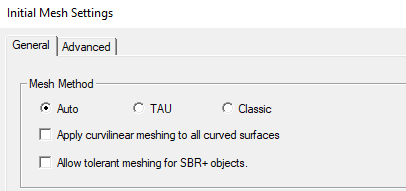
In this case you should consider Current Limitations on PTD/UDT Wedge/Generation Editing.
- Add an SBR+ Solution Setup by selecting the Simulation tab and clicking the Setup icon.
SBR+ solutions offer a reduced solve setup dialog with a frequency sweep definition and SBR+ specific Options tab.
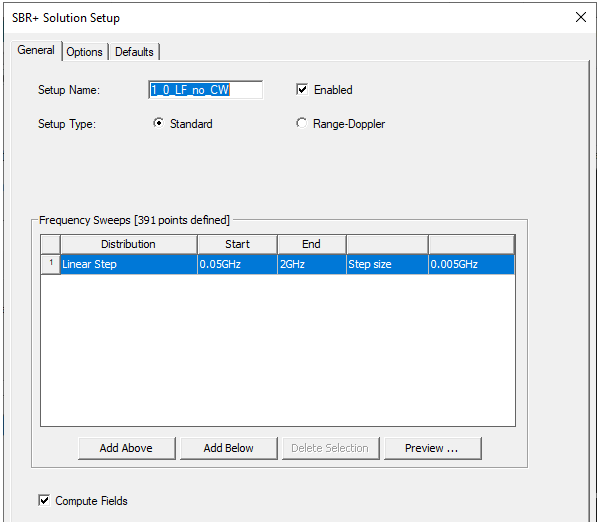
- There are two options for Setup Type: Standard (default) and Range-Doppler. The settings and specialized capabilities of the Range-Doppler type are described at SBR+ Range-Doppler Solution Setup. The rest of this page pertains only to the Standard setup type.
- Because you can define Frequency Sweeps here, you cannot add Frequency sweeps under the setup.
- Switch on Compute Fields to generate installed antenna patterns or perform RCS simulations using SBR+. Switch off Compute Fields to restrict simulation results to coupling data (S-parameters) between two or more antenna components configured in the design (i.e., source design links, parametric antennas, imported .ffd far-field gain pattern files).
The Options tab lets you specify SBR+ Solver Options, including Ray Density Per Wavelength and Maximum Number of Bounces.
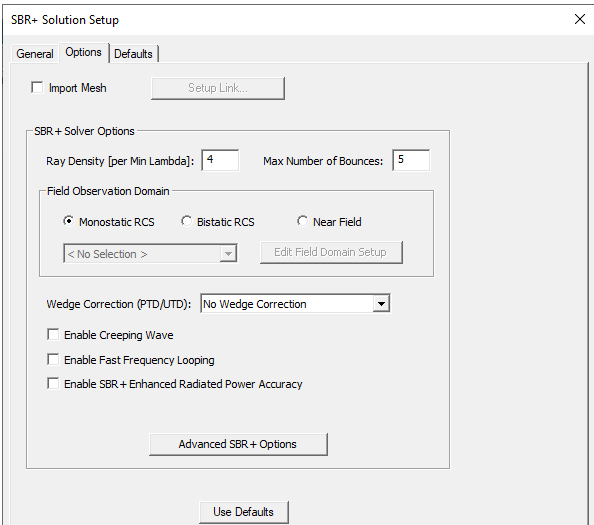
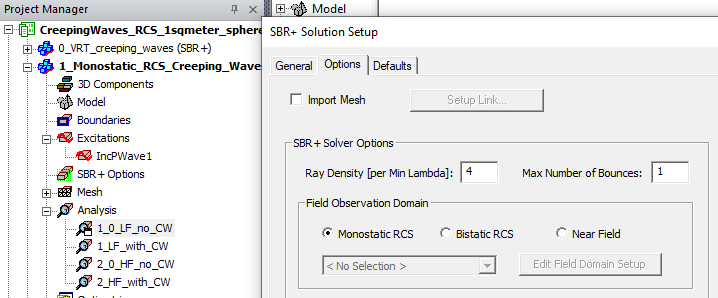
For the RCS Type options for Monostatic and Bistatic to appear, you must include an Incident Plane wave. For Monostatic RCS, you do not need to create a Far Field setup.
If you have assigned both an SBR+ region and an Incident Plane wave, and select Bistatic as the RCS Type, the Near Field and Far Field Observation domain fields are enabled, and the Far Field Radiation Sphere Setup dialog box appears as follows, allowing you to create an infinite sphere for a Far Field or a rectangle for examining near fields. You can edit an existing Far Field Infinite Sphere or Near Field Rectangle setup by selecting from the drop-down menu and clicking Edit Field Domain Setup.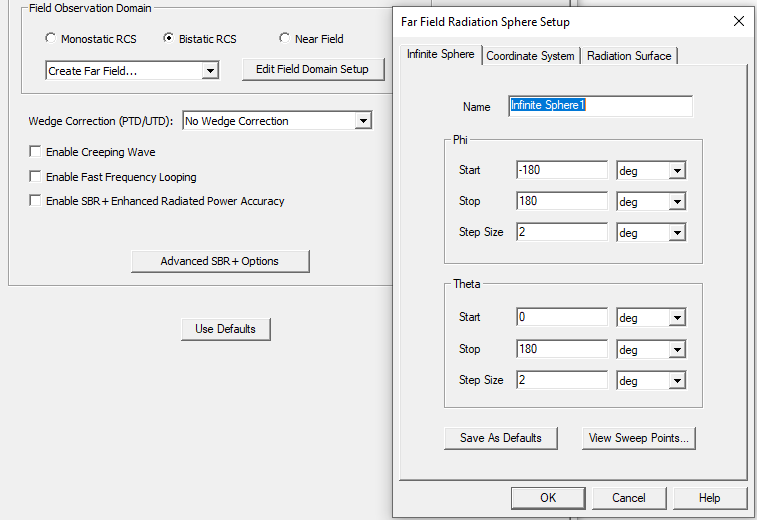
If you have created one or more field observation domains, these are listed on the drop-down menu. You can edit an existing Far Field Infinite Sphere or Near Field Rectangle by clicking Edit Field Domain Setup.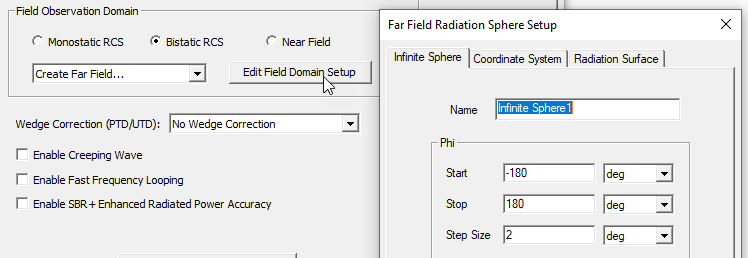
For Near Field rectangle setups, you can use the feature described in Overlay Contour Plot of Near Field on Rectangle.
For Enable Creeping Wave, see Creeping Waves, Creeping Wave VRT Plots, Creeping Wave for Antenna Placement, and Creeping Wave for RCS of Highly Curved Objects.
The Fast Frequency Looping feature is to significantly reduce simulation time for high-density frequency sweeps with tens to thousands of uniform frequency samples. You can select Enable Fast Frequency Looping if you have configured a uniform frequency sweep with at least 2 frequencies. From there, the acceleration is handled automatically, with no other workflow changes in problem setup or post-processing. The acceleration engages for all SBR+ field and signal output types: S-parameters, far-field antenna patterns, near-field E/H-field spatial distributions. See SBR+ Fast Frequency Looping for High-Density Sweeps for details on the benefits and limitations of this acceleration feature.
The SBR+ Enhanced Radiated Power Accuracy feature can be beneficial when an SBR+ region contains lossy materials (got example, finite conductors, half-space layered impedance boundaries, or absorbers). Enabling this feature produces a more accurate result by having SBR+ compute total fields across the entire far-field sphere. These total field results are then weighted using the configuration specified in the Edit Sources dialog and then integrated over the far-field sphere to determine the total power radiated by the design. The total power is then used to improve the accuracy of the directivity fields and other related antenna parameters such as radiated power.
The Wedge Correction (PTD/UTD) simulation settings allow for the inclusion of additional wedge diffraction phenomenology that can improve the accuracy of SBR+ simulations. You can opt out of using the PTD/UTD settings, or select PTD Correction or PTD Correction + UTD Rays. Selecting one of the PTD Correction options enables a field for specifying PTD Edge Density.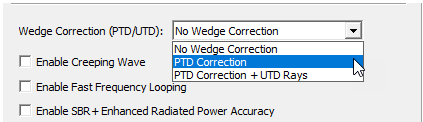
If you select one of the PTD Correction options you can then select the Advanced SBR+ Options button to Enable PTD/UTD (Wedge Diffraction) Options.
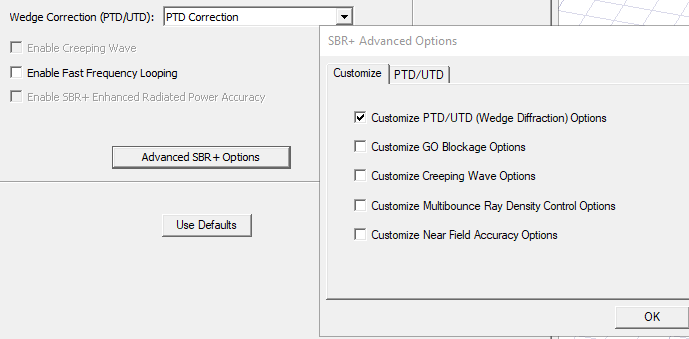
Enabling PTD/UTD (Wedge Diffraction) Options opens PTD/UTD tab for specifying PTD Edge Density.
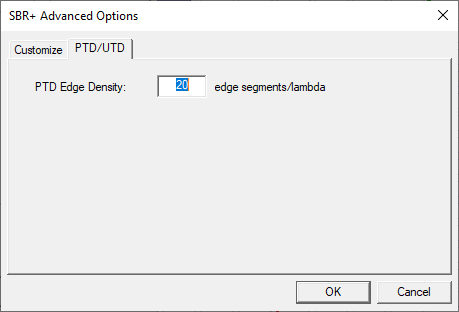
For SBR+ simulations, the Physical Theory of Diffraction (PTD) and Uniform Theory of Diffraction (UTD) features can account for additional phenomenology not well predicted by plain SBR due to truncation of uniform Physical Optics (PO) currents at sharp angular discontinuities (“wedges”) on metallic surfaces and blockage of SBR’s Geometrical Optics (GO) rays. PTD is a numeric correction to the scattered fields radiated by PO currents near wedges. UTD launches bundles of edge-diffraction rays from directly illuminated portions of each wedge along the Keller cone. Once launched, the UTD rays behave exactly like regular SBR rays, propagating according to GO and painting PO currents at each bounce that contribute to the scattered field. The UTD rays often illuminate portions of the SBR scattering geometry that are never reached by SBR GO rays launched directly from the field source.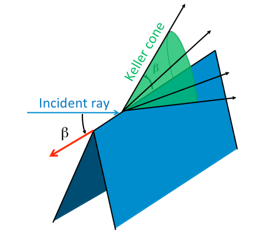
The PTD and UTD wedge features are only deployed for metallic wedges with line-of-sight visibility from the source (Tx) location. If either adjacent surface of the wedge is non-PEC and not within the tolerance for PEC-like, or if the entire edge segment is not visible to the source, the wedge will be ignored in the SBR+ simulation and for visual ray tracing (VRT). For technical details, see Assigning SBR+ Hybrid Regions.
- Advanced Option for NF Accuracy Settings for SBR+
The NF Accuracy settings (Beta feature, NF Accuracy Controls for SBR+) provide access to methodology settings relating to cases where Tx antennas, Rx antennas, and near-field observation points are in proximity to the scattering geometry (i.e., the platform CAD model). When this feature is switched off, HFSS SBR+ uses default near-field accuracy settings that should be adequate for most situations, including close-proximity Tx/observer conditions that this feature is designed to tune.
- Advanced Option for Multibounce Ray Density
By option you can select the Advanced SBR+ Options and enable Customize Multibounce Ray Density Control Options.
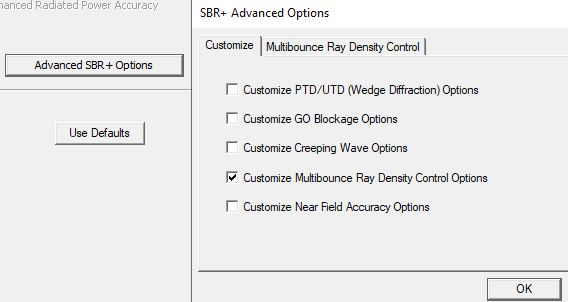
You can then select the Multibounce Ray Density Control tab.
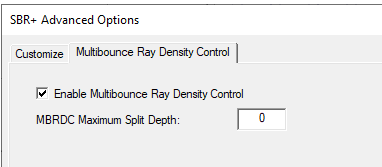
Use the checkbox to Enable Multibounce ray density and enter the maximum number of subdivisions to be used in the solve. Enabling the feature may increase the solve time.
The MBRDC Maximum Split Depth field value increases the number of spawned ray tracks on each ray bounce. The MBRDC algorithm is designed to achieve the ray density per wavelength criterion at any bounce depth. If a footprint at depth N in a ray track does not satisfy the ray-density criterion, the MBRDC algorithm attempts a refined ray shoot from an earlier bounce, just for the ray in question. The size of the triggering footprint informs the level of refinement. If the refined shoot is not successful in achieving the desired footprint size, or new footprints are too large, the MBRDC algorithm attempts further, recursive refinements. The MBRDC Maximum Split Depth setting limits how aggressively the refinement algorithm is applied by specifying the maximum number of split recursions. For this reason, linear increases in Maximum Split Depth can yield a geometric progression in the total number of rays shot and associated solution time.
When both MBRDC and UTD are enabled, first-bounce UTD rays and bright points on wedges are recomputed during the MBRDC splitting process, but only the original raytrack is rendered up to the 1st bounce. Similarly, length-based ray filters are applied to the original UTD initial ray track up to 1st bounce rather than using the information in the additional MBRDC tracks. This is a known limitation.
- Advanced Option for Geometrical Optics (GO) Blockage
SBR+ normally applies a physical optics (PO) blockage model where blockage effects emerge from partial cancellation of the incident field by the scattered field. PO blockage not only occurs in connection with the incident field from the Tx antennas, but also within the scattered field itself when reflected fields from the previous bounce are diminished by a blocking surface along the geometrical-optics (GO) reflection path at the current bounce by evaluating the scattering contribution of the incident ray field at that bounce.
In cases of significant blockage by a large obstruction, the PO blockage model requires accurate currents over the extent of the obstruction. Sometimes, this is hard to achieve in the ray tracing approximation. For example, the obstruction may not be well illuminated by direct rays from the Tx antenna or multi-bounce rays after an earlier reflection. An alternative is to use a GO blockage model where scattered field contributions are added to an observation point subject to a line-of-sight (LOS) blockage check performed by the ray tracer. In some cases, this is more accurate than the default PO blockage formulation, while in others it is less accurate. GO blockage also entails a non-trivial computational cost, as the blockage check with the ray tracer must be performed for each observation angle (or point) for each ray hit point.
In addition to GO Blockage for SBR and UTD ray tracks, this feature is also available for PTD and CW.
Limitations for GO Blockage:
GO Blockage formulation is suited specifically for SBR+ ray tracks, including UTD ray tracks. While GO Blockage for CW and PTD has been implemented for the first time in this release, results can be surprising and/or inaccurate, as a limitation of the methodology.
Summary Workflow for GO Blockage:
Click the Advanced SBR+ Options button to open the SBR+ Advanced Options window. On the Enable tab, Check GO Blockage Options to enable the GO Blockage tab.
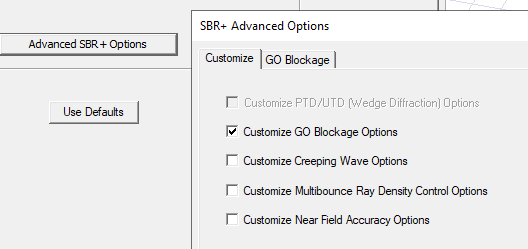
On the GO Blockage tab, you have check box options to enable or disable GO Blockage and enable or disable Surface Self-block.
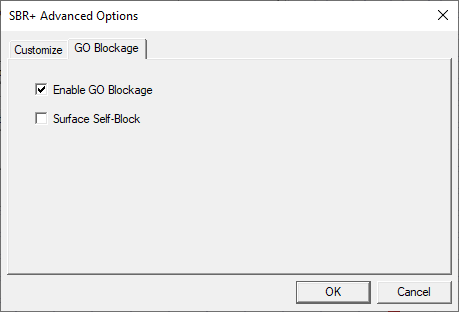
Surface Self-Block: if enabled, the surface where the footprint is radiated from is used for blockage check, that is, anything below the surface with respect to the incoming ray is not in line of sight. If the setting is disabled, the footprint surface is not used for blockage checks (anything below the surface with respect to the incoming ray is in line of sight), but other surfaces are used for blockage.
For example, consider a parametric beam antenna illuminating a series of plates.
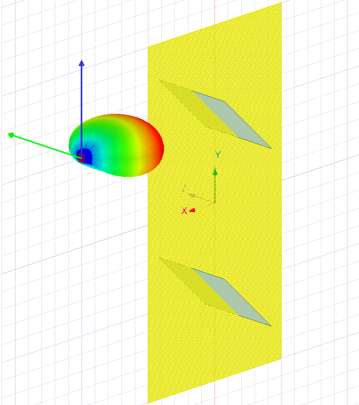
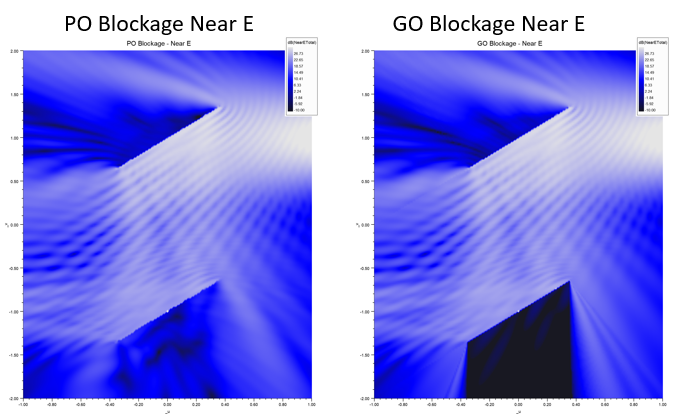
In the plots, the shadows behind the plates are much more pronounced with GO Blockage enabled, but the fields have non-physical discontinuities.
- Perform Analysis and view Solution Data for SBR+ Solution
After analysis, you can view the Solution profile and mesh statistics. Because SBR+ regions cannot contain ports no matrix reports will be provided. Similarly 3D fields, near fields, and port field displays are not available.
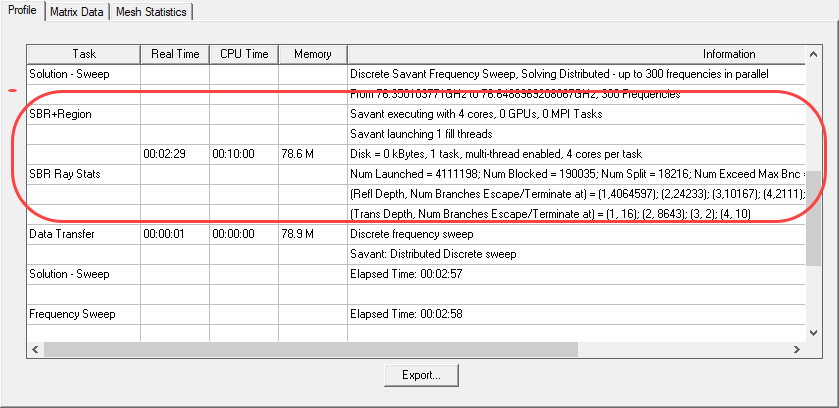
SBR+ Ray Stats include:
-
Number of rays
-
Histogram on Reflection
-
Histogram on Transmission
If included in the solution, Creeping Wave Stats include
-
Number of rays
-
Ray lengths
-
Source Counts by Initialization Failure Condition
-
Ray Counts by Termination Condition
-
Histogram On CW ray footprints
For details see Ray Statistics for SBR+ Analysis.
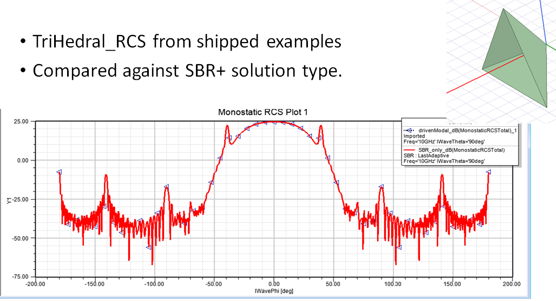
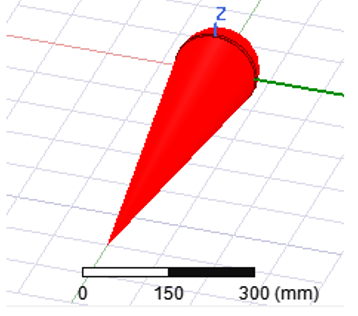
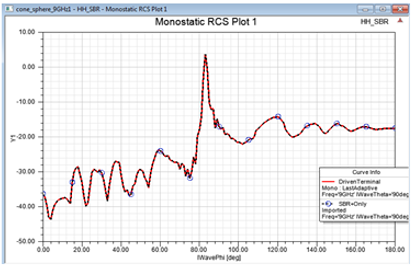
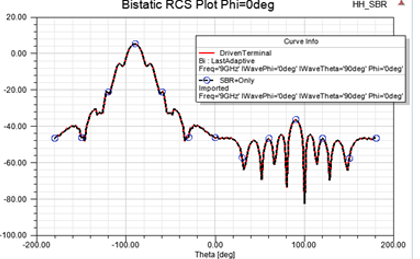
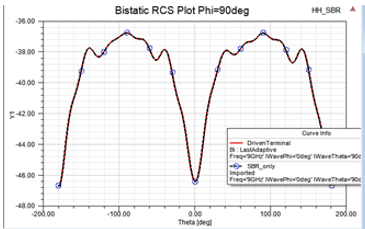
Matrix reports and Network data explorer are available if any parametric antenna or file based antenna is in the design. Far field reports (including antenna parameters) are available. 3D fields, near fields, and port field displays are not available. The following example shows monostatic and bistatic RCS reports for a cone sphere, comparing SBR+ compared to a driven terminal simulation. In a Driven Terminal design, the cone was assigned an SBR+ Region.
The following plots compare Bistatic RCS and Monostatic RCS in dB. The results match very well.
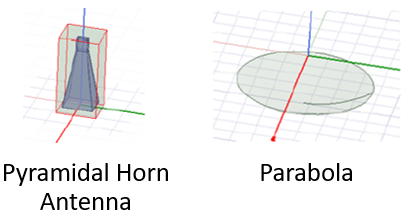
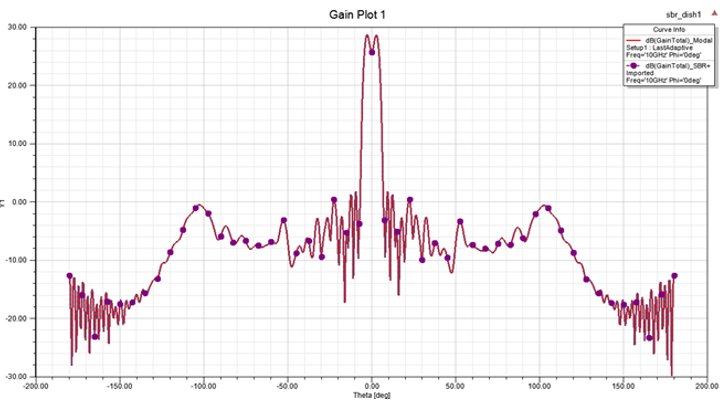
The following design shows Pyramidal Horn Antenna and FEM Parabola: SBR+ vs. HFSS IE Hybrid Region:
3D Components for and from SBR+ Designs
A new SBR+ 3D Component type is available. It can be a component created from an SBR+ design, or from a Driven Model/Terminal design while all solid and sheet geometries included are all assigned SBR+ Regions. These components always have the Mesh Assembly option available.
A 3D component containing only SBR+ region can be inserted into the SBR+ only design, irrespective to the solution type of the source design. A 3D component created from an SBR+ only design can be inserted into any design when SBR+ region is supported in that design's solution type.
If you create a 3D component from an SBR+ Solution type, that component does not contain a Hybrid Regions tab. However, if you create a component from an non-SBR+ Solution type, if Hybrid Regions are legal, it will contain a Hybrid Regions tab. Editing an SBR+ 3D Component will open the model in the corresponding source Solution Type.
Selecting the SBR+ Solution type also permits you to use Parametric Antennas.
Configure Simulation with SBR+ Antenna Geometry Blockage (SBR+ Solution Type)
The typical configuration begins with a fully integrated model with all geometry. You then select the near antenna region including any nearby geometry interacting with the antenna for analysis by HFSS – either by identifying these objects by hybrid region assignment, or by copying them out to a separate source antenna design to be solved with the HFSS solver, etc. The nearby antenna geometry could even be something different than what is used for the integrated model, such as a flat plate or other structure for considering the nearby antenna interactions. This source antenna design should likely be enclosed in a FE-BI region to allow for easier downstream processing, whether we are in a hybrid or SBR+ solution type. If you use a separate source antenna design, you can re-introduced it to the target design with the full geometry model by creating a 3D component for an antenna that is a linked design to the source design. This means you no longer need to designate any “Model Blockage” when setting up the linked design. You do this as a separate step outside creation of the linked design by selecting geometry from the SBR+ region to be designated as “Model Blockage” associated with a particular source antenna. Note there is no restriction on what objects and/or materials can be designated as “model blockage” geometry. Also note that for either solution type, SBR+ or hybrid HFSS-SBR+, that this selection will be from the available SBR+ region geometry objects, which is different than the previous workflow. Once you select these antenna blockage geometries for each source antenna, HFSS with SBR+ can solve the combined target SBR+ design.The preferred work flow is this.
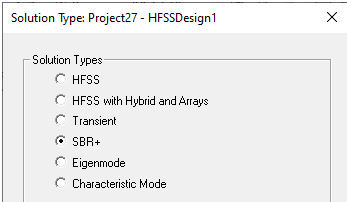
- Create/open an HFSS design with SBR+ solution type.
-
Add an Antenna to the design via the menu option for 3D Components > Create Antenna > Link to Source Design... or Excitations > Create Antenna Component > Link to Source Design...
This linked design should be an HFSS design that contains all the relevant geometry to represent nearby interactions with the antenna, such as a radome, enclosure, ground plane, mounting structure, or other nearby (within a few wavelengths) objects.
-
Add the desired SBR+ geometry objects to the design, configuring all materials/boundaries as desired.
-
If you want to designate multiple SBR+ geometry objects as blockage, select them in the 3D Modeler window and create an Object List by selecting Modeler > List > Create > Object List. You may want to name the list appropriately. If only a single object is to be designated as a geometry blockage, skip this step.
-
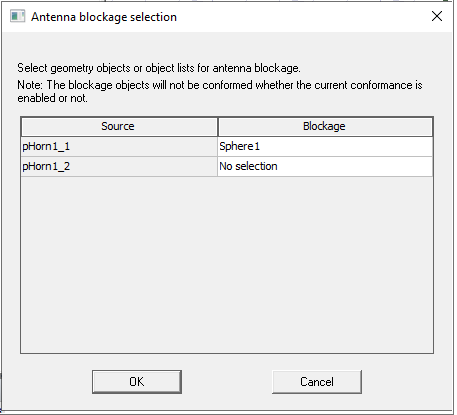
Using the right click menu under SBR+ Options, select Antenna Blockage...
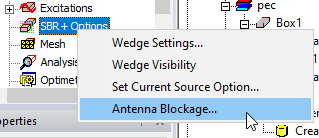
This opens the Antenna blockage selection dialog.
-
For each antenna source, use the dropdown menu for each cell in the column to select the geometry objects to associate with that source as an associated blockage. Each cell in the column contains a dropdown list of all geometry objects and all user created object lists.
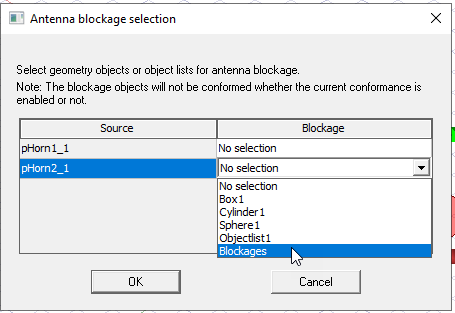
- Click OK to save the configuration.
- Create an Analysis Setup.
- Run the simulation.