
Modeling Workspace
The Modeling workspace is where drawing and selection actions are performed.
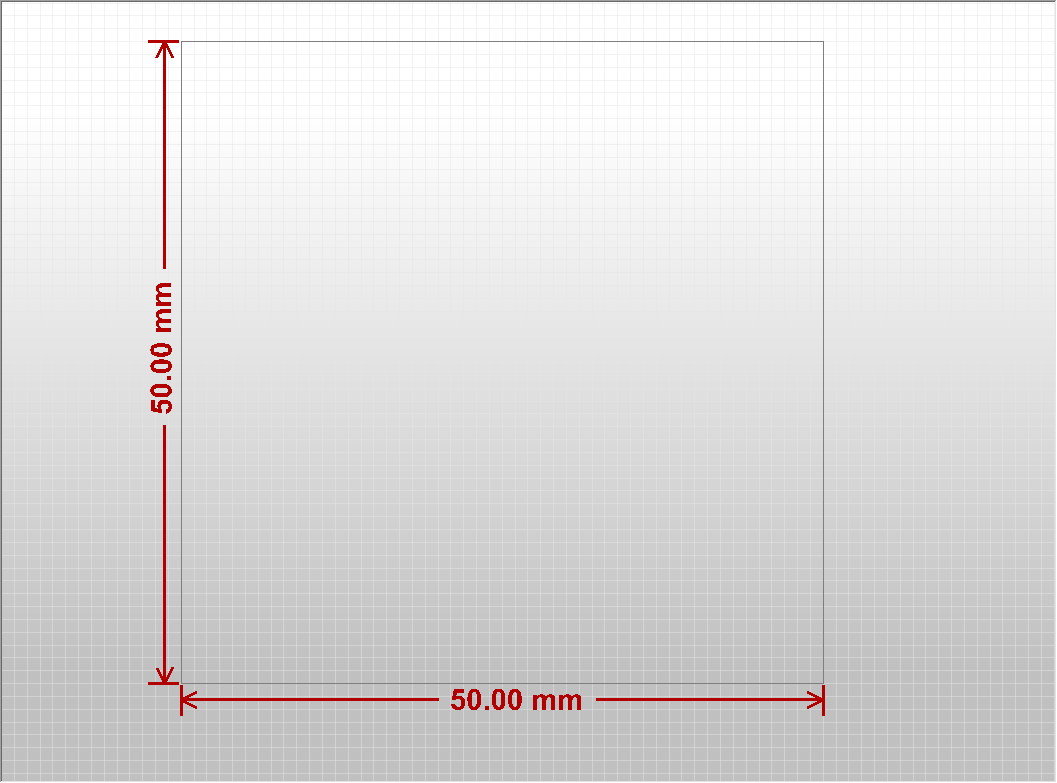
Selecting Components
To select a component, do either of the following:
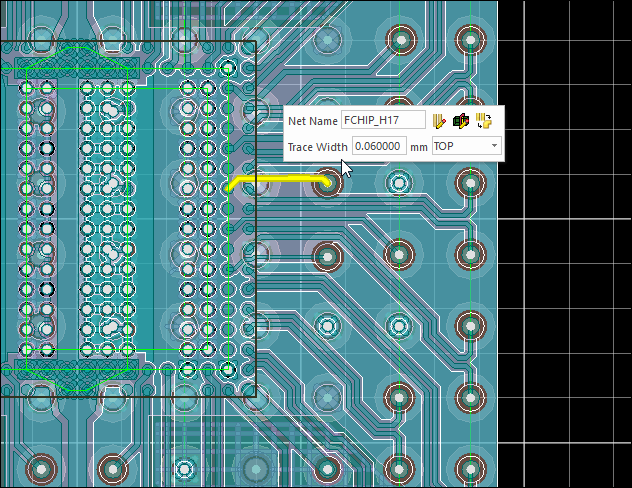
- Click to highlight any component in the Modeling workspace
and a mini toolbar containing frequently used options appears.
If the component layer is set to unfilled in the Layers Workspace, the selected component is highlighted with a stippled effect:
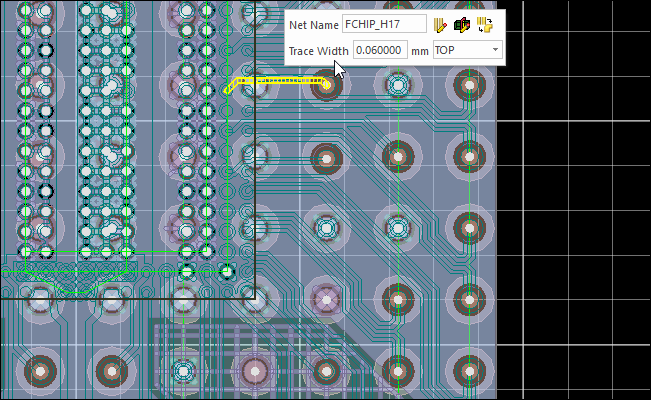
-
To select the component directly behind the currently selected component, press B. Do not move the mouse. Press F to return to the original selection.
Refer to Geometry Selection Mode and Net Selection Mode.
Modeling Workspace Options
Right-click in the Modeling workspace to open the following menu.
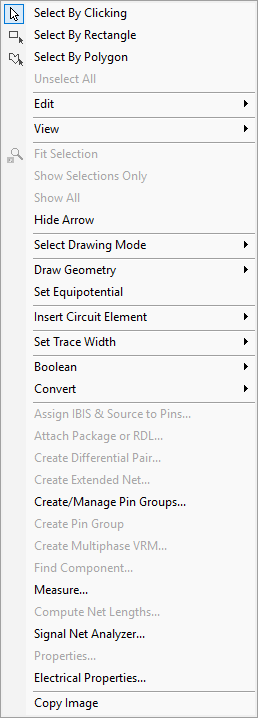
From this menu, perform the following actions:
- Choosing various drawing and selection modes
- Editing objects in the workspace
- Modifying view settings
- Drawing geometry and circuit elements
- Component-specific menu options, such as creating differential pairs
Options in this menu allow users to change viewing options. Some of these options are also available from the View menu:
- Navigating the Modeling Workspace
- Changing Grid Settings
- Performing Faster Transformations
- Stretching Z
- Modifying Lighting Properties
- Viewing 2D Layers
- Editing Gradient Background
- Measuring Distances
Undo or redo any action taken in the Modeling workspace using the Undoand Redo buttons in the Quick Access Toolbar at the top of the ribbon.