
Working in Geometry Selection Mode
After you have drawn a geometry, you can either select a component or select the entire geometry in a particular area.
Selection options appear on the Home tab.

To select individual components in a geometry, click Select By Clicking.
To select geometry in a defined rectangle:
- Click Select By Rectangle.
- Click at the starting point to draw a box in which you want to select the geometry.
- Drag-and-drop to an appropriate box area.
To select geometry in a defined polygonal area:
- Click Select By Polygon.
- Click at the starting point to draw a polygon in which you want to select the geometry.
- Click once to create every polygon vertex, and finally double-click to close the polygon.
To select an extent:
- Click Region Extent Selection Mode.
- Click an extent region in the Modeling workspace.
The color of the geometry changes when it is selected. Change the selection color by clicking View > Selection Color and selecting a new color.
Working with Selected Geometries
From the Home tab, you can also perform clipboard actions on your selection.
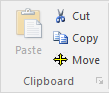
Clipboard Options include:
- Cut – removes the selection from the Modeling workspace and places it on the clipboard so that it can be pasted elsewhere.
- Copy – places the selection on the clipboard so that it can be pasted elsewhere, but does not remove it from the Modeling workspace.
- Paste – places the cut or copied selection in the Modeling workspace.
- Move – allows you to change the selection's location in the Modeling workspace.