
Layers Workspace
This area allows you to view the properties of all the layers associated with the project.
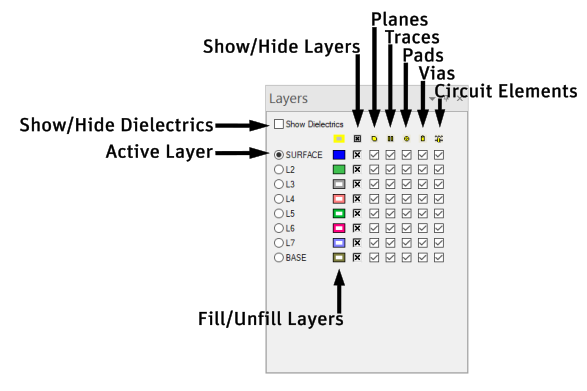
To select a layer, click the radio button next its name. When a layer is selected, its properties open and can be edited in the Properties workspace.
You can also use the up and down arrow keys to switch active layers. Doing so will override visibility settings so that only the selected layer is visible.
To fill or unfill a layer, click inside the layer's color box.
To show or hide a layer, use the Show/Hide check box.
To show or hide dielectric layers, use the Show Dielectrics check box.
To show or hide planes, traces, pads, or circuit elements on a particular layer, use the corresponding check boxes.
Right-click any layer to edit its properties.
Right-click any area other than a layer name to open a pop-up menu with the following options:
- Hide All Layers – makes all layers in the Modeling workspace invisible.
- Show All Layers – makes all layers in the Modeling workspace visible.
- Unfill All Layers – removes fill color from all layers in the Modeling workspace.
- Fill All Layers – fills the color of all layers in the Modeling workspace.