


You use this analysis to determine one of the following:
Voltage and current distribution in an electric circuit with piezoelectric devices.
Structural and electric field distributions in a circuit-fed piezoelectric device.
To do a coupled piezoelectric-circuit analysis, you need to use the piezoelectric circuit element (CIRCU94) with one of the following piezoelectric elements:
| PLANE13, KEYOPT(1) = 7, coupled-field quadrilateral solid |
| SOLID5, KEYOPT(1) = 0 or 3, coupled-field brick |
| SOLID98, KEYOPT(1) = 0 or 3, coupled-field tetrahedron |
| PLANE222, KEYOPT(1) = 1001, coupled-field 4-node quadrilateral |
| PLANE223, KEYOPT(1) = 1001, coupled-field 8-node quadrilateral |
| SOLID225, KEYOPT(1) = 1001, coupled-field 8-node brick |
| SOLID226, KEYOPT(1) = 1001, coupled-field 20-node brick |
| SOLID227, KEYOPT(1) = 1001, coupled-field 10-node tetrahedron |
You can connect electrical circuits directly to the 2D or 3D piezoelectric finite element models. Typical applications include circuit-fed piezoelectric sensors and actuators, active and passive piezoelectric dampers for vibration control, and crystal oscillator and filter circuits for communication systems.
You can use the CIRCU94 element to model the following components: resistor, inductor, capacitor, independent current source, and independent voltage source. KEYOPT(1) defines the component type as shown in Figure 5.2: CIRCU94 Components. Real constants specify values for resistance, inductance, and capacitance. For independent current and voltage sources, KEYOPT(2) specifies the type of excitation. You can specify constant load (transient) or constant amplitude load (harmonic), sinusoidal, pulse, exponential, or piecewise linear loads. Real constants specify the load functions. Besides the source loads, the only other "load" is a VOLT = 0 specification (D) at the ground nodes (other nodal loads are not recommended). For more information, see CIRCU94 in the Element Reference.
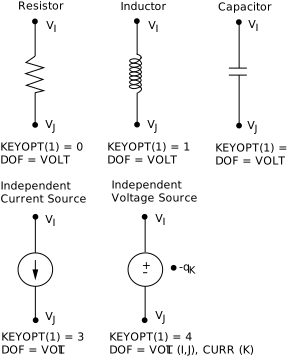
KEYOPT(1) = 0, 1, 2, and 3 define resistor, inductor, capacitor and current source components using two nodes I and J. To define a voltage source you need to specify a third, "passive," node (K) as shown for KEYOPT(1) = 4. The program uses this node internally and it does not need to be attached to the circuit or the piezoelectric finite element model. For all circuit components, positive current flows from node I to node J.
To be compatible CIRCU94 and the piezoelectric elements must all have a negative electric charge reaction solution. KEYOPT(6) sets the electric charge sign for CIRCU94. The following piezoelectric elements have a negative electric charge reaction solution:
| PLANE13, KEYOPT(1) = 7, coupled-field quadrilateral solid |
| SOLID5, KEYOPT(1) = 0 or 3, coupled-field brick |
| SOLID98, KEYOPT(1) = 0 or 3, coupled-field tetrahedron |
The following piezoelectric elements have a negative electric charge reaction solution when a piezoelectric matrix is defined (TB,PIEZ).
| PLANE222, KEYOPT(1) = 1001, coupled-field 4-node quadrilateral |
| PLANE223, KEYOPT(1) = 1001, coupled-field 8-node quadrilateral |
| SOLID225, KEYOPT(1) = 1001, coupled-field 8-node brick |
| SOLID226, KEYOPT(1) = 1001, coupled-field 20-node brick |
| SOLID227, KEYOPT(1) = 1001, coupled-field 10-node tetrahedron |
You can create a circuit by defining nodes, elements, element types, and real constants for each electric component. However, it is more convenient to create a circuit model interactively using the Circuit Builder. To build a circuit interactively, follow the procedure described in Using the Circuit Builder in the Low-Frequency Electromagnetic Analysis Guide. To access the piezoelectric circuit components, choose .
When building an electric circuit, you should avoid inconsistent configurations as illustrated in Avoiding Inconsistent Circuits in the Low-Frequency Electromagnetic Analysis Guide. Also, your model cannot intermix CIRCU94 elements with other circuit elements (CIRCU124 and CIRCU125). Their finite element formulations are not compatible (see Element Compatibility in the Low-Frequency Electromagnetic Analysis Guide).
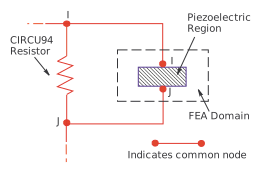
You can directly connect an electrical circuit to a piezoelectric finite element model through a set of common nodes (Figure 5.3: Electrical Circuit Connections) or by coupling separate nodes. The location of the circuit with respect to the distributed piezoelectric domain is arbitrary and does not affect the analysis results.
The piezoelectric-circuit analysis can be either full transient or harmonic. You follow standard procedures to define analysis options and to apply loads. Refer to Piezoelectric Analysis for recommendations and restrictions that apply to piezoelectric analysis. You can activate geometric nonlinearities to account for large deflections of the piezoelectric domain.
You apply loads to a circuit in any of the following ways:
CIRCU94 can work with both the AMPS and the CHRG label depending on the piezoelectric elements in the model. PLANE13, SOLID5, and SOLID98 use the AMPS label (F), even though the reaction solution is negative charge. PLANE222, PLANE223, SOLID225, SOLID226, SOLID227 use the CHRG label. If elements with AMPS and CHRG labels are both present in the model, the label is set to the last one defined. For example, if SOLID5 is defined and then SOLID226, the program switches to the CHRG label. No matter which label is used, the elements in the model are charge-based.
For the independent current and voltage source options, you use KEYOPT(2) to specify the type of excitation and the corresponding real constants to specify the load function. For transient analyses, you can also use real constants to set the initial current in inductors or the initial voltage in capacitors.
Table 5.1: Piezoelectric Circuit Element Output Data summarizes the output data for CIRCU94. For more information on nodal and element solutions, see Solution Output in the Element Reference.
Table 5.1: Piezoelectric Circuit Element Output Data
| Data Type | Solution Output |
|---|---|
| Primary Data |
|
| Derived Data (for each component) |
|
See Sample Piezoelectric-Circuit Analysis (Batch or Command Method) for an example problem.