
SIwave Workflow Wizard
After importing a project from the Welcome Screen, SIwave Workflow Wizard appears to walk you through the steps to be taken getting the project ready for simulation.
Alternately, access the wizard from the Quick Access Toolbar:
- Click the orange magic wand icon on the Quick Access Toolbar.

The SIwave Workflow Wizard opens.
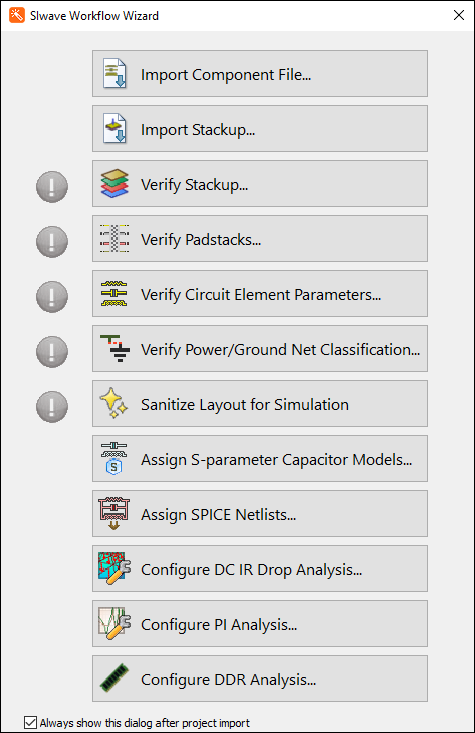
By default, the following actions are available from the wizard:
- Click buttons to go through steps, as appropriate.
Disabling the Workflow Wizard
If you no longer want the SIwave Workflow Wizard to display upon importing a project, deselect Always show this dialog after project import.
Customizing the Workflow Wizard
The visibility of some Workflow Wizard buttons can be customized by manually editing the file SIwave_workflow_config.xml.
This file is stored in the \config subfolder of your Ansys EM installation location.
The buttons you can edit are:
- Import Component File
- Import Stackup
- Assign S-Parameter Capacitor Models
- Assign SPICE Netlists
- Configure DC IR Drop Analysis
- Configure PI Analysis
The XML file lists these buttons, where 1 indicates that the corresponding button is visible and 0 indicates that the button is invisible.
For example, this is the default:
<?xml version="1.0" encoding="UTF-8"?>
<WorkflowWizard>
<ImportComponentFile>1</ImportComponentFile>
<ImportStackup>1</ImportStackup>
<AssignSparameterCapacitorModels>1</AssignSparameterCapacitorModels>
<AssignSPICENetlists>1</AssignSPICENetlists>
<ConfigureDCIRDropAnalysis>1</ConfigureDCIRDropAnalysis>
<ConfigurePIAnalysis>1</ConfigurePIAnalysis>
</WorkflowWizard>