
Attaching a SPICE RLC Model to a Component
To attach a SPICE netlist to a specific component in the layout:
- Select the specific part in the Modeling workspace.
- Click Tools > Attach
SPICE RLC Model to open the RLC SPICE Model
Setup window.
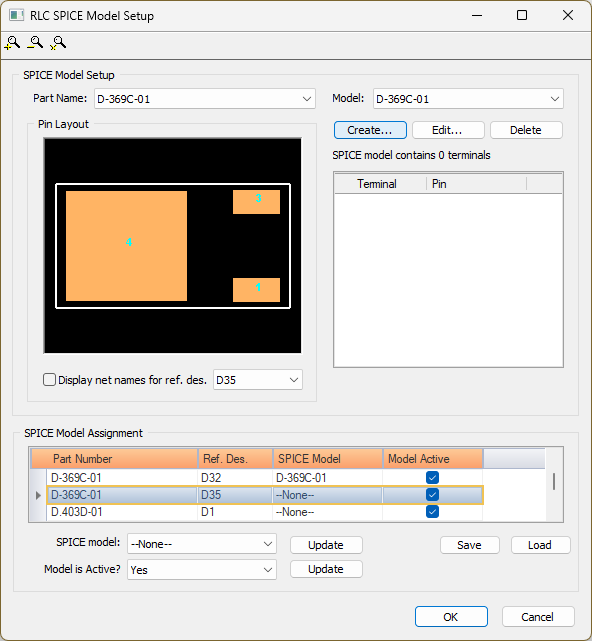
- Select a Part Name from the drop-down menu to automatically populate the Model name drop-down menu, terminal list, and Pin Layout.
- To see the net assignments for the component’s pins, check the Display net names for ref. des. box and use the drop-down menu to select a reference designator.
- To select the Model, do the following:
- Select a model from the drop-down menu,
or click Create to create a new one. The Create RLC SPICE Model window appears, showing
the same Model name as the Part Name.
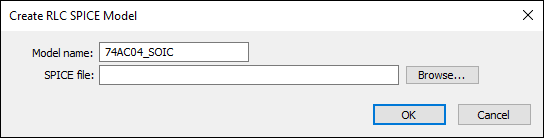
- Type the name and location of a SPICE netlist, or click Browse to open an explorer window. Then locate a file to attach to the selected part. The model name is set to the SPICE subcircuit name but can be edited, if appropriate.
- Select a model from the drop-down menu,
or click Create to create a new one. The Create RLC SPICE Model window appears, showing
the same Model name as the Part Name.
- Click OK to close the Create RLC SPICE Model window. The selected model populates the RLC SPICE Model Setup window and the terminals in the SPICE subcircuit are displayed.
- Map Terminals in the SPICE subcircuit
to corresponding Pins belonging to the part.
Note:
Mapping must be performed correctly, as simulation results depend on proper connections between part pins and the SPICE subcircuit terminals.
- From the SPICE Model Assignment table, do the following to assign a SPICE model:Note:
Select a row in the SPICE Model Assignment table to populate the Part Name and Model drop-down menus, Pin Layout area, and terminal list. If multiple rows are selected, or the sort order of the SPICE Model Assignment table is changed, the associated menus and areas will remain populated with the last selected row's relevant information.
- Select a Part Number and Reference Designator.
- Select the SPICE Model from the drop-down menu.
- Check the Model Active box to assign a model and want it to be active. If cleared, the model is assigned but is not active.
- To assign the same SPICE model and model active settings to multiple parts, do the following:
- Select a reference designator to assign the same SPICE model. Select multiple reference designators in the table by holding down Ctrl+Shift.
- Select the SPICE model from the drop-down menu.
- Click Update.
- To activate the model for all the selected parts, select Yes from the Model is Active? drop-down menu, and click Update.
- Click Save to open the Select Spice Model Assignment Output File Name window.
- Select an appropriate location to store the saved file, then enter a File name and select a file type from the Save as type list (e.g., *.smas (Spice Model Assignment File).
- Click Save.
- Click Load to open the Select Spice Model Assignment File to load window. Select a file, then click Open to load its values.
- Click OK to confirm the SPICE model assignments and close the RLC SPICE Model Setup window.
SIwave currently only supports netlists containing RLCK elements. No models can be created if any other type of SPICE element is detected in the netlist.
To indicate the connection of a SPICE model, a gray rectangle containing an X is displayed over the reference designator(s) in the Modeling workspace. Activate or deactivate the SPICE model by selecting the reference designator and changing an appropriate field in the Properties Workspace.