
Running the PI Advisor
The primary goal of the SIwave PI Advisor is to find a set of decoupling capacitor assignments that satisfy the impedance mask specified by users at minimum cost. With the PI Advisor, the user can impose various constraints on the optimization problem (e.g., the total number of capacitors, types of caps, and total dollar cost). Typical constraints imposed during simulation include capacitor price, total number of capacitors, appropriate network impedance, types of capacitors and capacitor placement. Constraints are incorporated into the overall cost function as a weighted penalty.
The PI Advisor performs an analysis on the design geometry along with any capacitors selected for optimization, producing several solutions or schemes, each of which seeks to optimize the trade-off between capacitor cost and design performance. Solutions are listed by quality, price, the total number of capacitors, and the number of different types of capacitors used to achieve the designated impedance profile. The PI Advisor is also able to compute and display the loop inductance associated with the mounting locations of each of the capacitors selected for optimization.
With the PI Advisor, users can perform two sets of analysis. A simple lumped analysis functions as a pre-layout simulation, providing users with a quick calculation for determining capacitor values and placement within user-defined regions. Based on the user-defined impedance mask, the analysis determines the lumped circuit equivalent of all the capacitors on a board or package and can be used to develop the best candidate capacitors for a design. The analysis automatically determines the best type and number of capacitors given a frequency-dependent impedance mask. The built-in capacitor library browser provides an intuitive interface for selecting and analyzing various capacitors in the vendor-provided library. All capacitor models have been provided by the manufacturer and are represented as touchstone models.
The most accurate simulation involves the presence of a printed circuit board or package, and utilizes accurate frequency dependent capacitor models (i.e., the touchstone models) in a post-layout simulation. The impact of the capacitor’s physical location and mounting technique are captured by the full-wave SIwave extraction engine. Multiple bill of materials ( i.e., BOM) schemes are available and can be applied to a final PCB or package design. PI Advisor can perform loop inductance analyses and plot 3-D bar graphs representing loop inductance values per each capacitor in a user-defined region, giving an immediate, intuitive understanding of each capacitor’s effectiveness.
A new AnsPlot plotting tool is running in PI Advisor-related graphs, as well as in the Capacitor/Inductor Library Browser. The previous plotting tool (i.e., pre-2024 R2) ensured only specific curves could trigger a visual indication of a violation. The new tool does not allow individual curves to be excluded from indicating violations. However, selecting a curve on the legend or in the graph now provides a visual representation of any violations the curve is responsible for. To use the previous plotting tool, create a USE_ANSPLOT_FOR_PI_ADVISOR environment variable set to 0 and restart SIwave.
Complete these steps to run the PI Advisor wizard.
- Navigate to the Simulation tab and click PI Advisor to open the PI Advisor Wizard Step 1 window.
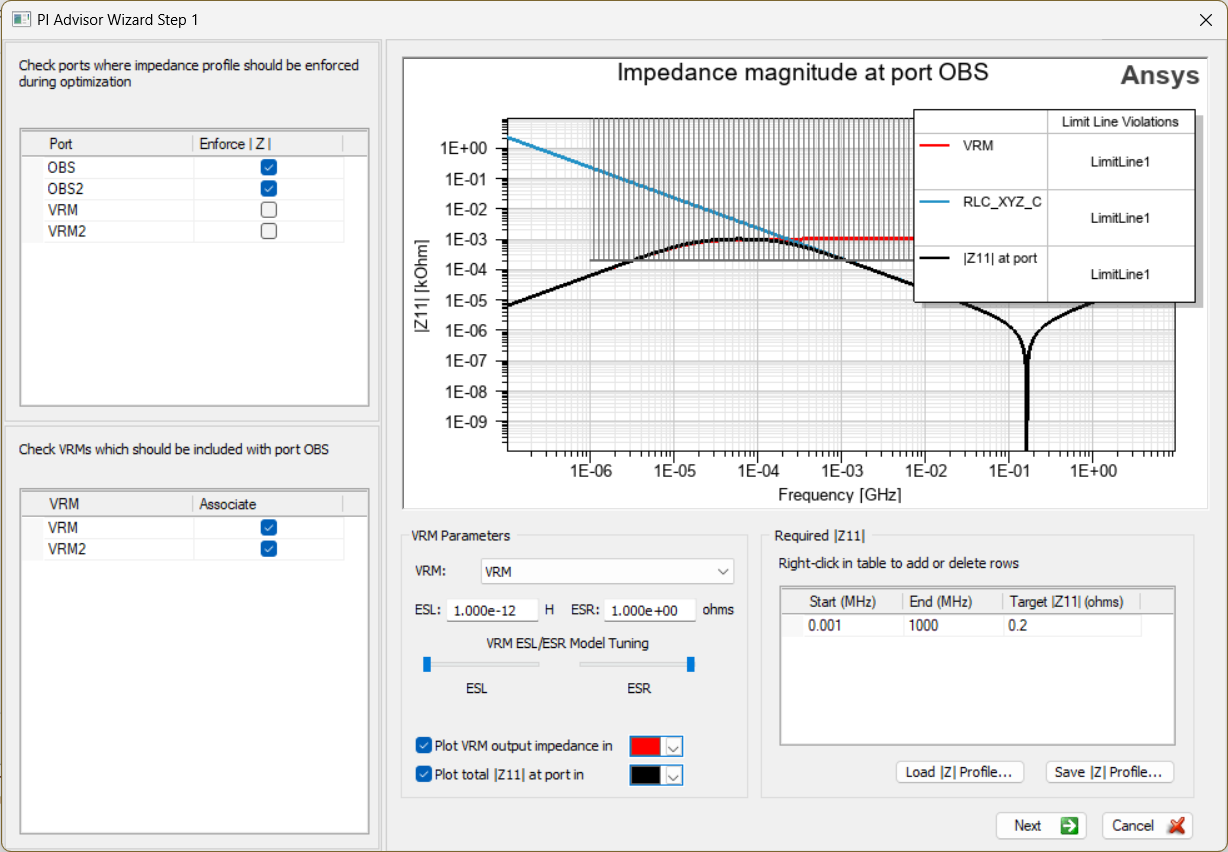
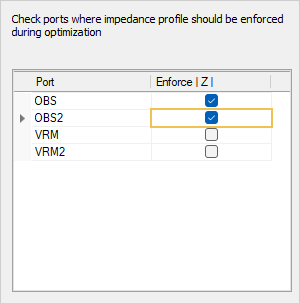
- From the top-left table, check the boxes adjacent to any/all Ports to Enforce an impedance profile. The impedance curves and mask present in the impedance magnitude graph will change accordingly.
- After selecting one or more ports (e.g., OBS and OBS2), use the bottom-left table to check any VRM box(es) that should be included with the port(s) (e.g., VRM and VRM2).
- From the VRM Parameters area, select a port from the drop-down menu (e.g., VRM) and define its ESL/ESR parameters by either entering values or moving the sliders.
- Hide/show the curves shown in the graph or change their color by checking Plot VRM output impedance in and/or Plot total |Z11| at port in and selecting new colors from the drop-down menus.
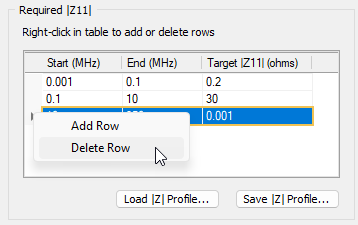
From the Required |Z11| area, complete these steps to create an impedance profile and change the impedance mask:
Load or Save a |Z| profile.
Right-click within the table, then click Add Row.
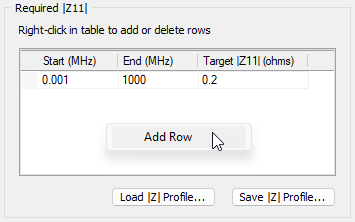
Enter new values in the Start, End, and Target fields.
Repeat steps b-c, as necessary. The impedance magnitude graph updates each time a field is modified.
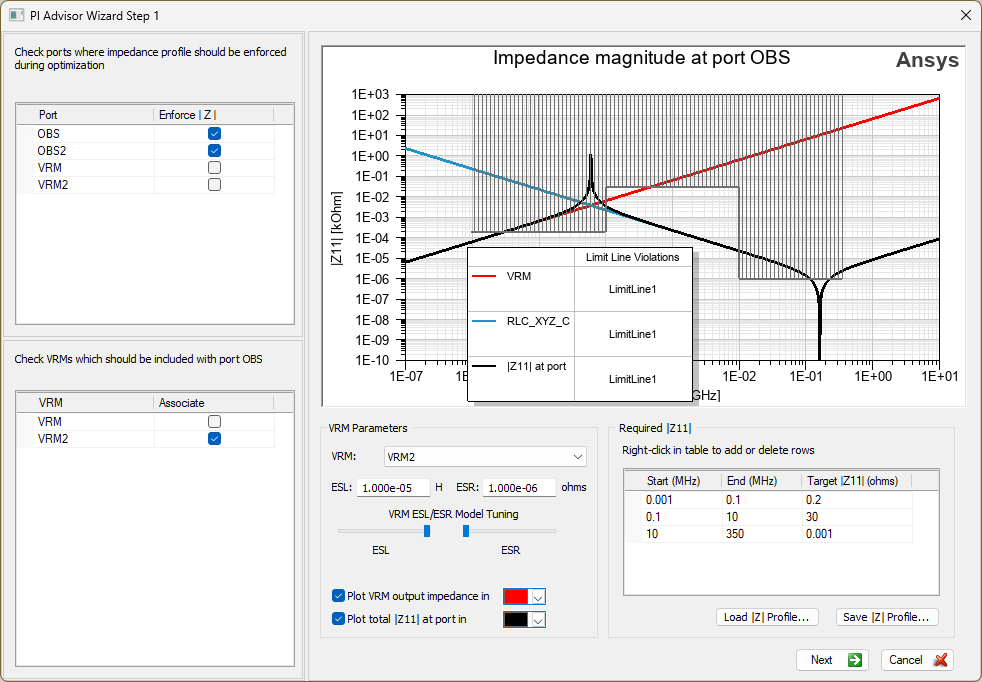 Note:
Note:Click+drag the legend within the impedance magnitude table to move it to a more convenient location.
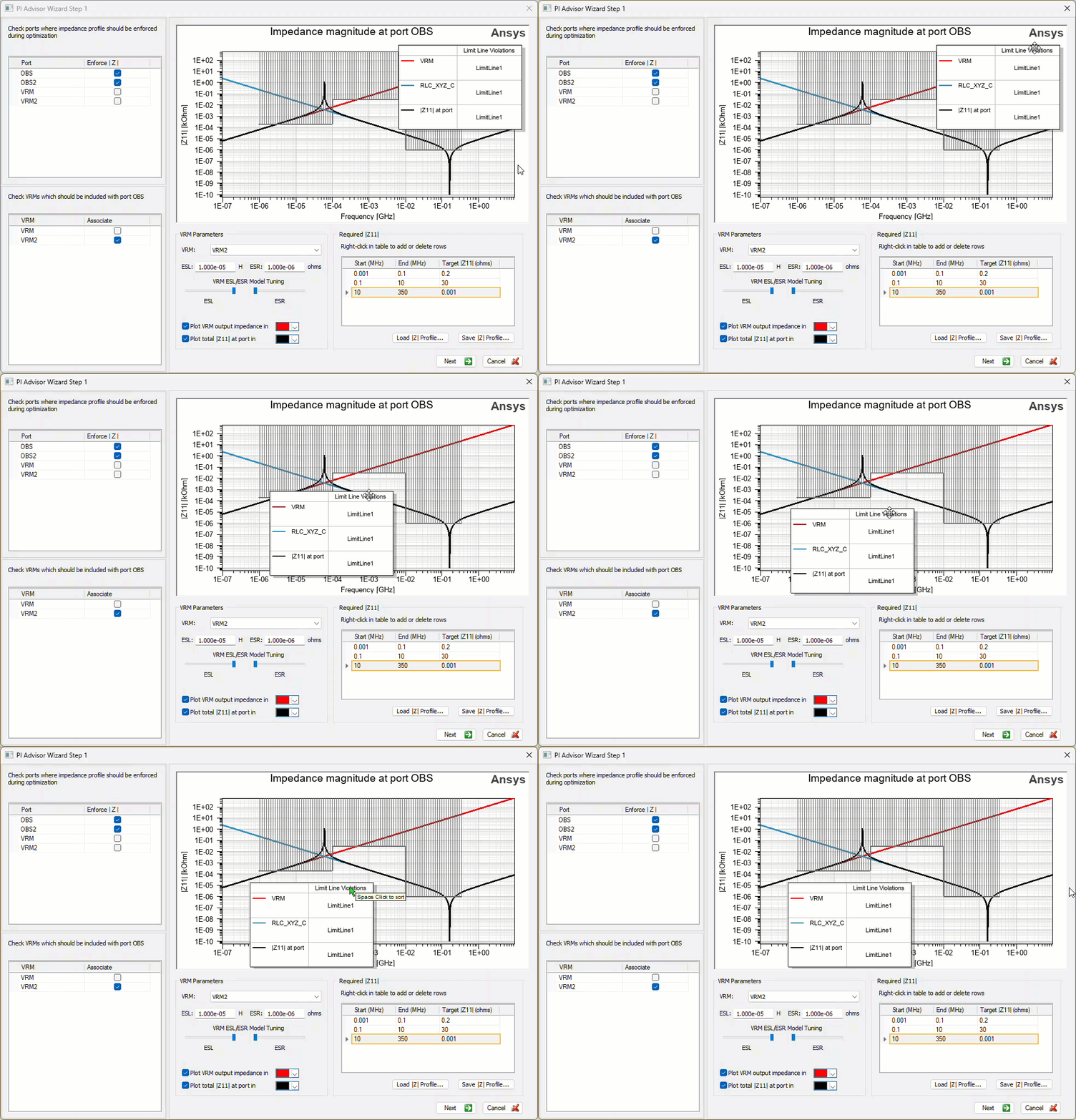
To delete a row, right-click in the blank cell left of the row and select Delete Row.
- Click Next to open the PI Advisor Wizard Step 2 window.
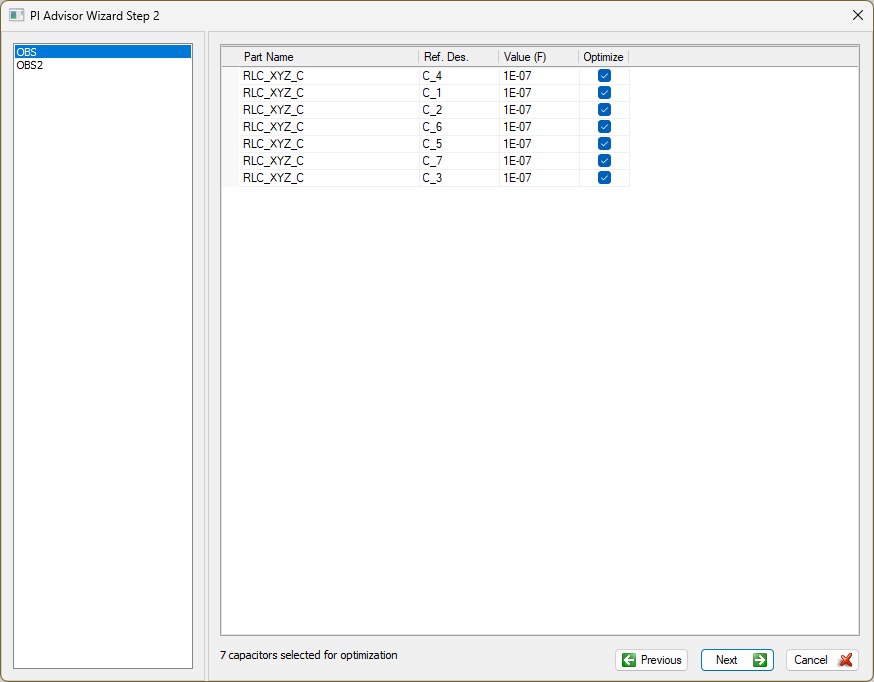
- Check the boxes adjacent to one or more capacitors to select them for optimization.
- Click Next
to open the PI Advisor Wizard Step 3 window.
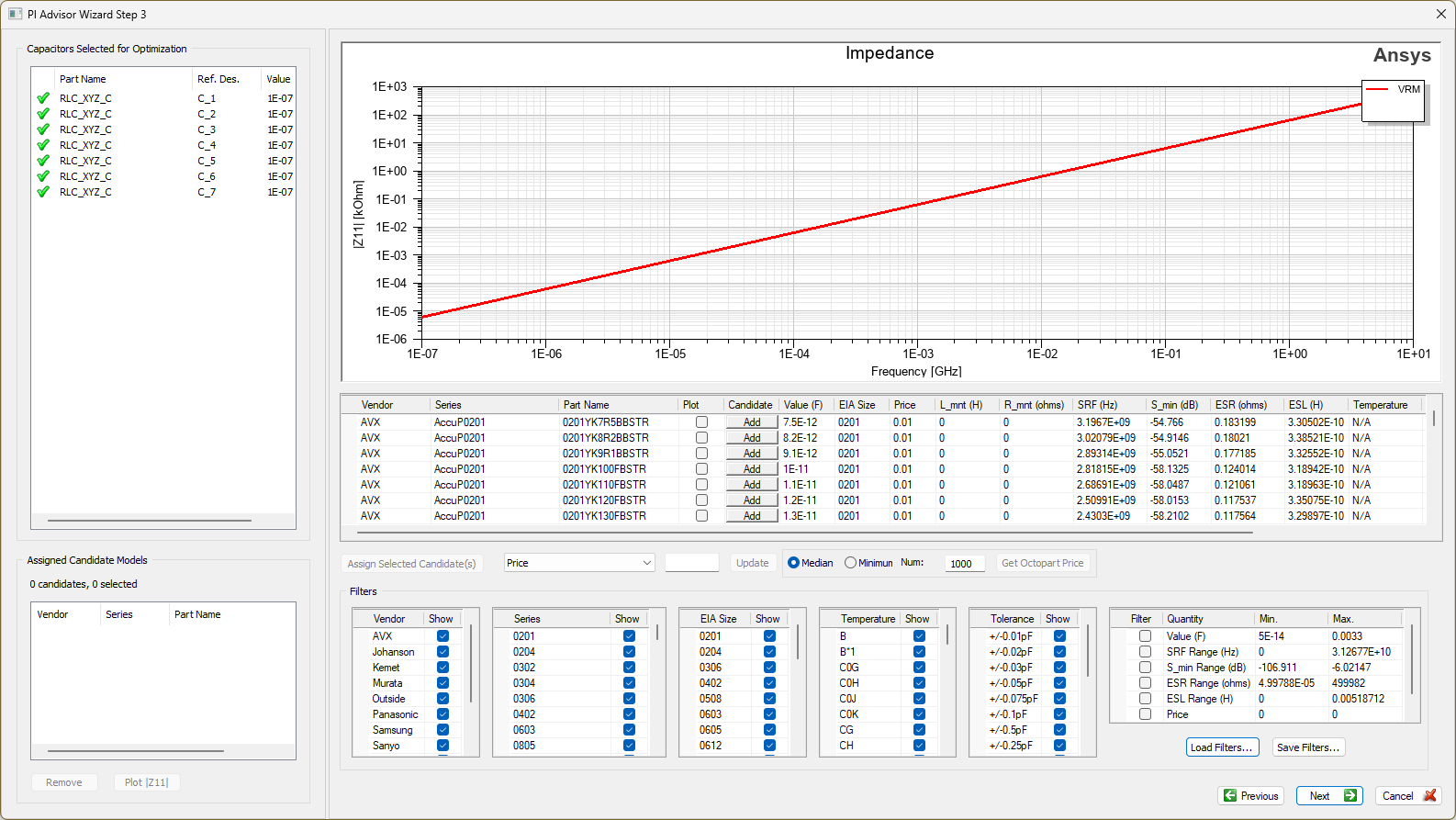
- From the Capacitors Selected for Optimization area, select from among the capacitors chosen in step 8.
- Plot and Add candidate capacitor models for each capacitor selected from the Capacitors Selected for Optimization area, based on value (e.g., capacitance, self resonant frequency, ESL and/or ESR) and price. Filter the lists, as necessary. Refer to Using the Capacitor Library Browser for similar usage instructions.
- Click Next
to open the PI Advisor Wizard Step 4 window.
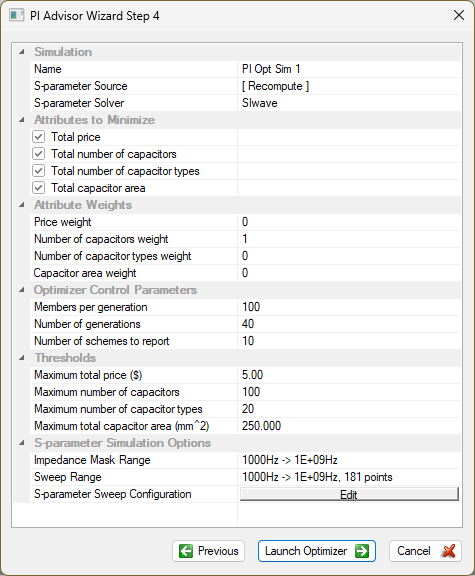
- From the Simulation area, select either PSI or SIwave from the S-parameter Solver drop-down menu.Note:
The PSI solver is a more accurate solver, but the simulation is slower, while the SIwave solver is faster. Refer to Running Simulations for more information.
- From the Attributes to Mininimize area, check Total price, Total number of capacitors, Total number of capacitor types, and/or Total capacitor area.
- From the Optimizer Control Parameters area, update the associated values, as appropriate. The PI Advisor optimizer generates a population of trial designs with the given number of members. Initially, only 1 decoupling capacitor is assigned, but through a series of generations (i.e., schemes), more capacitors are added. The optimizer tracks the quality of the members based on the optimization goals and impedance targets. When all generations are completed, the optimizer returns the best member designs.
- From the Thresholds area, update the values in the Maximum total price, Maximum number of capacitors, Maximum number of capacitor types, and/or Maximum total capacitor area fields.
- Click Launch Optimizer and wait for optimization to complete.
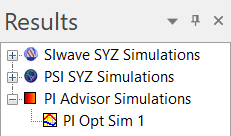
- From the Results window, expand PI Advisor Simulations and double-click the new simulation results (e.g., PI Opt Sim 1) to open the Optimization Results window.
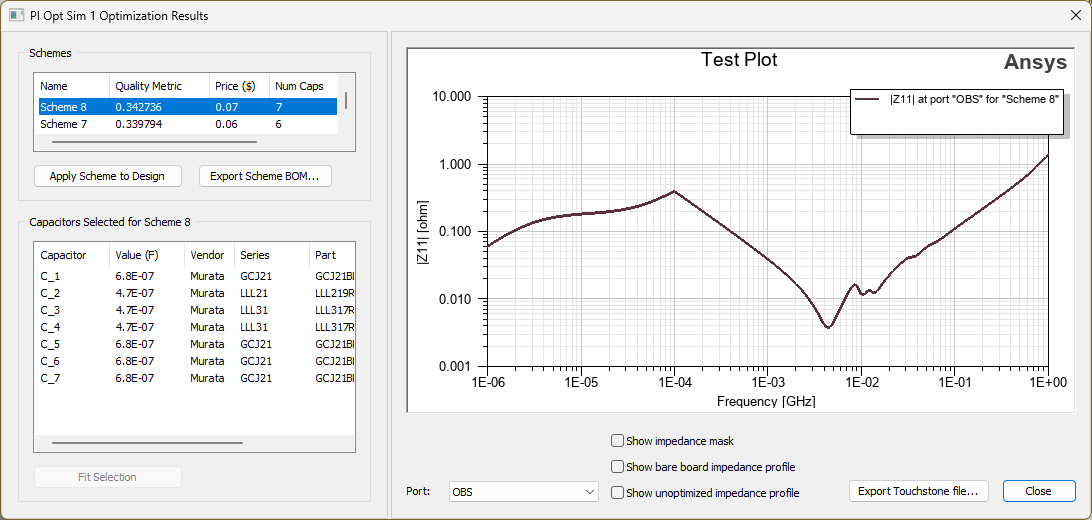
- From the Optimization Results window, make a selection from the Scheme area, then click Apply Scheme to Design. Each scheme contains information
about the Capacitors Selected for Scheme, such as the number of capacitor types
used and the total cost. An impedance plot will appear for
each port based on the capacitors used.
- If necessary, check any/all of the following boxes:
Variables changed in steps 3-7 will affect the currently selected port (i.e., the port with a yellow square wrapping the checkbox field). Different selections may be made for different ports
Members per generation — the number of different designs (i.e., members) the optimizer simultaneously generates, from one scheme to the next. Increasing this number may improve the quality of the final result at the expense of computation time, since there will be a larger population of designs to choose from.
Number of generations — how many schemes are run. The optimized designs will contain a maximum number of capacitors equal to this set value. Optimized designs may have fewer capacitors, if the optimizer concludes additional capacitors will not help meet goals.
Number of schemes to report — how many schemes are finally returned.
A quality metric of 1 is the ideal final outcome. 1 indicates all goals are met. An integer less than 1 indicates some violations of the impedance goals remain. Having more members and schemes helps explore a larger potential design space, usually leading to a better final result, but at the expense of longer run time.
- Show impedance mask — displays an impedance mask overlaying the plot
- Show bare board impedance profile — displays the bare board (i.e., all capacitors removed) impedance profile
- Show unoptimized impedance profile — displays an unoptimized (i.e., the board with the default capacitor assignment) impedance profile
Select another Port from the drop-down menu to view to view its associated plot.
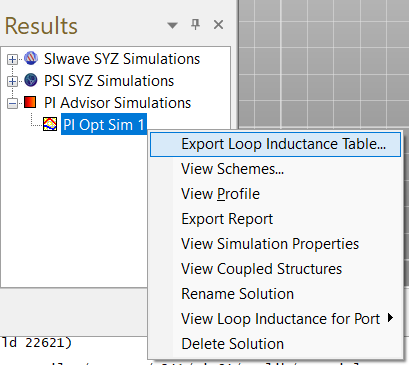
- To view the loop inductance between each port/capacitor, from the Results window, right-click PI Opt Sim 1 and select Export Loop Inductance Table.
Exporting a PI Advisor Simulation Report
Users can export an HTML report containing the simulation results, including schemes, impedance plots, and loop inductance. Complete these steps to view a PI Advisor Simulation Report.
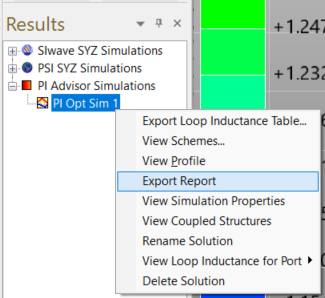
- From the Results window, right-click the simulation results and select Export Report to open an explorer window.
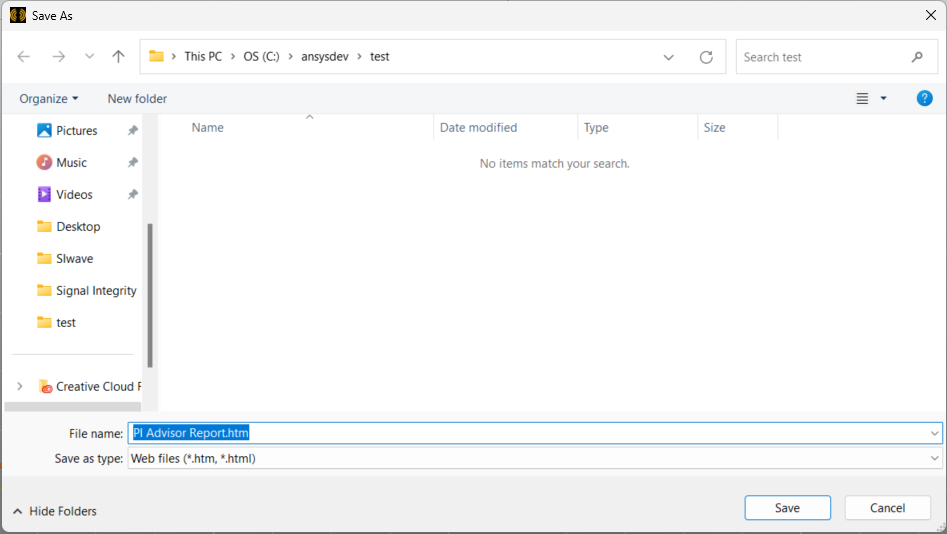
- From the explorer window, navigate to an appropriate directory to save the report *.htm file. Then give the report a File name and click Save.
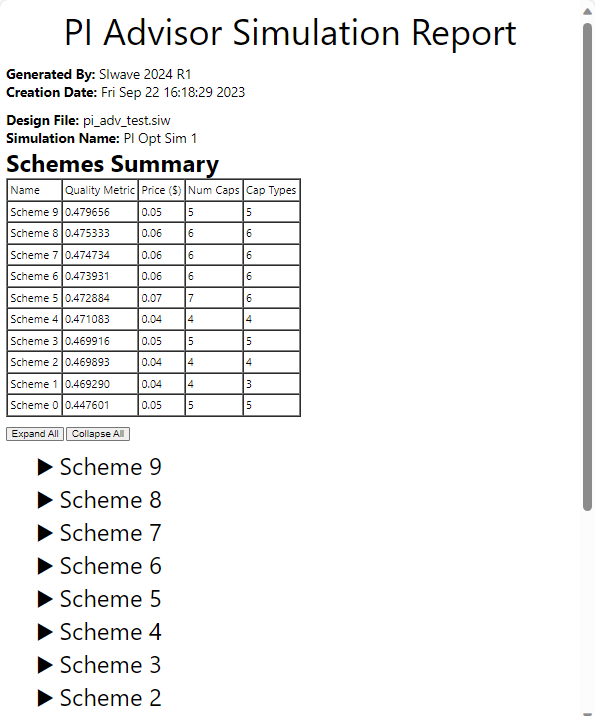
The report opens in the system's default browser. The report contains the software version, date of its creation, file and simulation names, and a summary of schemes, which contains names, quality metrics, prices, the number of capacitors, and capacitor types.
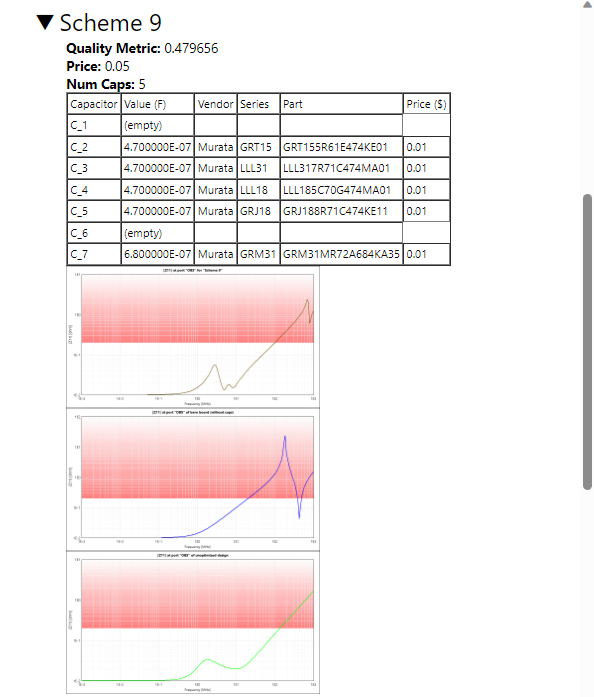
- Expand each scheme to view its precise tabulated breakdown table, including specific vendor and part information, and the plotted results.
Changing Port Properties
Complete these steps to estimate |Z11| at a port and view impedance curves and masks directly from the Modeling Workspace.
- From the Modeling Workspace, click in the center of a port to populate the Properties Workspace.
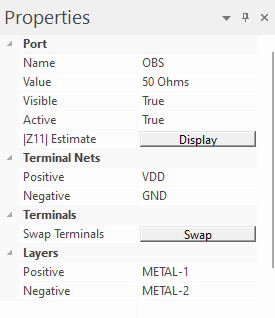
- Next to |Z11| Estimate, click Display to open the Estimated |Z11| at port window.
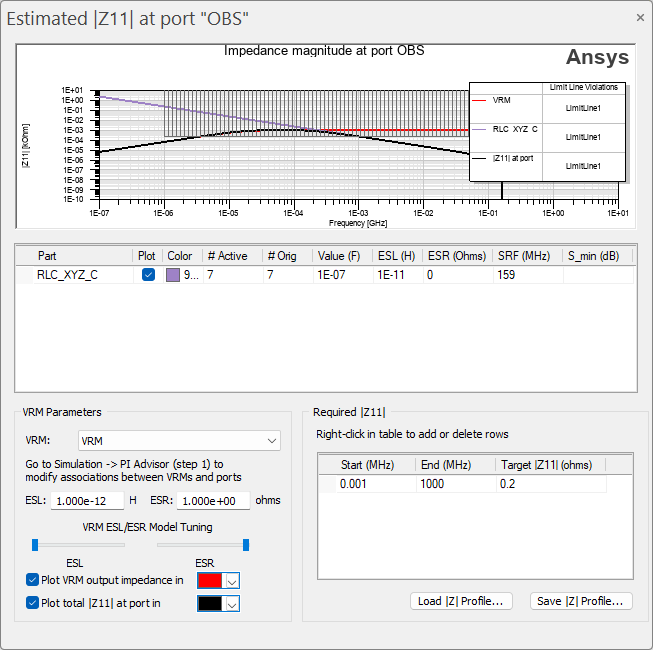
- The Estimated |Z11| at port window is functionally similar to options available at the PI Advisor Wizard - Step 1 window. Refer to steps 3-7.