
Applying Via Integrity Rules
To change EMI Scanner Via Integrity rules:
- Launch EMI Scanner.
The EMI Scanner window appears, on the Rules tab.
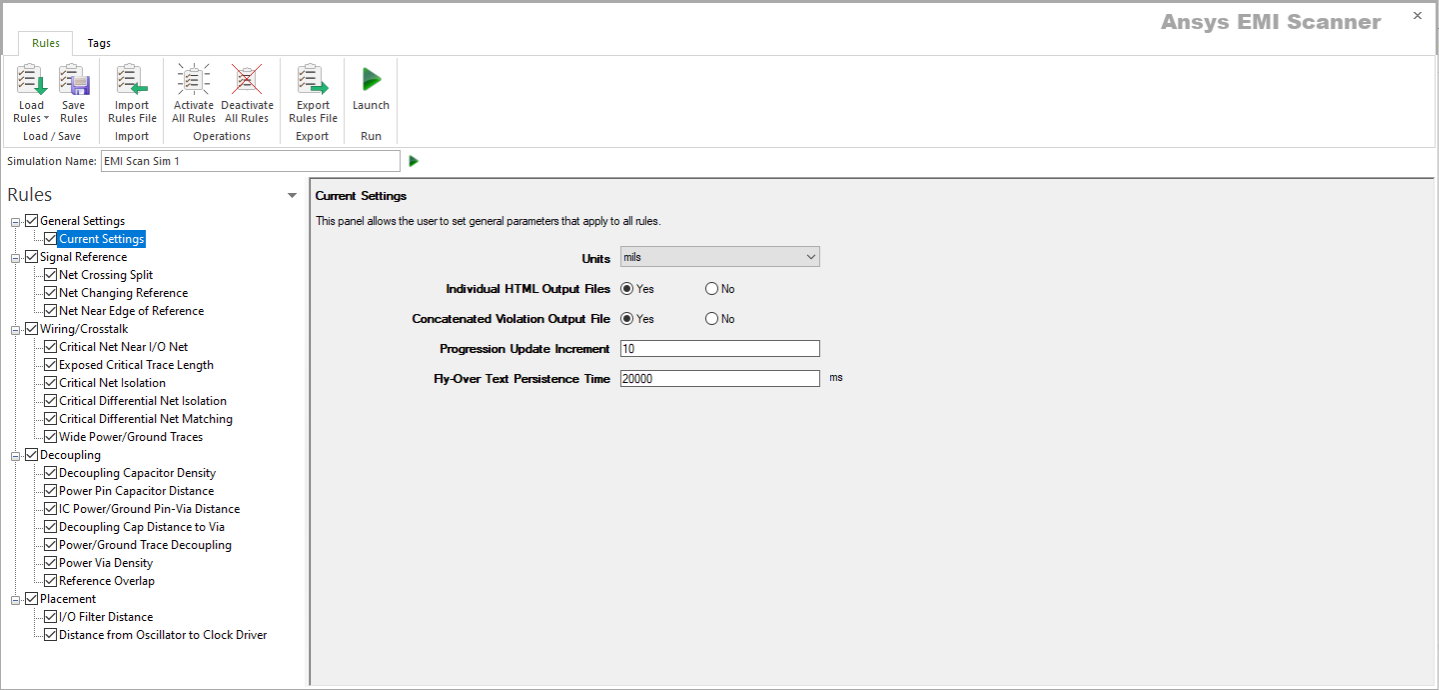
- Click Load Rules and select a profile containing Signal Integrity rules (e.g., Default SI Rules Profile).
- From the Rules pane, select one of the four subcategories under Via Integrity:
- Unconnected Via Pads – displays the Unconnected Via Pads rule configuration.
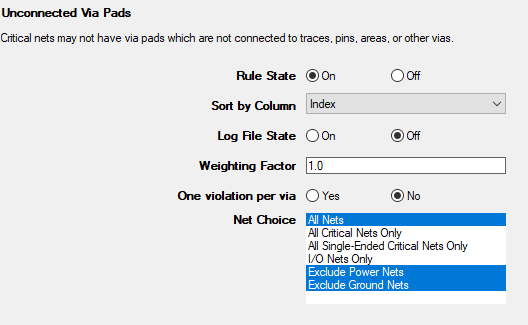
This rule states that critical nets may not have via pads that are not connected to traces, pins, areas, or other vias.
From here, you can set the following:
- Rule State – toggles Unconnected Via Pads rules on or off.
- Sort by Column – specifies the column by which results are sorted.
- Log File State – determines whether EMI Scanner creates a log file with additional details (intended for use in debugging).
- Weighting Factor – specifies the weighting factor (0<factor<=1) that is applied to violations of this rule when assigning a rank. A violation's rank is its own "degree of badness" multiplied by the weighting factor. See Exporting EMI Scanner Results and Analyzing EMI Scanner Results Using iQ-Harmony.
- One Violation Per Via – when selected, multiple violations on a via will be counted as one violation.
- Net Choice – specifies the nets to include in this rule analysis. Select one, or Ctrl+click to select multiple nets.
- Via Clearance Overlap – displays the Via Clearance Overlap rule configuration.
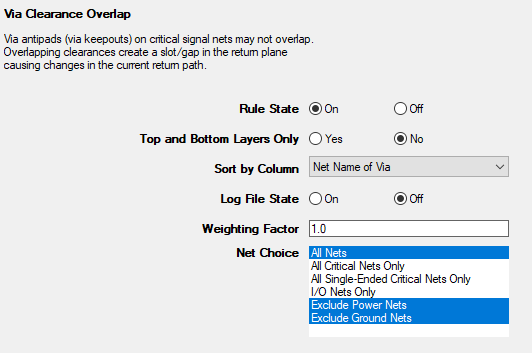
This rule states that via antipads on critical signal nets may not overlap.
From here, you can set the following:
- Rule State – toggles Via Clearance Overlap rules on or off.
- Top and Bottom Layers Only – limits analysis to the top and bottom layers only.
- Sort by Column – specifies the column by which results are sorted.
- Log File State – determines whether EMI Scanner creates a log file with additional details (intended for use in debugging).
- Weighting Factor – specifies the weighting factor (0<factor<=1) that is applied to violations of this rule when assigning a rank. A violation's rank is its own "degree of badness" multiplied by the weighting factor. See Exporting EMI Scanner Results and Analyzing EMI Scanner Results Using iQ-Harmony.
- Net Choice – specifies the nets to include in this rule analysis. Select one, or Ctrl+click to select multiple nets.
- Via to Net Coupling – displays the Via to Net Coupling rule configuration.
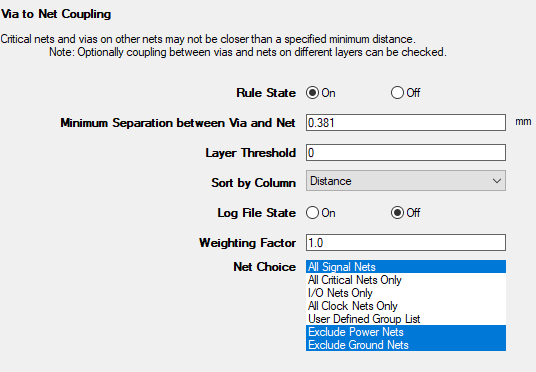
This rule states that critical nets and vias on other nets may not be closer than a specified minimum distance.
From here, you can set the following:
- Rule State – toggles Via to Net Coupling rules on or off.
- Minimum Separation Between Via and Net – controls how close the net and the via can be before they are considered coupled.
- Layer Threshold – sets the number of layers above and below to check for coupling (e.g., 0 = only the selected layer, 1 = the selected layer plus one layer above and one layer below).
- Sort by Column – specifies the column by which results are sorted.
- Log File State – determines whether EMI Scanner creates a log file with additional details (intended for use in debugging).
- Weighting Factor – specifies the weighting factor (0<factor<=1) that is applied to violations of this rule when assigning a rank. A violation's rank is its own "degree of badness" multiplied by the weighting factor. See Exporting EMI Scanner Results and Analyzing EMI Scanner Results Using iQ-Harmony.
- Net Choice – specifies the nets to include in this rule analysis. Select one, or Ctrl+click to select multiple nets.
- Via Stub – displays the Via Stub Check rule configuration.
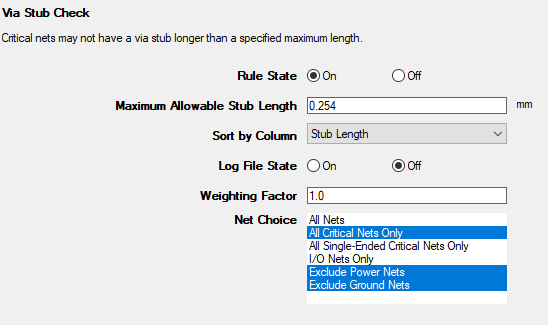
This rule states that critical nets may not have a via stub longer than a specified maximum length.
From here, you can set the following:
- Rule State – toggles Via Stub rules on or off.
- Maximum Allowable Stub Length – specifies the maximum stub length. Any stub longer than this setting is a violation.
- Sort by Column – specifies the column by which results are sorted.
- Log File State – determines whether EMI Scanner creates a log file with additional details (intended for use in debugging).
- Weighting Factor – specifies the weighting factor (0<factor<=1) that is applied to violations of this rule when assigning a rank. A violation's rank is its own "degree of badness" multiplied by the weighting factor. See Exporting EMI Scanner Results and Analyzing EMI Scanner Results Using iQ-Harmony.
- Net Choice – specifies the nets to include in this rule analysis. Select one, or Ctrl+click to select multiple nets.
- Unconnected Via Pads – displays the Unconnected Via Pads rule configuration.
- Rules are automatically saved for the current EMI scan. To save them for a future scan, click Save Rules.
Note:
- You can display a description of a rule parameter at any time by hovering the cursor over it.
- Units of measure are set in General Settings.