
Analyzing EMI Scanner Results Using EMI Xplorer
EMI Xplorer receives violations from the EMI Scanner and, based on signal characteristics, makes predictions on the seriousness of the violations. This offers meaningful comparison between rule limits and violations, and allows you to make "what if" comparisons and determine impacts.
To analyze EMI Scanner results:
- Run an EMI scan.
- Click Results > View Violations.
- Select a violation and click the EMI Xplorer icon.
The EMI Xplorer appears.
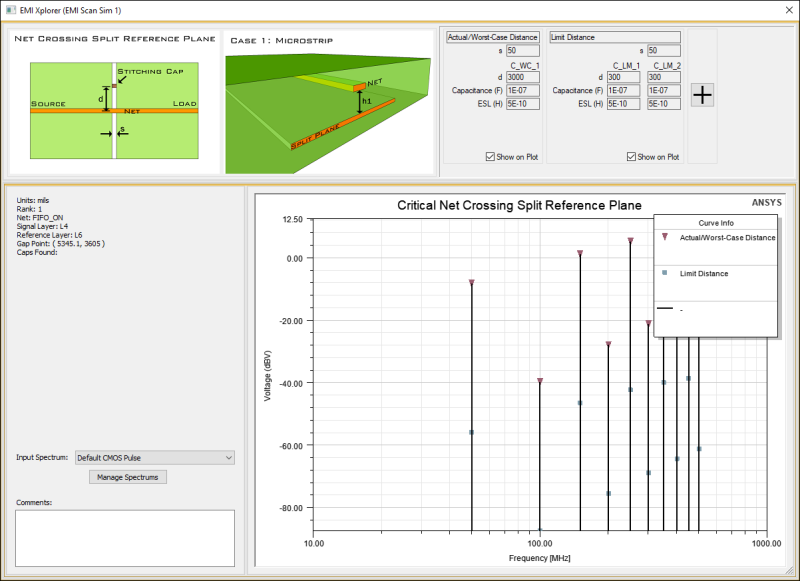
The window contains four panes:
- Top-Left Pane – illustrates the violation type.
- Top-Right Pane – contains the comparison cases (e.g., worst case) that are displayed on the plot. Comparison cases allow you to see how changes in signal characteristics would affect the violations. Use the Show on Plot check boxes to determine which cases are displayed. You can add a case by clicking the plus sign (+) and entering the information for the case.
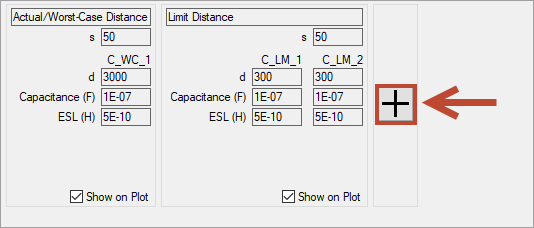
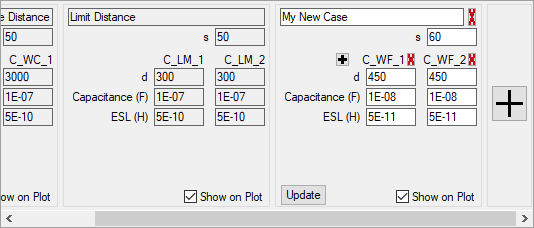
Some notes about comparison cases:
- Actual Distance – displays the results calculated for the design tested.
- Limit Distance – displays what the values would be if the distance were set to the threshold value configured for the rule.
- Worst-Case Distance – displays what the results would be for a distance that is ten times the limit distance. This is an arbitrarily large number.
Each case contains one or more columns for individual capacitors.
To delete a comparison case, click the red X adjacent to the case name.
To add or remove a capacitor, click the plus sign (+) or red X next to the capacitor.
- Bottom-Left Pane – lists information about the violation's location, and allows you to add comments or configure spectra. You can select any existing Input Spectrum, or add a new spectrum by clicking Manage Spectrums.
- Bottom-Right Pane – displays a plot of the cases. You can change how the plot displays and perform additional plotting actions.
- Analyze the data as appropriate, then close EMI Xplorer.
You are returned to the violations viewer, and can select a new violation for analysis.