
Performing a Validation Check
Before running an analysis on a model, it is important to first perform a validation check on the project. During this process, SIwave runs a check on all the setup details of the project to verify that all appropriate steps have been completed and that their parameters are reasonable.
To improve response time when SIwave is run over a remote desktop:
- Informational tool tips do not appear.
- Dynamic zoom is deactivated.
- Faster transformation is activated.
To perform a validation check on the active project:
- Click Tools.
- From the Inspection Tools area, click Validation Check.
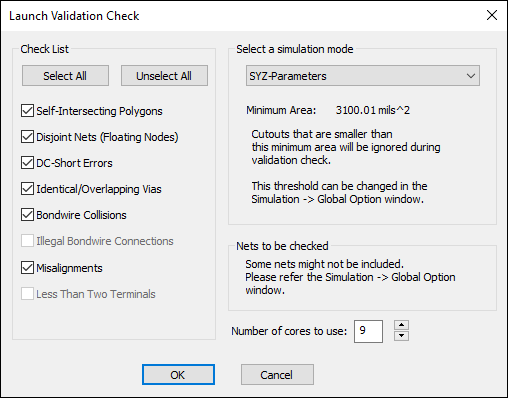
- Select the type of simulation you are preparing to perform from the Select a simulation mode drop-down menu.
- The Select a simulation mode and Nets to be checked areas give further information about the simulation.
- Use the Check List to select errors to check.
- Self-Intersecting Polygons – checks for duplicating planes and intersecting edges, and whether voids intersect plane boundaries.
- Disjoint Nets (Floating Nodes) – checks for any nets that are not completely connected.
- DC-Short Errors – checks for overlapping nets.
- Identical/Overlapping Vias – checks for identical vias, or vias that overlap on the same nets.
- Bondwire Collisions – checks for duplicate or overlapping bondwires.
- Illegal Bondwire Connections – checks for vias with a greater inner radius than that of the bondwire, and for bondwires that extend through their pad.
- Misalignments – checks for trace intersect issues (with planes and traces), and pad/via intersect issues (with planes and traces).
- Less Than Two Terminals – flags traces with fewer than two terminals. This field is only active for the legacy TPA solution simulation mode (can be enabled through environment variable).
In addition to the previous checks mentioned, two checks are always performed, regardless of the simulation mode selected:
- Traces-Inside-Traces – flags and automatically corrects traces completely contained within another trace.
- Floating Planes – provides the locations of floating planes or vias. If there are any floating planes, there are disjoint nets.
- Select the Number of cores to use. This number should be the same as that on the Multiprocessing tab of SIwave Options.
- Click OK.
The Launch Validation Check window appears.
The Validation Check Results window appears, listing errors and warnings.
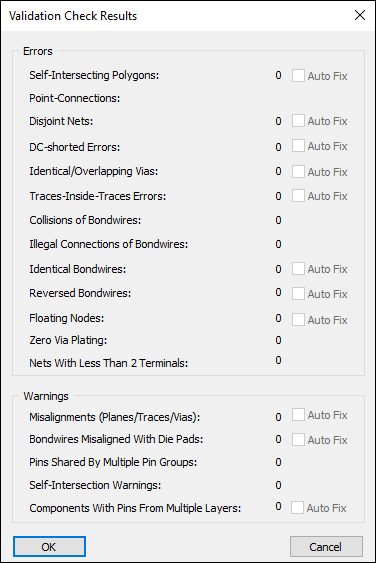
Items that SIwave can fix automatically have Auto Fix check boxes. To allow SIwave to fix these, select the Auto Fix check box and click OK.