
SIwave Simulation Options
SIwave options can be set globally for all SIwave simulation types. These global parameters include geometry options, solver settings, and mesh refinement settings. A few options are specific to one or more simulation types.
To define SIwave simulation options:
- Click Simulation.
- From the SIwave area, click Options to open the SIwave Options window.
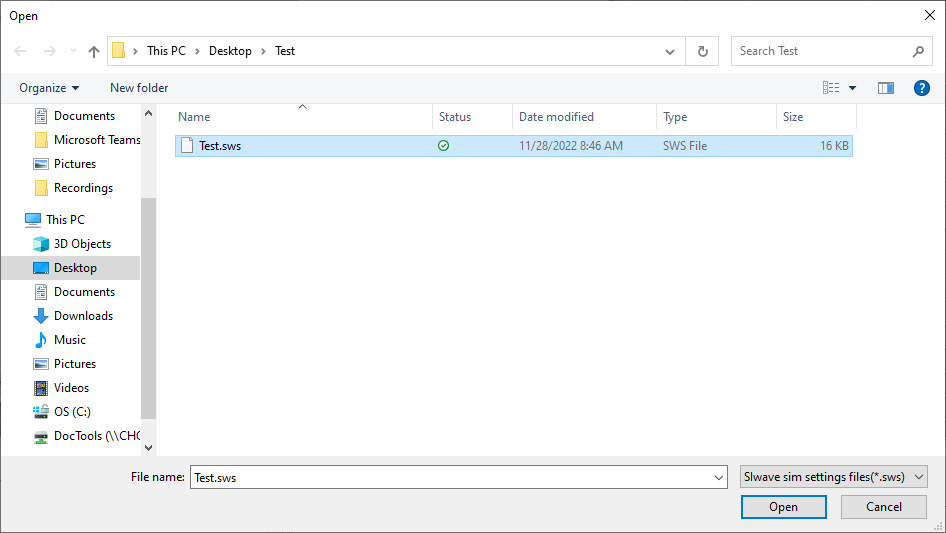
To import a configuration file, click Import Settings at the bottom-left side of the window, which opens an explorer window. Then use the explorer window to navigate to an appropriate directory and select the SIwave sim settings file (e.g., Test.sws). Finally, click Open to close the explorer window and apply the saved settings to the current simulation.
- The SIwave Options window opens at the SI/PI tab . Use the radio buttons to select either SI simulation or
PI simulation, and move the corresponding slider if you want
to increase speed or accuracy.
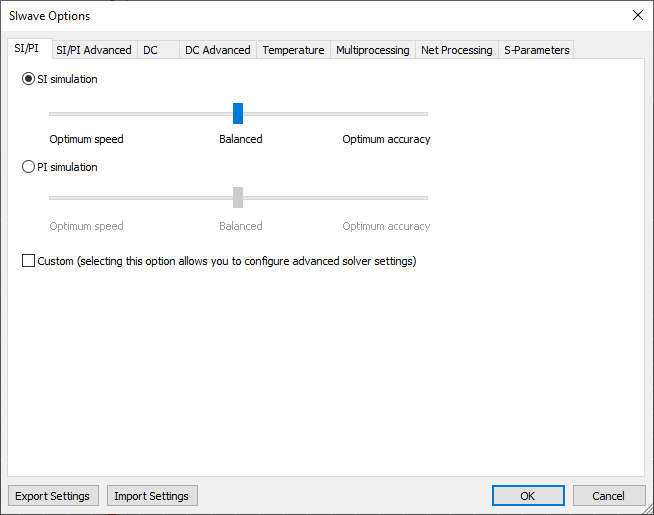
For SI simulations:
- Optimum speed means only trace coupling will be selected.
- Balanced means trace, coplane, split-plane and Cavity field coupling will also be selected.
- Optimum accuracy means trace return current distribution will also be selected.
For PI simulations:
- Optimum speed means no coupling options will be selected.
- Balanced means Cavity field coupling will be selected.
- Optimum accuracy means trace, coplane, and split-plane coupling will also be selected.
- If appropriate, check the Custom check box to configure the advanced solver settings in the SI/PI Advanced tab. Some options are always available, while others can be selected only if Custom has been selected.
- Specify the SI/PI advanced options in the SI/PI Advanced tab.
- Select the DC tab.
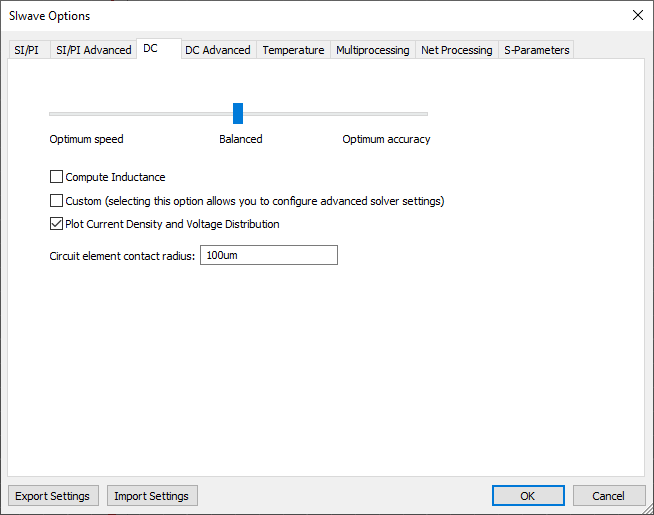
- On the DC tab:
- Move the slider to increase either speed or accuracy.
- Optimum speed – all options in the DC Advanced tab are turned off.
- Balanced – the Mesh Bondwires and Mesh Vias options are selected, along with adaptive Mesh Refinement.
- Optimum accuracy – the mesh will be refined on bondwire and vias, and more aggressive refinement parameters will be specified.
- Optionally, check Compute Inductance to compute the DC inductance. The inductance is computed by integrating the vector potential at DC using an efficient, multi-level fast multipole method with two-level parallelization. In some cases, this may require significant computational time and memory.
- Optionally, check Custom to configure the advanced solver settings.
- Check Plot Current Density and Voltage Distribution to display the current density and voltage distribution plots after running the solution. Clear this check box to save disk space if you don't need to post-process voltage and current plots (e.g., if you only want to export a SPICE netlist after a DC simulation, it might not be helpful to save any field data to disk).
- Enter a value in the Circuit element contact radius box. Equal potential is enforced within the contact radius, and no mesh refinement is done inside the contact region.
- Move the slider to increase either speed or accuracy.
- Specify the DC advanced options in the DC Advanced tab. All options are available only if you have selected the Custom check box in the DC tab.
- Select the Temperature tab.
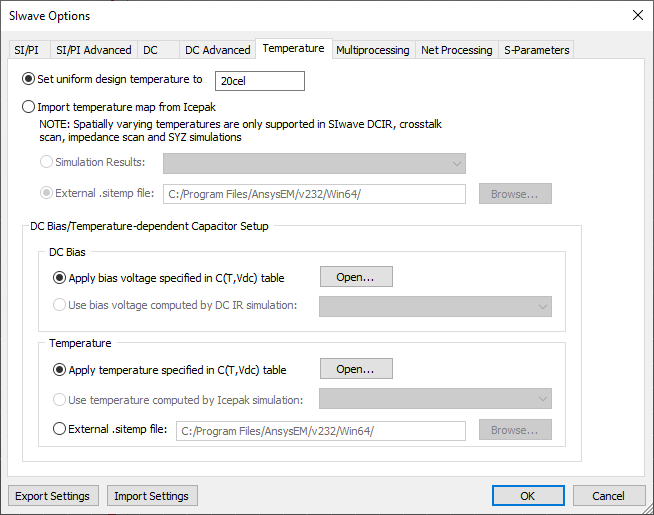
From the DC Bias/Temperature-dependent Capacitor Setup area, you can apply bias voltage and temperature by selecting either a derating table (in *.csv format) or a previously run simulation.
These DC voltage bias and temperature values will only impact simulation results if Murata SPICE (dynamic capacitor models) have been mapped to capacitors in the design that are connected to nets included in the simulation. This mapping can be verified by clicking Open... to view the table and ensuring that at least one capacitor part has a checkmark.
If appropriate, specify the Uniform Design Temperature, in cels. The temperature specified here is used to bias any dynamic capacitor models and modify metal conductivity during SIwave high-frequency (AC, SYZ, etc.) simulations.
For temperatures to have an impact on metal conductivity, thermal modifiers must be defined (through the Material Manager) for metals present in the design stackup. See: Assigning Thermal and Spatial Modifiers.
- Set Temperature settings:
- Select either Set uniform design temperature or Import temperature map from Icepak.
If you choose to set a uniform design temperature, enter its value in Celsius. Temperatures below absolute zero (–273.15C) cannot be simulated.
If you choose to import a temperature map, you can do using either an Icepak simulation's results, or an external *.sitemp file.
Note:SIwave prevents users from selecting separate profiles for geometry and capacitors. If a spatially varying profile is selected, this exact profile must be also be applied to dynamic capacitor models. However, selection of uniform design temperature allows one to independently select a spatially varying temperature profile for capacitors.
- From the DC Bias area, select one of the options:
- Apply bias voltage specified in C(T,Vdc) table – allows you to specify DC bias on a part-by-part basis.
- Use bias voltage computed by DC IR simulation – use the results of a previously computed DC IR simulation.
- From the Temperature area, select one of the options:
- Apply temperature specified in C(T,Vdc) table – allows you to specify temperature on a part-by-part basis.
- Use temperature computed by Icepak Simulation – use the results of a previously computed Icepak simulation.
- External .sitemp file – select an external *.sitemp file.
- Select either Set uniform design temperature or Import temperature map from Icepak.
- If you have more than one CPU, use the Multiprocessing tab to configure the system.
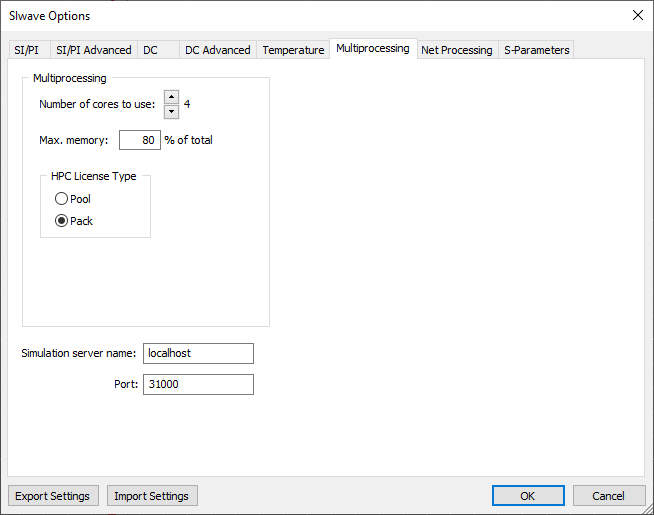
- Set Multiprocessing settings:
- Set the Number of cores to use when computing the solution. This feature is available only if you have purchased the multiprocessing or HPC license option for SIwave.
- Select Use HPC licensing to enable shared memory multiprocessing.
- Select either Use Ansys HPC licenses or Use legacy Electronics HPC licenses.
Note:
The option to choose a license type (either Ansys HPC or Electronics HPC) is not available when SIwave is running in Pro/Premium/Enterprise licensing mode.
- For the HPC License Type, select Pool to use HPC licenses for distribution, or Pack to use HPC Pack licenses.
- Max. Memory allows you to set the memory used as a percentage of total RAM. This option is only available if Use HPC licensing is selected.
- From the Simulation server name field, specify the name or IP address of the simulation server.
- Enter the Port number. See Remote Solve for details on setting up for remote solves.
- Use the Net Processing tab to configure net processing.
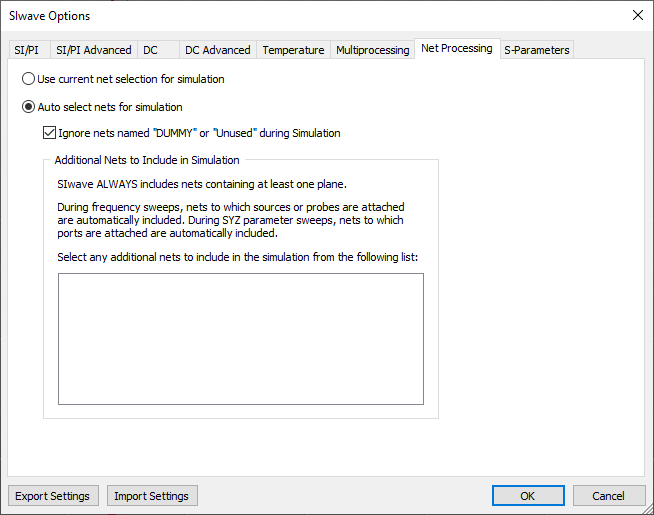
- From the Net Processing tab, select use current net selection for simulation if you want to run a simulation including only the nets that are selected in the Nets workspace. Otherwise, leave the default setting of Auto select nets for simulation. If you want to include dummy/unused nets in the simulations, clear the Ignore nets named "DUMMY" or "Unused" during Simulation check box. By default, these nets are ignored.
- Select the S-Parameters tab.
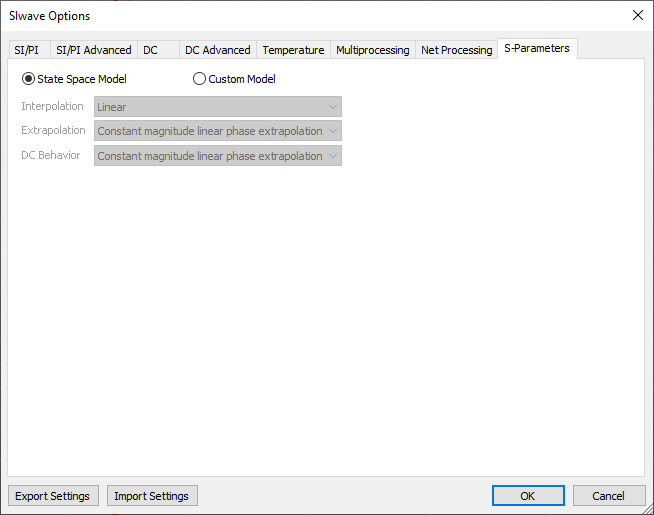
- Select State Space Model or Custom Model. If Custom Model is selected, set the following options:
- Interpolation – select an interpolation method for data points in the frequency range of the Touchstone data. Choose from the following:
- Point – uses known samples at selected data points to evaluate directly. All requested data points must exist.
- Linear – provides a piecewise linear interpolation from the available data point sample's magnitudes and phases
- Step – provides a piecewise constant interpolation from the available data point sample's magnitudes and phases. Angle is interpreted in radians and unwrapped before interpolation.
- Extrapolation – select the extrapolation method for data points outside the frequency range of the Touchstone data. Choose from the following:
- Zero padding – adds zeroes for the magnitude and phase of data points outside of the known frequency range
- Same as last point – adds further data points outside the highest known data point with the same magnitude and phase values
- Linear extrapolation from last 2 points – generates data sample values outside of the known data set based on linear extrapolation of the magnitude and phase of the last two known data points.
- Constant magnitude linear phase extrapolation – estimates the value of unknown data points outside of the known data set by assuming values will remain constant
- DC Behavior – select the behavior of the N-Port at DC (zero frequency). Choose from the following:
- Zero padding – assumes the DC value is real and sets the value to zero
- Same as last point – assumes the DC value is real and equal to the magnitude of the lowest available data point value
- Linear extrapolation from last 2 points – assumes the DC value is real and based on the first two available lowest frequency data points
- Constant magnitude linear phase extrapolation – assumes the DC value is real and equal to the magnitude of the lowest frequency data point, at constant, and the sign determined from the angle of the linear phase extrapolation from the lowest available data point value rounded the nearest multiple of pi
- Series Capacitor – extrapolates to DC assuming the low frequency behavior matches a capacitor in series
- Leave all signal lines open circuited – treats DC value as an open circuit. The S-parameter matrix is the identity matrix at DC.
Note: Refer to the following page to use a preconfigured Python script to generate an Ansys ECAD database file, which can then be imported into Electronics Desktop to create a custom SIwave setup. - Interpolation – select an interpolation method for data points in the frequency range of the Touchstone data. Choose from the following:
-
Once all settings are specified, click Export Settings at the bottom-left side of the window to open an explorer window. Then use the explorer window to navigate to an appropriate directory and enter a name in the File name field (e.g., Test). Finally, click Save to close the explorer window and save the configuration file in the selected directory.
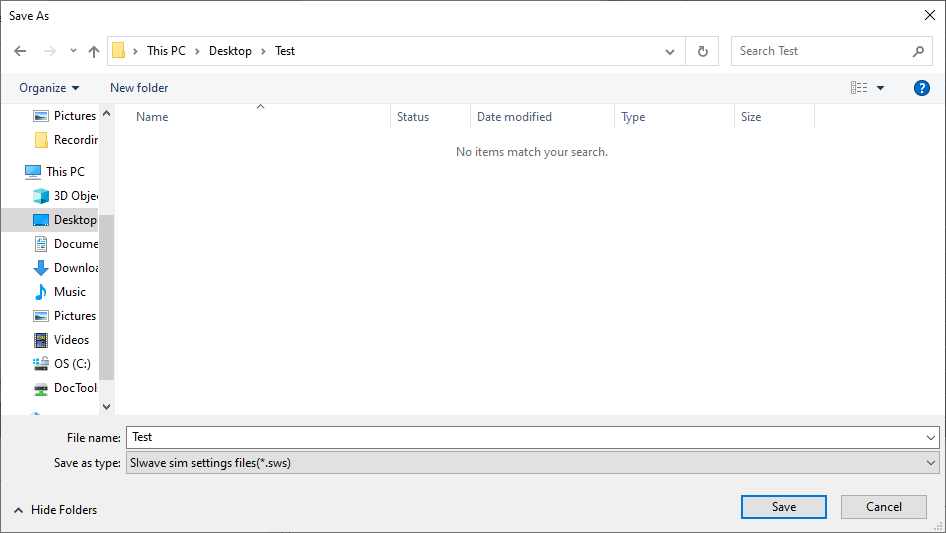
- Click OK to save your settings.