
Modifying the Cross Section of Traces
Complete these steps to modify the trace cross-section.
- Click Advanced > Trace
Cross Section to open the Trace Cross Section
Shape Editor window.
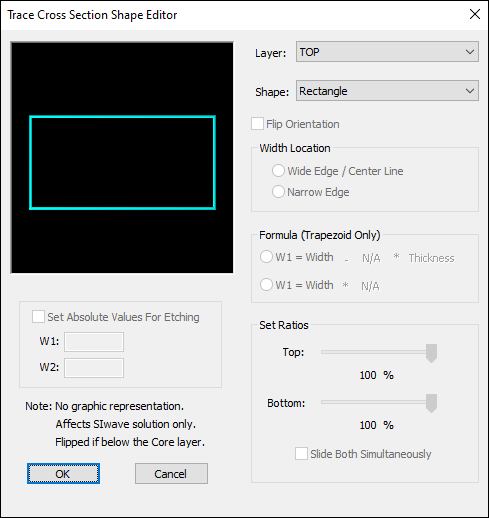
- Layer – select a layer to clean up traces.
- Shape – select a shape to assign to the trace (rectangle, trapezoid, hexagon).
Note:
The shape selected determines which options are available in the rest of the window.
- Flip Orientation – flips the orientation of the trace cross section. Available for trapezoid and hexagon only.
- Width Location – Available for trapezoid and hexagon only.
- Formula – Select one of two trapezoid-calculating formulas. Available for trapezoid only.
- Set Ratios – Use the sliders to set ratios for your shape. Enable the Slide Both Simultaneously check box to slide both sliders at the same time. Available for trapezoid and hexagon only.
- Set Absolute Values for Etching – Enter widths for the cross sections in the W1 and W2 fields. Available for trapezoid and hexagon only.
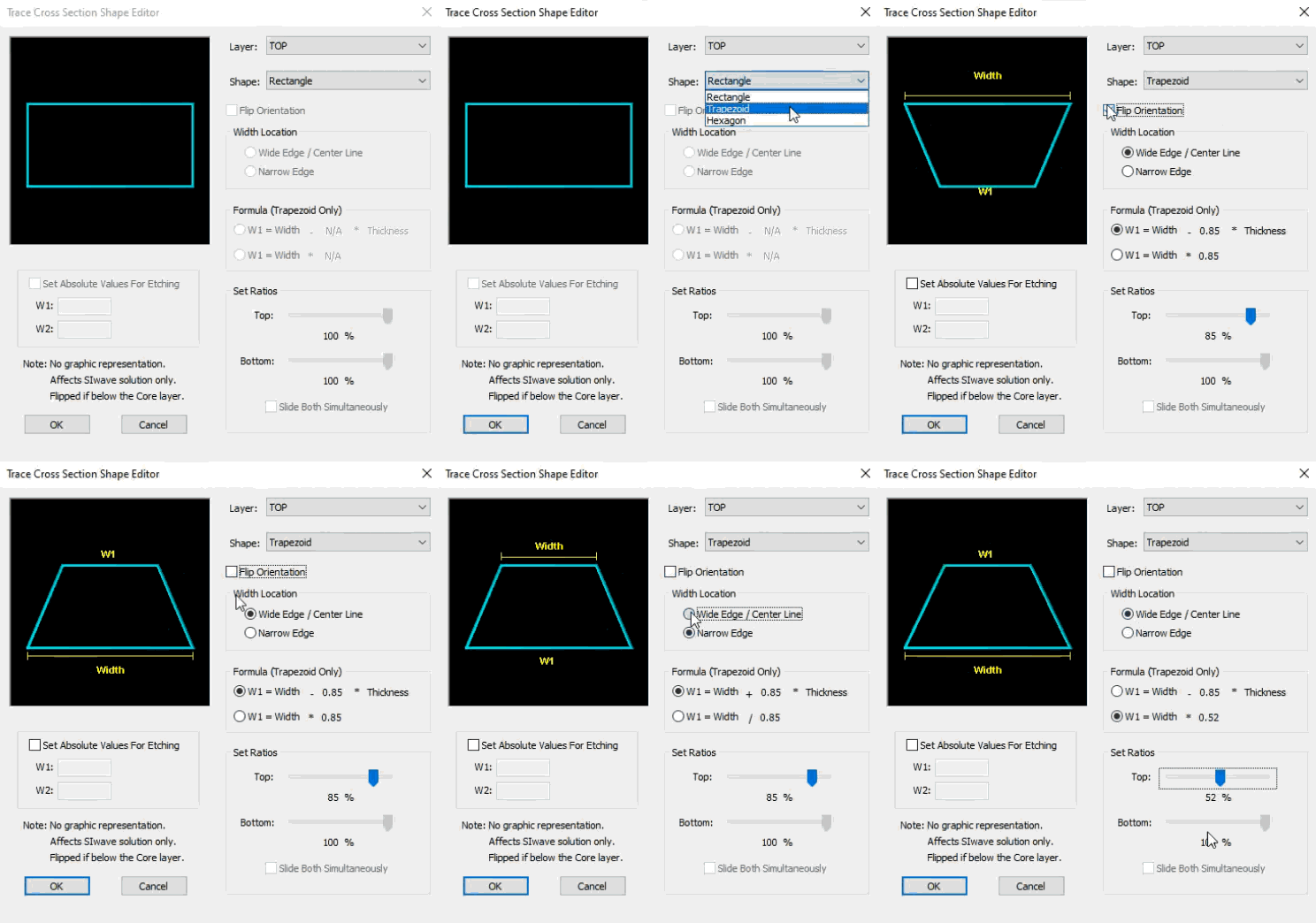
- Change the settings as appropriate. The graphic updates to show your changes.
- Click OK to close the window and save changes, which are reflected in the Layer Stackup Editor and Trace Editor.
Refer to the following examples to see how the visual depiction and options change depending on the cross section's shape.
The window contains the following options: