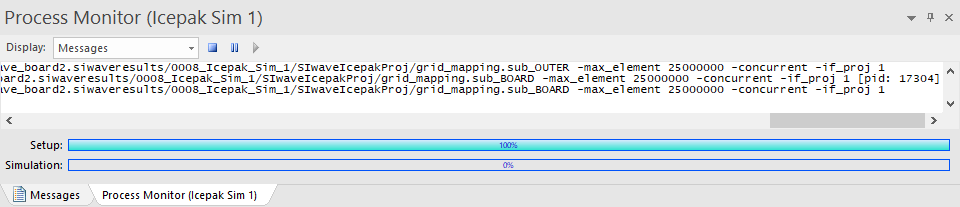
Computing Icepak Simulations
The Icepak simulation type is useful for spotting potential thermal trouble spots in designs and can be used to improve accuracy of DC simulation results. Users can run the simulation and export the results. The Icepak simulation type is only accessible when there are DC simulation results that exported power dissipation data.
The Icepak simulation will not run if the File name or path contains spaces or special characters.
Complete these steps to perform an Icepak simulation in SIwave.
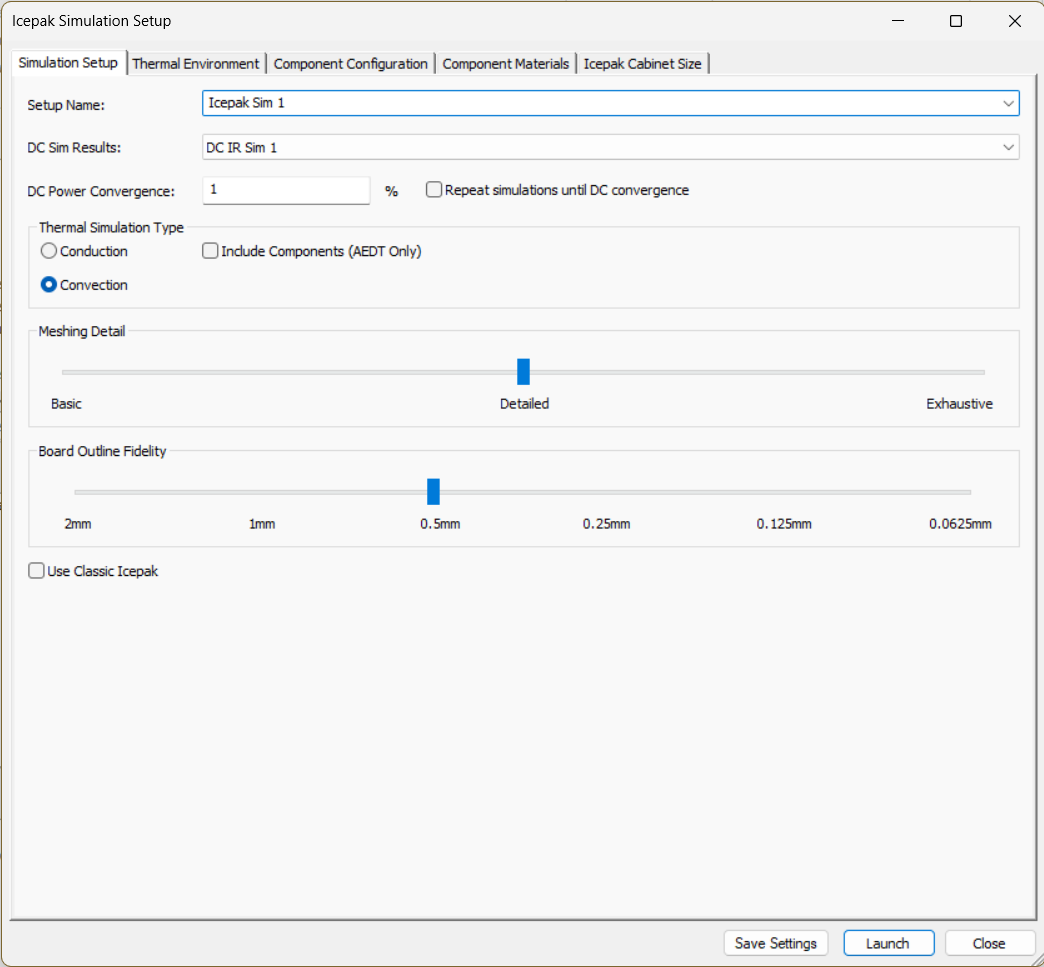
- From Simulation, select Icepak to open the Icepak Simulation Setup window. Navigate through the five tabs and make all appropriate selections (i.e., Simulation Setup, Thermal Environment, Component Configuration, Component Materials, and Icepak Cabinet Size).Note:
Tabs are enabled depending on selection(s) made in the Thermal Simulation Type area of the Simulation Setup tab:
Conduction — Simulation Setup and Thermal Environment
Conduction and Include Components (AEDT Only) — Simulation Setup, Thermal Environment, Component Configuration, and Component Materials
Convection — Simulation Setup, Thermal Environment, Component Configuration, Component Materials, and Icepak Cabinet Size
-
From the Simulation Setup tab, do the following:
- Setup Name field — enter a name for the simulation.
- DC Sim Results drop-down menu — select the previously run DC simulation.
- DC Power Convergence field — enter a percentage value.
- Repeat simulations until DC convergence check box:
- To have SIwave alternate between running Icepak and DC simulations, check the Repeat simulations until DC convergencebox. The output of each simulation is fed into the next in order to refine results. The loop ends when a DC simulation completes with a total power dissipation which differs from the previous DC simulation by less than the user-specified percentage. Results from all simulations in the loop are kept. Simulation names for each stage are based on the name of the previous run (i.e., if the previous name ended in a number, the number is incremented; otherwise, 2 is appended to the name).
- To run a single Icepak simulation, ensure the Repeat simulations until DC convergence box is not checked.
- Thermal Simulation Type area — use the radio buttons to select Conduction (i.e., a simpler, faster form of thermal simulation that only considers the power dissipation from the DC results) or Convection (i.e., a more complicated form of thermal simulation which models airflow around the board).
- Include Components (AEDT Only) check box — check the box to include components in conduction simulations, with the following caveats:
- heat sinks are prohibited
- only available in Electronics Desktop
- Meshing Detail area — move the slider to Basic, Detailed, or Exhaustive to control the minimum size of various Icepak meshing parameters.
- Basic — the coarsest setting, intended for fast simulations or large projects where the higher mesh settings are too demanding.
- Detailed — the recommended setting, provides a good balance of speed and accuracy.
- Exhaustive — the most detailed setting and the most time consuming. Exhaustive should generally only be used when a Detailed run has not provided fine enough detail for an area of interest.
- Board Outline Fidelity — move the slider to specify a minimum edge length when modifying the board outline for the exported project. This minimum edge length is used when discretizing arcs into a series of straight lines and when simplifying the outline to remove very small edges.
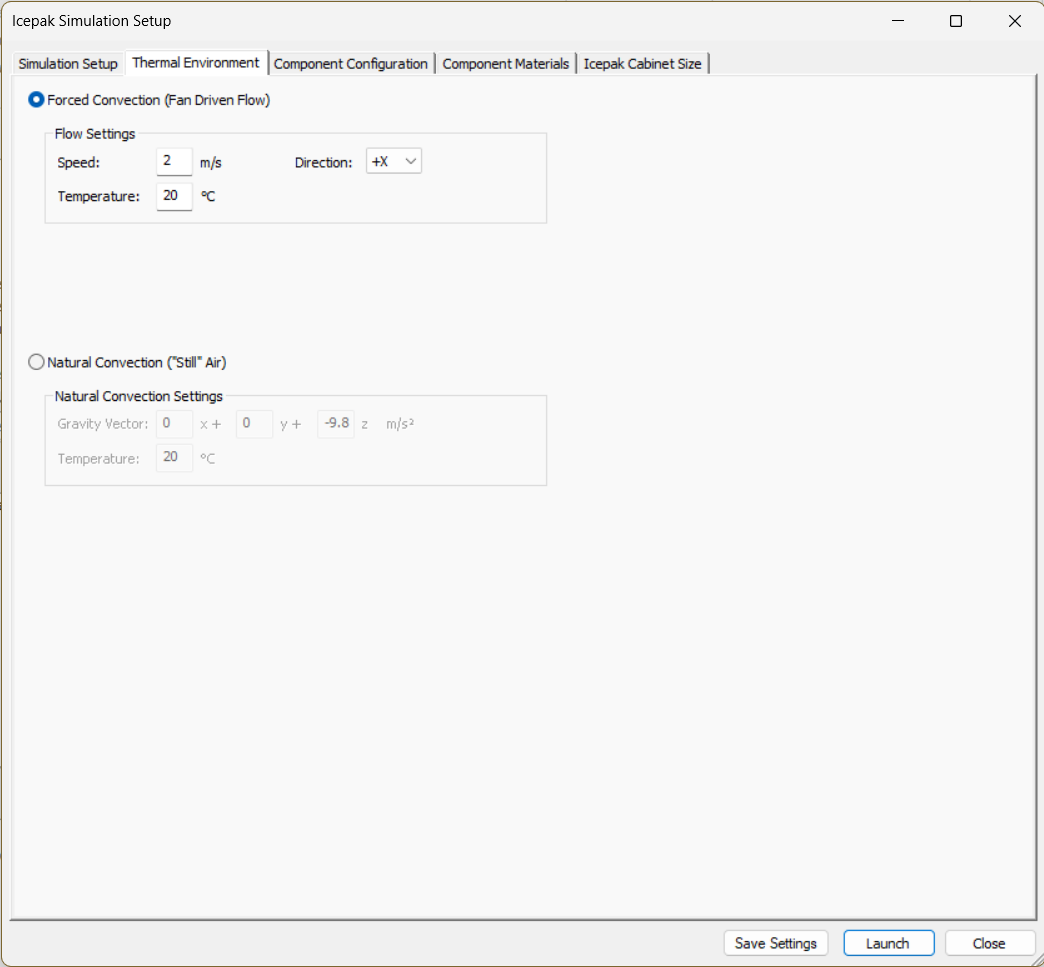
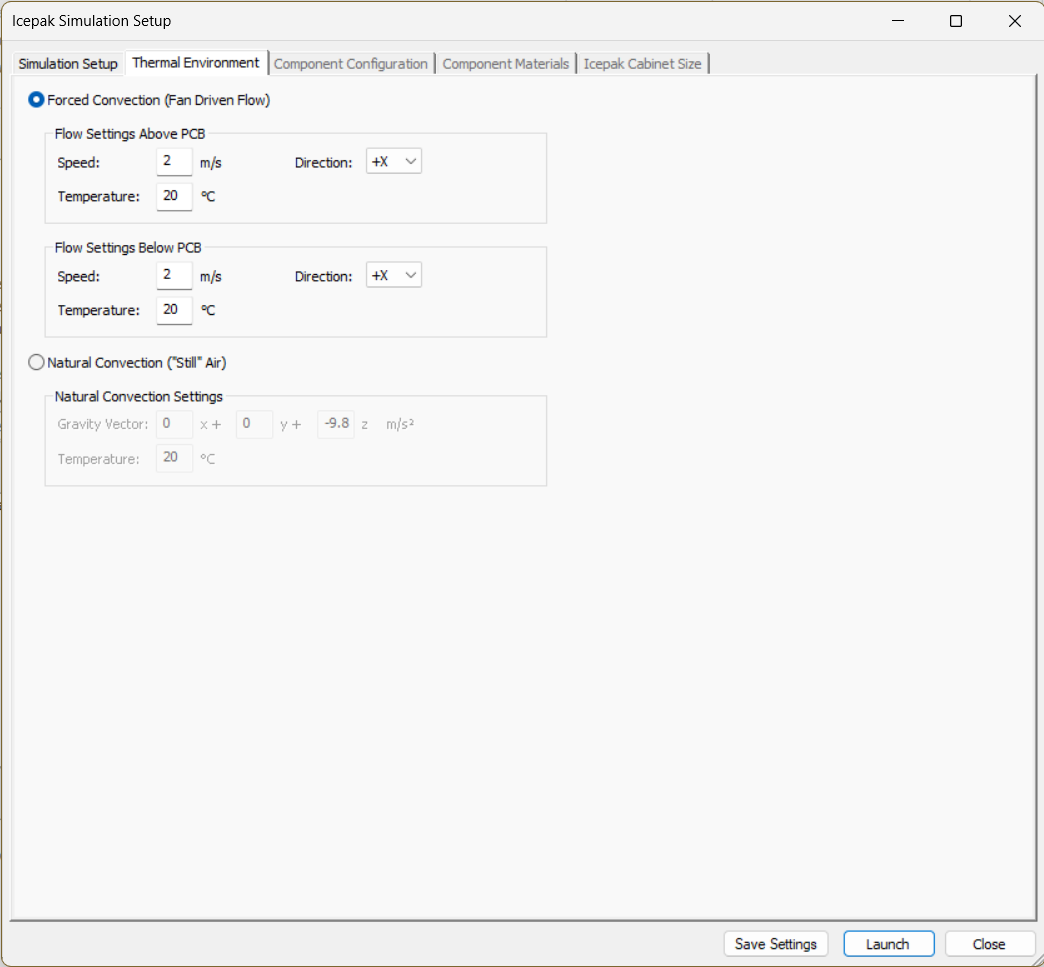
- Click the Thermal Environment tab. The available options differ depending on whether Conduction or Convection is selected in step 2e.
or
-
From the Thermal Environment tab, select from the following:
- Forced Convection (Fan Driven Flow) — for thermal simulations where the board is intended to be used in an environment in which a fan will be blowing the air.
- If applicable, specify the Speed, Direction, and Temperature in the Flow Settings area. If the primary simulation type is conduction, differing flow settings may be set Above and Below the PCB surfaces.
- Natural Convection ("Still" Air) — to simulate environments in which no fans are present and the air flow will be determined by the heat distribution of the board and its orientation relative to gravity.
- If applicable, specify the Gravity Vector and Temperature in the Natural Convection Settings area. If the primary simulation type is conduction, only the cardinal direction with the largest magnitude is used from the Gravity Vector. A gravity vector in the Z direction is equivalent to an environment with the board flat on a horizontal surface (e.g., such as lying on a desk). A gravity vector in the X or Y direction is equivalent to an environment where the board is mounted standing on its edge.
- Forced Convection (Fan Driven Flow) — for thermal simulations where the board is intended to be used in an environment in which a fan will be blowing the air.
- If users are running a Conduction and Include Components (AEDT Only) or Convection simulation, click the Component Configuration tab. Otherwise, proceed to Launch.
-
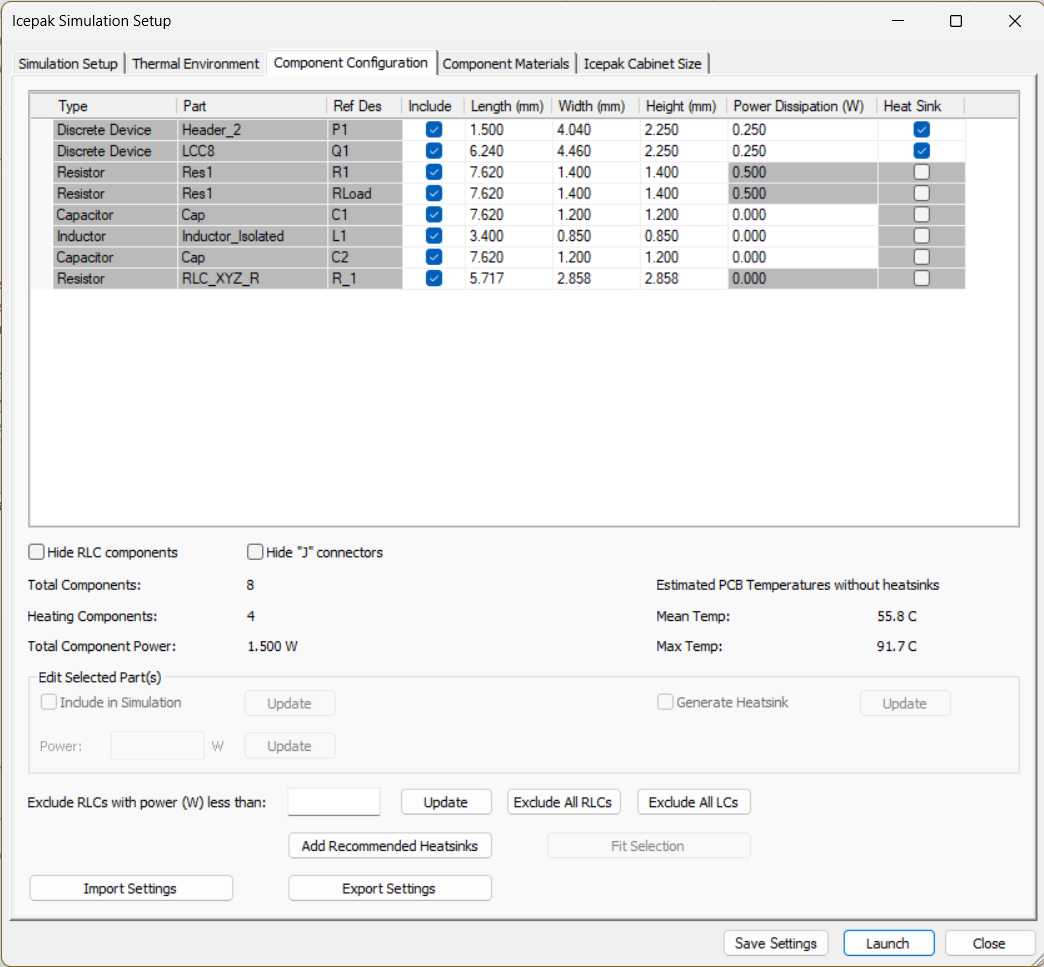
From the Component Configuration tab, do the following:
- From the table, do the following:
- Click a column header to sort alphabetically by that column (i.e., Type, Part, Ref Des, Include, Length (mm), Width (mm), Height (mm), Power Dissipation (W), or Heat Sink).
- Check any/all of the Include boxes to include components in the Icepak simulation. Note:
Edit more than one part by selecting them and entering new values in the Edit Selected Part(s) area.
- If appropriate, enter new values for Length, Width, Height, and Power Dissipation. Inductors and capacitors are set to 0 power by default. Power dissipation of resistors is automatically calculated from DC simulation results. All other components default to .25 Watts.
- Check any/all of the Heat Sink boxes to designate components as heat sinks.
- Hide RLC Componentscheckbox — check the box to temporarily suppress the display of resistors, inductors, and capacitors in the table.
- Hide "J" Connectors checkbox — check the box to temporarily suppress the display of IOs and Discrete Devices with reference designators that start with "J".
- Exclude RLCs with power (W) less than field — if appropriate, enter a value in Watts. Click Update to exclude components with less power than the specified value. Alternatively, click Exclude All RLCs or Exclude All LCs.
- Add Recommended Heatsink — click to assign heat sinks to components that are estimated to get significantly hot.
- If appropriate, click Import Settings to load settings from a previously saved *.pwrd file.
- If appropriate, click Export Settings to save the settings as an SIwave Power Dissipation File (*.pwrd).
- From the table, do the following:
- Click the Component Materials tab.
 Note:
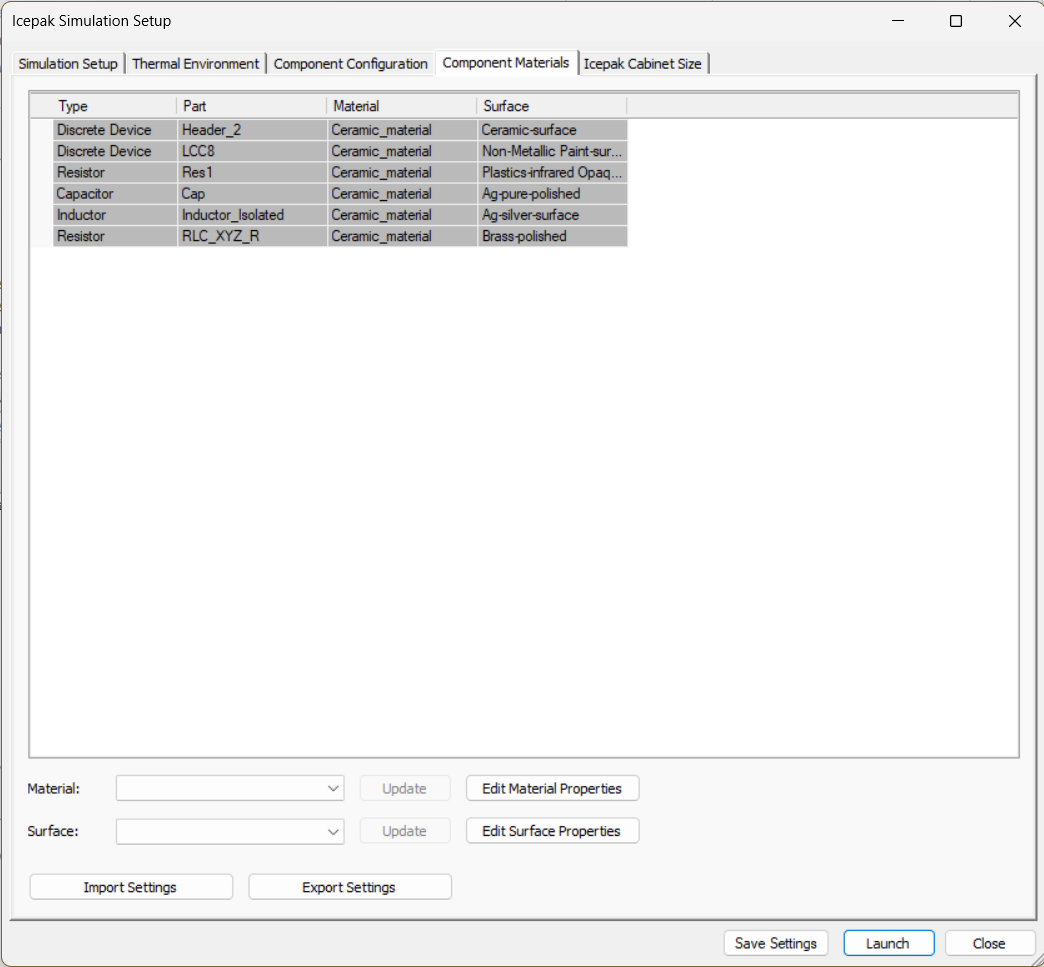
Note:The Component Materials tab is restricted to only relevant materials (i.e., materials with defined thermal properties, project-level materials, and a subset of of system surface materials.
-
From the Component Materials tab, do the following:
-
Click a column header to sort alphabetically by that column (i.e., Type, Part, Material, or Surface).
-
Click anywhere within a row to populate the Material and Surface drop-down menus with the selected row's contents. If appropriate, select a new Material and/or Surface from the drop-down menus and click the adjacent Update button(s) to push the new selection to the corresponding field in the table.
-
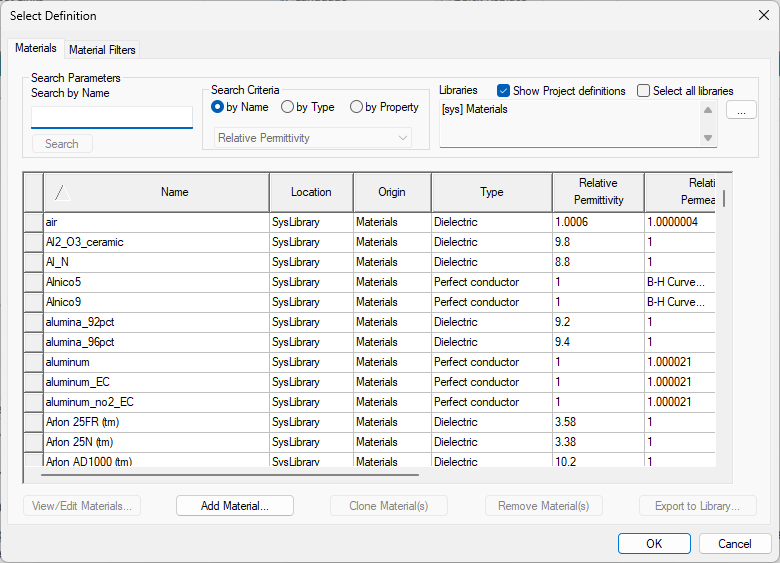
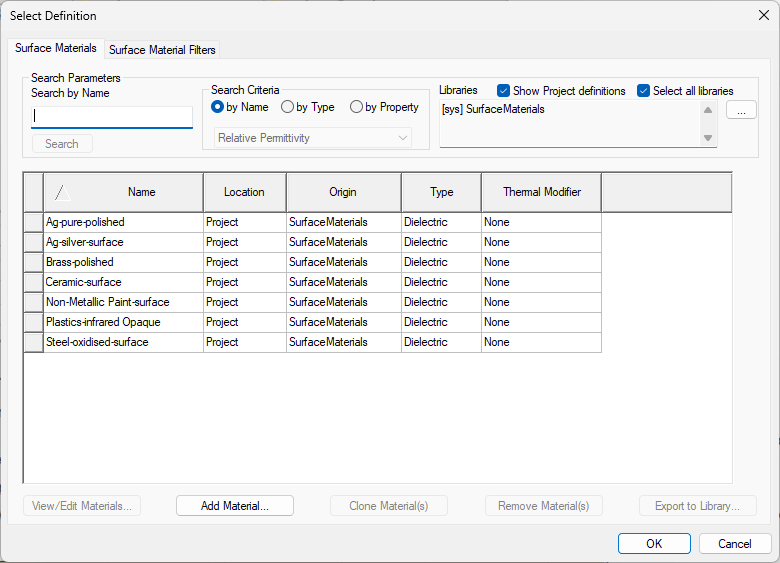
Click Edit Material/Edit Surface Properties to open a Select Definition window.
or
-
From the Select Definition window(s), search for existing materials, edit, clone, or remove materials within the available databases, or add new materials. Both windows function identically to those elsewhere in SIwave and Electronics Desktop (e.g., the Select Definition window accessible through the Layer Stackup Editor window > Edit Material Properties). Refer to Adding a New Material, Editing an Existing Material, and Material Properties.
Note:By default, the Selection Definition windows also show a limited selection of materials. To access all material definitions, click the Materials/Surface Material Filters tab and select All Materials and Properties from the Show Materials and Properties for area.
-
If appropriate, click Import Settings or Export Settings.
-
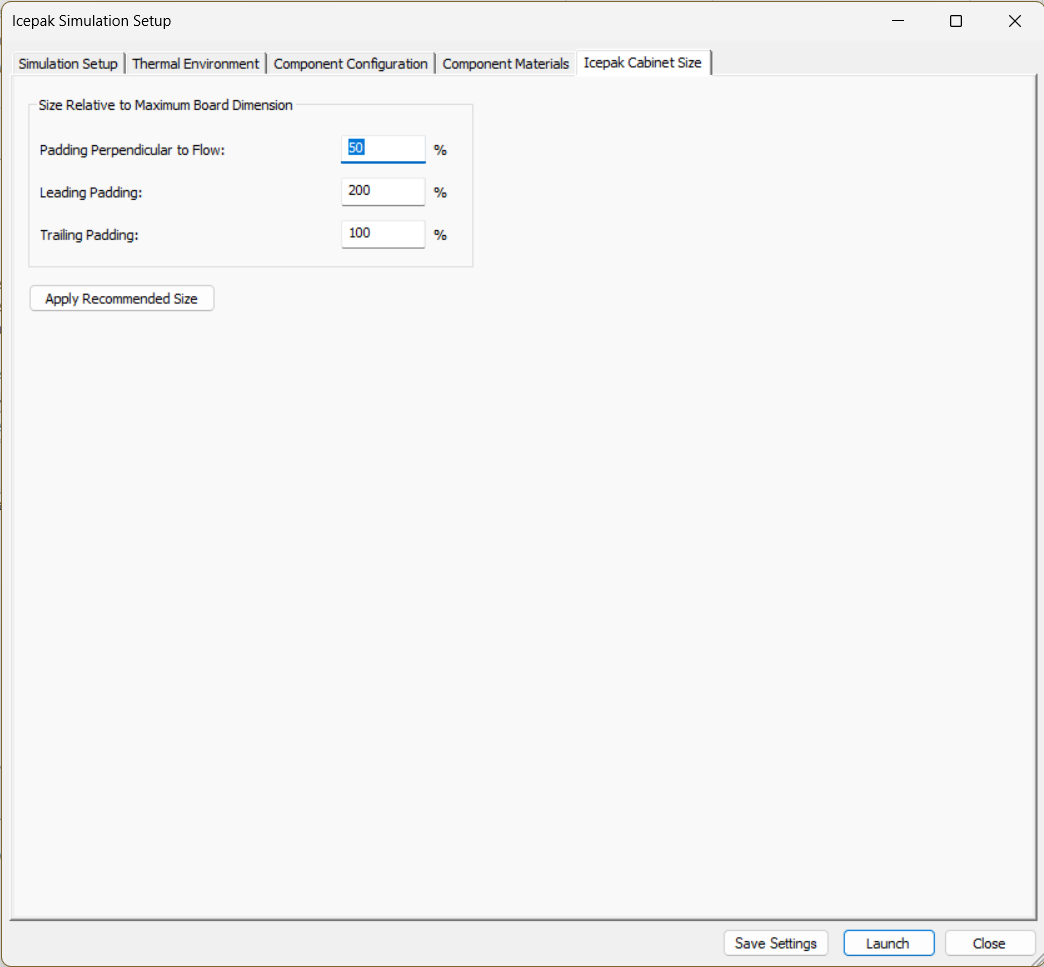
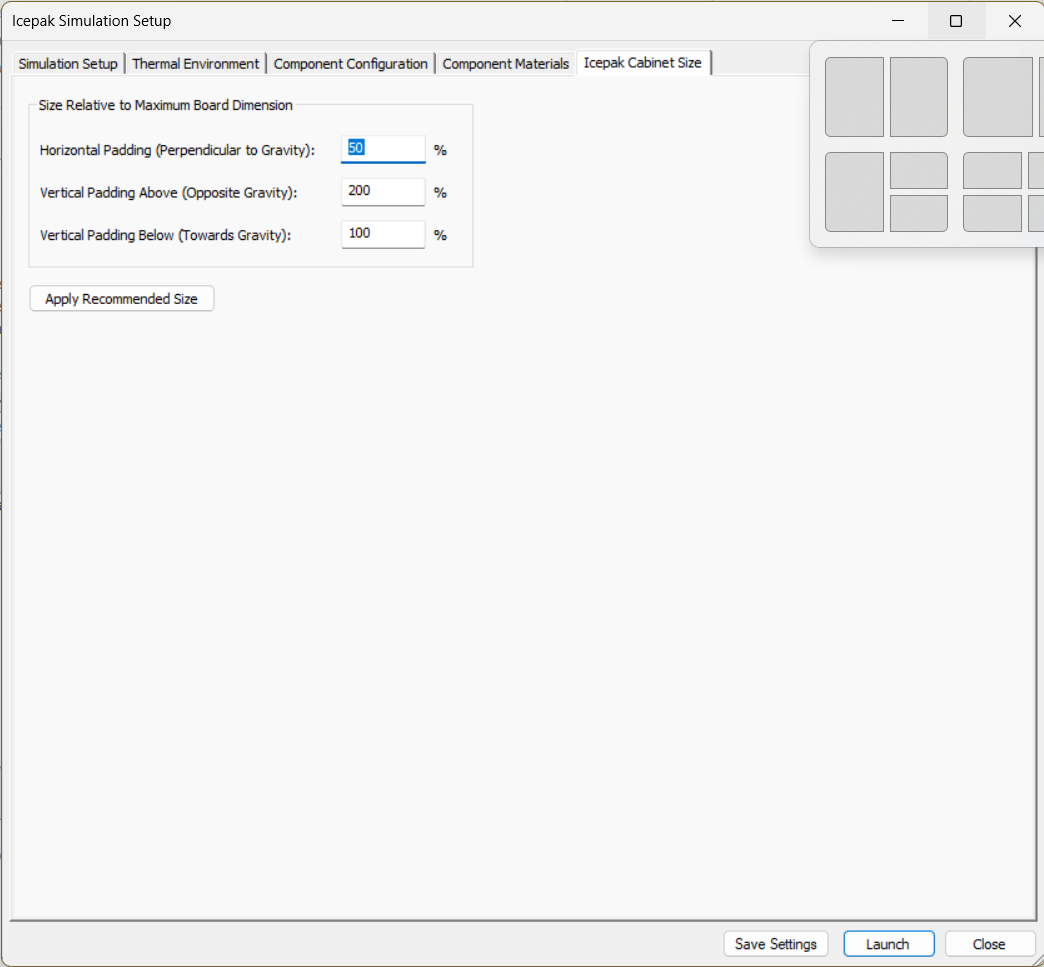
- Click the Icepak Cabinet Size tab. The available options differ depending on whether Forced Convection or Natural Convection is selected in step 4.
or
-
From the Icepak Cabinet Size tab > Size Relative to Maximum Board Dimension area, enter values in the following fields:
- Padding Perpendicular to Flow — The perpendicular expansion factor is calculated relative to the largest dimension of the board, and will be applied along the axes other than the axis of the forced flow (e.g., if the value is 25%, the board spans 20mm in the X direction and 12mm in the Y direction, and the flow is in the -Z direction, then the cabinet will extend 5mm beyond the board in the -X, +X, -Y, and +Y directions).
- Leading Padding — This expansion factor is applied along the axis of the flow vector on the upstream side (e.g., using the configuration from the previous example and a value of 200%, the cabinet would extend 40mm beyond the board and components in the +Z direction).
- Trailing Padding — This expansion is the same as the previous expansion, but on the downstream side (e.g., using the configuration from the previous examples and a value of 100%, the cabinet would extend 20mm in the -Z direction).
or
- Horizontal Padding (Perpendicular to Gravity) — The horizontal expansion factor is calculated relative to the largest dimension of the board, and will be applied along the axes other than the primary axis of the gravity vector (e.g., if the values is 25%, the board spans 20mm in the X direction and 12mm in the Y direction, and the gravity vector is 0 x + 0 y + -9.8 z, then the cabinet will extend 5mm beyond the board in the -X, +X, -Y, and +Y directions).
- Vertical Padding Above (Opposite Gravity) — This vertical expansion factor is applied along the primary axis of the gravity vector in the directory opposite to gravity (e.g., using the configuration from the previous example and a value of 200%, the cabinet would extend 40mm beyond the board and components in the +Z direction).
- Vertical Padding Below (toward Gravity) — This vertical expansion is the same as the previous vertical expansion, but in the opposite direction (e.g., using the configuration from the previous examples and a value of 100%, the cabinet would extend 20mm in the -Z direction).
- Click Launch to begin the simulation. The Messages window updates with a Process Monitor tab that displays the progress.