
Viewing Icepak Results
To view the full results of an Icepak simulation, open the project in Icepak. You can launch Icepak directly from SIwave:
- Click Results.
- From the Icepak area, select Temperature > [Simulation Name].
- Click Open Project in Icepak.
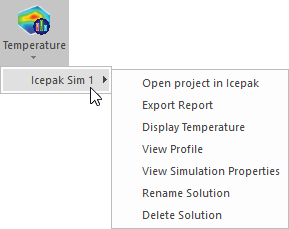
The simulation opens in Icepak.
To view temperature results in SIwave:
- Click Results.
- From the Icepak area, select Temperature > [Simulation Name].
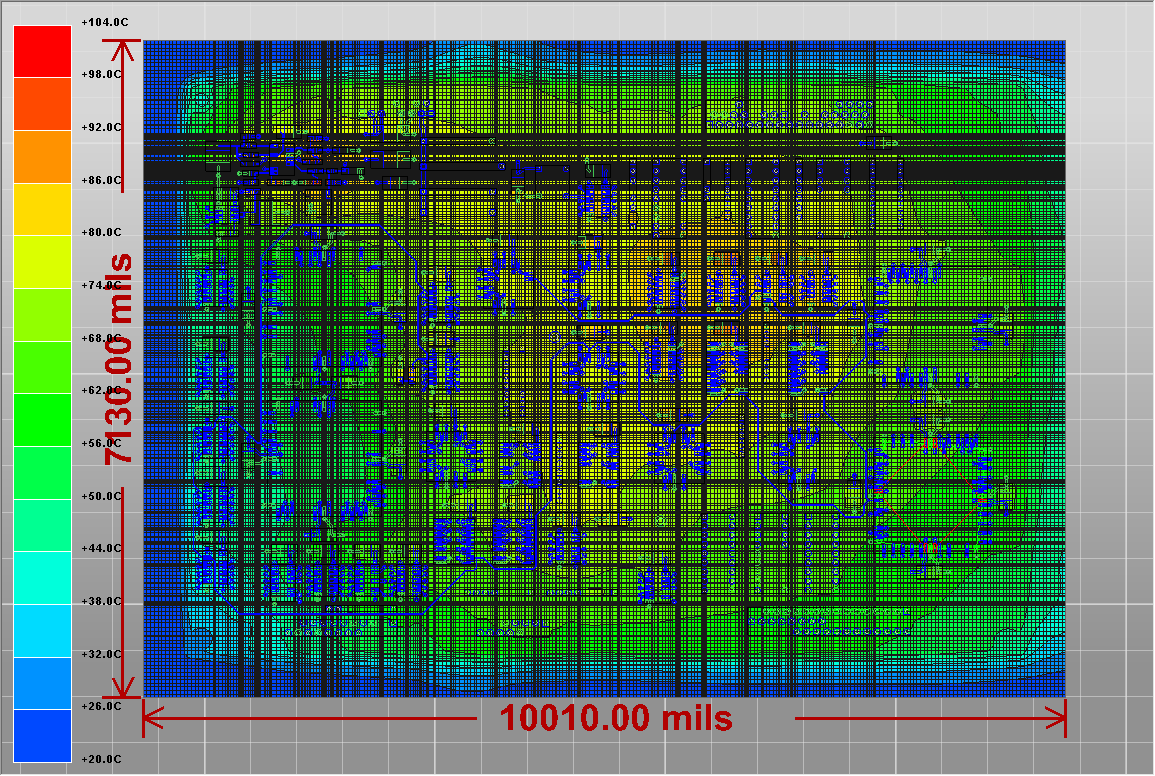
- Click Display Temperature.
The temperature plot appears in the Modeling workspace.
To change plot settings:
- Click View.
- From the Show/Hide area, click the Temperature Plots icon (
 ).
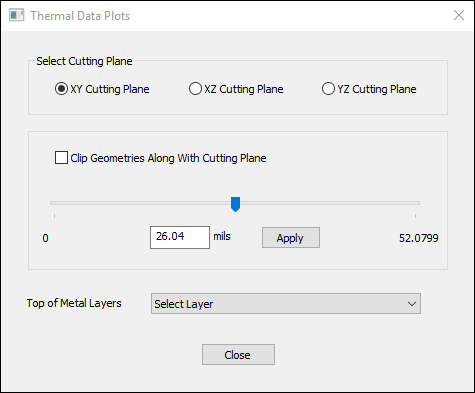
). - From the Select Cutting Plane area, use the radio buttons to select XY, XZ, or YZ.
- Decide whether to Clip geometries along with cutting plane. You can use the slider to change the cutting plane size.
- Use the Top of Metal Layers drop-down menu to view a plot of each metal layer's top surface.
The Thermal Data Plots window appears.
From the Icepak results menu, you can also access additional menu options.