Exporting an Icepak Simulation
Complete these steps to export a model as an Icepak project.
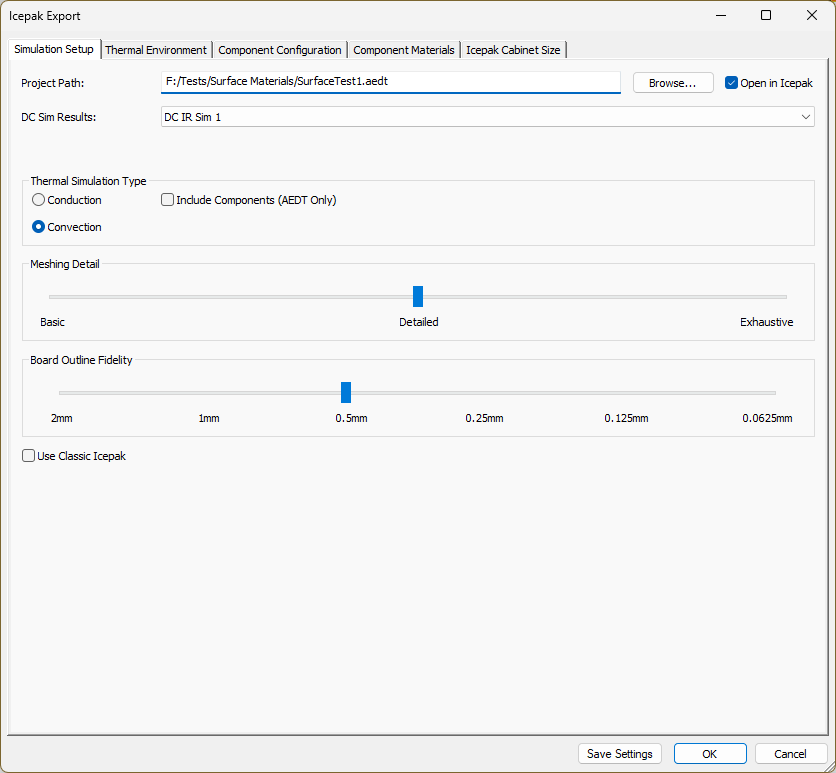
- From Export, select Icepak to open the Icepak Export window.
- Specify an appropriate Project Path and file name, or click Browse to open an explorer window. Then navigate to the appropriate file, double-click it, or select it and click Save.
- To automatically open the project in Electronics Desktop after export is complete, check the Open in Icepak box.
- Navigate through the five tabs and make all appropriate selections (i.e., Simulation Setup, Thermal Environment, Component Configuration, Component Materials, and Icepak Cabinet Size). The tabs are identical to those in the Icepak Simulation Setup window. Refer to Computing Icepak Simulations for detailed descriptions of the options available from each tab.Note:
Tabs are enabled depending on the selection(s) made in the Thermal Simulation Type area of the Simulation Setup tab :
Conduction — Simulation Setup and Thermal Environment
Conduction and Include Components (AEDT Only) — Simulation Setup, Thermal Environment, Component Configuration, and Component Materials
Convection — Simulation Setup, Thermal Environment, Component Configuration, Component Materials, and Icepak Cabinet Size
- Click OK to export the simulation to the specified directory. If the Open in Icepak box was checked, Electronics Desktop automatically opens and displays the file.