
Assigning Hybrid Regions in HFSS
To use Hybrid Regions, the solution type must be HFSS with Hybrid and Arrays. Hybrid regions can include:
- FE-BI – only Radiating and Incident Field types are supported.
- IE Region – using the Integral Equation solver.
- PO Region – using a Physical Optics solver, which can provide a fast approximation for a class of problems.
- SBR+ Region – using shooting and bouncing ray (SBR) technology to compute scattered field contributions of defined platform geometry to antenna coupling (S-parameters) and far-field radiation results.
- Dielectric Cavity
The Project tree contains a folder for Hybrid regions.
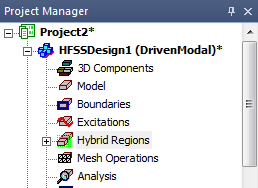
Assign Hybrid regions by selecting an object in the 3D Modeler window,
or an object in the History tree, right-click for the shortcut menu,
click Assign Hybrid and selecting
from the enabled options. You can use HFSS > Hybrid > Assign
Hybrid for the options to be enabled. The selection
must meet the conditions for that assignment.
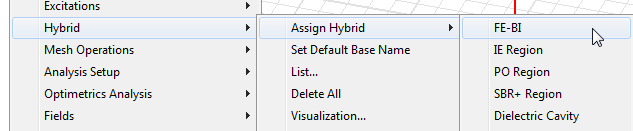
You
can also right-click the Hybrid Regions icon in the Project tree to access
a shortcut menu there:
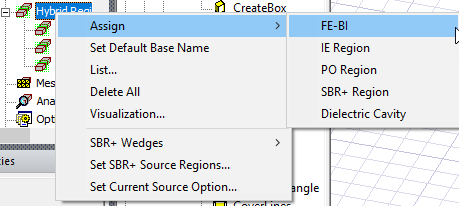
The Toolbar menu and Project tree right-click menus for Hybrid regions display commands for managing Hybrid regions.
- Set Default Base Name: opens a dialog for setting default names for new boundaries, excitations, and hybrid regions.
- List ...: opens the Design list dialog to the Hybrid Regions tab.
- Delete All: deletes all hybrid regions.
- Visualization...: opens a Visualization Options dialog that lets you show or hide regions and other design objects.
- SBR+ Wedges: for designs with SBR+ regions assigned, this command includes further menu for Settings, for Wedge visibility, and for Set Current Source option (see below).
- Set Coupling: for designs without SBR+ regions assigned, this command appears and opens a menu that lets you specify whether regions are all one-way coupled or two-way coupled. In one-way coupling, one design acts as as the field source, and the other as a target. This feature improves the efficiency of the solver. If an SBR+ region is assigned, the design becomes one-way coupled and the Set SBR+ Source Regions command replaces Set Coupling on the short-cut menu. The Advanced command on the Set Coupling menu opens a dialog that lets you group region objects, other than SBR+ Region objects. Grouped objects become two-way coupled when the design is otherwise one-way linked. See Set Coupling for Hybrid Regions for details.
- Set SBR+ Source Regions: for designs with SBR+ assigned, the Hybrid Regions right-click menu provides this command for you to group source regions for SBR+ regions in the design. If a source region contains multiple FEBI or IE regions, you can decide if the regions are 1-way or 2-way coupled. All source regions interact as one-way links to SBR+ and coupling between the source regions are handled by SBR+ using reciprocity theory. The dialog excludes all SBR+ regions as those are targets of the sources defined in the interface.
- Set Current Source Options...: this allows you to specify customized power fraction for designs with SBR+ Regions assigned. Use Global is the default. Enabling Thin Sources lets you specify a Power fraction should be greater than 0.1 and less than 1. Solutions are invalidated if you change current source conformance, use Thin Sources, Power Fraction, or change the Global option.
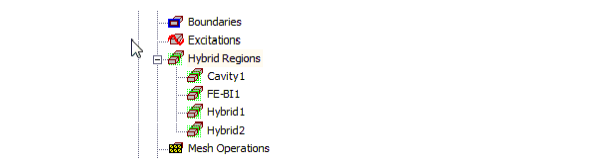
To view existing Hybrid Regions assignments, you can expand the list under the Hybrid Regions icon in the Project tree. Selecting an assigned region in the list also highlights that region in the Modeler window.
You can also select the Hybrid Regions icon in the Project Tree and right-click for menu and select List. This shows the Design List dialog with the Hybrid Regions tab selected.
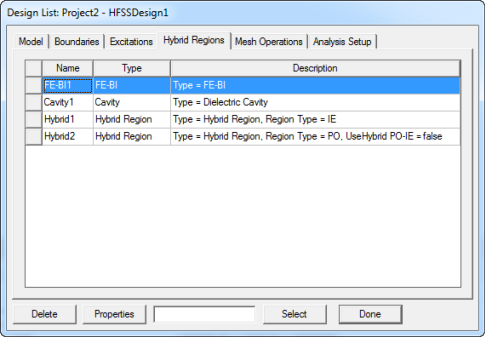
Click Delete to remove the assignment from the selected object(s).