
Creating a 2.0 Component
To create the 2.0 component:
- Right click on a design in the Project Manager tree, and select Create Component 2.0:
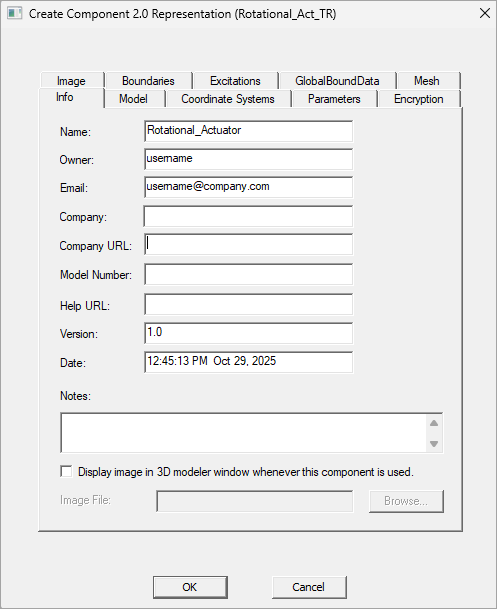
- The window opens to the Info tab, Use this tab to view and edit component information, as well as to add notes. The Name in the first field is used when the representation is inserted into a design. Other fields include Owner, email, Company, Company URL, Model Number, Help URL version, Date, and Notes.
- To include an image (typically a company logo) to display in the upper right area of the 3D modeler whenever the representation is used, check the Display image box to enable the Image File field, and click Browse to navigate your file system to the desired image file in .bmp format.
- Configure the other tabs to determine what is included in the representation. Image, Model, Coordinate Systems, Parameters, and Encryption tabs are included for all design types. Other tabs are determined by the design type. These tabs configure the geometry and conditions that will be included in the design representation; see the topics that follow.
- Click OK in the Create 2.0 Component Representation window; the Component 2.0 window will open listing the new representation.
- Click OK in the Component 2.0 window to open a File Save dialog. Assign a file name to the Component 2.0 file. Note that it will have a .acmp2 extension.
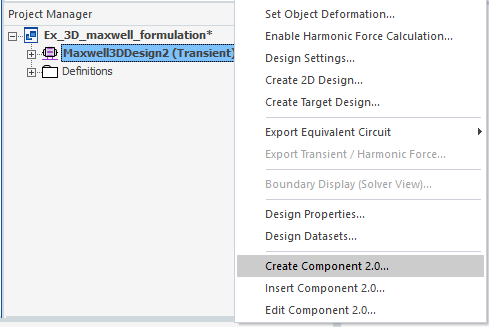
Note that when you first create the 2.0 component, the window that opens is labeled Create Component 2.0 Representation because the component does not exist until you add the first design, which is referred to as a representation.
Add Representations to a 2.0 Component
Once you have created a 2.0 component, you can add more designs to it by right clicking on the desired design and selecting Edit Component 2.0; see Editing a 2.0 Component for more details.
Note:
Once you have added a design representation to the 2.0 component, it is no longer linked to the original design; it will not update automatically if the original is edited.