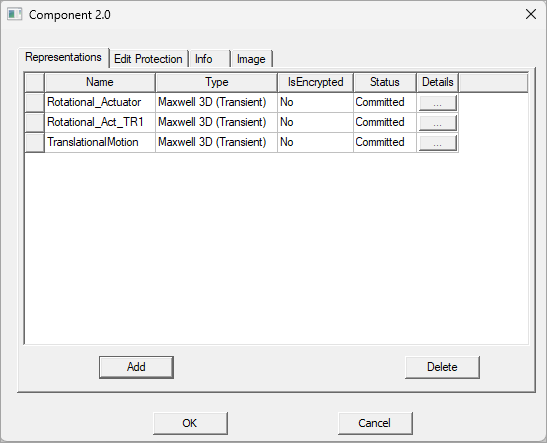
Editing a 2.0 Component
After creating a 2.0 component, you can use the Edit function to add or delete design representations, change the component's information, or change its security.
Note that a representation cannot be edited once it is committed to a component.
To edit a 2.0 component:
- Right click on a design in the Project Manager tree, and select Edit Component 2.0.
- In the file window that opens, navigate to the Component 2.0 file you would like to edit (it should have a .acmp2 file extension), and click Open.
- If the 2.0 component is encrypted, you will be prompted for a password. Enter the password to open the component for editing.
- To add a representation to a component: select the design in the Project Manager tree, and then click Add in the Component 2.0 window. The Create Component 2.0 Representation window will open; see the Create 2.0 Component topic for more information.
- To delete a representation from a component, select the design on the Representations tab, then click Delete. Note that if the representation is encrypted, you will be prompted for its password when you click Delete.
The Component 2.0 window opens, which defaults to the Representations tab that displays the design representations that are in the component.