
Create Component 2.0 Representation Encryption Tab
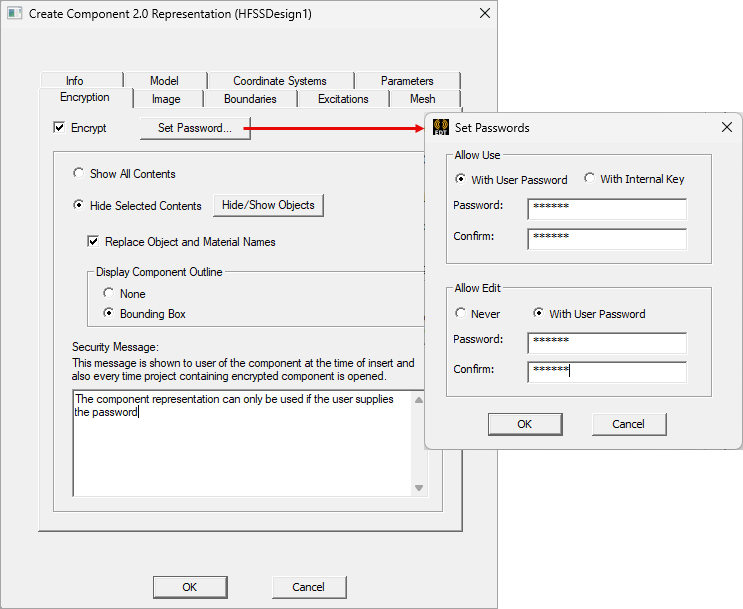
The Encryption tab available in the Create Component Representation 2.0 window configures the encryption for the design representation being added to the component.
There are some additional considerations with respect to using encrypted representations:
- The representation itself and its associated files will always be stored in encrypted form.
- When an HFSS or Maxwell design references an encrypted representation with hidden contents, it will also protect solver inputs and other project files containing data that could be used to extract representation information. However, note that solver inputs associated with SBR+ regions are not protected, even when encrypted representations are in use.
- For a hybrid design that contains a combination of SBR+, FEM, and IE regions: the FEM and IE regions will be fully protected, while the SBR+ regions will not.
- Q3D does not include extended protection of solver inputs and other project files.
- Icepak native designs (Fan, Heatsink, PCB), EM loss coupling, IcepakFEA-Icepak coupling, and Start/Continue from a previously solved setup (transient designs) are not supported for an encrypted representation.
Selecting the Encrypt check box enables all options and automatically launches the Set Passwords window.
Encryption is a common technique for encoding information in a manner that is very difficult for unauthorized users to decode. When this option is enabled for 2.0 component representations, the contents of the component file are encrypted to protect them from external viewing or editing.
- 2.0 components use the Advanced Encryption Standard (AES) with a 256-bit key and password-based key derivation.
- If the encrypted representation is created with an Internal Key, it can be used without additional authorization.
- If the encrypted representation is created with a User Password, that password must be entered when adding the representation to a design.
- It is not possible to edit the definition of an encrypted representation within Electronics Desktop unless Allow Edit\ With User Password was selected when defining the representation.
- If the Show All Contents option is selected, the geometry and other contents will be shown when the representation is used. Geometry export and links will operate as for general geometry.
- The Hide Selected Contents option can be used to further protect access to an encrypted representation ’s details. When this option is selected, hidden contents will not appear in the user interface.
- All geometry will be hidden, except for objects that the user specifies as visible during representation creation.
- Hidden geometry will not be visible in the model window or included in the history tree.
- Geometry export and links will not be allowed.
- For representation with hidden
contents, all geometry will be excluded from field calculations and from
plots of fields and meshes. Plots in surrounding volumes will extend
to, and can include, the outer surfaces of the representation, but not the containing
volume. Important:
Such plots may indirectly reveal representation content by providing a view of the surfaces where the plots terminate. To prevent such exposure, include additional modeled objects that surround the hidden contents of the representation and have material of the surrounding material environment (e.g., air, vacuum).
- When using Hide Selected Contents, the names of objects, materials, boundaries, and other setup data may appear in progress updates, messages, and other informational text. The Replace Object and Material Names option can be used to automatically convert object and material names to generic names when the representation is in use.
- The Security Message field specifies text that is displayed at representation insertion and when the project containing the representation is opened.
Set Passwords
Clicking Set Password launches a window containing fields for setting the representation passwords. This is the same window that automatically launches upon enabling Encrypt.
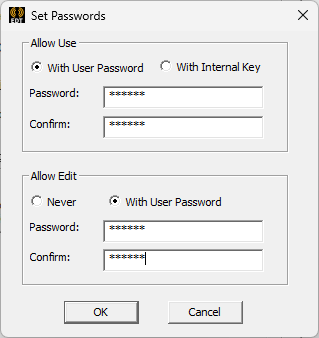
- Allow Use – allows you to select between encrypting with a user password or an internal key (which requires no additional authorization). If setting a password, enter it in both the Password and Confirm fields and click OK.
- Allow Edit – allows you to choose between never allowing edits to the representation or allowing edit with a user password. If selecting the latter, enter a password in both the Password and Confirm fields and click OK.
- When enabling a password for both representation use and representation edit, the password does not have to be the same.
Hiding Representation Content
The Hide Selected Contents option allows selected parts of the representation to be displayed either as a Bounding Box or without an outline (None).

Once encryption is set, visibility can be set on a per-object basis using the Model tab. Preview the representation using theImage tab.
Inserting Encrypted Representations
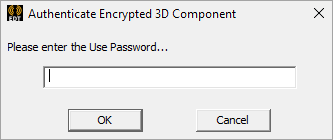
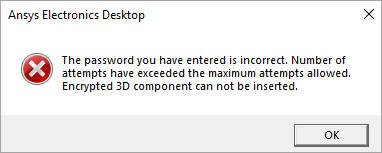
When an encrypted 2.0 component representation is added to a design, a prompt will appear asking for the password.
If the password is incorrect, a warning appears:
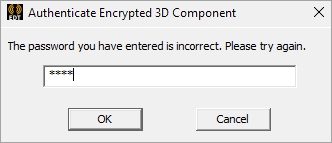
There is a three attempt maximum, after which a warning will appear and no further attempts may be made:
Copying and Pasting Encrypted Representations
An encrypted representation cannot be copied/pasted. They can be moved, and multiple instances of the representation can be added to a project design.