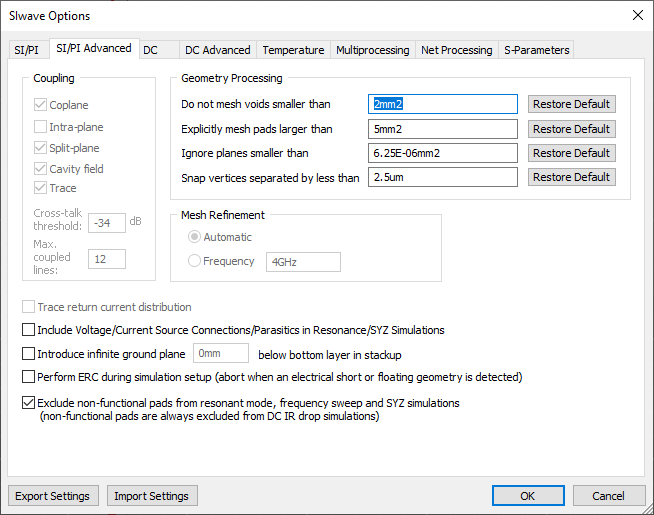
Selecting SI/PI Advanced Options
To configure advanced SI/PI options for SIwave simulation in SIwave:
- Click Simulation.
- From the SIwave area, click Simulation Options.
- Select the SI/PI Advanced tab.
- From the Geometry Processing area, specify plane void meshing values, and control geometry defeaturing and vertex snapping.
Note:
Ansys recommends using the default settings. Refer to Advanced Geometry Processing Options.
- Coupling options are
available only if you have selected the Custom check box in the
SI/PI tab:
- Check Coplane to enable
coupling between traces and adjacent plane edges. This option provides
a model for the crosstalk between signal lines and planes. Plane edges
couple to traces when they are parallel.
When the solver detects any "trace-like" plane shape, the shape is treated as a trace and the solver checks whether there are nearby coplanes that can couple to it.Note:
Traces and coplanar edges which are oblique to each other or do not overlap cannot be considered for coupling.
- Check Intra-plane to enforce intra-plane coupling during AC and DC solutions. Intra-plane coupling occurs through metal planes at low frequencies when skin depth becomes greater than the plane thickness. It provides more accurate low frequency solution, but the solver uses more memory and CPU time. Use this option when high accuracy low frequency solution is required (e.g., during log sweep), or when generating FWS models.
- Check Split-plane to account for coupling between adjacent parallel plane edges. Primarily, two different cases are being considered: plane edges which form a split and plane edges which form a narrow trace-like plane. The former leads to crosstalk between adjacent planes for which a specific coupling model is applied. For the latter, fringing effects are considered to model accurately the propagation characteristics of trace-like cavities. Further, the coupling between narrow planes is also modeled by enabling this feature.
- Check Cavity Field to model the effect of fringe field coupling between stacked cavities.
- Check Trace to model coupling
between adjacent traces. Coupling is considered for parallel and almost
parallel trace segments.
Note:
Coupling features are dependent on each other. Enabling Split-plane enables Coplane and Trace.
Enabling Coplane enables Trace.
- The Cross-talk threshold field is available only if you have selected SI simulation and the Custom
check box on the SI/PI tab. Enter a value,
in dB. This value specifies the coupling
crosstalk threshold, and allows you to control the degree of electromagnetic
coupling (trace/coplane/split-plane) included in the simulation. The
default value is -34dB. If you decrease it, the simulation will consider
more distantly spaced geometry as coupled. Note:
Simulation time increases when more coupled geometry is included.
- The Max coupled lines field is available only if you have selected SI simulation and the Custom check box on the SI/PI tab. Max coupled lines is used to limit the size of the coupled multi-conductor transmission line model. Without this limit, the transmission line model could include too many lines satisfying the cross-talk threshold. With this limit, the weakest couplings are dropped in order to break the large multi-conductor transmission line model into smaller ones. The default values (12 for optimum speed or balanced simulation, 40 for optimum accuracy) are sufficient in most cases. For special cases, you can specify a value to make sure important couplings are not dropped.
- Check Coplane to enable
coupling between traces and adjacent plane edges. This option provides
a model for the crosstalk between signal lines and planes. Plane edges
couple to traces when they are parallel.
When the solver detects any "trace-like" plane shape, the shape is treated as a trace and the solver checks whether there are nearby coplanes that can couple to it.
- The Trace return current distribution option is available only if you have selected the
Custom check box in the SI/PI tab.
Check this option to accurately model the change of the characteristic
impedance of transmission lines caused by a discontinuous ground plane.
Instead of injecting the return current of a trace into a single point
on the ground plane, the return current for a high impedance trace is
spread out.
The trace return current is not distributed when all traces attached to a node have a characteristic impedance of less than 75 ohms, or if the difference between two connected traces is less than 25 ohms.
- Check Include Voltage/Current Source Connections/Parasitics in Resonance/SYZ Simulations to include the effect of parasitic elements from voltage and current sources.
- From the Introduce infinite ground plane field, specify the elevation of the infinite unconnected ground plane to be placed under the design. The ground plane serves as a voltage reference for traces and planes if they are not defined in the layout.
- Clear the Perform ERC during simulation setup check box to turn off error checking while generating the solver input file. In some designs, the same net may be divided into multiple nets with separate names; these nets are connected at a "star point." To simulate these nets, error checking for DC shorts must be turned off. All overlapping nets are internally united during simulation.
- Check Exclude non-functional pads from resonant mode, frequency sweep and SYZ simulations to remove non-functional pads. All layers in which a via does not make an electrical connection to any other geometry do not contain a pad. By default, non-functional pads are not included in the simulation. Typically non-functional pads are removed when a PCB is manufactured.
- The Mesh
Refinement option is available only if you have selected
the Custom check box in the SI/PI tab. This parameter controls
how the finite element mesh used in SIwave is generated. You can select
from the following options:
- Automatic – automatically picks the suitable mesh refinement frequency. It is dependent on the drawing size, the number of modes, and/or the maximum sweep frequency. This is the recommended option.
- Frequency – allows you to control the mesh size and is based on the effective wavelength of the specified frequency. See Meshing Technical Notes for details.
- Optionally, use the Export Settings button to save your settings as an SIwave Sim Settings File (*.sws). Click Import Settings to browse and select an *.sws file for import.
- Click OK to apply settings.