
Selecting DC Advanced Options
To define the DC advanced options for SIwave simulation:
- Click Simulation.
- From the SIwave area, click Options.
- Select the DC Advanced tab.
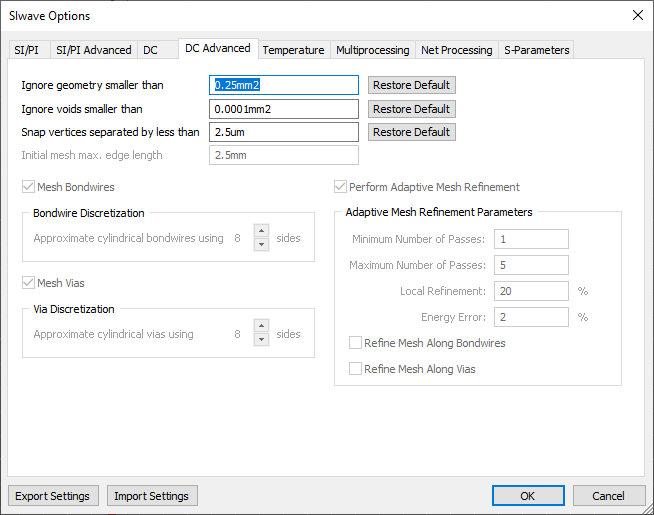 Important:
These options are available only if you have selected the Custom check box in the DC tab.
- If appropriate, enter a value in the Ignore geometry smaller than field. Geometry whose area (after being combined with any overlapping geometry) falls below this specified threshold is ignored during simulation.
- If appropriate, enter a value in the Ignore voids smaller than field. Voids whose area (after being combined with any overlapping geometry) falls below this specified threshold is ignored during simulation.
Note:
Ansys recommends using the default settings. Refer to Advanced Geometry Processing Options.
- If appropriate, enter a value in the Snap vertices separated by less than field. Entities (e.g., vias) and vertices that are separated by less than the distance specified in this box may be snapped together during solver pre-processing.
- From the Initial Mesh Max. Edge Length field, enter a value in units you specify. This specifies the maximum edge length appropriate in the mesh (before any adaptive refinement occurs).
- If you do not want to model bondwires as point connections to mesh, check Mesh Bondwires. Specify the Bondwire Discretization – the number of sides used to approximate cylindrical bondwires. You can specify any value between 6 and 64. The default value is 8.
- If you do not want to model vias as point connections to mesh, check Mesh Vias. Specify the Via Discretization – the number of sides used to approximate cylindrical vias. You can specify any value between 6 and 64. The default value is 8.
- If you want to perform
adaptive
mesh refinement, check Perform Adaptive Mesh Refinement and populate the fields:
- Enter the Minimum Number of Passes. An adaptive analysis does not stop unless the minimum number of passes you specify has been completed, even if convergence criteria have been met.
- Enter the Maximum Number of Passes.
This value is the maximum number of mesh refinement cycles that you want
SIwave to perform. This value is a stopping criterion for the adaptive
solution. If the maximum number of passes has been completed, the adaptive
analysis stops; otherwise, the adaptive analysis continues unless the
convergence criteria are reached.
Note:
The size of the finite element mesh — and the amount of memory required to generate a solution — increases with each adaptive refinement of the mesh. Setting the maximum number of passes too high can result in SIwave requesting more memory than is available or taking excessive time to compute solutions.
- Enter the Local Refinement. This value determines how many triangles are added at each iteration of the adaptive refinement process. The triangles with the highest error will be refined. The default value is 20%.
- Enter the Energy Error. The default value is 2%.
- If appropriate, check Refine Mesh Along Bondwires.
- If appropriate, check Refine Mesh Along Vias.
- Optionally, use the Export Settings button to save your settings as an SIwave Sim Settings File (*.sws). Click Import Settings to browse and select an *.sws file for import.
- Click OK to apply settings.