
Viewing EMI Scanner Results
To view EMI Scanner results:
- Click Results > EMI Scanner > [Simulation Name].
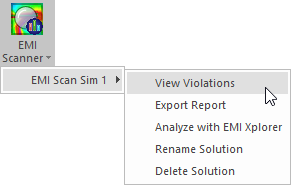
Results Menu options include:
- View Violations – opens the violations viewer.
- Export Report – allows you to export an HTML report of EMI rules and violations.
- Analyze with EMI Xplorer – opens the EMI Xplorer.
- Rename Solution – allows you to rename the EMI scan.
- Delete Solution – allows you to delete EMI scan results.
- Select View Violations.
The EMI Scan Violations window appears.
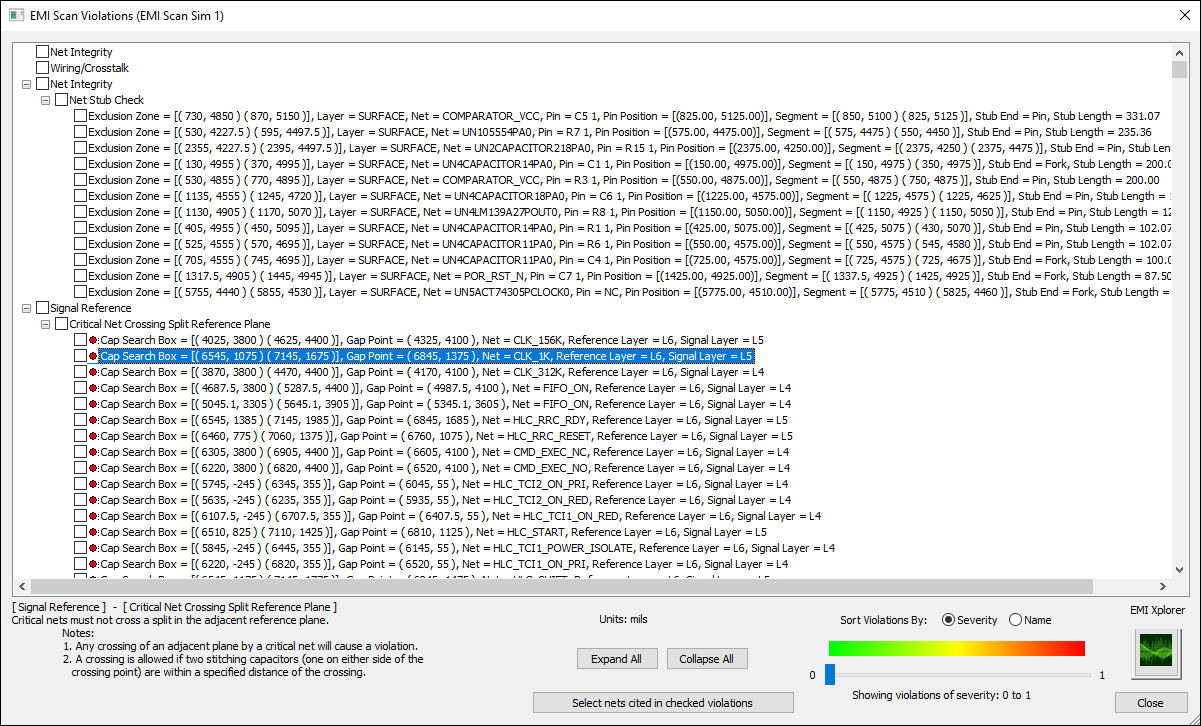
Violations are listed in a tree, by type.
Use the + and - buttons to expand and collapse items in the tree, or click Expand All and Collapse All.
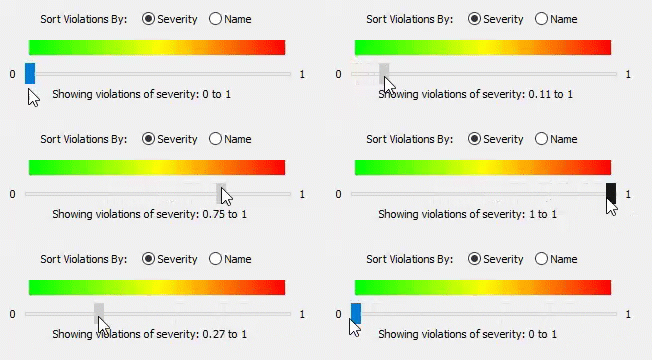
Use the controls at the lower-right to sort the violations by Severity or by Name, or to limit the range of violations displayed.
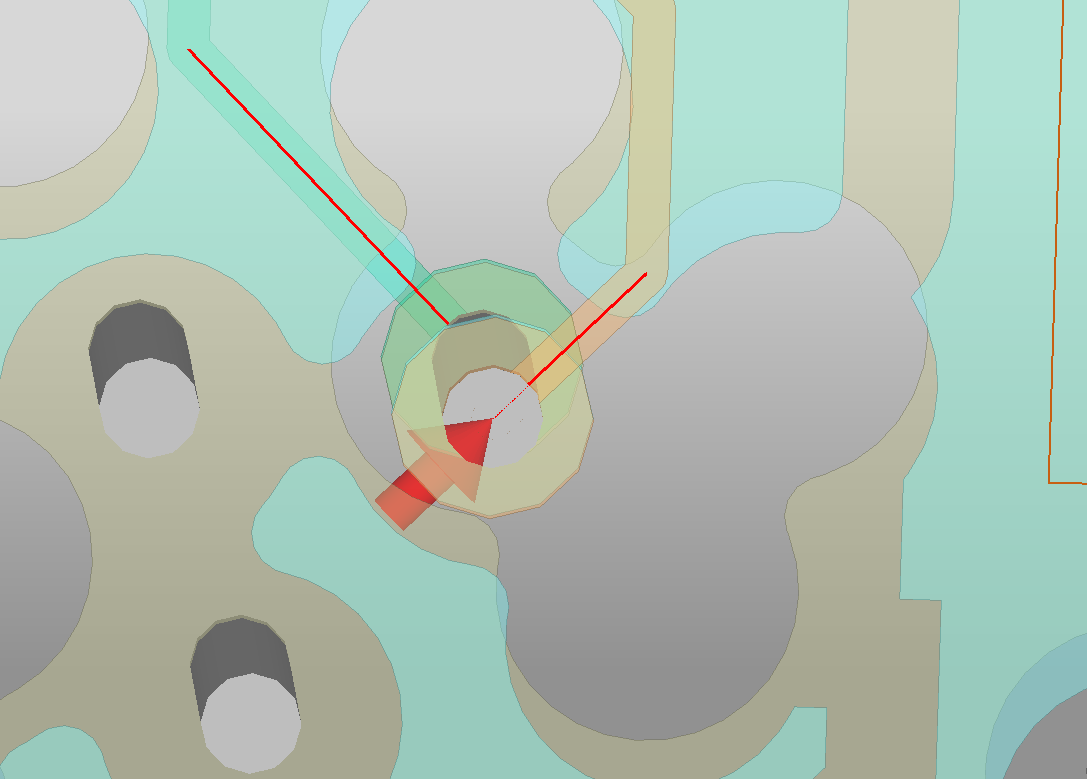
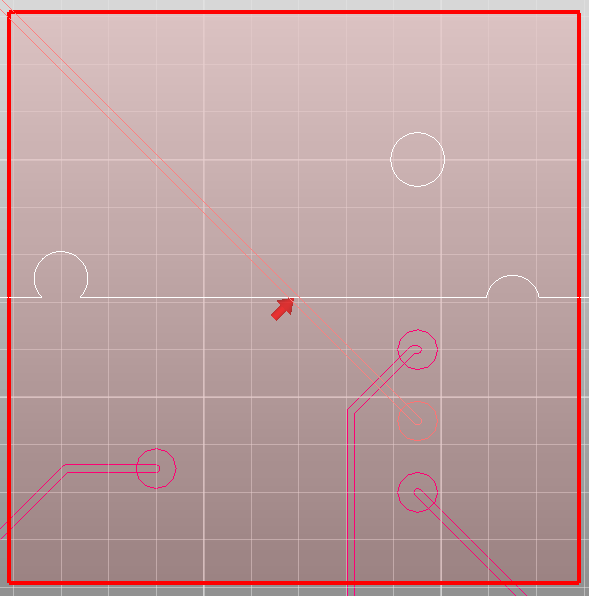
- Click a violation to view its location in the Modeling workspace. A red arrow, line, or box indicates the violation.
Clicking a violation also populates the EMI Scan Violations window with a description of the violation:
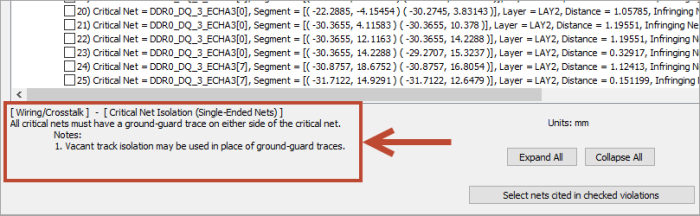
Use the check boxes in the tree to select multiple violations. Click Select nets cited in checked violations to select these nets in the Modeling workspace.
Select a violation and click the EMI Xplorer icon to open EMI Xplorer.