
Mesh Setup for Mesh Fusion/Assembly
Specify mesh settings, including the surface approximation and the meshing approach. Mesh settings apply to all objects in the given component; however, if separate surface approximations are applied to specific objects within a 3D component, the object settings take precedence over the general settings. For most designs, the solver automatically selects the most chosen meshing approach. Otherwise, configure options in the Mesh Settings window.
Complete these steps to access the Mesh Settings window.
-
From the Layout Editor, select a 3D object in the active design to make its parameters appear in the Properties window.
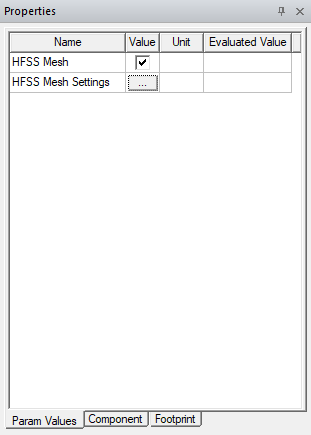
Mesh Fusion is supported only for layout and 3D components. If a component does not meet this requirement for Mesh Fusion, the option is not available on the Param Values tab.
-
Click the HFSS Mesher Settings [...] button to open the Mesh Settings window with Domain, Curved Surface, and Advanced tabs.
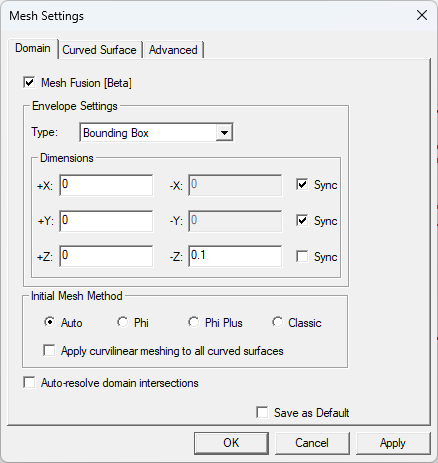
- If necessary, check the Mesh Fusion [Beta] box to access the Envelope Settings and Initial Mesh Method group boxes.
- From the Envelope Settings area:
- Select a Type of geometry from the drop-down menu:
- Bounding Box – creates a box with padding that is equal on both sides of the X and Y dimensions.
- Definition Envelope – creates a mesh region in the 3D Component.
- Enter an appropriate amount of padding for each side of the object in the X, Y, and Z fields.
- If appropriate, check the Sync boxes to match the padding on each side of the component.
- Select a Type of geometry from the drop-down menu:
- From the Initial Mesh Method area, choose a meshing method.
- If necessary, check the Auto-resolve domain intersections box. By default, Mesh Fusion only allows dielectrics from the native domain to intersect with child domains. The intersecting dielectrics are removed from the envelope region completely. When Auto-resolve domain intersections is checked, the intersection is resolved and the geometry description is preserved. The dielectric and conductor bodies overlapping the Mesh Fusion envelope are split and moved to the Mesh Fusion domain.
- Click Apply to preview the result in the Layout Editor. A black box is drawn around the object to denote the bounding box (envelope).
- To make the mesh finer or coarser, click the Curved Surface tab. For a finer degree of control, uncheck the Use dynamic surface resolution box (refer to Surface Approximation).
- To set the Model Resolution, click the Advanced tab. This sets the optimal length of the hypotenuse for triangles in a mesh (refer to Model Resolution Length).
- To make the current selections the new default configuration, check the Save as default box.
- Click OK to set the mesh assembly.
The procedure is complete.
The 3D Layout Mesh settings define settings for individual components and add the possibility of a mesh assembly envelope. ECAD components can only have a bounding box envelope. MCAD components can have bounding boxes and definition envelopes, given by the pre-defined Mesh Regions in the component. Refer to Mesh Fusion/Assembly for details.