
Surface Approximation
Each solver applies surface approximation settings for selected objects when it generates the initial mesh. If you modify a solver's default settings after the initial mesh has been generated, they are affect the mesh for that design variation. Surface approximation makes sense for curved surfaces, for which the mesh are exactly reproduce the surface shape. It also can be used to restrict the aspect ratio of triangles on planar surfaces.
To configure mesh settings for curved surfaces:
- From the Beta settings, enable HFSS FEM Mesh Assembly.
- Select a 3D object.
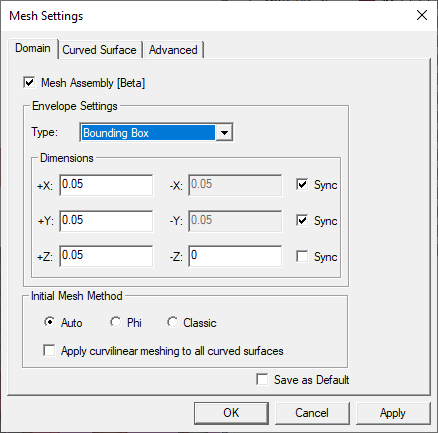
- From the Param Values tab of the Properties window, click HFSS Mesh Settings. The Mesh Settings window opens with Domain, Curved Surface, and Advanced tabs.
- From the Domain tab, select or deselect Apply
curvilinear meshing to all curved surfaces for models with curved surfaces. This increases accuracy, but costs more
memory.
- From the Curved Surface tab:
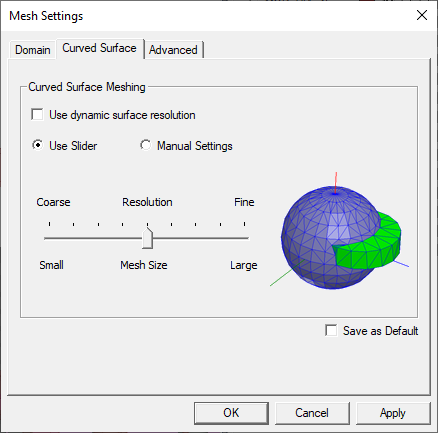
- Select Use dynamic surface resolution to specify the best-practice mesh operations over the geometric models. This mesh operation supports 3D volume mesh and surface mesh in all products. The default mesh operations or user-defined mesh operations may or may not be replaced by the optimized mesh operations with model analysis. In general, large curve faces, curve faces with small gaps, or skewed cables get more smooth curvature representation while small curve faces (e.g., fillets, small curve objects, et cetera), get relatively coarse triangulations so that overall mesh size are reduced. If you select Use dynamic surface resolution, the Manual Settings option is deactivated.
- Select Use Slider to use the slider with a visual representation of the resolution you select as ranging from Coarse Resolution with a Small Mesh Size through a nine position scale to a Fine Resolution with a Large Mesh Size. The slider bar offers surface representation levels as coarse (1-3), normal (4-6), and fine (7-9). You can also adjust the surface representation level for a specific group of faces by specifying slider bar.
- If you select Manual Settings, the window changes to show fields:
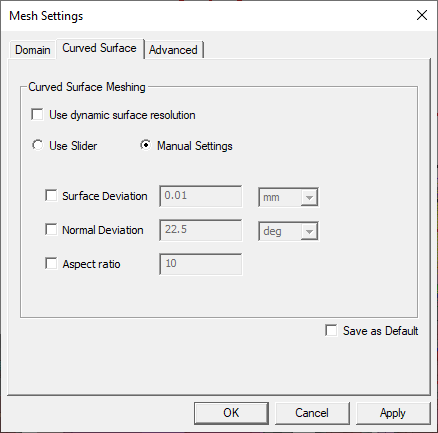
Use the check boxes to enable fields and specify values:
- Surface Deviation – Use the drop-down menu to select a unit of measure , then enter the distance between the true surfaces of the selected faces and the meshed faces.
- Normal Deviation – Use the drop-down menu to select a unit of measure , then enter the angular distance between the normal of the true surface and the corresponding mesh surface.
- Aspect Ratio – Enter a value in the field. This value determines the shape of the triangles. The higher the value, the thinner the triangles. Values close to 1 results in well-formed, wide triangles.
- To make your choices the default, click the Save as default check box.
- Click OK to apply your choices.