
SUtility
SUtility provides visualization, analysis, and manipulation tools for manipulating S-parameter data. It is a post-processing application that enables you to analyze the scattering, impedance, and admittance parameters. You can graph and compare the parameters from multiple analyses.
SUtility also provides a set of S,Y,Z-parameter processing tools such as shorting, opening, and lumping ports, adjacent structure coupling, and converting ports from single to differential.
With increasingly large and complex designs, SUtility provides an efficient and alternate way of generate results for small manipulations to certain ports (e.g., after performing an analysis for a 10-port net, you may want to see the effects if you short a certain port). Instead of running through the analysis process again with the small change, you can use the Port Tools utility to quickly calculate the new effects.
SUtility provides convenient graphing tools to help you analyze different parameters and compare results. With basic functions such as x and y-axis scaling, log graphing units, color differentiation, and easy access parameter plotting, SUtility makes post-processing easy and powerful.
Launching SUtility
You can launch Sutility in one of two ways:
- Click Tools. From the S-Parameter Tools area, click SUtility.
- Run an SYZ or PSI simulation. From the Results workspace, right-click the solution name and select Export to SUtility.
The S-Parameter Utility window appears. If you launched from the Results workspace, the solution data is automatically loaded.
Interface Overview
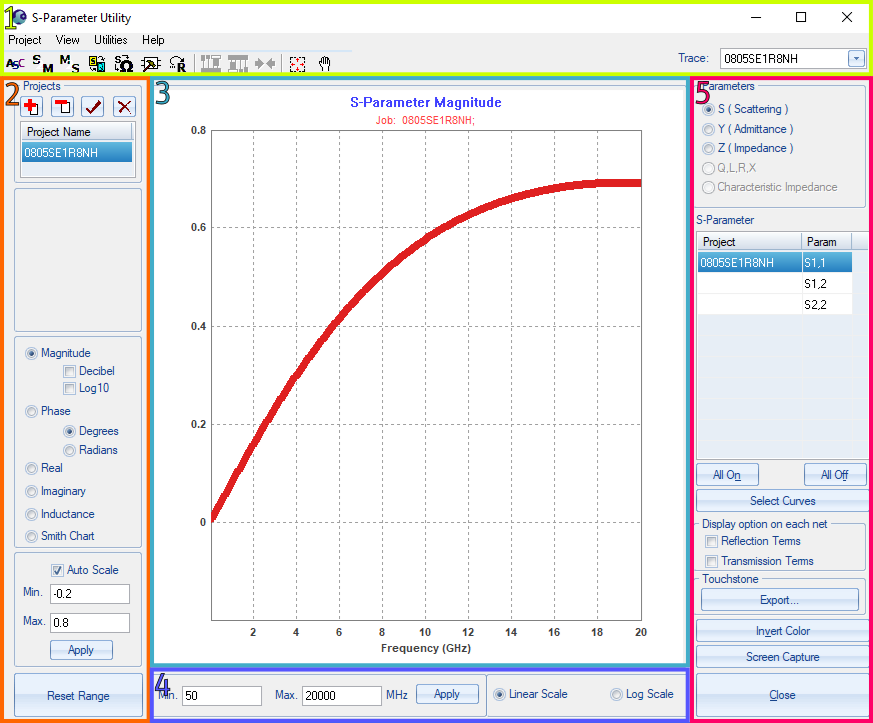
The SUtility window is divided into the following panes:
- Options Pane – allows you to configure SUtility and access various utilities.
- Control Pane – allows you to select one or more projects and apply changes to the graph.
- Plot Pane – displays the plotted information.
- X-Axis Pane – allows you to alter the scale of the graph and its x-axis.
- Parameters Pane – allows you to choose between different parameter types and set their options. You can also export Touchstone information from this pane.
Options Pane
The Options Pane provides four menus to access SUtility functions:
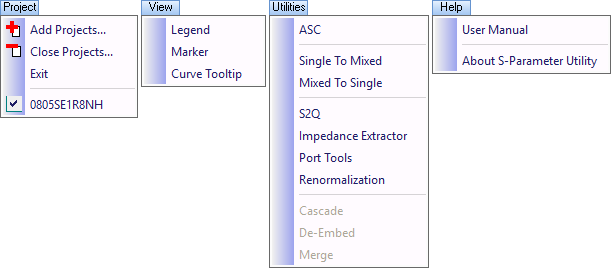
Use the Project Menu to add and close projects, or to exit SUtility.
Use the View menu to toggle the chart legend, add markers, and toggle the tooltip displayed when the cursor hovers over the curve.
Use the Utilities menu to access SUtility utilities. Utilities and parameters are also accessible via the toolbar:

These include:
- Adjacent Structure Coupling (ASC)
- Single to Mixed (S2M)
- Mixed to Single (M2S)
- S-Parameter to QRLX Conversion (S2Q)
- Impedance Extractor
- Port Tools
- Renormalization
- Cascade (only available when you've selected multiple projects with the same number of ports)
- De-Embed (only available when you've selected multiple projects with the same number of ports)
- Merge (only available when you've selected multiple projects with the same number of ports)
Use the Help menu to open the SUtility User Manual or to learn more about the software version.
Control Pane
The Control Pane consists of several areas:
Under Projects, you can select one or more Touchstone files.
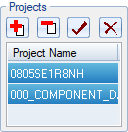
Click the icons to Add, Close, Select All or Deselect All projects.
- Select a project from the list to load its parameters.
- Hold down the Ctrl key as you drag the mouse to select multiple projects .
- Right-click a project for options to View File (in a text editor) or Export.
Depending on the type of Touchstone file input (Z , Y, or S-parameter), the other two parameter types are calculated (e.g., if you input a S-parameter file, SUtility will automatically calculate the corresponding admittance (Y) and impedance (Z) parameters). By default, the S11 parameter for the input file are also plotted.
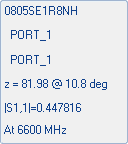
As you move the cursor across the Plot Pane, the Projects area updates to display additional information about the file name, reference impedance, and frequencies.
The next area of the Control Pane allows you to select from y-axis values.
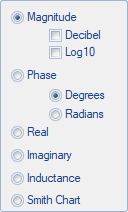
If you select Phase, you must also select the phase units (degrees or radians). The Smith Chart option is available only for S (Scattering) parameters.
At the bottom of the Control Pane, you can change the y-axis scale.
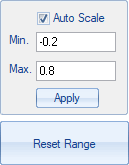
Click Reset Range to return the y-axis scale to its default settings.
Plot Pane
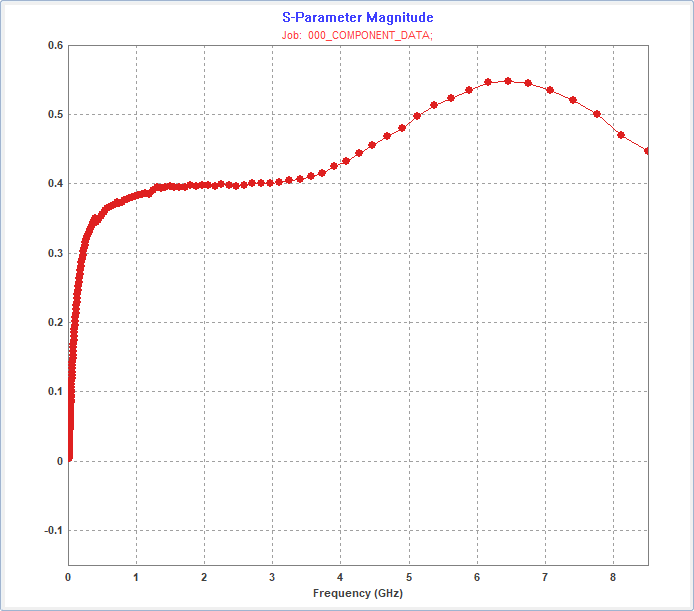
The Plot Pane displays the graph. It automatically updates as new settings are applied.
X-Axis Pane
The X-Axis pane allows you to set a range for the x-axis scale.

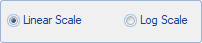
Additionally, you can choose between linear and log scales.
Parameters Pane
The Parameters area allows you to determine which parameters to plot. S, Y, or Z files are generated based on the type of input file. Scattering, admittance, and impedance parameters are also generated. If the input matrix is singular, the other radio buttons are disabled.
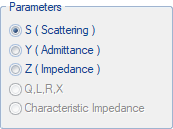
Click any parameter to load it into the parameter list.
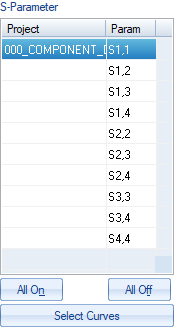
- Plot a parameter by clicking it.
- Plot multiple parameters using Ctrl+click.
- Use the All On and All Off buttons to display or hide all the parameters in the parameters list.
The Touchstone area allows you to export your information for viewing in either Notepad or Excel.
Click Export to open the Export Options window.
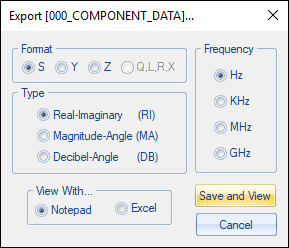
Choose the Format, Type, and Frequency. Note that Type options are unavailable for Q,L,R,X format.
At the bottom of the Parameters Pane, you can invert the color of the graph or copy a screen capture to the clipboard.