Cropping and Removing Small Fragments in IC Mode
Crop a design to filter nets and/or clip a design by a polygon. If cropping a design leaves behind inappropriate fragments, remove them by adjusting the chosen parameter in the Geometry Simplification Settings window. Before cropping, consider the following:
- If a polygon is selected before the operation is performed, it becomes the default extent polygon.
- If the selection is to be entirely by net, then no geometry should be selected before invoking the operation. If multiple polygons are selected, the union of these polygons forms the extent.
- If no data is selected, a new design is created with a stackup identical to the source design, but no geometry is transferred.
- Crop works on hierarchy and footprints, however, everything is flattened into the sub-design that is created.
Cropping a Design
Complete these steps to crop a design.
- From the Layout ribbon, click Crop.
- If appropriate, navigate to the Layout Editor tab and the chosen components.
-
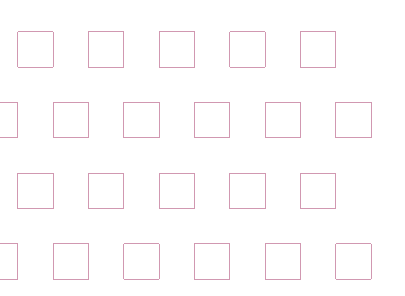
Click within Layout Editor to begin selecting a region of the design to preserve. Move the cursor to surround the entire region.
-
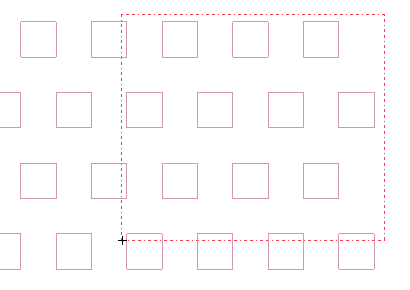
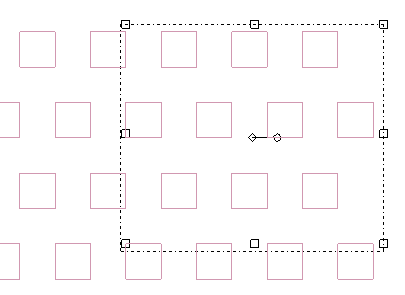
Click to define the region within the bounding box.
-
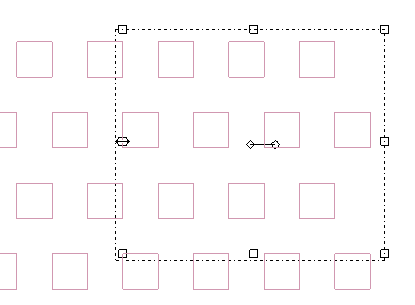
If appropriate, expand or contract the bounding box. Hover over any of the square handles and the cursor will change into a double-headed arrow. Then click+hold the handle and drag to change the size of the selected region.
-
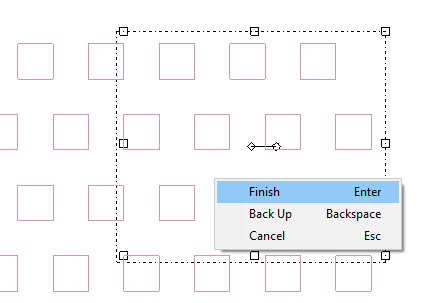
Right-click anywhere in the Layout Editor and select Finish.
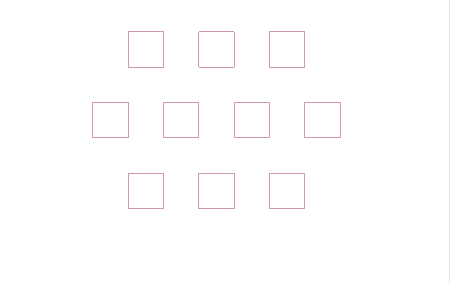
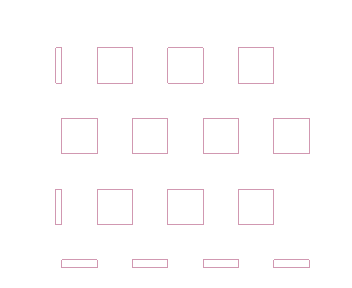
Every element outside of the selected region is removed from the design. From the following screenshot there are fragments left behind by the Crop.
Removing Small Fragments From a Design
Complete these steps to configure Remove Small Metal Fragments, then remove fragments within a design.
- From the Layout ribbon, click Settings.
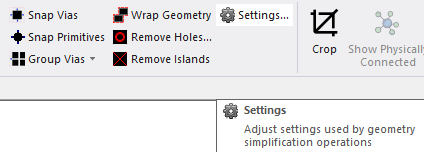
The Geometry Simplification Settings window opens.
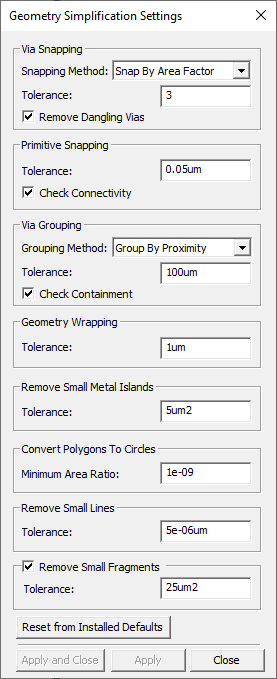
- From the Remove Small Fragments area, do the following:
Check the Remove Small Fragments box to activate the feature.
Enter a value in the Tolerance field (e.g., 25um, although the default is 5um).
- Click Apply and Close.
- Click Ctrl+Z to reset the last changes made in the Layout Editor (e.g., undo the crop performed in Cropping a Design).
- Repeat steps 3-6 in Cropping a Design. The fragments left behind by the Cropwere at or below the Tolerance value, so they are also removed.