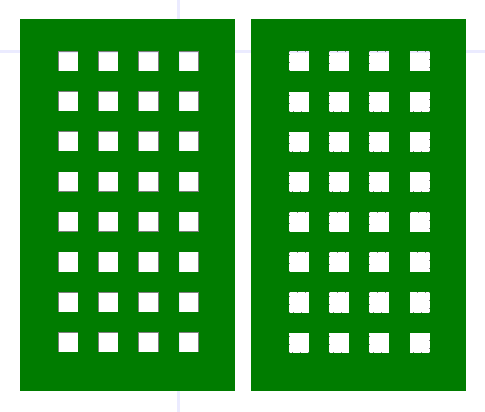
Removing Small Lines in IC Mode
Designs contain small lines (i.e., traces) that are unimportant to the simulation. Users can clean up a design by using the Remove Small Lines feature. Lines are removed if their total area is smaller than the user-specified Tolerance. Complete these steps to configure and run the Remove Small Lines feature.
Complete steps in the following subsections to configure Remove Small Lines, then remove lines within a design.
Configuring Remove Small Lines Settings
- From the Layout tab, click Settings.
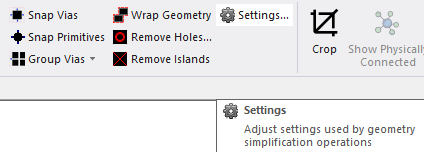
The Geometry Simplification Settings window opens.
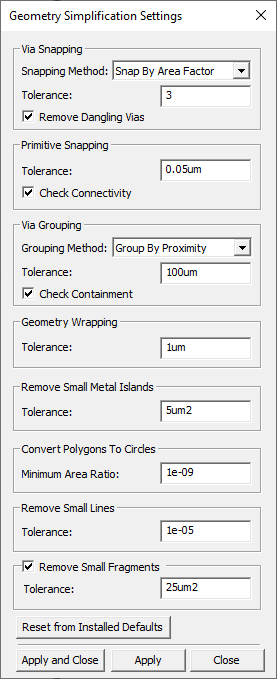
- From the Remove Small Lines area, enter a value in the Tolerance field (e.g., 1e-05, although the default value is 5e-06um).
- Click Apply and Close.
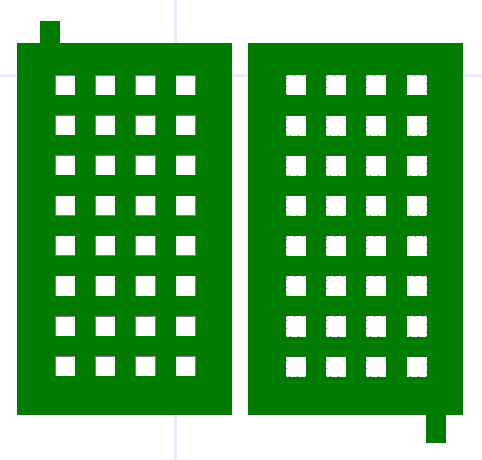
Removing Small Lines in the Layout Editor
-
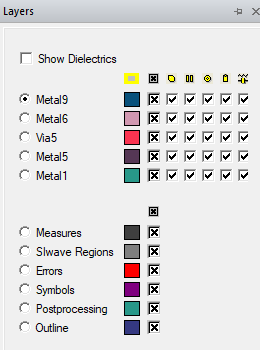
If the Layers window is not visible, navigate to the Layers tab. Click the Layers tab to open the window.
-
Right-click the chosen layer (e.g., Top) and select Remove Small Lines.
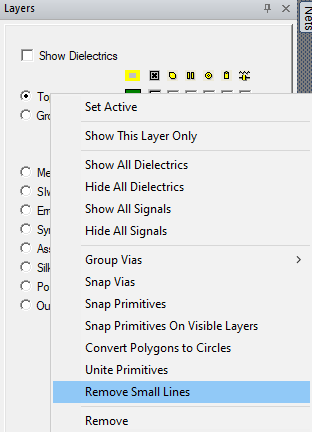
Lines in the designated layer are compared to the value in the Tolerance field. Any line with the same total area or smaller than the set Tolerance is removed from the design.