


The Hazard and Operability (HAZOP) Study is a guide word-driven risk identification technique. The method allows to systematically examine functions and/or processes in order to identify risks in order to identify their failures. Often only the guideword approach is used or understood as HAZOP, for example applying guidewords such as ''NO'' or ''NOT'', ''MORE''/''LESS'', ''REVERSE'', etc. to the design intent. The latter is supported by medini analyze by means of a more general Guideword Analysis. Guidewords can be used to identify failures, limitations, or vulnerabilities.
The Guideword/HAZOP Analysis editor in medini analyze shows each design element of interest in a table together with a set of configured guidewords (one column per guideword). The content that is shown in the table can be selected by you as an analyst and can span multiple architecture and design models in a project.
A Guideword Analysis or HAZOP is created in two steps:
Define the Guideword Template that includes the guidewords to be used for the analysis. This preparation step is carried out before the analysis starts. See Guideword Template Definition for details.
Instantiate a HAZOP Template and perform the guideword-driven identification of failures for a design model. This analysis step is described in section Creating a HAZOP or Guideword Analysis.
A Guideword Template defines the guidewords used in a subsequent Analysis, e.g. a HAZOP. Each project can maintain a set of Guideword Templates for different application cases, e.g. to identify failures, limitations, or even vulnerabilities for a cybersecurity project.
To create a Guideword template you have to do the following:
Open the project settings, e.g. right-click on the project in the Model Browser and select "Project Settings..." from the context menu
Open the "Guideword Templates" settings page to create, edit, or remove a template
On the template page you can create a template by pressing the add button ("+") in the upper table. Provide a name and brief description of the template
In the lower table you can edit the guidewords for the selected template, use the add/remove buttons to create/remove guidewords
Each guideword has an associated content type that describes the kind of information that will be derived from the guideword. The choices are: Failure, Limitation, and Vulnerability. Depending on the type a corresponding element will be selectable or created.
Note that you can enable profile properties for the template in case you want to use additional fields in the analysis, e.g. comments, references, and so on. See Profiling mechanism for more details.
Example
The figure below shows an example of two HAZOP templates that have been created at a project:
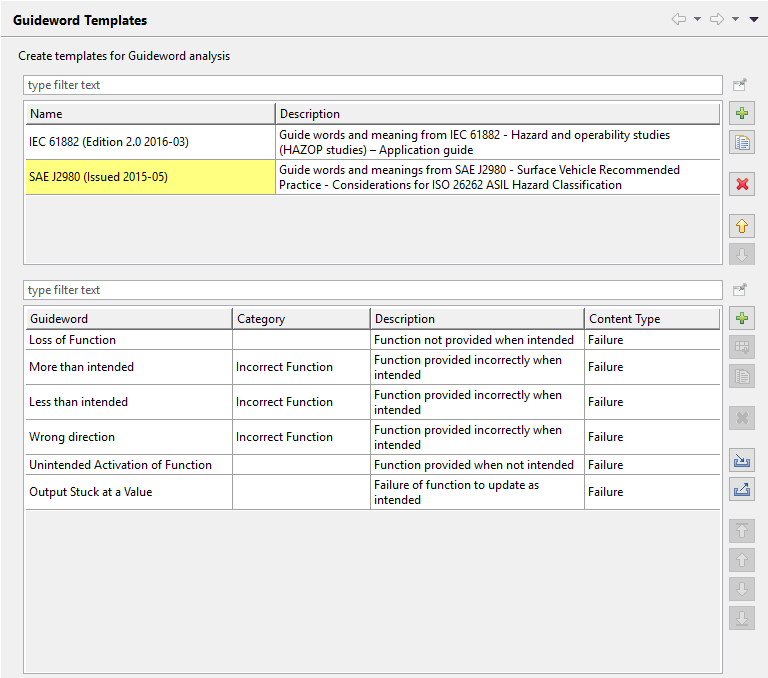
The guidewords that are listed will appear each as a separate column in all HAZOP analyses that are going to instantiate the template. The Category will be used as a spanning header that groups certain columns. Note that the Content Type is set to Failure, which refers to Malfunctions or Failure Modes (depending on the elements being analyzed). See Creating a HAZOP or Guideword Analysis for details and an example.
The Guideword Analysis editor provides a convenient and fast way to identify and edit failures of a functional or technical design. Moreover, the guideword editor allows to identify limitations and vulnerabilities (depending on the template guideword definitions).
Before starting the HAZOP/Guideword Analysis, you need to create a template with guidewords for the editor. Please refer to section Guideword Template Definition for more information.
In order to create a new Guideword/HAZOP Analysis you have to do the following:
Select a project folder in the Model Browser and open the context menu, choose "New | Guideword Analysis..." from the sub-menu
In the upcoming dialog select the template that should be instantiated. Note: if no template is selected, the Guideword editor will be reduced to show only design elements and columns for profile property of the entries.
After successful creation the Guideword table editor will open showing columns for the guideword. Each row is supposed to be filled with the design element of concern.
Now add elements to be analyzed either by drag and drop or using the "Add"/"Add After" buttons on the right side of the table.
Failures - or weaknesses such as Limitations or vulnerabilites - can be added for each guideword either by double clicking into the cell (opens selection dialog) or simply by typing text directly into the cell (press F2 to edit text in an empty cell). The latter will create a new failure (or limitation/vulnerability) for the corresponding element of the row. The type depends on the design element type and the gudieword column definition.
Note that existing failures or weaknesses are not automatically assigned to any guideword when an element is added to the table, because the tool has no knowledge of the relationship between an existing failure/weakness and a guideword. However, you can simply select (or drag and drop) existing failures to a guideword as required.
If a failure/weakness was erroneously assigned to a guideword, you can select "Clear" from the cell's context menu (or double click and unselect the failure/weakness)
If a complete element (row) shall be removed from the analysis, use the delete button ("X") on the right side. This will remove the element entry from this table, but not delete the element or any of its failures/weaknesses from the model.
New failures/weaknesses can be also created by dropping a failure/weakness as "template" from collections. In that case, the dropped failure//weakness will be duplicated to the row element. Note that of course the type of the failure/weakness must match the element and guideword column, so a malfunction cannot be dropped to a part or port, but to a fucntion row and a limitation cannot be dropped to any "failure content" guideword column.
Note that each cell in a guideword column (element-to-guideword entry) supports the selection of multiple failures/weaknesses, not just a single one. That means in case two failures/weaknesses fit to the same guideword, these different failures can be listed under the same guideword. This might be useful in cases where the guideword is generic or certain characteristics such as force, thresholds, timing, etc. should be distinguished.
Example
The following shows an example analysis with four functions of a suspension control system design (from SAE J2980). The functions have been added selectively to the table editor from a SysML model:
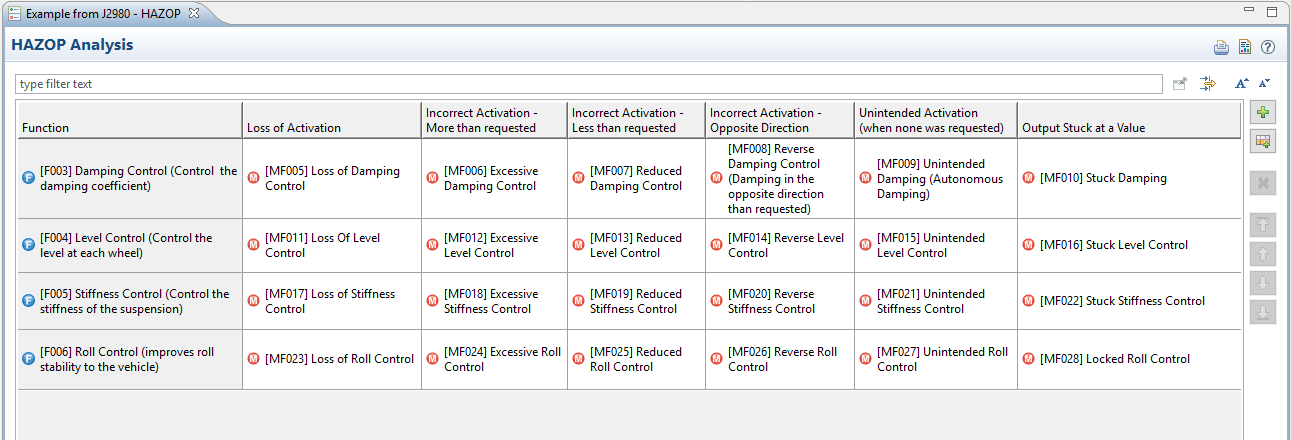
In case a new function (or other design element) is created in a model, you can add it to the table (drag and drop or use the "Add" buttons) for analysis. In order to add all elements of a model or package you can drop a single design package or design model to the table. All elements in the dropped package or model that are not yet in the table will be added recursivley. The order in how the elements appear can be controlled with the Move Up/Down/Top/Bottom buttons on the right side of the table.
Note that the property view can be used to show and edit details of the selected elements and failures in the table. The context menu works on each row/cell so that e.g. navigation to the element in focus into the Model Browser is possible.
In case you want to manage additional information with each row of the editor (e.g. a comment or rationale, status, references to other elements, etc.) you can use the profiling mechanism. Just select "Add Column" from the context menu of the table header or add other types of profile properties to the "Entry" meta-class and they will appear as new column in the table. Please refer to Profiling mechanism for more details. Note that this is different from using "Add Guideword Column" which is explained in section Change Guideword Columns.
Guidewords can be added to a Guideword table at any time, even after instantiation of a template. To add or change a column you can do the following:
Open a Guideword table editor
Right-click on the header column to open the context menu
Select "Add Guideword..." to create a new one or "Edit Guideword..." to change an existing one.
A dialog comes up to cofigure the guideword's name, description, category, and content type. In case you edit an existing guideword, the content type cannot be changed, because it would invalidate all the referenced content.
A new column will be created for the guideword with empty cells for each existing row. Note that the new column is only created for the currently active Guideword table, it does not affect any other or the orignal template. It is also possible to rename a guideword or even to remove the complete guideword column. Removing a guideword will remove all information in the guideword column, so has to be handled with care in order not to lose analysis information.