


Profiling allows you to customize medini analyze projects to your needs by extending the data model by new properties (fields). A profile property enhances all objects in the scope of a project consistently with new features. In the simplest way such a property can be the addition of a text field, but properties could also be references to other objects and even more sophisticated queries to show/aggregate data by navigation through the entire models are possible.
Profile properties appear in the UI like any normal attribute in the property view (separate tab), as columns if an element is shown in a table, or on forms ("Extended" section). Profile properties are accessible via validation constraints, scripting, or during reporting and hence provide a "first-class" extension mechanism.[14]
Currently, profiling is supported at almost any object type (i.e. meta class) with the following exceptions:
MATLAB/Simulink elements (deprecated)
Failure Collections
Additional properties are introduced by one of the following actions:
Use the "Profiling" section in the project settings dialog
Use the "Add Column" action from the context menu in the header line of each table editor (see General aspects for table editors)
Use the "Customize" link which is available in most form editors to open the settings dialog with a short cut (see General aspects for form editors)
Add a new mapping target column in the import preview page of the CSV/Excel import wizard (see Using the CSV/Excel import wizard)
The "Add Column" action asks for the name of the property and simply adds it to the table. Using this action leads always to properties of type text. If other types are required, the property creation via the project settings dialog has to be chosen.
The profile section in the settings dialog looks as follows.
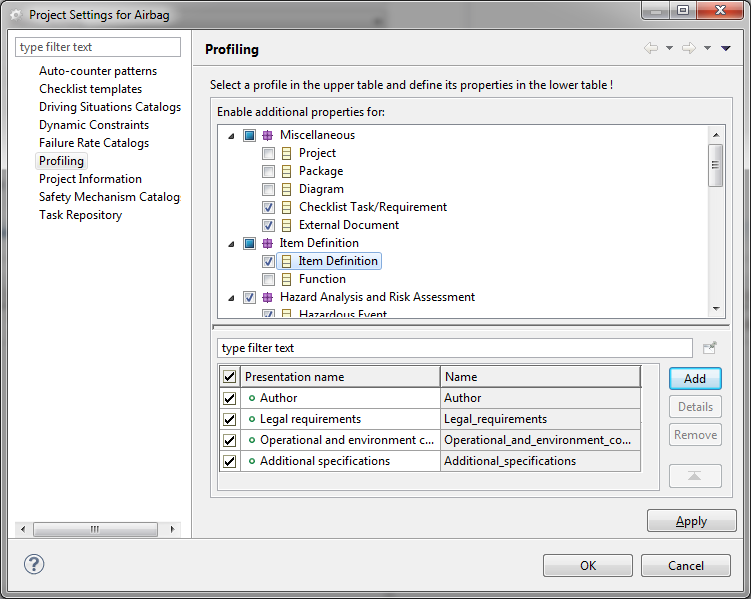
In the upper part of the dialog you can select which elements should be profiled; activating the check-box will activate the profile settings for the current project and deactivating it will disable the profile again.
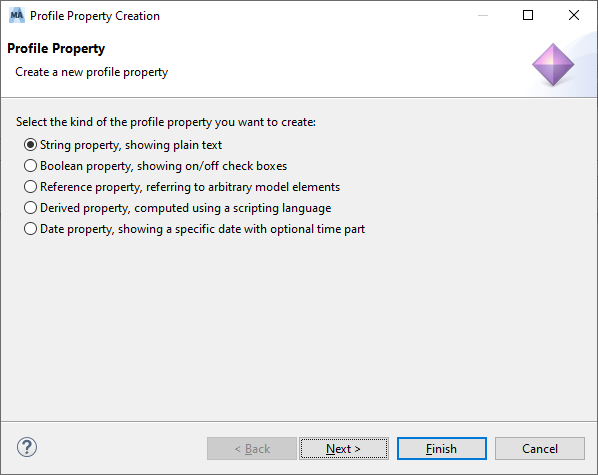
In the lower part of the dialog you are able to specify the properties which shall be added to the selected activated element. Clicking on "Add" will create a new entry in the table. The details of the new property are provided in a wizard dialog. On the first page of the dialog, you have to choose the kind of the property to be created. medini analyze supports:
String type for text properties,
Boolean type for on/off or true/false type of properties,
Reference type which allows to refer to other model elements from this property,
Derived properties, their values are computed by a script at the time the property is accessed during the tool usage,
Date/time properties providing a date/time picker to select a date with or without time,
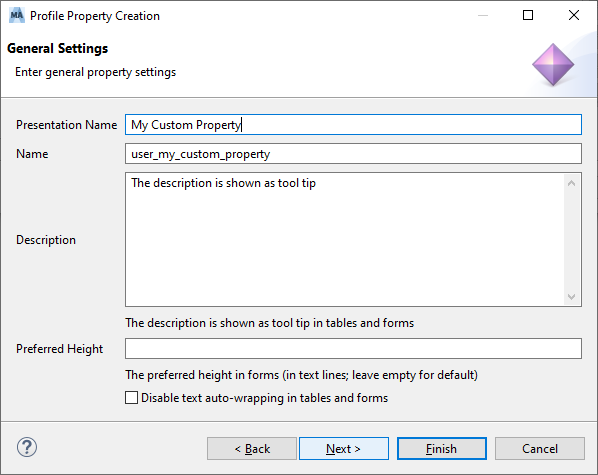
On the next wizard page, you have to provide at least a presentation name for this new property. An "internal" name will be inserted automatically based on the provided presentation name.
Please note the internal name for each property must be unique in the context of the element. Moreover, the lexical rules for identifiers in programming languages apply - i.e. it must consist of at least one letter which may be followed by a sequence of letters and digits. Spaces as well as any special characters are not allowed. This name will be used for the internal management of profile data and is the identifier under which it can be accessed in validation rules, scripting, and reporting.
For the presentation name on the other side you are free to choose any descriptive string. This presentation name will also be shown as the column title in the table editor for the profiled element.
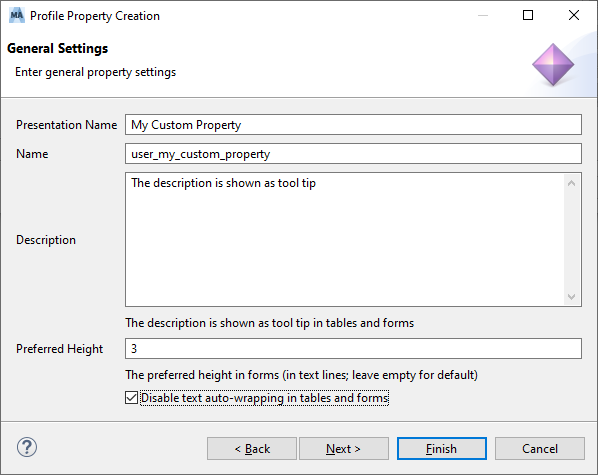
With the attribute "Preferred Height" it is possible to influence the height of the input field in form editors. This is effective only in form editors, not in tables or other kind of editors. The height is specified in number of lines. If the field is left empty, the default height is used.
The additional check-box "Disable text auto-wrapping in tables and forms" is used to specify whether the tool should automatically wrap text if it does not fit into the input field or cell in form or table editors or not.
The following wizard pages and the usage of the profile property depend on the type which has been selected for the property on the first page.
Once the "Finish" button in the wizard dialog is pressed, the new property for the selected element type is created. After finishing the add property wizard, the profile page of the settings dialog is active again.
The check-boxes in front of each property allow activating or deactivating single properties for an active profile.
The buttons on the right side of the properties table serve to remove a user-defined property and to change the order of the properties.
After clicking on "Apply" and closing the project settings dialog the profile properties will be applied to the project.
Depending on the element for which the profile properties have been defined, they may show up differently. If the element is presented in a table (e.g. Safety Goal or Hazardous Event) then for each user-defined property a new column will be added to the table-view of the profiled elements. An example is shown in the next figure.
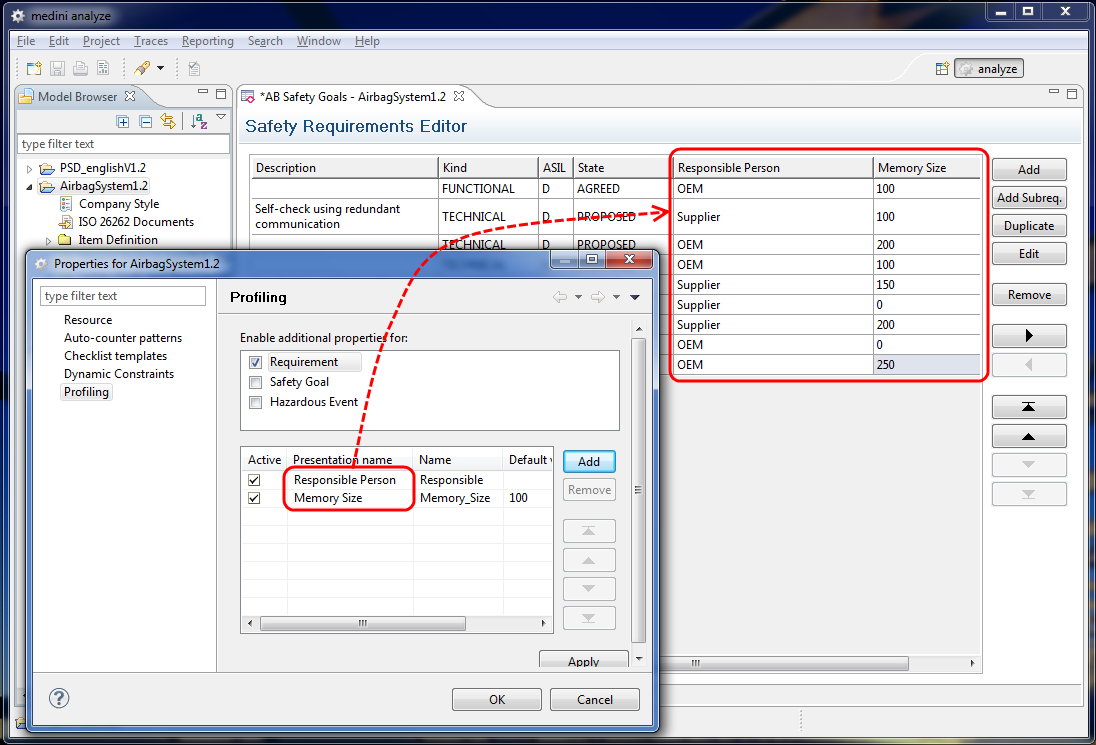
For other elements a new field will be added to the presentation form (e.g. for an FMEA Worksheet).
For all elements it is possible to assign values to the properties using the Properties view. Click on an element in the diagram editor (e.g. for FTA or Goal editor) or the Model Browser and the Properties view will show the profile properties of the element. Please note that there might be more than one tab in the Properties view so that you have to select the "Profile" tab first. To open the Properties view select an element in the Model Browser and chose "Show Properties View".
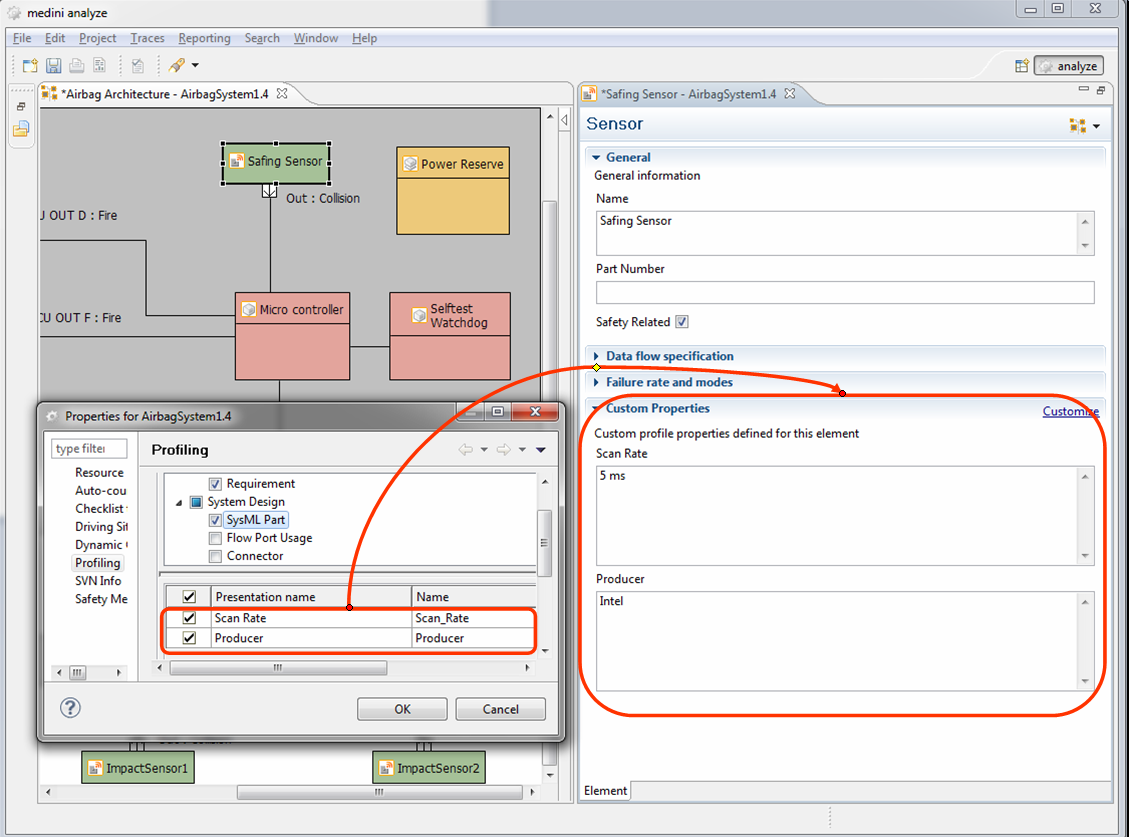
You can freely modify or delete profile properties. Just click on the property you want to modify and you can change the presentation name as well as the default value. Of course changes to the default value apply only to new table entries created after the modification of the profile property.
Please note: The deactivation of a profile or of a single property will only hide the element from display on the concerned editor. The properties of a profile as well as the values of the properties themselves will be kept in the project. When activating the profile or the property again, the previously defined properties and property values will reappear. On the other side, removing a property completely from a profile will also remove all data values related to that property. A warning will be shown in that case.
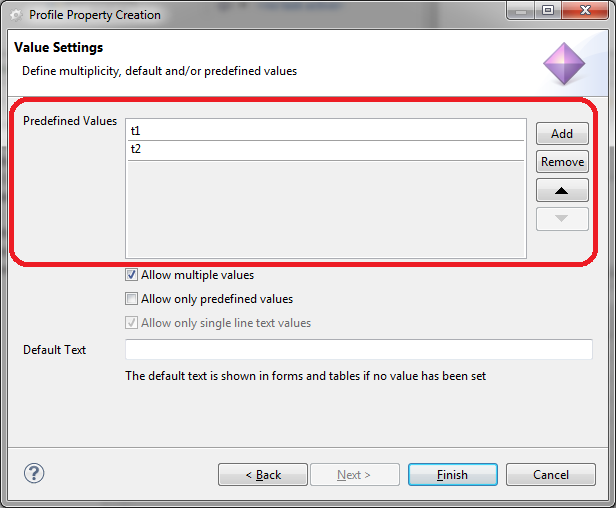
It is possible to specify a default value for the property in form of a string as well as a set of predefined values for the property in form of an enumeration type.
The values are entered in the predefined values section. It is possible to add and remove predefined values as well as to change their order (this will influence the controls in the corresponding editors when the values are used).
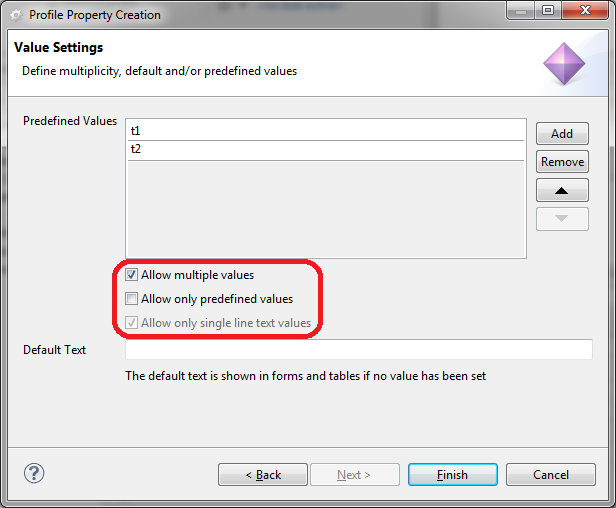
The following options can be specified by using corresponding check boxes:
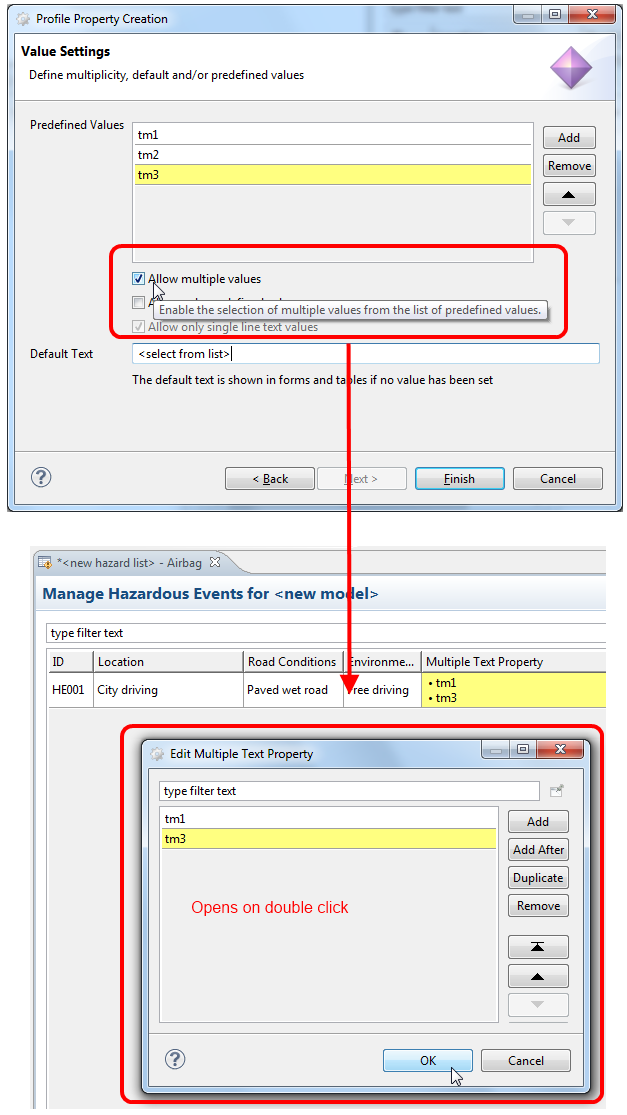
"Allow multiple values" - if enabled, multiple values of the predefined value list can be selected in the fields or cells of the form or table editors which display the property.
"Allow only predefined values" - if specified, only the specified predefined values can be selected in the form or table editors when the property is used. Otherwise, it is possible to enter text which is not part of the predefined values.
"Allow only single line text values" - if specified, no line breaks can be entered in the fields or cells of the corresponding table and form editor which show the property. (This is automatically enabled when predefined values are specified.)
The following pictures show the definition and the corresponding usage of a property with and without the multiple value option.
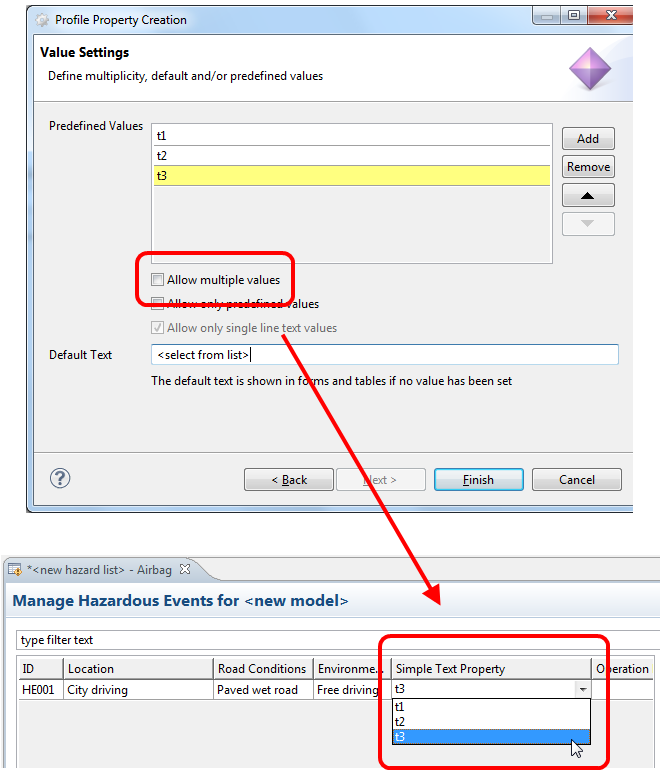
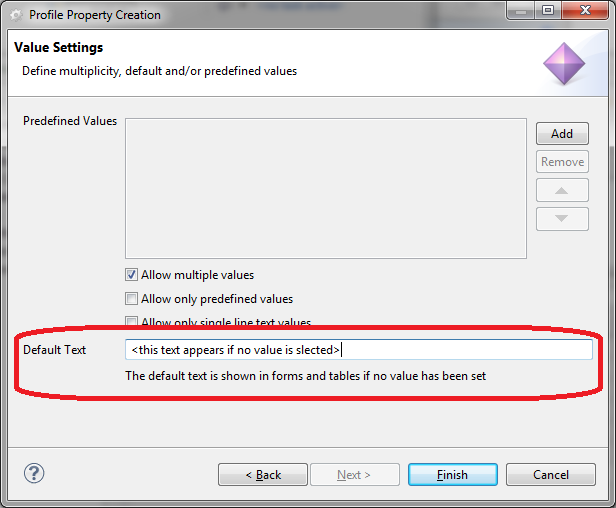
In the field "Default Text" it is possible to specify a text which is shown for the property after the element is created. This text can either be one of the predefined values or an arbitrary string. Please note with the multiple value option disabled the definition of such default values is only effective for elements that are created after the default value is specified. For existing elements, it is not applied. With the multiple value option enabled the default text is shown for all elements for which no value is selected.
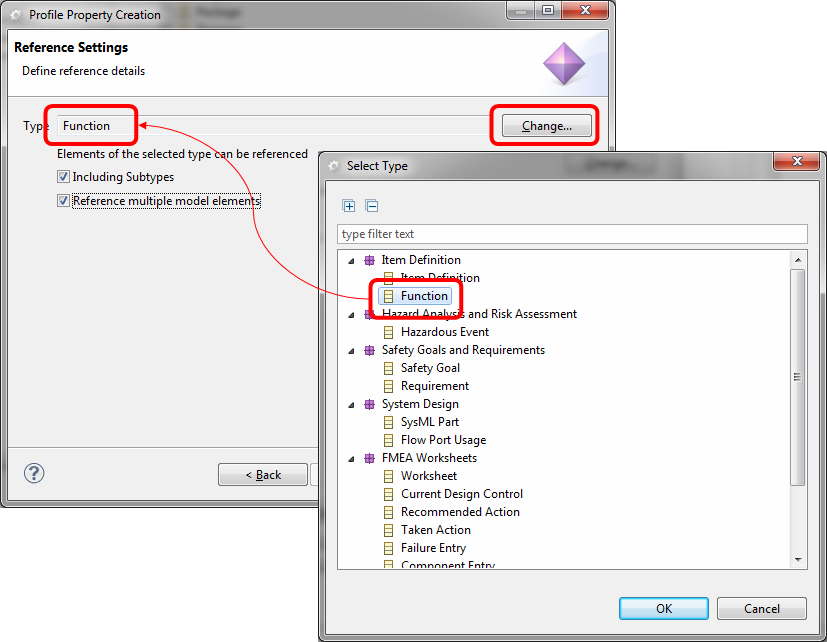
The reference type is chosen, if the new property should take other model elements as values in order to refer to them. With such kind of properties, short links between model elements can be introduced. You can restrict the type of model elements to which references can be established via the wizard. Pressing the "Change..." button will open a selection dialog with model element types. This is to be seen in the following figure.
Since model element types are defined in a hierarchy (e.g. the type "Malfunction" is a specialization of "Function") you can select an option to include subtypes of the selected model element type. In order to include subtypes, the check box has to be checked.
With the check box "Reference multiple model elements" a decision can be made, whether the property is capable to hold more than one referred model element or just a single one. In order to enable multiple elements the check box has to be checked.
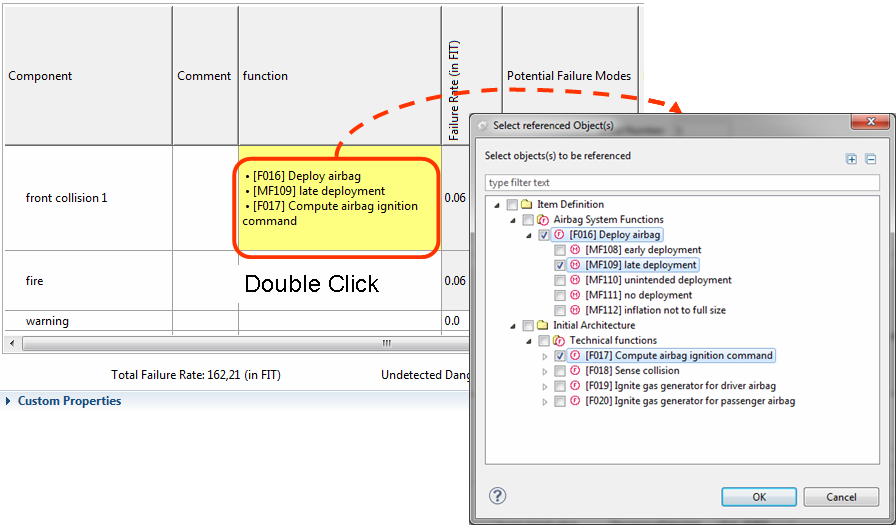
The following shows an example for the usage of a reference type property in a table view. As to be seen, the property holds multiple references to elements of type "Function" including the subtype "Malfunction". By double clicking the cell in the table editor, a dialog window opens, which allows to select as well as to de-select the referred elements.
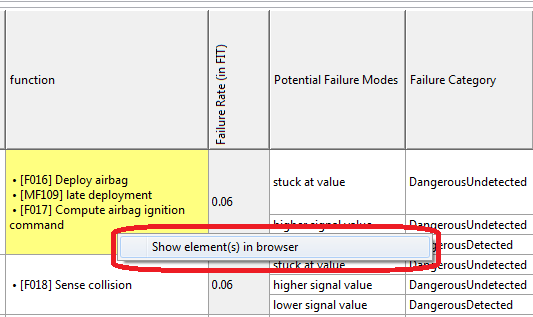
The referred elements can be visualized in the model browser by using the context menu of the cell and select "Show element(s) in browser".
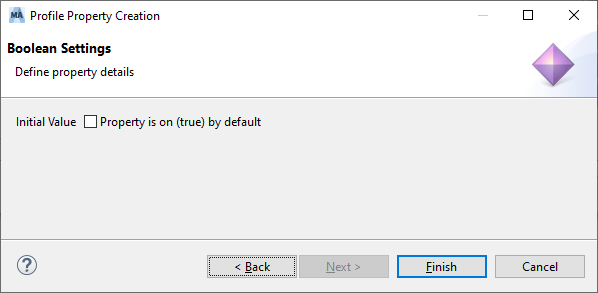
Properties of the type "Boolean" can be used to express on/off resp. true/false states. A check box control is used in forms and tables to represent and edit such a property. An initial value can be defined, by default new properties are initialized with "false" resp. "off". False/off values are represented by an unchecked box, true/on by a checked checkbox instead.
Properties of the type "Date" can be used to add information about dates and time to elements. A date/time picker dialog supports you in setting the desired value.
Properties of the type "derived" are used to display content that is computed at runtime out of the actual models. In the Wizard for the creation of the property, a script has to be specified, that is used to calculate the content to be displayed when the property is visualized in an editor. The language currently supported is OCL. The script has to be provided as text in the dialog field.
A default value can be specified as well. The default value is used, when the script evaluates to null, to the empty list or to invalid.
Since it is possible to formulate scripts that contain loops, the evaluation of the script is stopped after a certain period in time. It is also possible to stop the execution of the thread that evaluates the script. Note, that the evaluation is always executed in an own thread and does not block the other operations of medini analyze.
As long as the script is evaluated, the editor shows the string "evaluating".
In the currently supported OCL language for the script specification, the variable "self" denotes the actual model element of the type for which the profile property is defined.
An example script is to be seen in the following figure.
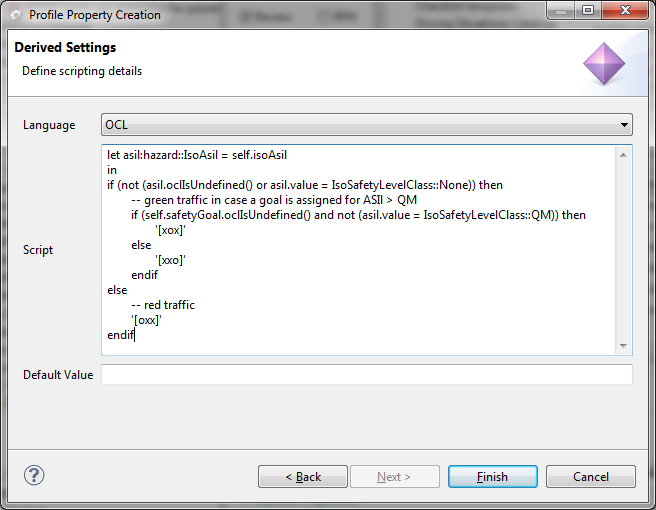
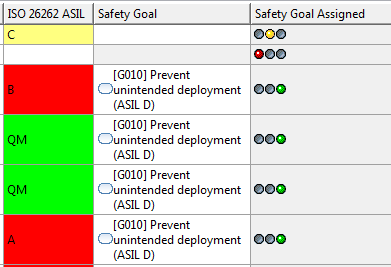
In the example, the property "Safety Goal Assignment" is created for elements of type "Hazardous Event". The variable "self " refers to an actual Hazardous Event in the model. The script evaluates the presence of a safety goal for an hazardous event and displays the evaluation result as a simple traffic light. It creates the following output in a hazard table:
Note that there is further support for other icons and coloring of cells and even a combination of them, for example:
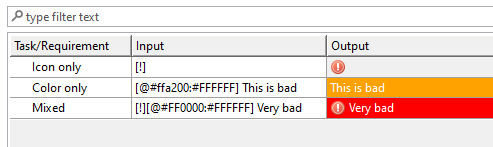
Please refer to the Ansys medini analyze Scripting Guide for more information.
[14] The term profiling is used in the sense of a profile known from modeling languages such as UML: it is a well-defined extension of the data model of the tool.