In this step, you will associate the blocking edges to geometry curves, and move vertices onto the geometry.
Disable Surfaces so that the rest of the entities are clearly visible.
Associate the four edges surrounding the INLET surface to the appropriate curve(s).
> Associate
 > Associate Edge to Curve
Enable Project vertices.
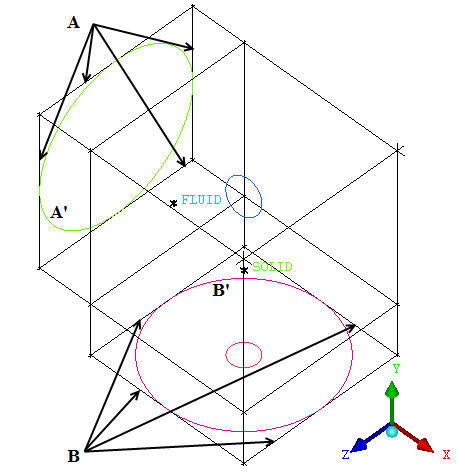
Select the four edges surrounding the INLET part (A in Figure 109: Selection of Edges and Curves for Association) and click the middle-mouse button to complete the selection.
Select the curve (A' in Figure 109: Selection of Edges and Curves for Association) and click the middle-mouse button to complete the selection.
Click to associate the edges to the curves.
Similarly, associate the four edges surrounding the OUTLET surface (B in Figure 109: Selection of Edges and Curves for Association) to the appropriate curve (B' in Figure 109: Selection of Edges and Curves for Association).
Move the remaining vertices to the nearest active surface.
> Associate
> Snap Project Vertices 
Note: With the edges associated to the appropriate curves, the other (surface associated) vertices can be automatically moved onto the geometry to the nearest active surface.
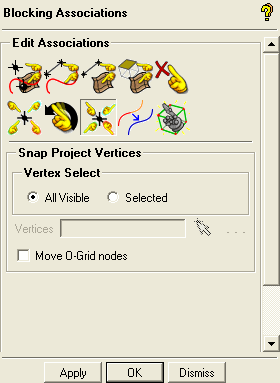
Ensure that All Visible is selected for Vertex Select.
Click .
Display the right view.
>
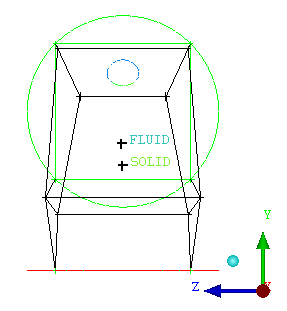
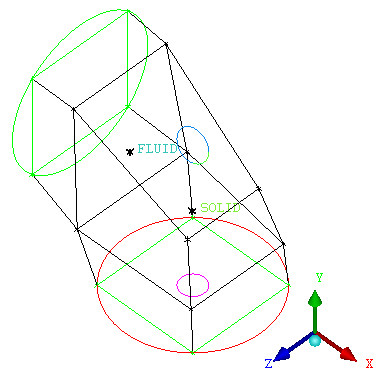
The blocking will be oriented as seen in Figure 110: Vertices Moved Onto the Geometry—Right View.
Display the isometric view.
>
You can also display the isometric view by pressing Shift+I or clicking the cyan ball on the triad.
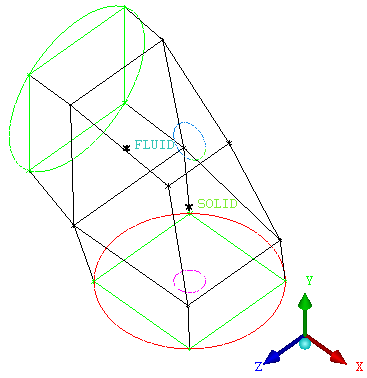
The blocking will be oriented as seen in Figure 111: Vertices Moved Onto the Geometry—Isometric View.
Manually move two of the vertices slightly from their present position.
Making these changes before creating the Ogrids is much easier than doing it after because there are fewer nodes to move, and internal node movement, orthogonality, etc. do not yet need to be considered. It is always good to ensure the surface mesh is setup as well as possible before increasing complexity with further splits or Ogrids.
> Move Vertex
 > Move Vertex
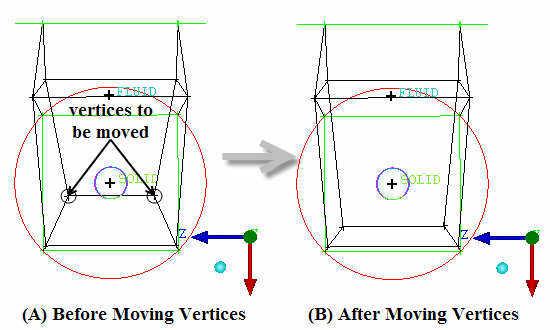
Orient the model as shown in Figure 112: Moving the Vertices, so that the cylinder edges overlap.
Move the vertices to their new positions as indicated in Figure 112: Moving the Vertices.
Click the vertex using the left-mouse button and hold the button while you slide the vertex along the surface. The vertices are moved to position the edge away from the cylinder curve.
Figure 113: Moved Vertices—Isometric View shows the blocking (isometric view) after the vertices have been moved.