
Working with Boundaries in Q3D Extractor and 2D Extractor
Depending on the model, you can assign different types of boundaries.
- For 2D Extractor, see: Finite Conductivity Boundary.
- For Q3D Extractor, see: Infinite Ground Plane Boundary and Thin Conductor Boundary.
Please note the following:
- An infinite ground plane in a Q3D design is an ideal model. The infinite ground plane serves as a return path and makes all terminals in other nets well-referenced.
- A finite ground plane net without terminals is ignored in DC RL analysis and is treated as a floating conductor in AC RL analysis.
- In cases using a finite ground as a return path, add terminals on the ground plane according to the real port setup.
- To approximate an infinite ground using a finite ground, add reference terminals on the finite ground. These reference terminals should be placed close to terminals on other nets. The RL values with a finite ground can then be obtained from Reduce Matrix by grounding the finite ground net.
Assigning a Boundary
To assign a boundary:
- In the Modeling Workspace, select the appropriate geometry for the boundary.
- Assign the boundary one of three ways:
- Right-click in the Modeling Workspace and select Assign Boundary > [Boundary Type].
- Right-click Boundaries in the Project Manager and select Assign Boundary > [Boundary Type].
- Select [Q3D Extractor/2D Extractor] > Boundary > Assign > [Boundary Type].
A boundary-specific dialog box appears.
- Enter the appropriate parameters and click OK.
Showing and Hiding Boundaries
To show or hide boundaries:
- Select [Q3D Extractor/2D Extractor] > Boundary > Visualization.
The Visualization Options dialog box appears.
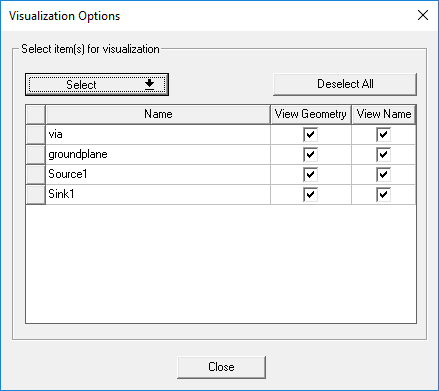
- Select an object to see it highlighted in the Modeling Workspace.
- Select the check boxes for geometry and names you want visible. Deselect the check boxes or those you want to hide.
- If desired, click Select to select by type:
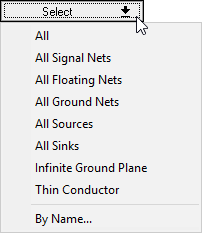
By Name allows you to find objects using regular expressions.
- Click Close.
Hiding boundaries also turns off a check for boundary overlaps during boundary assignment. In the case of very large models with many boundaries, hiding boundaries can prevent delays during boundary assignment. Full model validation will subsequently check for boundary overlaps.
Reassigning a Boundary
To reassign a previously assigned boundary:
- In the Modeling Workspace, select the new object to which you want the boundary reassigned.
- Right-click the boundary in the Project Manager and select Reassign.
The boundary is removed from the original object and reassigned to the new object.
Deleting Boundaries
To delete a boundary, right-click the boundary in the Project Manager and select Delete.
To delete all boundaries, do one of the following:
- Select [Q3D Extractor/2D Extractor] > Boundary > Delete All.
- Right-click Boundaries in the Project Manager and select Delete All.