Impedance Scan
The Impedance Scanner can quickly examine trace impedance profiles and identify any violations according to specified criteria. It uses the 2D cross-section solver to extract the impedance of single-ended and differential nets. It considers coupling effects from nearby traces and co-planes.
To run the impedance scan:
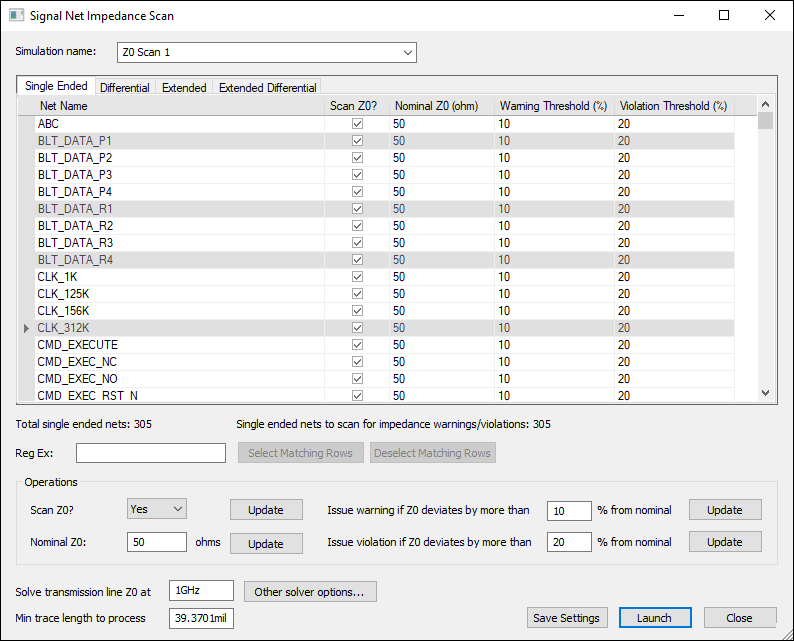
- Click Simulation > Impedance Scan.
- From the Simulation Name field, enter a name for the simulation or leave the default.
- Use the Single Ended, Differential, Extended, and Extended Differential tabs to select nets for scanning. Select a row by clicking the gray column adjacent to the row, or use Regular Expressions to select and deselect rows.
- The Operations area of the window is unavailable until you select one or more rows. Use the fields there to set options for the selected row(s). You can also directly edit information in the net list.
- Enter the frequency at which to run the solver.
- Enter the minimum trace length. This threshold applies to all net types.
- If appropriate, click Other Solver Options to set additional options.
- If appropriate, click Save Settings to retain your settings.
- Click Launch to run the simulation.
The Signal Net Impedance Scan window appears.
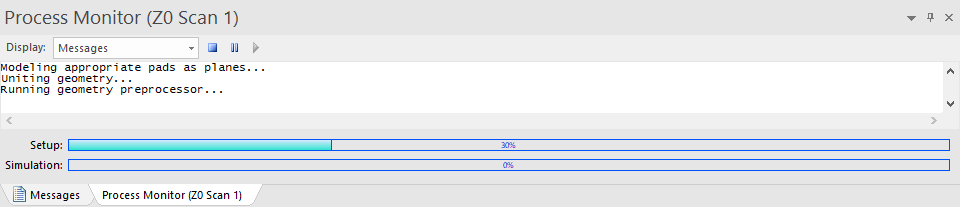
The Messages window updates with a Process Monitor tab that displays the progress.