
Defining IBIS Models for Pins
As a preliminary step before running the Signal Net Analyzer or the SIWizard, you need to specify the IBIS buffer models to use for any pins that will be analyzed or cosimulated. IBIS buffer models are selected from the library of available models.
To define the IBIS buffer model:
- Select a component to view its mini toolbar. Click Assign IBIS/Source to Pins.
- Under Default Buffer Models, set the Class to IBIS.
- Set the buffer Type to the Driver or Receiver type that matches the component.
- Set the Corner behavior to Minimum, Typical, or Maximum (Typical is the default).
- Use the menu in the Component field
to select the IBIS model.
Note:
IBIS buffer models are located under the buflib\IBIS directory in the AnsysEM install directory. You can change the buflib directory in SIwave Options.
- Use the Model Override menu to select a particular driver or receiver model from those available.
- Use the Override For field to specify the pins that will use the override model rather than the default. Generally, override involves Only Unmatched Pins.
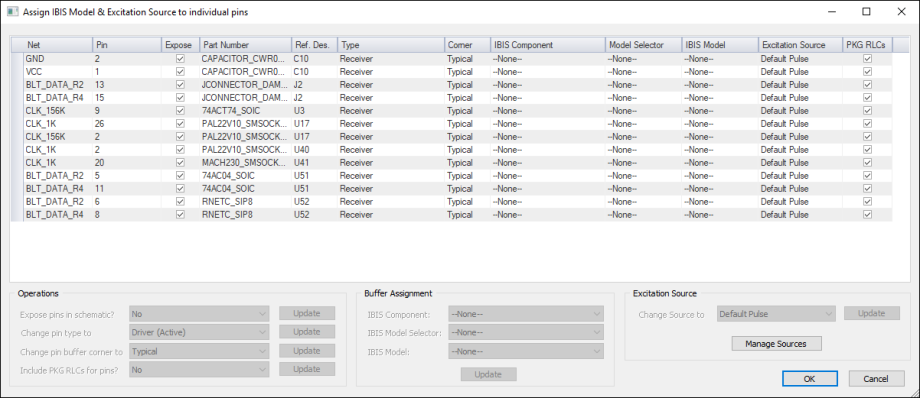
- Use the Individual Pin Overrides Edit button or click Edit > Assign IBIS/Source to Pins to assign models for pins on a pin-by-pin basis.
- Click on any column heading (e.g., Ref. Des.) to sort the table using the elements in that column).
- Check the Expose check box for any pin that is to be an external connection to the Ansys Electronics Desktop circuit.
- Click on the Type field for a net to select the IBIS buffer type—Driver (active), Driver (inactive), Receiver, Receiver (with termination), Passive termination.
- Click on the Corner field to select the range for parameters (typical, minimum, maximum).
- Click on the IBIS Component field to select a component from the library of IBIS buffer elements. The choice of Component determines the available models and model selectors for each buffer type.
- When the buffer type includes model selectors, the Model Selector field is populated. In his case, you must choose a model selector, then a model from the ones available for that model selector. If no model selectors have been defined, leave the field at the default - none.
- Click on the IBIS Model field to select the model from the listing. The available models depends on the model selector, if any.
- Click on the Excitation Source field to select the source for the input excitation to the net. Optionally, click the Manage Sources button to view the available sources, change the parameters of existing sources, or define new sources.
- Check the PKG RLCs check box to include the RLC Package model for the buffer model.
- Select the Excitation Source. To add or delete sources, click Manage Sources. The Manage Sources window appears. You can Add New Source or Delete Selected Sources. Then, click OK to return to the Assign IBIS Model & Excitation Source to individual pins window.
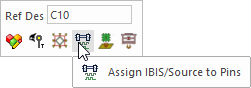
This menu option can also be found on the Advanced tab.
The Assign IBIS Model & Excitation Source to individual pins window appears.
For most components, this completes the IBIS buffer assignment. If the IBIS file is well-documented, the buffer models are automatically assigned based on the pin names. Steps 6-8 are for exceptions.
The Assign IBIS Model & Excitation Source to individual pins window appears. You can also directly assign excitations on a pin-by-pin basis. You can see the nets with pins identified, and can also specify the IBIS component and buffer model to use for the ports on the nets.