
Computing EM MTTF Simulations
The EM MTTF simulation provides an estimate of Mean Time to Failure (MTTF) of metallization due to electron flow.
It is represented by the equation:

Where:
- A is an experimental constant
- j is the current density
- n is a value between 1 and 2
n is close to 1 when current density is low (<=0.1MA/cm2), and gradually trends toward 2 as current density increases.
n = 1.5 for 0.1MA/cm2 < j < 1MA/cm2
n = 2 for j >= 1MA/cm2
- Ea is the activation energy
- k is the Boltzmann Constant
1.38064852 x 10⁻²³ m2 kg s-2 K-1
- T is the temperature in Kelvin
Sample activation energy (Ea) and current density exponent values can be found in the following publication:
Lou Nicholls et al. "Comparative Electromigration Performance of Pb Free Flip Chip Joints with Varying Board Surface Condition." Electronic Components and Technology Conference, 2009. https://ieeexplore.ieee.org/stamp/stamp.jsp?arnumber=5074122.
You cannot run an EM MTTF simulation without first running a DC IR simulation, as the calculation uses DC IR-generated current density. In order to map MTTF data to individual bondwires and vias during post-processing, ensure that the "Mesh Bondwires" and "Mesh Vias" options are selected when running the DC simulation.
Users may want to run an Icepak simulation first to generate the temperature distribution.
To compute an EM MTTF simulation:
- Compute a DC IR simulation.
- Click Simulation.
- From the SIwave area, click Compute EM MTTF.
The Compute Electromigration Induced Failures window appears.
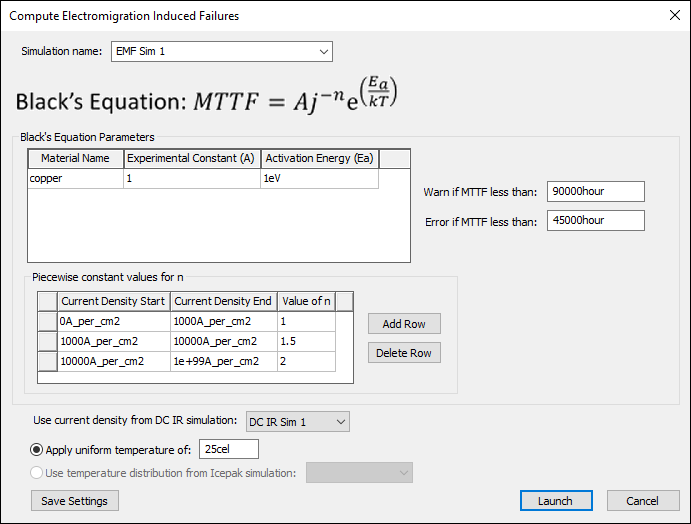
- From the Simulation Name field, enter a name for the EM MTTF simulation.
- From the Black's Equation Parameters area, enter equation parameters and the MTTF time (in hours) you want to cause a warning or an error.
- From the Piecewise constant values for n area, enter a start and end current density, as well as the n value for Black's Equation. You can use Add Row and Delete Row to change the number of n values.
- From the Use current density from DC IR simulation drop-down menu, select the DC IR simulation you previously ran.
- Select Apply uniform temperature of and enter a temperature in Celsius, or select Use temperature distribution from Icepak simulation and use the drop-down menu to select a previously run Icepak simulation.
- Click Launch to run the simulation.
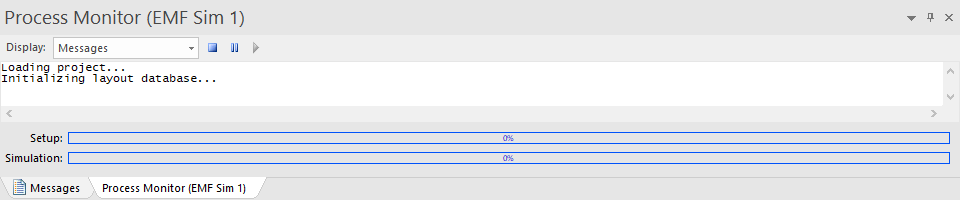
The Messages window updates with a Process Monitor tab that displays the progress.
When the simulation has finished, you can view the results.