
Viewing EM MTTF Simulation Results
To view EM MTTF results:
- Compute an EM MTTF simulation.
- Click Results.
- From the SIwave area, click EM MTTF and select [Simulation Name] .
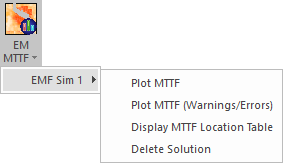
Results menu options include:
- Plot MTTF – plots estimated failure times in the Modeling workspace.
- Plot MTTF (Warnings/Errors) – plots estimated failure times, by severity, in the Modeling workspace.
- Display MTTF Location Table – opens a table displaying MTTF locations.
- Delete Solution – deletes the EM MTTF results.
You can plot MTTF, which displays estimated failure times, or MTTF Warnings/Errors, which plots estimated failure times by severity.
Plotting MTTF
To plot estimated failure times:
- Compute an EM MTTF simulation.
- Click Results.
- From the SIwave area, click EM MTTF and select [Simulation Name] > Plot MTTF.
The MTTF Results window appears, and the Modeling workspace updates to display MTTF.
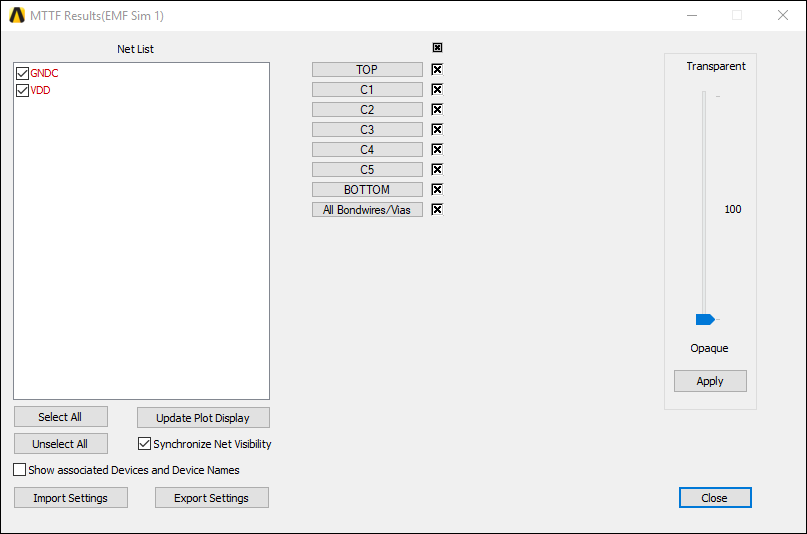
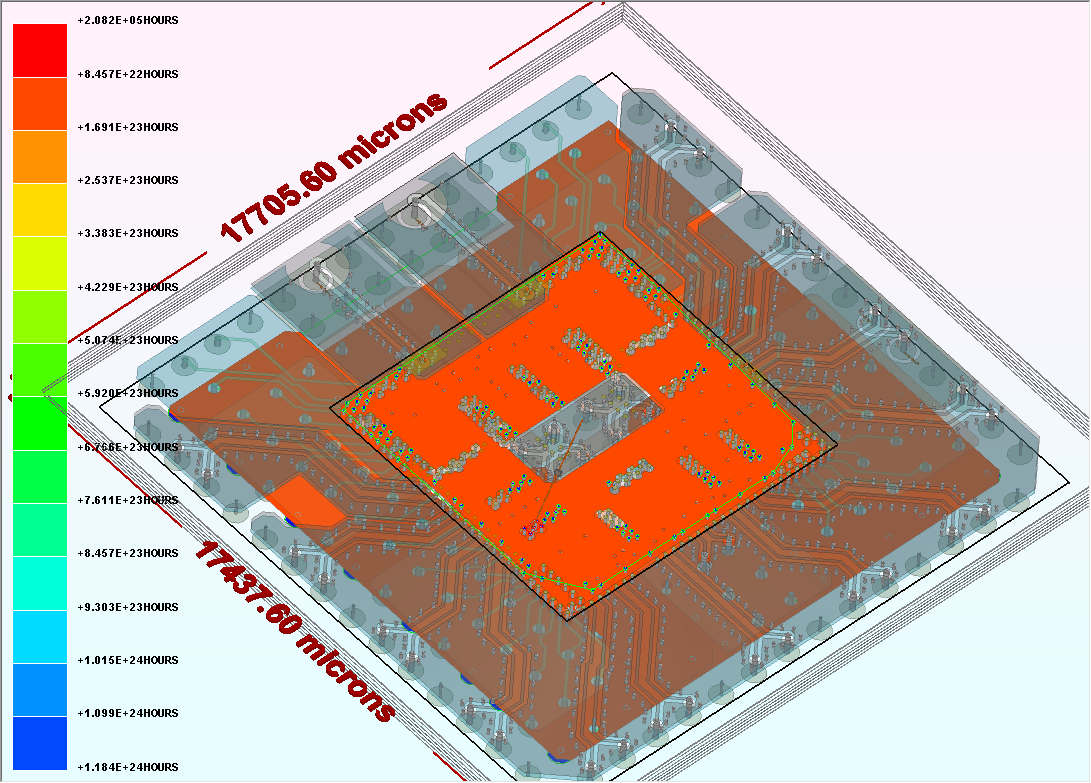
Use the Net List to select or deselect nets for display. Use the layers list to do the same for layers. Click Update Plot Display to apply changes.
Use the Transparent/Opaque slider to adjust the MTTF plot's transparency, and click Apply.
You can also Export Settings in *.xml format, or Import Settings from a previously saved *.xml file.
Plotting MTTF (Warnings/Errors)
To plot MTTF Warnings/Errors:
- Compute an EM MTTF simulation.
- Click Results.
- From the SIwave area, click EM MTTF and select [Simulation Name] > Plot MTTF (Warnings/Errors).
The MTTF Results window appears, and the Modeling workspace updates to display MTTF Warnings and Errors.
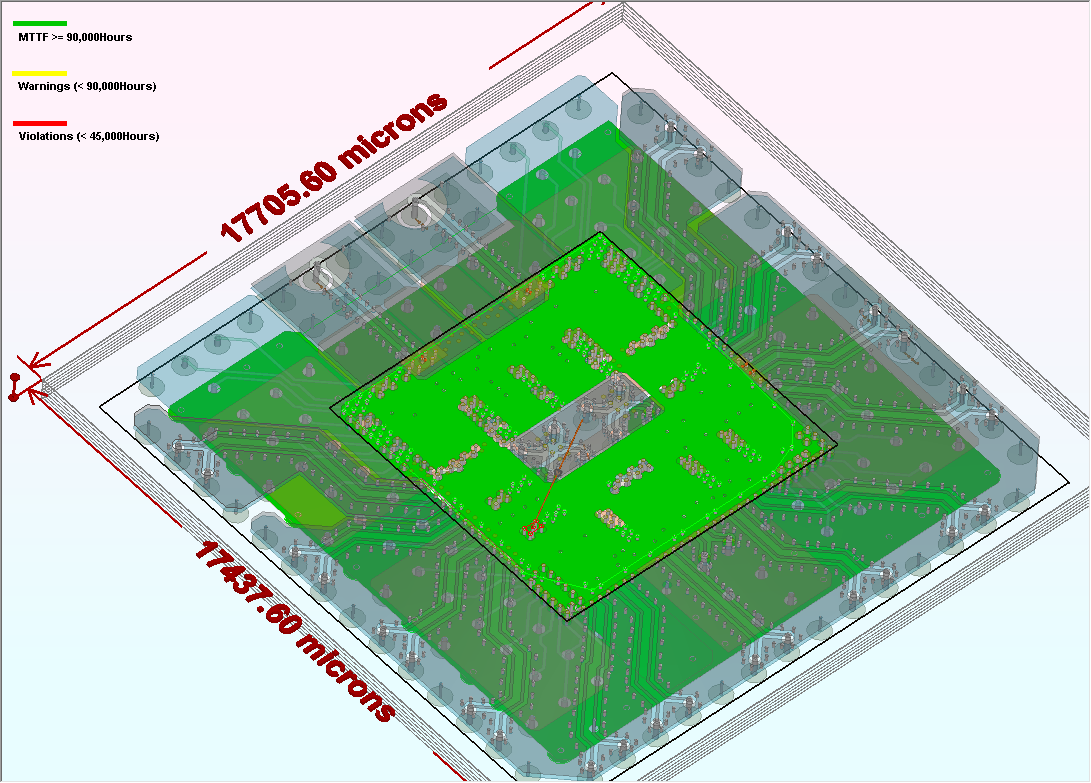
Green indicates an acceptable MTTF (>90000 hours), Yellow indicates a warning (<90000 hours), and Red indicates violations (<45000 hours).
Use the Net List to select or deselect nets for display. Use the layers list to do the same for layers. Click Update Plot Display to apply changes.
Use the Transparent/Opaque slider to adjust the MTTF plot's transparency, and click Apply.
You can also Export Settings in *.xml format, or Import Settings from a previously saved *.xml file.
Displaying MTTF Location Table
MTTF simulation results can be visualized in a tabular format that allows users to quickly navigate to regions on metal layers where MTTF is above/below a user-specified threshold, or navigate to individual vias and bondwires.
To display the MTTF Location Table:
- Compute an EM MTTF simulation.
- Click Results.
- From the SIwave area, click EM MTTF and select Display MTTF Location Table.
The MTTF Location Table window appears.
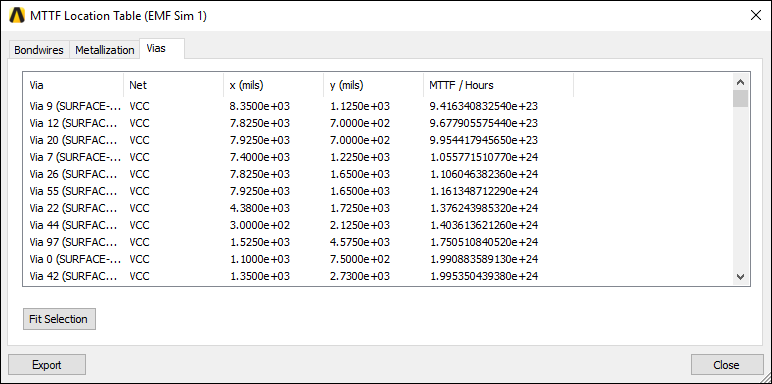
Use the Bondwires, Metallization, and Vias tabs to find the element you're looking for.
Click an element to highlight it in yellow in the Modeling workspace.
Click Fit Selection to zoom the Modeling workspace in or out to the area containing the selected element(s).
Click Export to export MTTF information in MTTF Data (*.mttf) format.