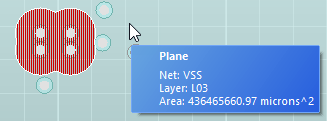
Advanced Geometry Processing Options
SIwave requires at least one reference ground plane to build transmission line models for trace segments. The ground plane must be right above or below the center line of a trace section to act as a reference for trace segments. If no reference planes are found for a trace segment, the segment is considered unreferenced. No definite transmission line models can be built for unreferenced traces.
One common scenario that causes unreferenced traces is routing traces across voids in metal planes or via anti-pads. Sections of the trace routed over the voids become unreferenced trace sections. Unreferenced traces are processed specially within SIwave solver.
If the voids are small enough, omitting them and simulating the plane as solid may yield more accurate results and improved performance. From the SI/PI Advanced tab of the SIwave Options window, under Geometry Processing, the setting Do not mesh voids smaller than serves as a threshold for whether voids can be omitted (i.e., defeatured) from simulation, and is present in AC, DC, CPA, and PSI simulations.
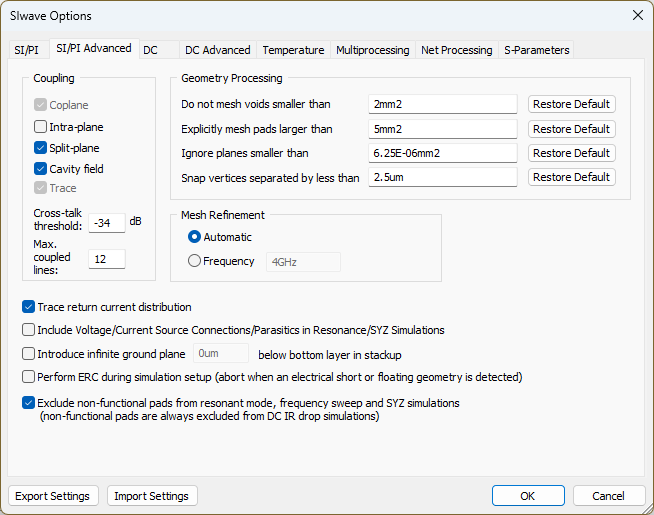
Since omitting small voids affects plane, via, and trace modeling, selecting a proper threshold is of the utmost importance. Since release 2020 R2, SIwave has implemented a more consistent approach for dealing with unreferenced sections of signal lines, thus eliminating any artificial effects that might creep into the results. This change could potentially affect SYZ results in cases where unreferenced trace effects are pronounced. Ansys recommends using SIwave default settings (in this case, 2mm2) to produce consistent results across versions.
Before or after simulation, users can view the voids set to be defeatured.
Viewing All Voids
Before or after simulation, users can complete the following steps to highlight the defeatured voids in the design. This will not affect the design in any way.
-
Click View.
-
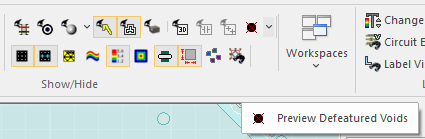
Navigate to the Preview Defeatured Voids drop-down menu arrow.
-
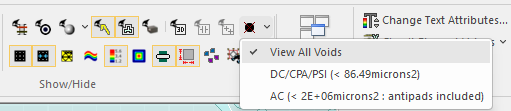
From the Preview Defeatured Voids drop-down menu arrow, select from the following:
-
View All Voids — view all voids set by thresholds in DC, CPA, PSI, and AC simulation settings.
-
DC/CPA/PSI (<value entered in the related options window>) — view all voids set by thresholds in DC, CPA, and PSI simulation settings.
-
AC (<value entered in the related options window>) — view all voids set by thresholds in AC simulation settings.
-
-
Before selection, the Modeling workspace gives no indication of voids that will be ignored during simulation.
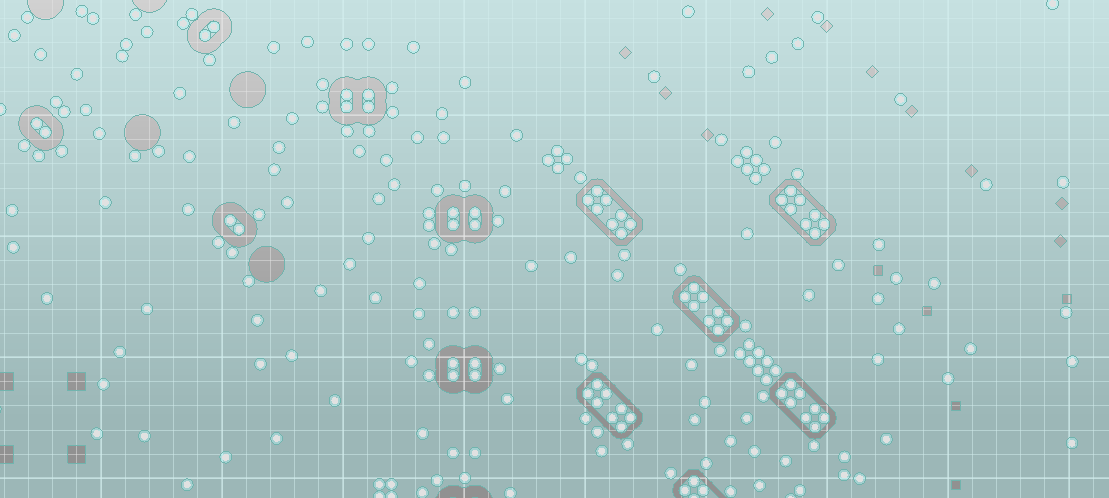
-
After selection, the Modeling workspace highlights voids that will be ignored during simulation in red cross-hatching.
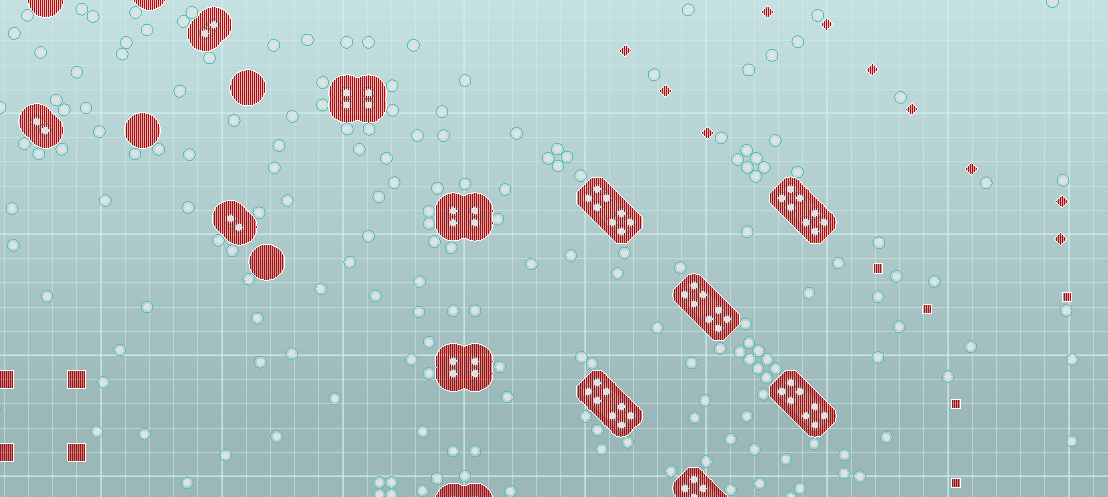
-
Highlight a void to see its size (e.g., 168801microns2).
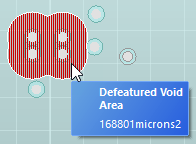
-
Highlight any featured area to see its location (i.e., Net and Layer) and size (i.e., Area).