
Create Layout Component Window
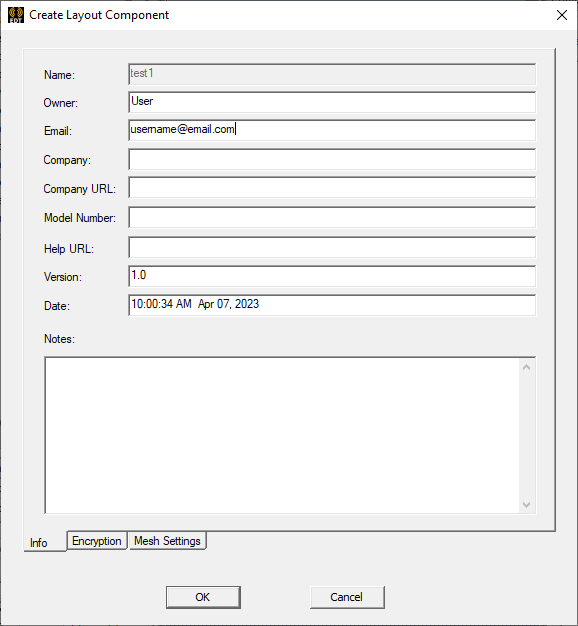
The Create Layout Component window allows users to add meta data, encryption, and mesh settings to an HFSS 3D Layout design component before exporting it.
Accessing the Create Layout Component Window
Complete these steps to access the Create Layout Component window.
- From the Layout Editor, select a component.
- From the Draw menu, select Export > Layout Component to open an explorer window.

-
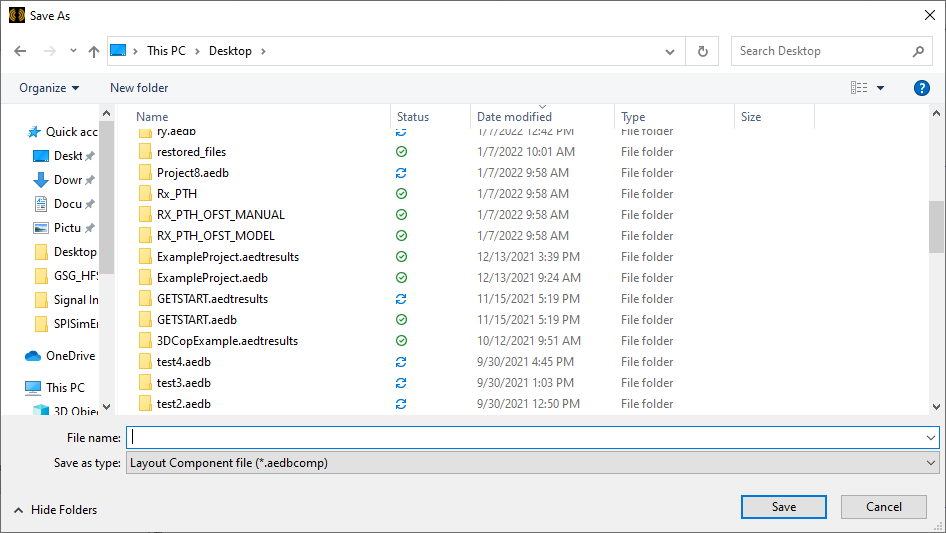
Navigate to a chosen directory to save the exported component. Then enter a File name: for the component and, if appropriate, choose Layout Component file (*.aedbcomp) on the Save as type drop-down menu (selected by default).
-
Click Save and the component will be saved in the chosen directory in a folder named <filename>.aedbcomp.
-
The explorer window closes and the Create Layout Component window opens.
The Info Tab
Use the Info tab to enter any metadata into the Owner, Email, Company, Company URL, Model Number, Help URL, Version, Date, and Notes fields. The Name field automatically populates with the component's file name.
The Encryption Tab
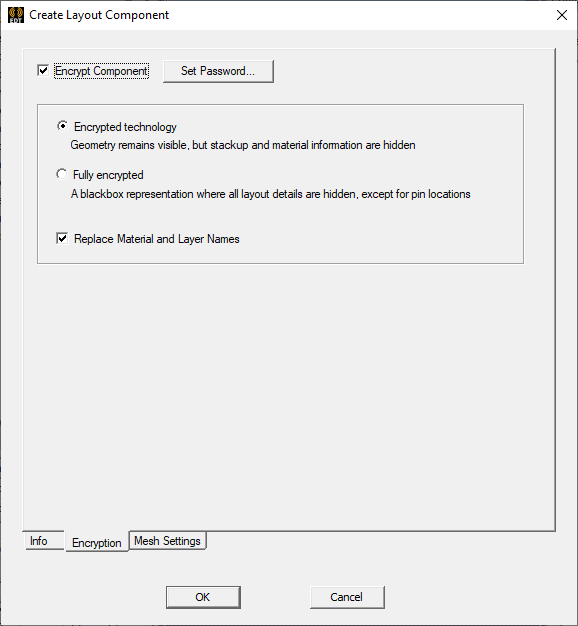
Use the Encryption tab to protect the component with two levels of security. Encryption is a common technique for encoding information in a manner that is very difficult for unauthorized users to decode. When these options are enabled for components, the contents of the component file are encrypted to protect them from external viewing or editing. Components use the Advanced Encryption Standard (AES) with a 256-bit key and password-based key derivation.
Once a component is encrypted and users click OK, encryption cannot be removed on the component. However, encryption strength can be increased (i.e., if the user chooses not to encrypt the component, the exported component can be re-imported and exported again as an Encrypted technology component. If the user exports the Encrypted technology component, the exported component can be re-imported and exported again as a Fully encrypted component.
From the Encryption tab, choose on the following:
-
No encryption: remove the check on the Encrypt Component box.
-
Encrypted technology: geometry will remain visible, but stackup and material information is encrypted. The component may be editable. Click Set Password to open the Set Passwords window.
-
Fully encrypted: all data, except port locations, is hidden under a blackbox stencil. The component will remain uneditable. Click Set Password to open the Set Passwords window.
-
Replace Material and Layer Names: check the box to obfuscate all material and layer names (e.g., Dialetric_1 will be renamed Layer1 and the material column will be hidden from view).
It is not possible to edit a Fully encrypted component unless you choose Always or With User Password in the Allow Component Edit area, when you define the component.
If there is a check in the Encrypt Component box, the Set Passwords window will open if users attempt to leave the Encryption tab. Attempting to bypass the window will produce a Warning: Please input password. dialog box. This is true even if no encryption is chosen. To leave the Encryption tab, uncheck the Encrypt Component box.

Set Password Window
From the Set Password window, enter and re-enter a password in the chosen fields in the Allow Component Use area and decide whether future component editing is chosen.
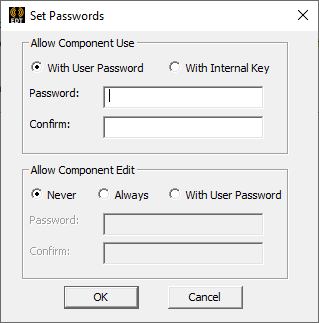
From the Allow Component Use area, choose on the following:
-
With User Password: the component can be exported as an .aedbcomp file and reopened in Electronics Desktop or other compatible software with the correct password.
-
With Internal Key: the component can be exported as an .aedbcomp file and reopened in (and only in) Electronics Desktop without a password.
If future component editing is chosen, on the Allow Component Use area, choose on the following:
-
Never: once the Set Passwords window is closed, the component will no longer be editable.
-
Always: if future component editing is chosen, and no further security is appropriate.
-
With User Password: if future component editing is chosen, but some further security is appropriate. Enter and re-enter a password in the chosen fields.
Choosing Fully encrypteddeactivates the Allow Component Edit area. This level of encryption is a permanent state and the component will not be editable after the Create Layout Component window is finally closed.
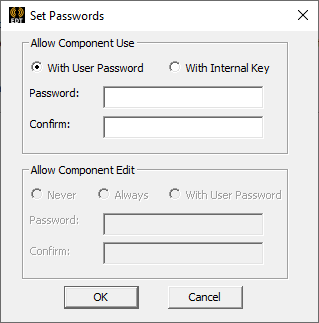
Once choices are made, click OK to save, close the Set Passwords window, and return to the Create Layout Component window.
The Licensing Tab
Not currently supported.
The Mesh Settings Tab
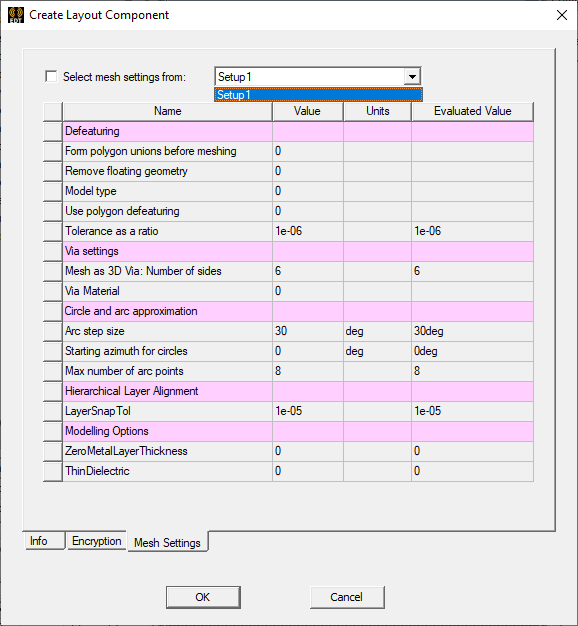
Use the Mesh Settings tab to export solve settings on the original component. To do so, check the Select mesh settings from: box and make a selection on the drop-down menu.