
Editing a Component Definition
The Edit Definition feature allows users to create a new component definition using an existing component file. This speeds up the task of creating new versions of components without having to start on the beginning.
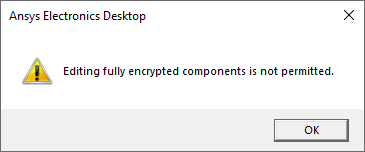
Fully encrypted components can not be edited as described in this section.
Complete these steps to edit a component definition.
- Navigate to the Edit Definition window via one of the following paths:
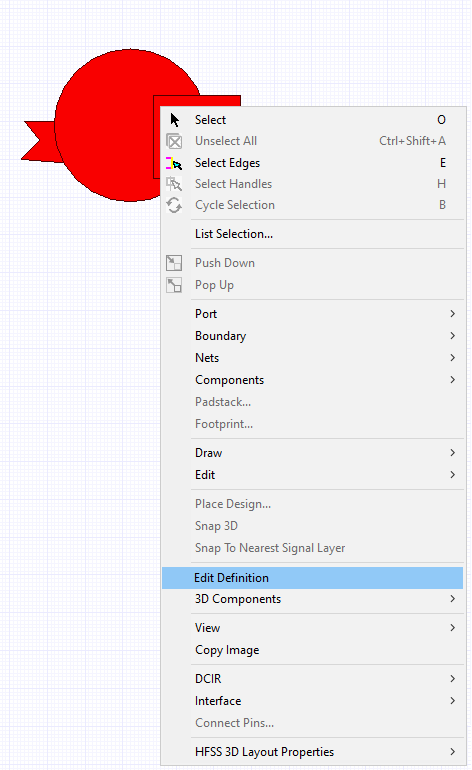
From the Layout Editor, right-click the chosen component and select Edit Definition.
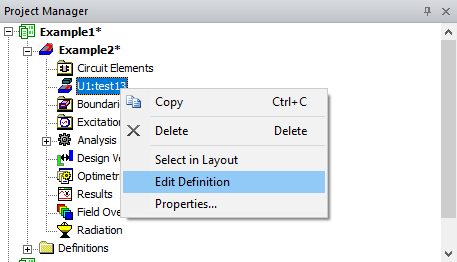
From the Project Manager window, expand the Project Tree and [Active Design Folder]. Then right-click the chosen component and select Edit Definition.
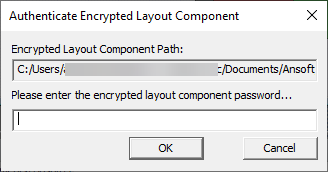
If the component is encrypted, an Authenticate Encrypted Layout Component window appears. Enter the component's encryption password, then click OK.
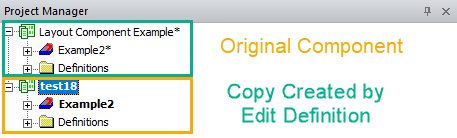
A duplicate project is created. Copies of the original component's materials are added at the project level; variables are added at the project and design level; a detailed history is created for all objects in the component; design data is added to the chosen folders in the Project Manager. A copy of the component opens in the Layout Editor, and a new project folder appears in the Project Manager window, containing a copy of the original design.
- Edit the component as chosen (refer to Components).
- To save the edited component, do one of the following:
To save the edited component as its own component file (*.aedbcomp), click File > Save As to open an explorer window. Navigate to the chosen directory, enter a File name: for the component, and click Save to close the explorer window. The procedure is complete. The component will be saved with the original component's settings and encryption.
To save the edited component in the current project, click Save to open the Update Layout Component window. Then proceed to step 6.
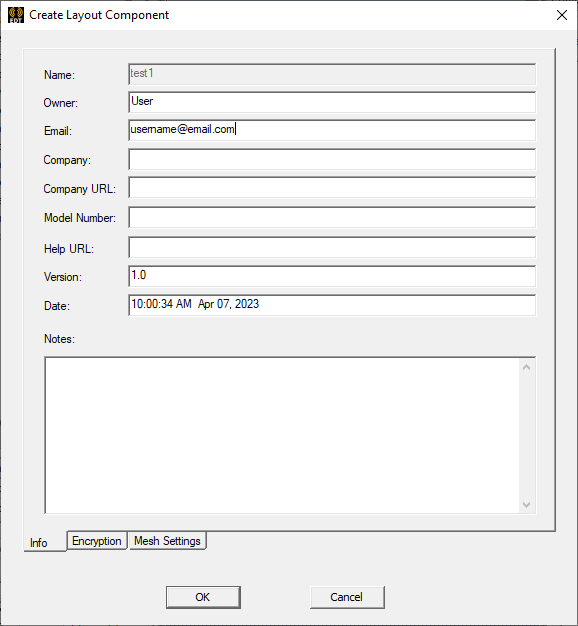
From the Info tab, enter metadata into the appropriate fields. The component's file name is shown in the Name: field.
Click the Encryption tab.
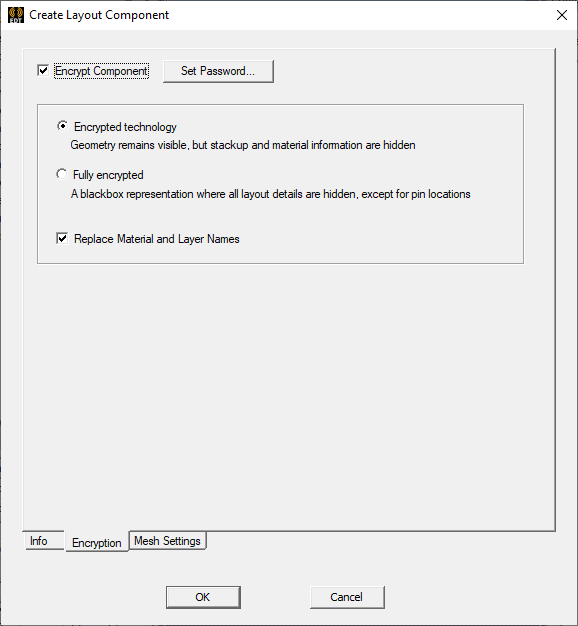
From the Encryption tab, choose on the following:
No encryption: remove the check on the Encrypt Component box and skip to step 13.
Encrypted technology: geometry will remain visible, but stackup and material information is encrypted. The component may be editable. Click Set Password to open the Set Passwords window, and proceed to step 9.
Fully encrypted: all data, except port locations, is hidden under a blackbox stencil. The component will remain uneditable. Click Set Password to open the Set Passwords window, and proceed to step 9.
Check the Replace Material and Layer Names box and all material and layer names will be obfuscated (e.g., Dialetric_1 will be renamed Layer1 and the material column will be hidden from view).
If the original component is encrypted, the encryption cannot be removed on the new component. Trying to remove encryption from an encrypted component will produce a warning dialog box.
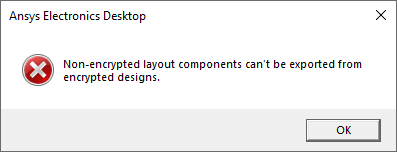
If there is a check in the Encrypt Component box, the Set Passwords window will open if users attempt to leave the Encryption tab. Attempting to bypass the window will produce a Warning: Please input password. dialog box. This is true even if no encryption is chosen. To leave the Encryption tab, uncheck the Encrypt Component box.

Click OK to open the Set Passwords window.
From the Allow Component Use area, choose on the following:
With User Password: the component can be exported as an .aedbcomp file and reopened in Electronics Desktop or other compatible software with the correct password.
With Internal Key: the component can be exported as an .aedbcomp file and reopened in (and only in) Electronics Desktop without a password.
Enter and re-enter a password in the chosen fields in the Allow Component Use area.
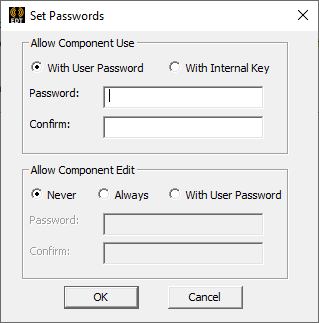
If future component editing is chosen, on the Allow Component Use area, choose on the following:
Never: once the Set Passwords window is closed, the component will no longer be editable.
Always: if future component editing is chosen, and no further security is appropriate.
With User Password: if future component editing is chosen, but some further security is appropriate. Enter and re-enter a password in the chosen fields.
If users select Fully encrypted on the Encryption tab, the Allow Component Edit area is deactivated.
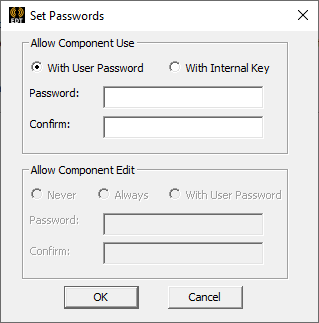
Click OK to save, close the Set Passwords window, and return to the Create Layout Component window.
Once a component is encrypted and users click OK, encryption cannot be removed on the component. However, encryption strength can be increased (i.e., if the user chooses not to encrypt the component, the exported component can be re-imported and exported again as an Encrypted technology component. If the user exports the Encrypted technology component, the exported component can be re-imported and exported again as a Fully encrypted component.
Click the Mesh Settings tab.
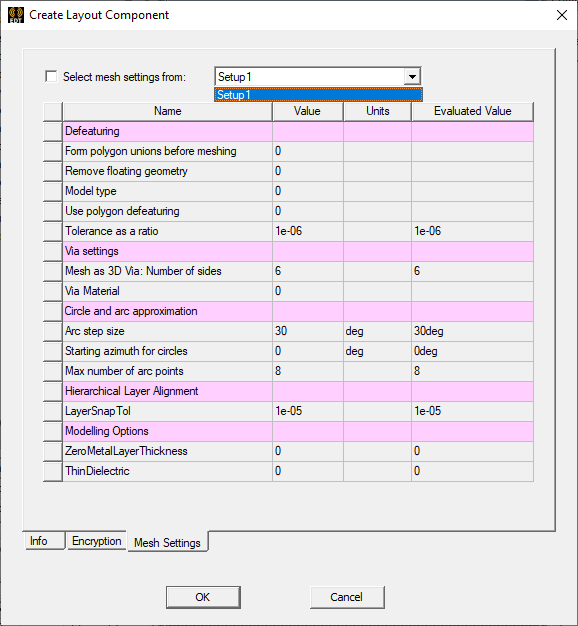
To save the original component's mesh settings with the edited component, check the Select mesh settings from: box and make a selection on the drop-down menu.
Click OK to save the edited component.
The procedure is complete.