Import a component from another design by completing the steps below.
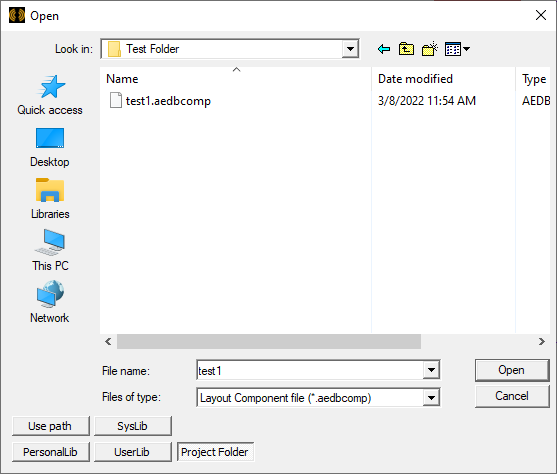
- From the Draw menu, select Import > Layout Component to open an explorer window.
-
Navigate to the chosen directory and select the folder that contains the chosen Layout Component file (*.aedbcomp file). Then click Open to close the explorer window and return to the Layout Editor.
-
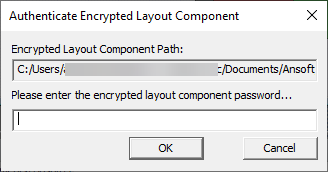
If the component is encrypted, an Authenticate Encrypted Layout Component window appears. Enter the component's encryption password, then click OK to proceed.
-
The imported component is attached to the mouse cursor as a stencil. Click+drag the stencil to move the component. Individual members of the component cannot be moved individually. Once a component is created, the positions of its members are frozen in relation to one another. If the component is unencrypted or partially encrypted, the stencil is an accurate representation of the component's geometry. If the component is fully encrypted, the outline is a rectangle with no visible perimeters. Drag the stencil into position in the Layout Editor and left-click to place.
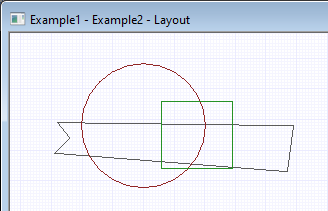
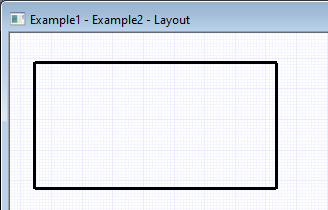
The imported component is now part of the active design. A definition for it is created in the Project Manager window > Project Tree > Definitions > Components folder.
Visible Restrictions of an Encrypted Component
An encrypted component has other obvious restrictions that users will notice at a glance, such as in the following examples.
Layout Editor
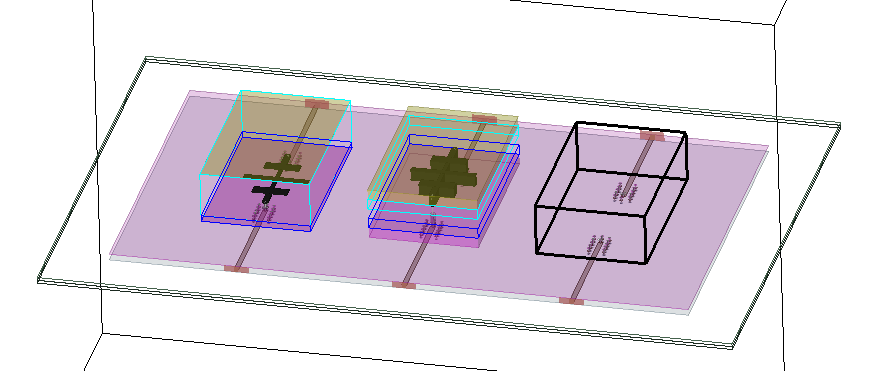
Navigate to the Layout Editor. Component stencils in the Layout Editor will differ greatly, depending on their level of encryption. Referring to the following example:
-
Unencrypted Component — (left-most) represents the design accurately, displaying every member of the component according to its material type, position, and dimensions.
-
Encrypted Technology Component — (middle) normalizes the dimensions of the layers and member parts of the component, making the visual representation noticeably more symmetrical and less accurate.
-
Fully Encrypted Component — (right-most) appears as a black box outline.
Layout Editor - Mesh View
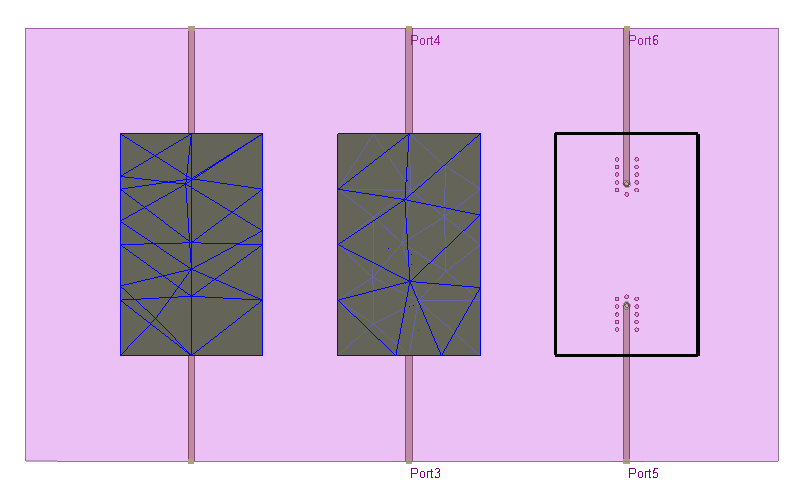
Component plotted meshes will differ greatly depending on their level of encryption. Referring to the following example:
-
Unencrypted Component — (left-most) represents the design accurately with a mesh as dense and complicated as the component requires depending on its materials, position, and dimensions
-
Encrypted Technology Component — (middle) normalizes the dimensions of the component and its member parts. Subsequently, the mesh is noticeably more symmetrical and less accurate
-
Fully Encrypted Component — (right-most) can not be assigned a mesh and will remain a black outline, or stencil. The only guidance the visual representation of a fully encrypted mesh gives users the accurate location of its ports.

Components Window
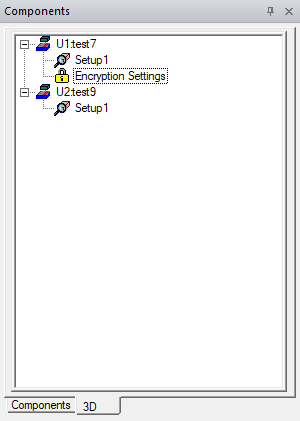
Refer to the Components window. A component that is not encrypted will list Setup mesh settings in an expandable dropdown menu. An encrypted component will have mesh settings and an Encryption Settings yellow lock icon.
Properties Window
Select a Setup to view the component's accompanying mesh settings in the Properties window.
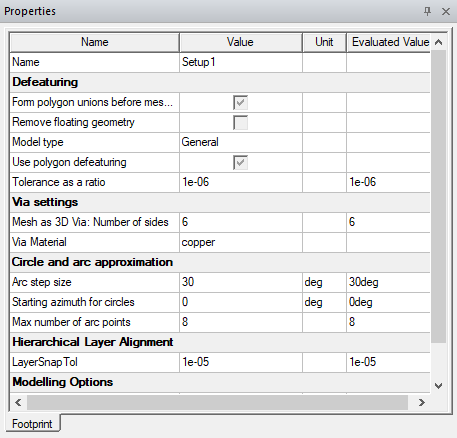
Select the yellow lock icon to view the component's encryption settings in the Properties window.
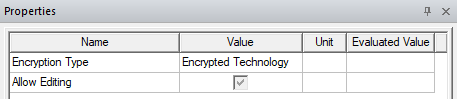
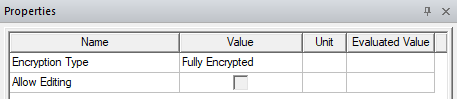
Edit Layers Window and Layers Pane
Navigate to the Edit Layers window. The layer Names have been obfuscated, and the physical parameters of the layers (e.g., material, dimensions, et cetera) have either been hidden or normalized.
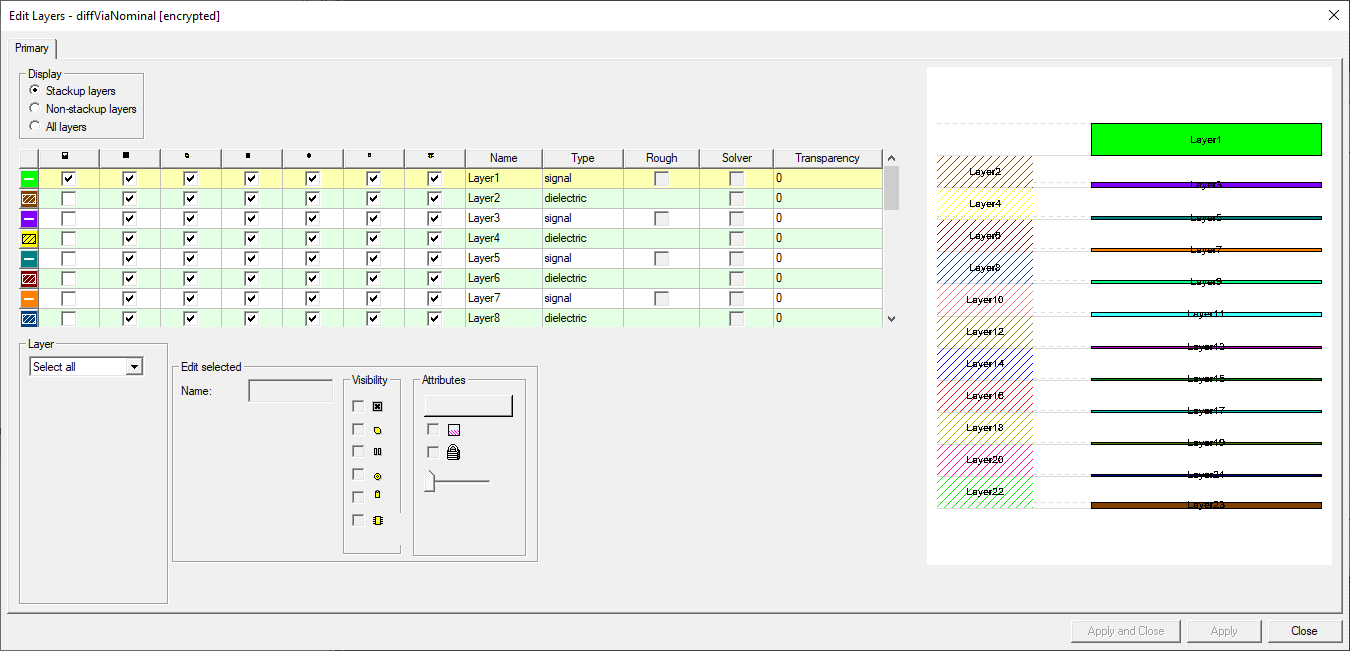
The names of the layers have also been obfuscated on the Layers pane.
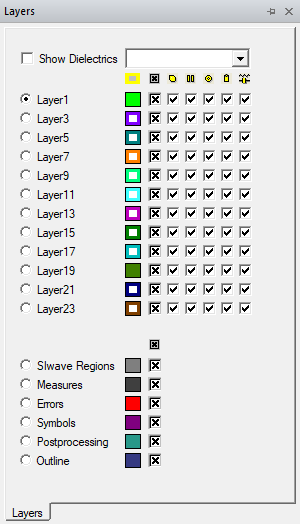
Hiding Layers and Nets
Encryption may make it difficult to view complex components in the Layout Editor, but nets and layers can be temporarily hidden to make it easier for users to view component members.
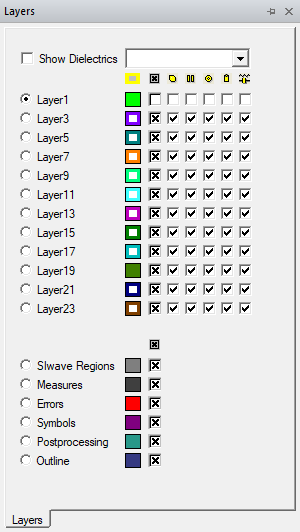
To Hide a Layer
From the Layers pane, remove the check on the box in the chosen layer.
To Hide a Net
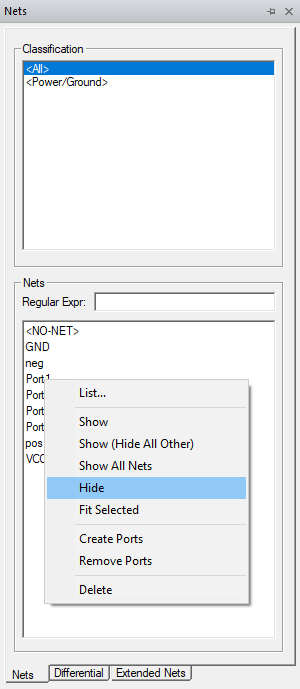
From the Nets pane, right-click a net and select Hide.