
Exporting the W-element from Layer Stackup Wizard (HFSS 3D Layout)
After you have used the Layer Stackup Wizard to calculate impedance, differential impedance, or trace width/pitch, the Export W-Element window allows you to set up aggressor traces around a victim trace and export the corresponding w-element.
To configure a w-element export:
- From the Layer Stackup Wizard, click Export W-element to open the Export W-Element window.
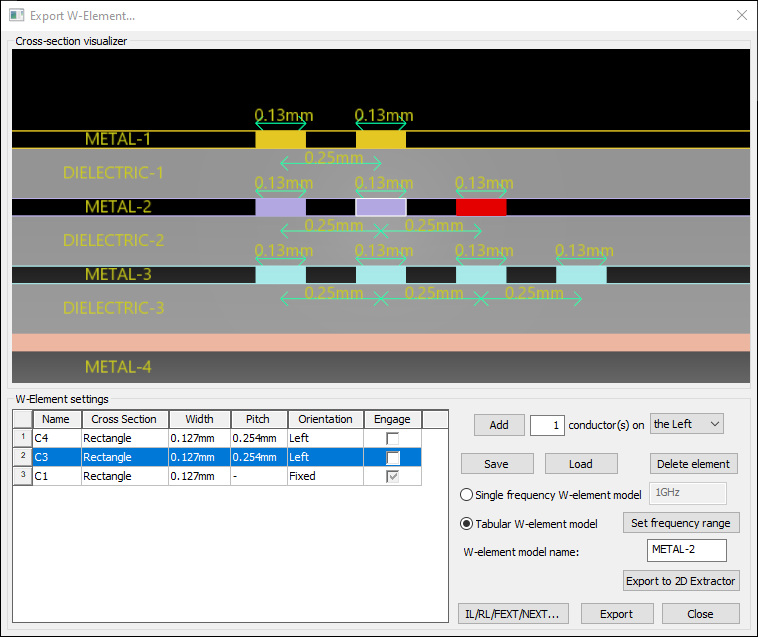
The Cross-section Visualizer displays a graphical representation of the W-Element Settings, including dielectric blocks and the top and bottom reference layers.
Note:Also access this window by drawing a cross-section for w-element analysis.
- Click a conductor in the visualizer or select it on the list in the W-Element Settings area.
The grid displays the following for each conductor:
- Name – conductor name.
- Cross Section – indicates the shape of the cross section.
- Width – can be edited here directly, or imported on the Layer Stackup Wizard by selecting Use width/pitch in W-element.
- Pitch – can be edited here directly, or imported on the Layer Stackup Wizard by selecting Use width/pitch in W-element.
- Orientation – fixed, left, or right.
- Engage – enabling this check box engages the conductor in IL/RL/FEXT/NEXT simulations.
The following options are available:
- Add – Enter the number of aggressors to add, and use the drop-down menu to select whether to add them on the right, left, or on both sides. Then click Add.
Note:
If you previously enabled CPW settings during trace width, impedance, or differential impedance calculation, your options will be limited.
- If you selected Left plane spacing, aggressors may only be added to the right of a victim trace.
- If you selected Right plane spacing, aggressors may only be added to the left of a victim trace.
- Delete Element – Click to remove an element.
- Single Frequency / Tabular Model – Select Single frequency and enter the frequency in Hz, or select Tabular and click Set frequency range to set up a range of frequencies.
- W-Element Model Name – If chosen, enter a new model name for the w-element.
- Export to 2D Extractor – generates a VB script to export the selected layer’s cross-section to 2D Extractor.
The layer thickness, conductor width, pitch, etching, conformal coat thickness are all defined using design variables.
Consult the Q3D Extractor/2D Extractor help for instructions on running an analysis in 2D Extractor.
- Click IL/RL/FEXT/NEXT to compute insertion/return loss and time domain crosstalk.
- Make then chosen selections, then click Export to open the Select Spice File to Export window. Note:
Selecting Tabular W-element model but not specifying the frequency range will automatically open the Frequency Sweep window. You must specify the frequency range before you can save.
- Browse to a save location, name your file, and click Save. The file is saved in Spice (*.sp) format.