Importing 3D CAD Components into HFSS 3D Layout
To import a 3D CAD component into HFSS 3D Layout:
- Click Layout > Import > 3D CAD.
- From the explorer window, click the component’s file and click Open. The 3D CAD Import window opens, on the Model Attributes tab.
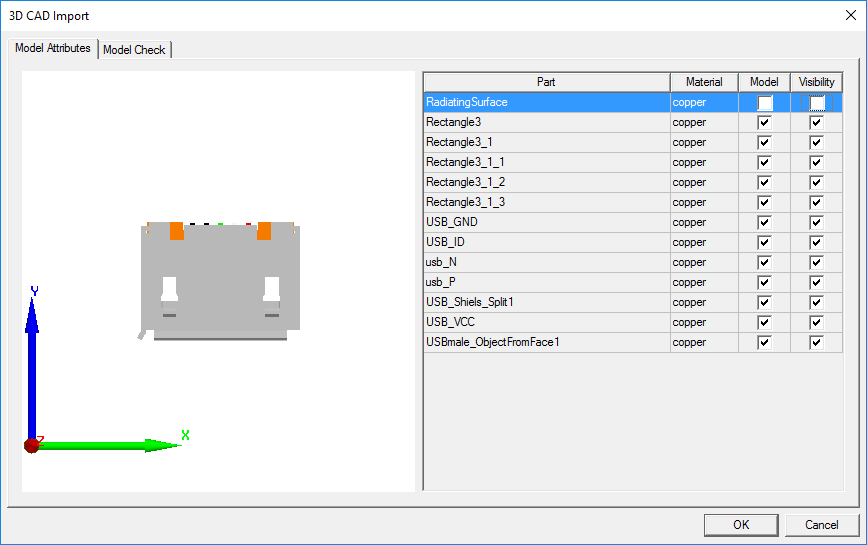
The left pane contains a graphic representation of the MCAD component.
The right pane lists the component's parts and their materials.
- Right-click in the left pane to open a shortcut menu.
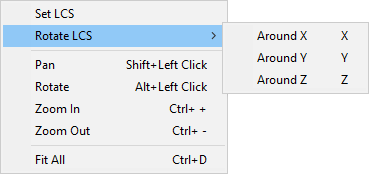
From here, you can perform the following actions:
- Set LCS – turns the cursor into a crosshair that allows you to click a face, edge, or vertex and reposition the local coordinate system to that point.
The orientation of the Z axis is based on face normal. Placement of an MCAD component is simplified if a logical local coordinate system for the MCAD component is chosen (e.g., select the center of a face that must be coincident with a pin in HFSS 3D Layout; when placing the MCAD model, the LCS origin snap to geometry based on the current snap settings).
To exit placement mode, right-click and deselect Set LCS.
- Rotate LCS – reorients the local coordinate system by rotating it about the selected axis. Also press the X, Y, or Z keys.
- Pan – allows you to move the component in the pane. Also use Shift+click.
- Rotate – allows you to rotate the component in the pane. Also use Alt+click.
- Zoom In / Zoom Out – allows you to zoom the component in the pane. Also use Ctrl+E and Ctrl+F.
- Fit All – fits the component to the pane. Also use Ctrl+D.
Note:
Viewing operations only affect the display in the 3D CAD Import window. They do not change the local coordinate system.
- Set LCS – turns the cursor into a crosshair that allows you to click a face, edge, or vertex and reposition the local coordinate system to that point.
- Click the material field to enable an Edit option, which allows you to change the material or its properties.
- Click the Model check boxes to select and deselect parts for modeling, and the Visibility check boxes to alter the visibility of parts.
- Click the Model Check tab.
The Model Check tab displays.
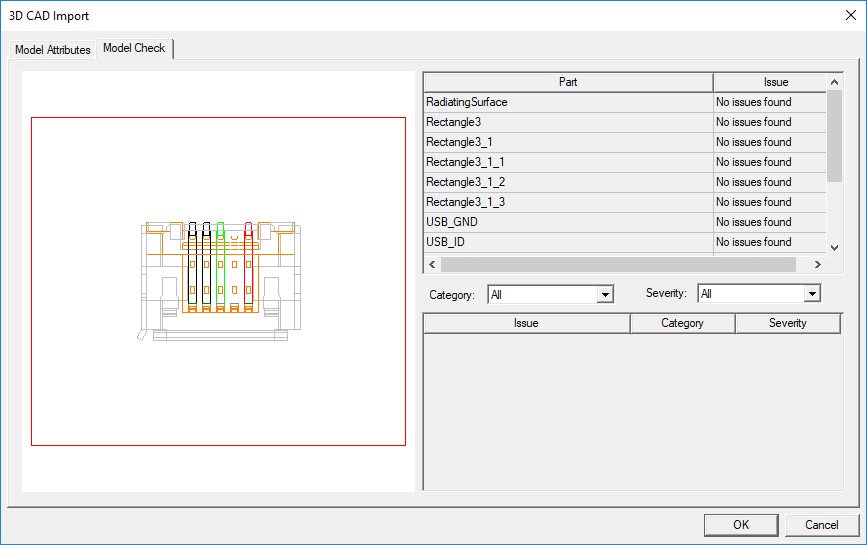
The Model Check tab performs sanity checks on the MCAD component and displays the results. If any issues are found, you can sort them using the Category and Severity drop-down menus.
- Click OK to import the component.
The imported component appears in the 3D tab of the Components window.
- From the Layout Editor, click where the component should go.
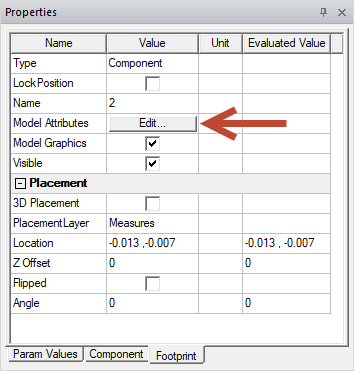
If you need to change the component properties after import, you can do so by selecting the component and clicking Edit on the Footprint tab of the Properties window: