
Adding HFSS 3D Components to HFSS 3D Layout
HFSS 3D Layout allows for the use of HFSS 3D Components with the HFSS solver. Placement, setup, and options are similar to working with an HFSS 3D Dynamic Link in Layout.
To import a 3D component into HFSS 3D Layout, either click+drag a *.a3dcomp file into an HFSS 3D Layout design or perform these steps:
- Click Layout > Import > 3D Component.
- From the Select Model File window, navigate to and select the component’s file and click Open.
- From the Layout Editor, click where the component should be located. The imported component appears in the 3D tab of the Components window.
To add a 3D component on the Component Libraries:
- Open the Component Libraries window.
- Double-click Nexxim Circuit Elements > Models > 3D_Comp: HFSS 3D Components.
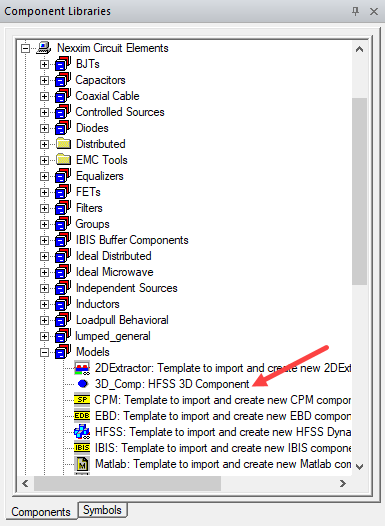
- From the Select Model File window, click the component’s file and click Open.
- From the Layout Editor, click where the component should be located. The imported component appears in the 3D tab of the Components window.
If a parameter was added to the 3D component in HFSS, the parameter appears on the Param Values tab of the Properties window where it can be updated.