Defining Backdrill Parameters
Complete the steps in the following sections to define backdrill parameters.
Viewing Backdrill Parameters
Complete these steps to view backdrill parameters.
-
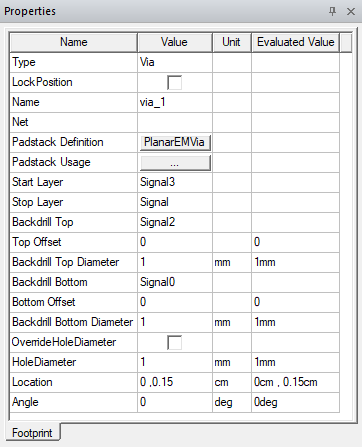
From the Layout Editor, select a via to display its parameters in the Properties window.
-
From the Properties window, click the Padstack Usage [...] button in the Value column to open the Padstack Usage and Definition window.

-
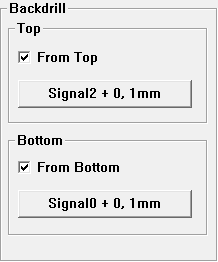
Current backdrill parameters are accessible on the Backdrill area in the upper-right corner.
 Note:
Note:The Backdrill area is subdivided into two smaller Top and Bottom subgroup boxes. Setting the parameters in either area determines where the backdrill begins (i.e., From Top determines the depth of the backdrill on the top layer of the design and From Bottom determines the depth of the backdrill on the bottom layer of the design). The backdrill ends at the depth chosen by users in the Backdrill Definition window.
Activating/Deactivating Backdrill Subgroup Boxes
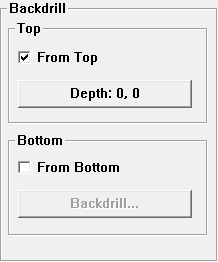
To activate or deactivate backdrilling on the top or bottom, add or remove checks from the From Top and/or From Bottom boxes.
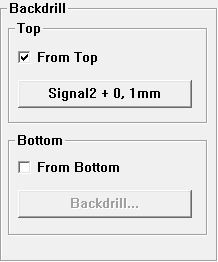
Once a backdrill subgroup box is activated, its associated button displays an abbreviated description of the backdrill's current parameters (default is Depth: 0, 0 before setup and Backdrill when deactivated). Once its parameters are defined in the Backdrill Definition window, the parameters are retained even if the subgroup box is deactivated. However, if the Padstack Usage and Definition window is closed once a backdrill subgroup is deactivated, the parameters are cleared.
Setting Parameters in the Backdrill Definition Window
Complete these steps to configure a backdrill.
-
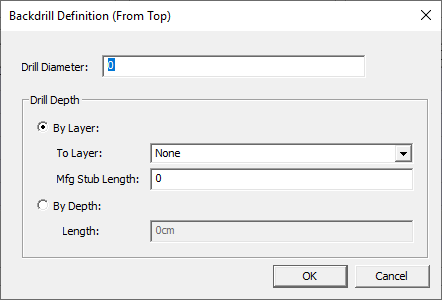
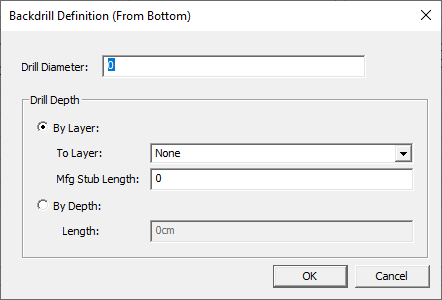
Once a subgroup box is activated, its associated button also activates. Click the button to open the Backdrill Definition window.
-
Enter the following parameters to define the top or bottom backdrill.
-
Drill Diameter – enter the chosen diameter of the backdrill
-
From the Drill Depth area, select By Layer or By Depth.
Note:Aside from numerical values and units of measurement, project variables can be entered in the Layer drop-down menu, Mfg Stub Length (i.e., offset) field, and in the Depth Length field. Doing so offers the benefit of making changes to the variables in the Properties window and seeing the effect on the design in the Layout Editor in real time. Refer to Using Project Variables to Modify a Backdrill.
If By Layer is selected:
-
To Layer – select a stackup layer chosen from a drop-down menu, which the backdrill will reach from above (i.e., when set in the Top window), or below (i.e., when set in the Bottom window)
-
Mfg Stub Length – enter the chosen offset on the selected layer (i.e., when set in the Top window), or below the selected layer (i.e., when set in the Bottom window)
If By Depth is selected:
-
Length – enter the chosen length the backdrill should reach from above the top of the stackup (i.e., when set in the Topwindow), below the bottom of the stackup (i.e., when set in the Bottom window), or from both above the top and below the bottom of the stackup
-
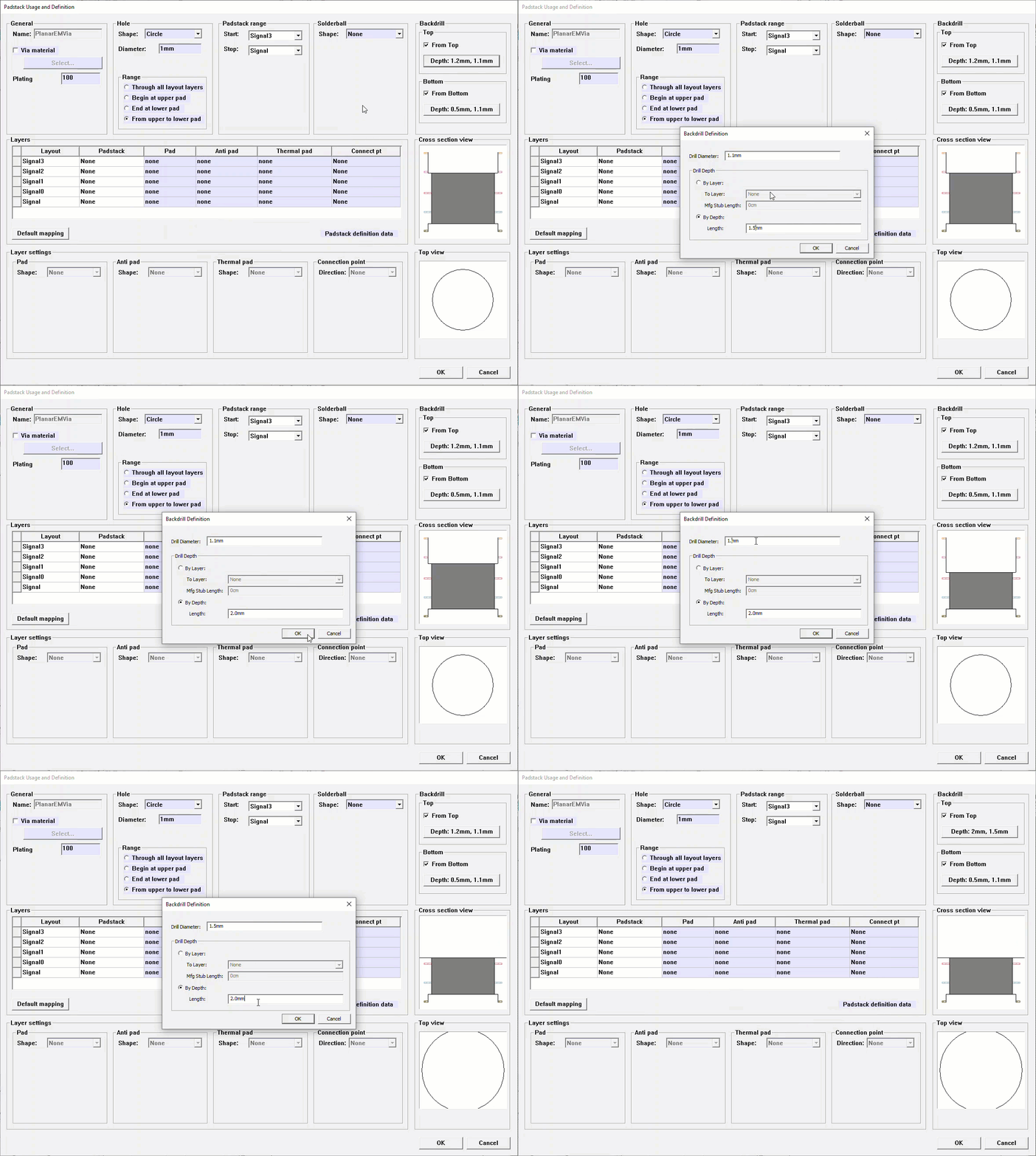
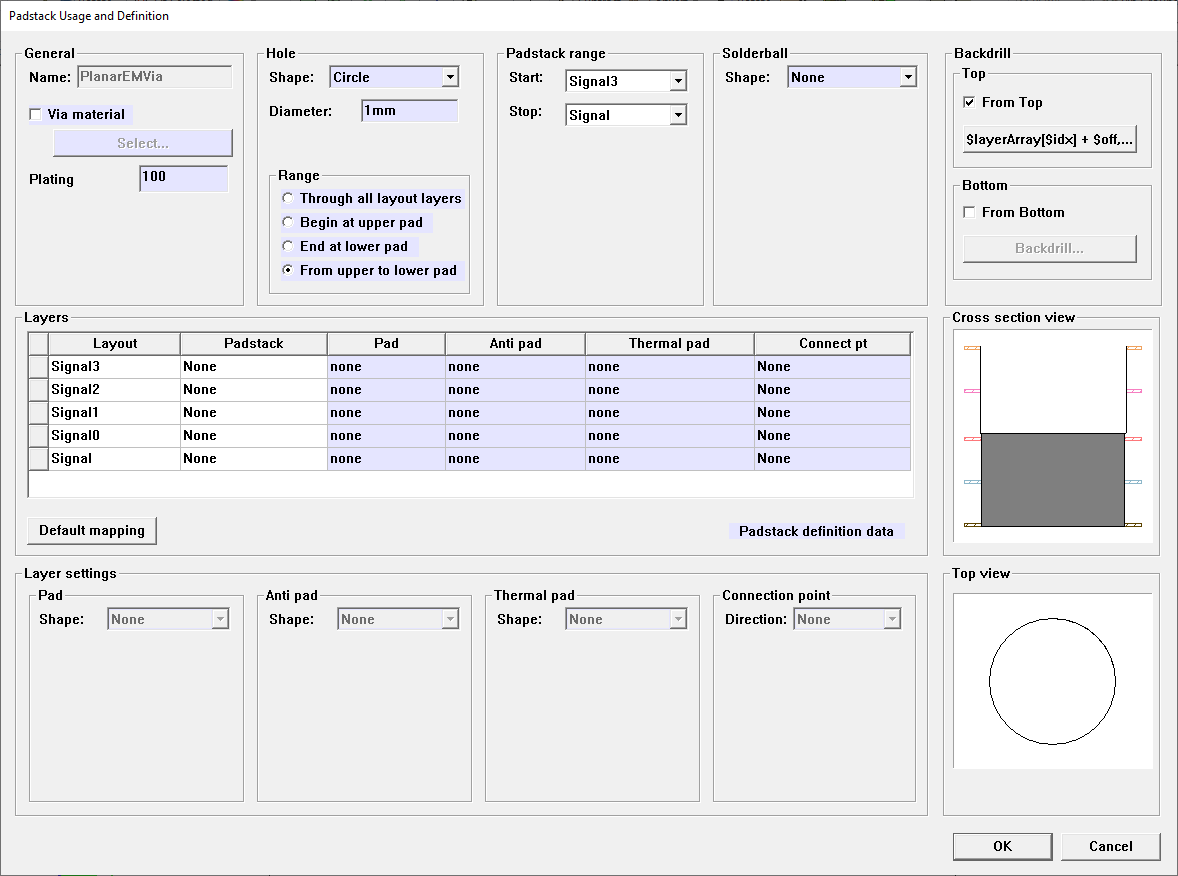
As parameters are set, the representative model shown in the Cross section view and Top view group boxes at the Padstack Usage and Definition window will change in real time. These group boxes display an approximation of the selected via's current backdrill definition for quick reference. Backdrills are rendered as empty space.
-
Once the backdrill is defined, click OK to close the Backdrill Definition window.
Using Project Variables to Modify a Backdrill
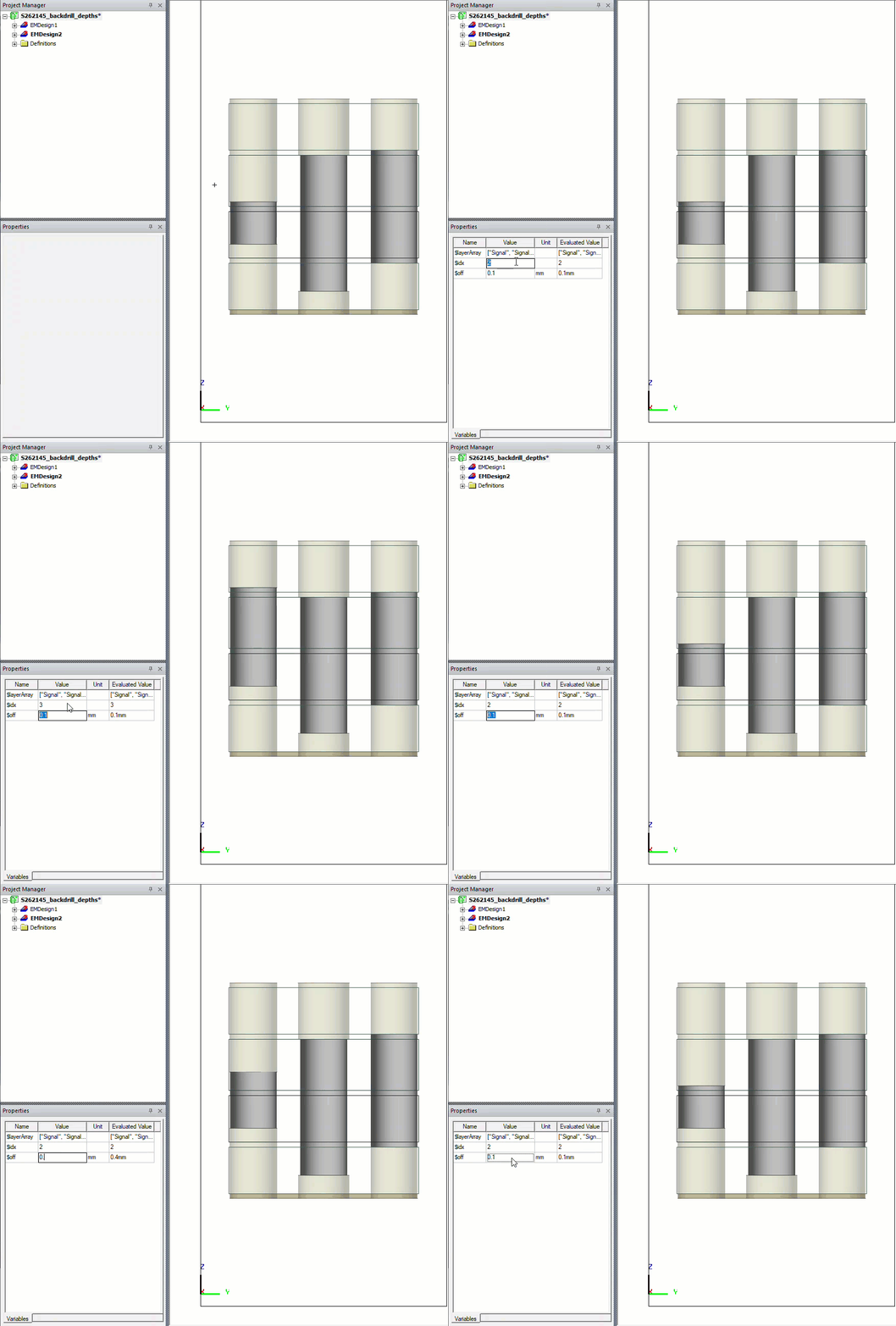
Aside from numerical values and units of measurement, project variables can also be entered in the Drill Depth area fields to define a backdrill. From the following example, variables are used to define a backdrill and then the definition is modified on the Properties window. The effects appearing in the Layout Editor.
-
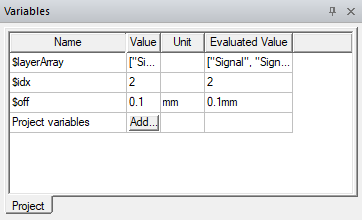
In this example, the Variables window is populated with a layer array variable with designations for each layer in the padstack, an index variable to associate a number with each layer, and an offset variable. Refer to Working with Variables for more information about creating project variables, design variables, and arrays.
-
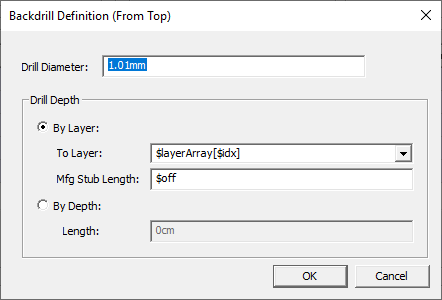
Define a backdrill using project variables. In this example, the layer array variable and index variable are entered in the To Layer field and the offset variable is entered in the Mfg Stub Length field.
-
Click OK to close the Backdrill Definition window and return to the Padstack Usage and Definition window. The variables are abbreviated in the Backdrill area > Top subgroup box button.
-
Cick OK to close the Padstack Usage and Definition window and return to the Layout Editor.
-
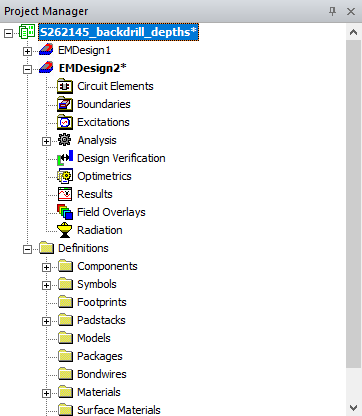
From the Project Manager window, select the Project Tree to populate the Properties window with the designated project variables.
-
From the Properties window, the first row lists the padstack layers specified in the layer array variable. The second row designates the current index number (i.e., the designated padstack layer). The third row specifies the current offset (i.e., offset on the indexed padstack layer). Changing either of the numbers in the index and offset Value fields will dynamically change the model in the Layout Editor.