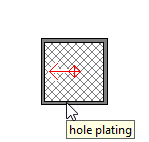
Edit and define a padstack in the Edit Padstack Definition window. Open this window in one of the following ways:
- Select Tools > Edit Libraries > Padstacks. Find and select the padstack you want to edit, then double-click its name or click Edit Padstack.
- In the Definitions directory of the Project Manager window, right-click the Padstack folder and select Edit Library. Find and select the padstack you want to edit, then double-click its name or click Edit Padstack.
- Select a via or pin that uses the padstack. In the Properties window, click Padstack Definition to open the Padstack Usage and Definition window. When opened on the Properties window, information related to the padstack definition is highlighted in blue.
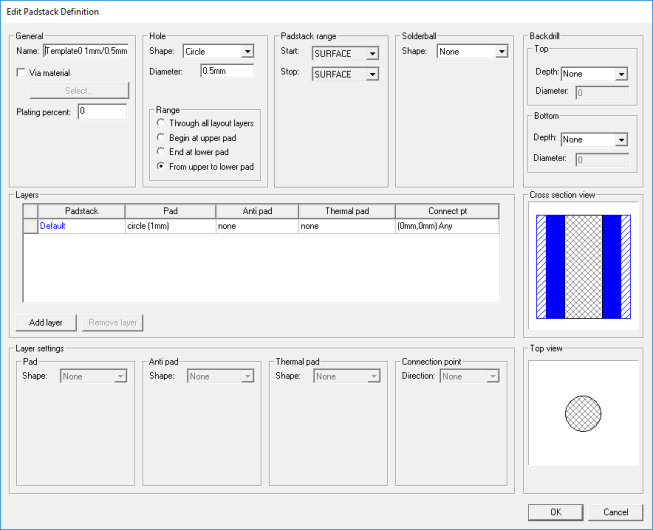
The Edit Padstack Definition window
Options include:
General
- Name – the name of the padstack.
- Via Material – the material for plating the via or pin hole. Click Select to choose from available materials.
- Plating Percent – the percent of the hole's radius that is filled by the plating material. At 0%, there is no plating. At 100%, plating fills the hole. The Cross section view and Top view areas show the vertical cross-section and top of the layer stackup. This setting is used by SIwave Solvers and Icepak Electronics Desktop.
Hole
- Shape – choices are None, Circle, Square,
Rectangle and Polygon. The Polygon choice is currently only supported
for padstacks; polygon holes may not be defined through the
window. Polygons can be modified by selecting a layer and clicking Edit Polygon to open the Polygon Editor . Selecting a shape enables additional options:
- Size / Diameter / XY Size – specifies the size of the hole.
- Range – can specify the hole range to be:
- Through all the layout stackup layers
- Beginning at the upper pad of the padstack and continuing to the lowest elevation of the layout stackup layers
- Beginning at the highest elevation of the layout stackup layers and ending at the lowest pad of the padstack
- Beginning at the upper pad and ending at the lowest pad of the padstack
Padstack Range
This area contains controls to specify the Start and Stop layers for the padstack.
Backdrill
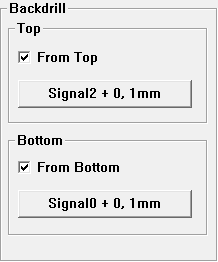
Backdrilling creates empty holes on one or both sides
of a via. From the Backdrill group box, define backdrills from a selected via's top layer, bottom layer, or both. Refer to Backdrilling. Backdrills are rendered in the Cross section
view and Top view group boxes as empty space. In the following script example, the backdrill is recorded as a block:
Array("NAME:Backdrill
Top Diameter", "MustBeInt:=", false, "Value:=", "0.4mm").
- From Top – define a backdrill that starts on the selected via's top layer. Check the adjacent box to activate or remove the check to deactivate. Click the associated button to proceed to the Backdrill Definition window.
- From Bottom – define a backdrill that starts on the selected via's bottom layer. Check the adjacent box to activate or remove the check to deactivate.
Click the associated button to proceed to the Backdrill Definition window.
Refer to Define Backdrill Parameters.
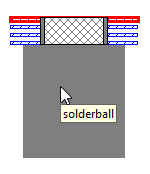
Solderball
- Shape – specifies the shape of the solderball; choices are none, cylinder, and spheroid.
- Diameter – specifies the diameter of the solderball.
- Mid diameter – for spheroid solderballs, specifies the mid diameter.
- Solder – click to open the Material Editor for the solderball in order to specify the material used.
- Connection – select to specify the location of the solderball either above or below the padstack hole.
Layers
Layer names are used when a padstack definition is used in a via or pin. A default mapping of padstack definition layers to layout layers occurs based on the layer names.
- None of the Layers group box grid control cells are directly editable.
- When one or more rows in the Layers group box is selected, the Layer settings group box is enabled and can be used to change
the pad settings for selected rows.
- Add Layer inserts a new layer above the selected row.
- Remove Layer removes the selected row(s). You may also rearrange rows to be any order.
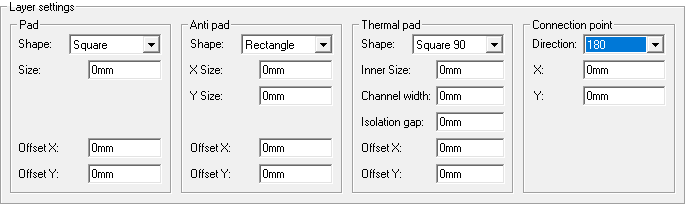
Layer Settings
The Layer settings area displays pad settings for padstack definition layers. The Polygon choice is currently only supported for imported padstacks; polygon pads, anti pads, and thermal pads may not be defined through the window. Dimension controls appear to support the shape choice for each pad. Controls to specify the pad offset are also available.
- Pad and Antipad shape choices are None, Circle, Square, Rectangle, Oval, Bullet, N-Sided Polygon, and Polygon. Polygons can be modified by selecting a layer and clicking Edit Polygon to open the Polygon Editor .
- Thermalpad shape choices are None, Polygon, Round45, Round90, Square45, and Square90. Polygons can be modified by selecting a layer and clicking Edit Polygon to open the Polygon Editor .
- Connection point allows you to choose a direction in degrees or specify None. There are also controls to specify the X,Y location of the connection point.
Cross Section View
This area displays all definition layers and their pads from a side view. Selected layers are highlighted. Hover the mouse over this area to see tooltips indicating padstack components.
Top View
This area displays the pads of selected layers from a top down perspective. Hover the mouse over this area to see tooltips indicating padstack components.