
Opening Projects
Open a previously saved project using the File > Open command.
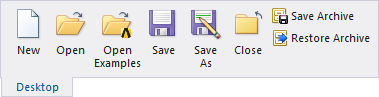
- Click File > Open or click the Open icon on the Desktop tab of the ribbon.
- Use the file browser to find the project file.
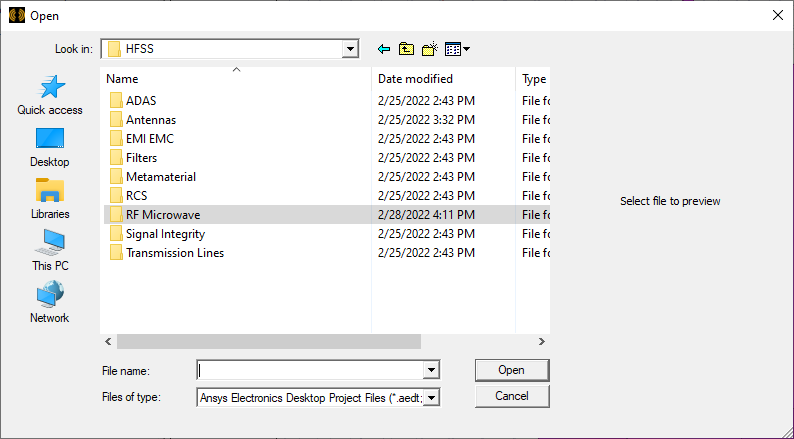
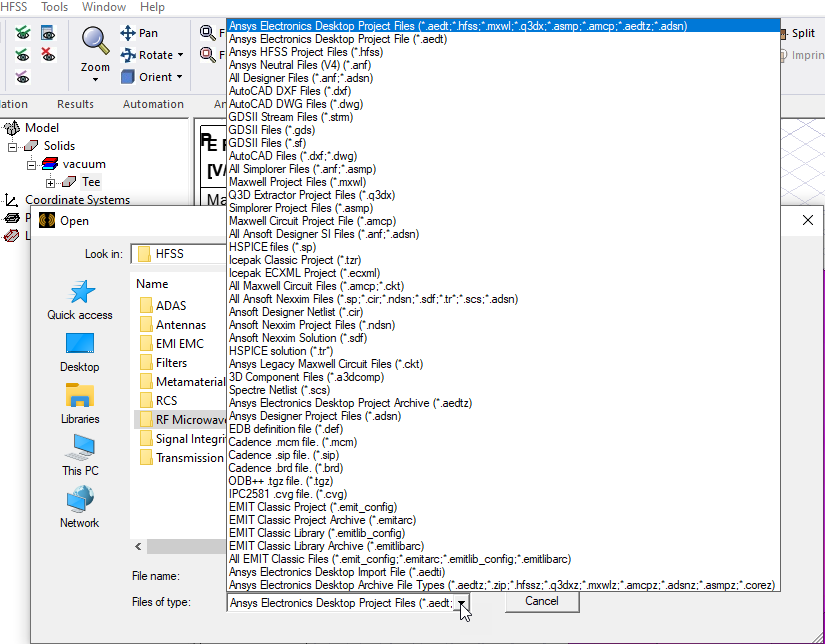
By default, only files that can be opened or translated display. *.aedt is the main default, although, you can also view several types of legacy files. The dropdown for Files of type lists the kinds file and archive formats for which you can select filters.
-
Most of these will be familiar to those seeking them. The Ansys Electronics Desktop Import file (*.aedti) format is for importing exported projects from ANSYS Discovery, an ANSYS Workbench tool. This format allows import of side by side *.aedti and the correponding geometry definition *.sat into the Ansys Electronics Desktop, and creates a ready-to-solve HFSS project
- Select the file you want to open.
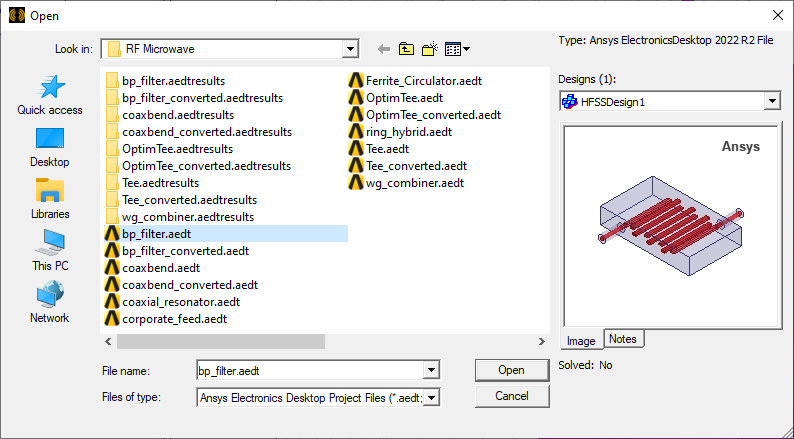
- Click OK.
The project information appears in the Project tree.
If you open another project without editing the automatically created project, the automatically created project is removed.
You can also open a saved project by:
- Dragging a project file icon to the Open icon
- Dragging a project file icon to the desktop
- Double-clicking a project file icon
Opening Recent Projects
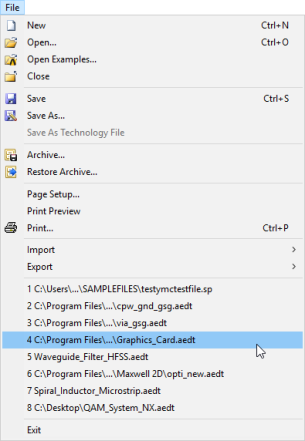
Recently opened projects appear at the bottom of the File menu. To open one of these files, click its file name.
Opening Example Projects
You can directly access and open example projects included with product installation using File > Open Examples, or by clicking Open Examples on the Desktop tab of the ribbon. See Example Projects for additional description of these files.
Opening Legacy HFSS-IE Projects
If you open an existing HFSS-IE project in Ansys Electronics Desktop, it is automatically converted to an equivalent HFSS project with IE Regions assigned.
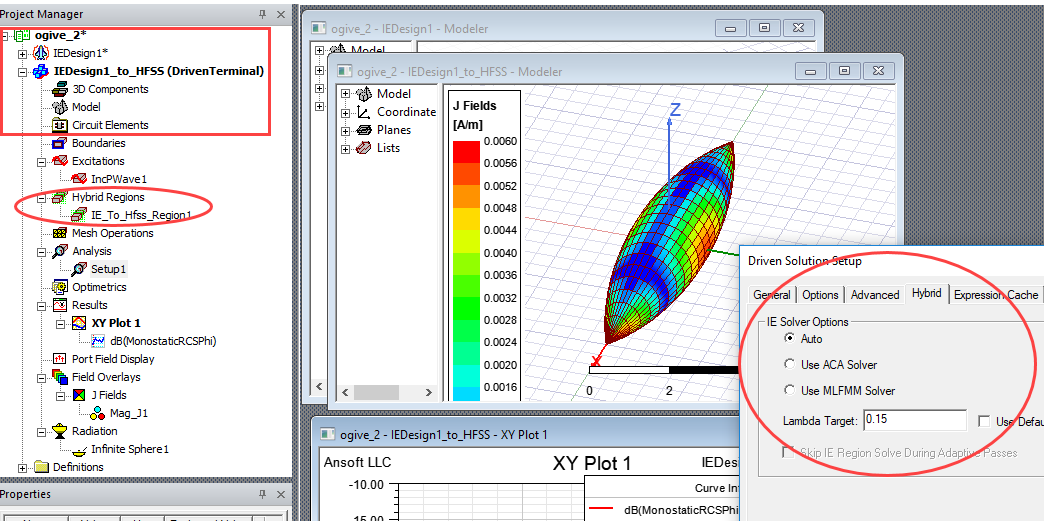
The primary changes in the converted project are that an IE Region is assigned to the objects, and that the Hybrid tab of the Setup has the IE Solver Options. All Excitations, Plots, Field Overlays, and Radiation are all equivalent to those in the original project. If you select the original project, the HFSS-IE menus will still appear for that project. However, going forward, HFSS-IE will not be supported. IE Regions should be used.
HFSS-IE included a Physical Optics (PO) solver for use with metallic designs excited by an incident plane wave, a far field wave, or a near field wave. The PO functionality can be achieved using PO Regions. This solver provides first-order scattering information, such as an approximate RCS. If that result is not accurate enough (for example, for a back lobe calculation), you can use the regular IE solver. The types of reports are the same; it is the accuracy that changes. When selected, it solves for only one pass, performing no adaptive refinement.