


When a task is created the tool stores automatically the context of the task together with it. The context is the model element or property that had the focus when the task was created.
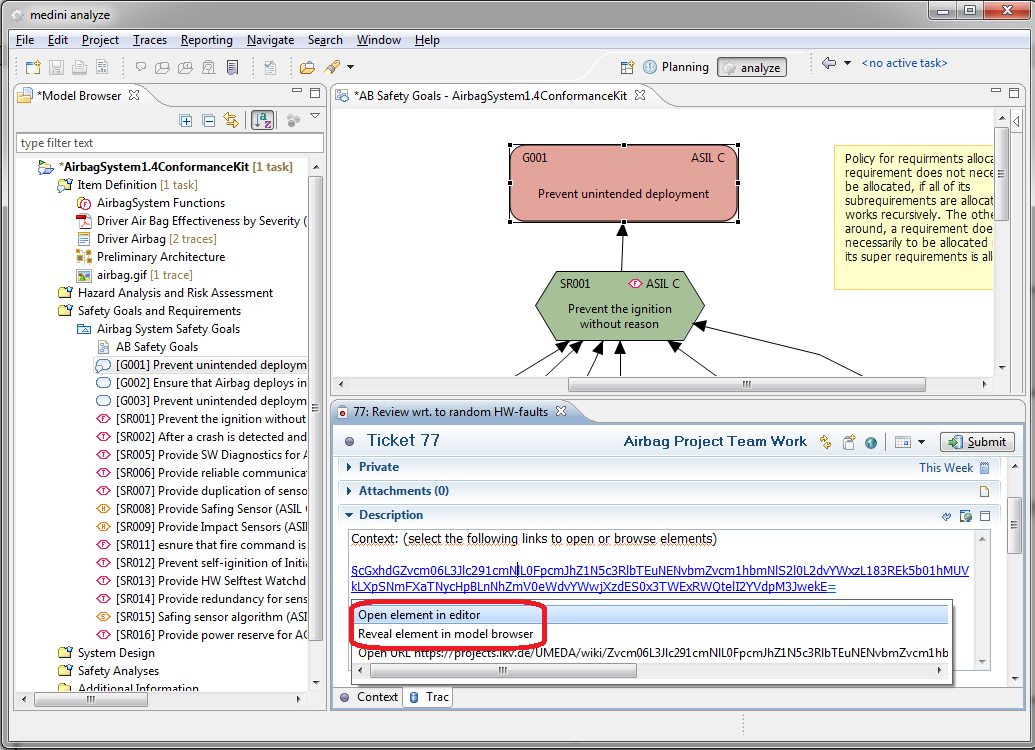
The context of a task allows to navigate from the task to the element. This navigation is invoked by clicking on the link which is available from the task editor. The two available options are:
Open element in editor - which opens an editor to visualize the context element.
Reveal element in model browser - which sets the focus of the model browser to the element but does not open the editor.
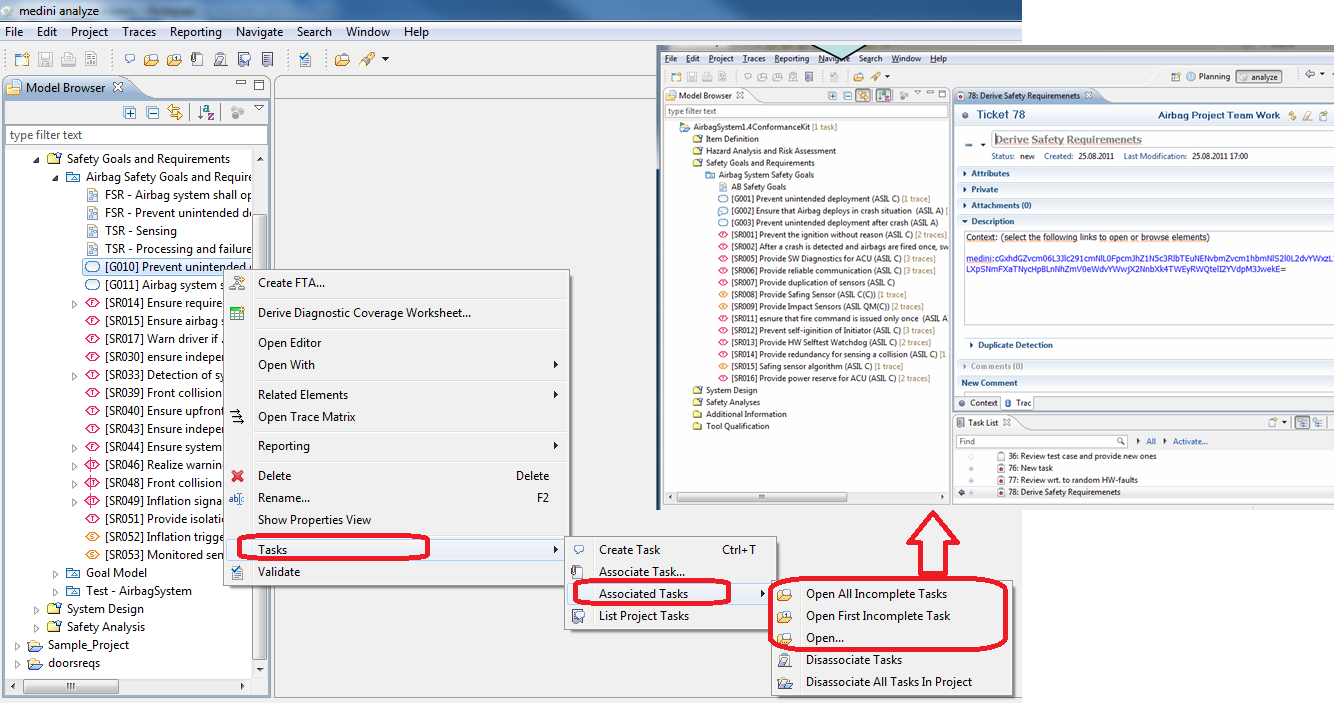
When a task is submitted the first time the tool stores automatically the context of the task together with it. This information allows to navigate from a model element to all tasks associated with this model element. There are decorators that visualize the presence of associated tasks for the model elements in the model browser. Note that private tasks are never submitted and are always navigable in both directions.
In order to open the task from the model element either the context menu of the element or the tool bar of medini analyze can be used. There are multiple options for opening an associated task from a model element which allow to open all tasks or consider the status of the associated tasks. After the invocation of one of these options, the task editor is opened with the relevant task(s).
Hint: You may add hyperlinks to arbitrary tasks in any form text field by simply inserting '#'<task number>. Hover or click the link to navigate to the task with the given number. Note that task hyperlinks require a configured task repository at the project.
The task list is an efficient tool to manage all the tasks in the connected repositories as well as the local (private) tasks.
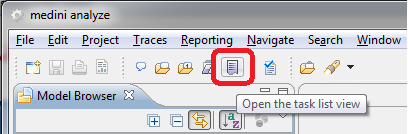
The task list is opened via the "open the task list view" button.
The task list view contains the tasks sorted according to their belonging to a category or a query.
Categories and queries can be created from the task list.
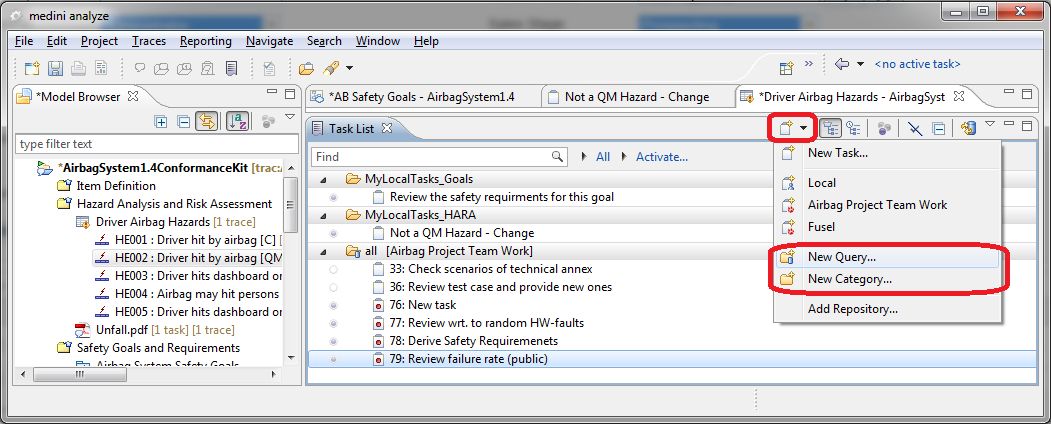
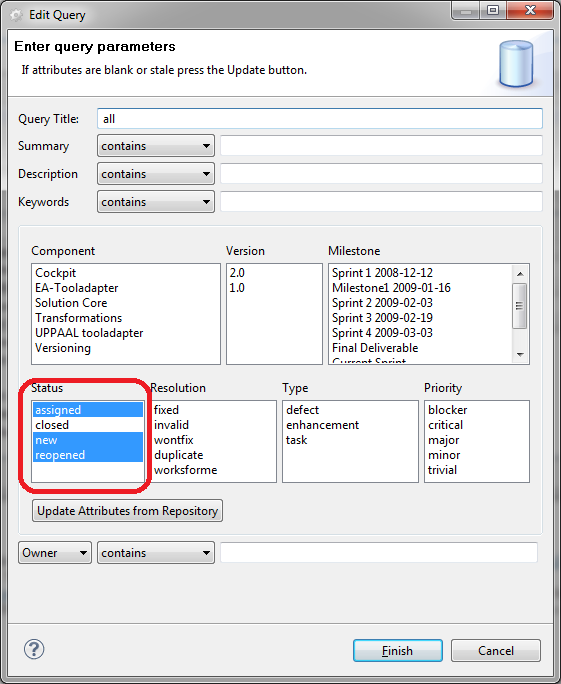
Categories are used to manage local private tasks. Queries are for connected repositories (public tasks). A query is specific to the used repository tool connector. An example query for the trac system is shown here. Note, that queries usually match to a subset of all tasks in the repository. Only matching tasks are visualized in the task list. The following figure shows a query, that matches only the tasks that have assigned, new or reopened status.
There can be multiple queries, that match the same task. In that case, the task will appear in all those queries in the task list.
In order to update a query with the actual content of the repository, you can either manually synchronize the query via the context menu of the query or configure an auto-update interval in the preferences.
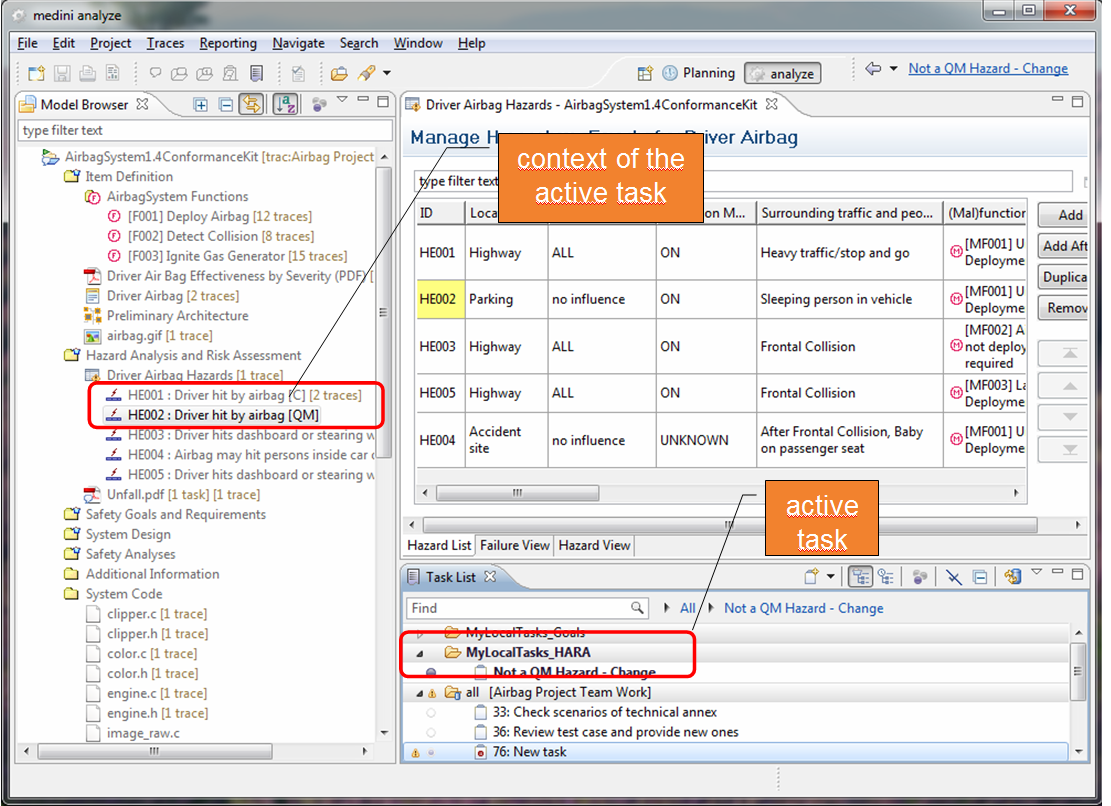
Tasks can be activated or deactivated. When there is an active task medini analyze focuses the model browser to the elements which are in the context of the active task. The focus is visualized by graying out those elements which are not in the context.
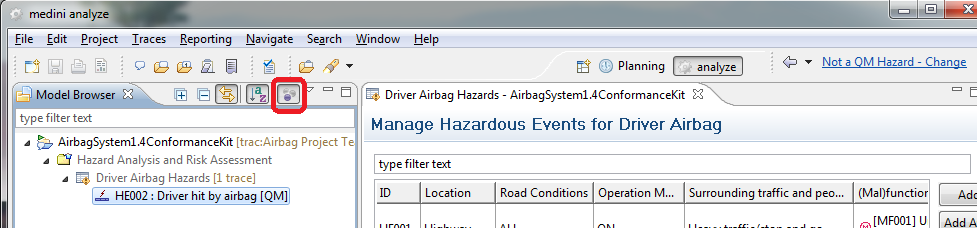
If you also click the focus filter button, all elements that are not in the context of the active task are filtered from the Model Browser.
An activated task is shown in the task activation status bar of the tool.

To activate a task one of the following can be done:
Use the activation status bar and select the task directly or use the Activate or Deactivate action
Activate/Deactivate a task from the task list by pressing the activation button
Use the activation/deactivation action available in the Navigate main menu.
Tasks can have several properties depending on the repository and the repository connector which is used for the task. These properties can be used to control e.g. scheduling or status information of tasks. The properties can be accessed using the task editor. The task editor is invoked from the task list (Task Lists) or from an element in the model browser (Element to Task Navigation ).
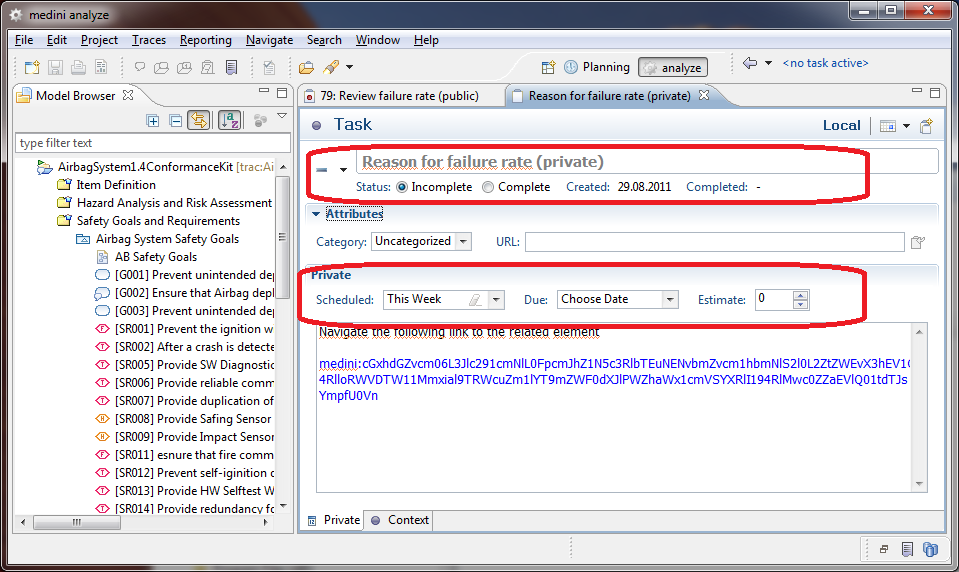
For private tasks (i.e. tasks not managed in a shared repository) the following properties can be used and set via the task editor:
Status information - to indicate the completion status of a task as either Incomplete or Complete.
Category - to select a category that is later used to group the tasks in the task list.
Scheduled - to schedule a task.
Due - to choose a due date for the task to be completed.
Estimate - to set an effort estimation (e.g. in terms of hours needed to complete the task).
Description field - the field per default contains the link to the model element in medini analyze for which the task was created (if it is created using the procedure explained in Task Creation).
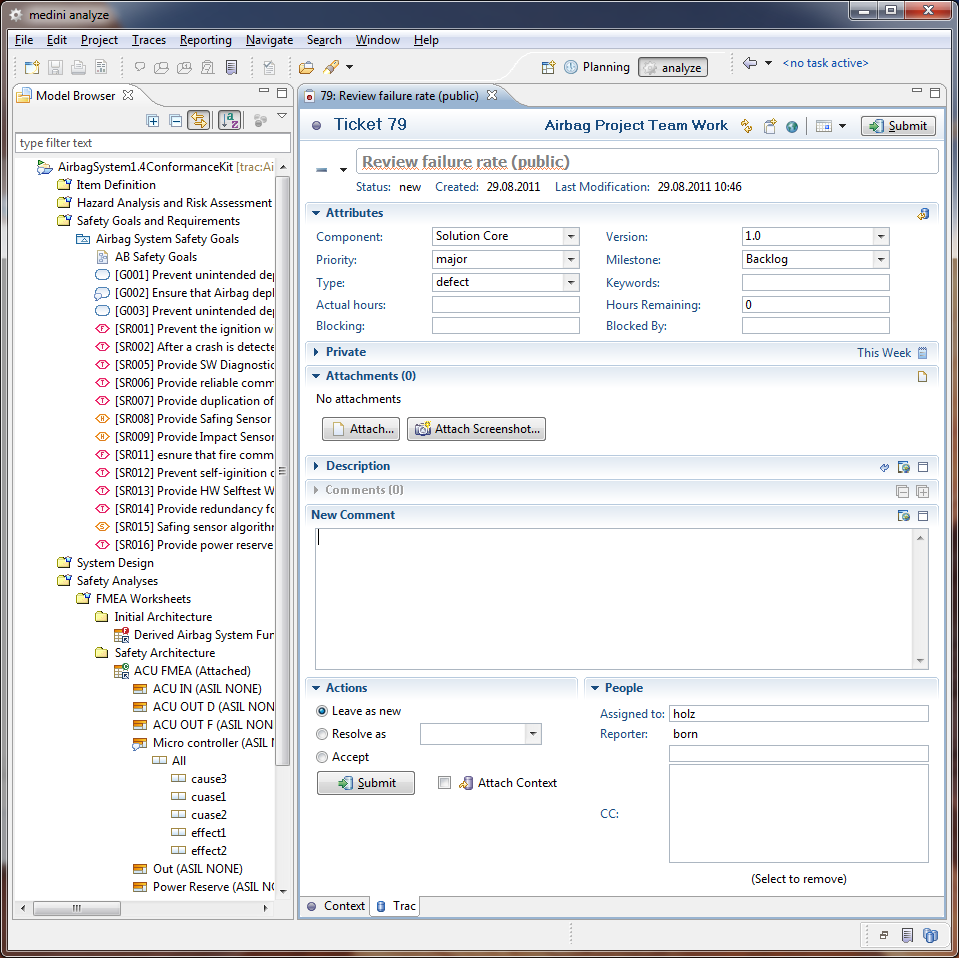
The properties of public tasks strongly depend on the capabilities of the used server side repository and the repository adapter. They are introduced here exemplarily for the trac repository and adapter.
With the trac adapter, the following properties can be managed for a task:
Trac specific properties - this includes priorities, milestone information, version information etc. (The available information needs to be configured in the trac host system).
Private scheduling information - same as in the private task editor (see Properties of private Tasks).
Attachment - allows to attach files to the task. (this could be used for example to attach a screenshot or else).
Description - contains by default the link to the model element for which the task has been created (see Task to Element Navigation )
Comments/New Comment - this is used to further comment on the task, e.g. when a task is shared in the team, this could be used to log the messages between the team members that are related to this task.
Actions - this is used in trac to change the status of a task (e.g. resolve it or close it.)
People - this is used to assign the task to a person. In case of trac, the assignee is notified by e-mail on the assignment.
Please be aware, that a modified task needs to be submitted if the change should be made available in the task repository. A simple save of the task editor will not do this! Changed but not submitted tasks are marked in the task list.
The lifecycle of tasks is independent of elements in medini analyze and solely determined by the underlying task management system/repository. If a task is associated to an element which is going to be deleted, the task (content) might still be valid. Therefore, medini analyze does not close tickets on deletion automatically, but prevent that they loose their context by redirecting them to the nearest remaining parent of the element as outlined below:
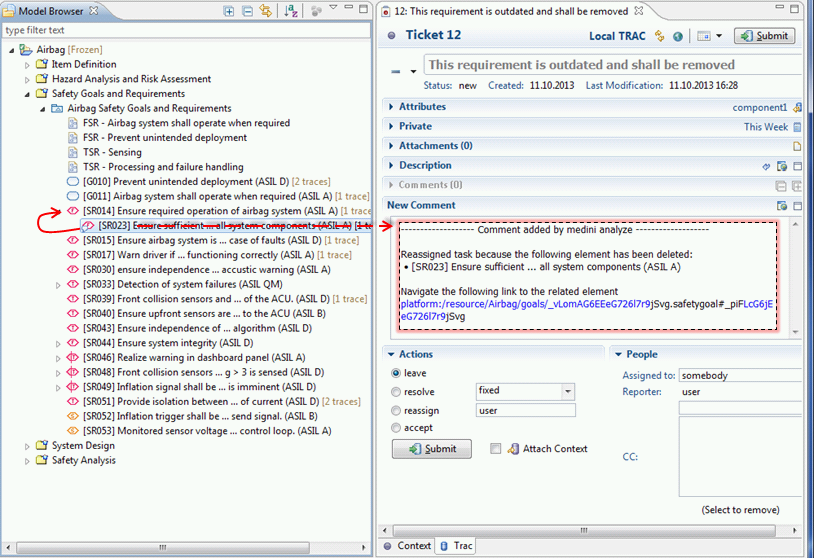
Additionally, a generated comment is added to the ticket that contains a link to the parent (i.e. new element). This comment can be edited as required before the ticket is submitted.