In order to navigate from the model elements to their associated tasks, the task association (list of task belonging to a model element) is stored with the model element in the medini analyze project. Such task associations are ticket ids that together with the URL to the server task repository form a unique reference. Since projects might be exchanged and used in another environment, these references might become invalid. In such cases, it might be necessary to delete task associations from an element.
In order to delete task associations from the element, a context menu entry of the element may be used or alternatively the appropriate button in the tool bar.
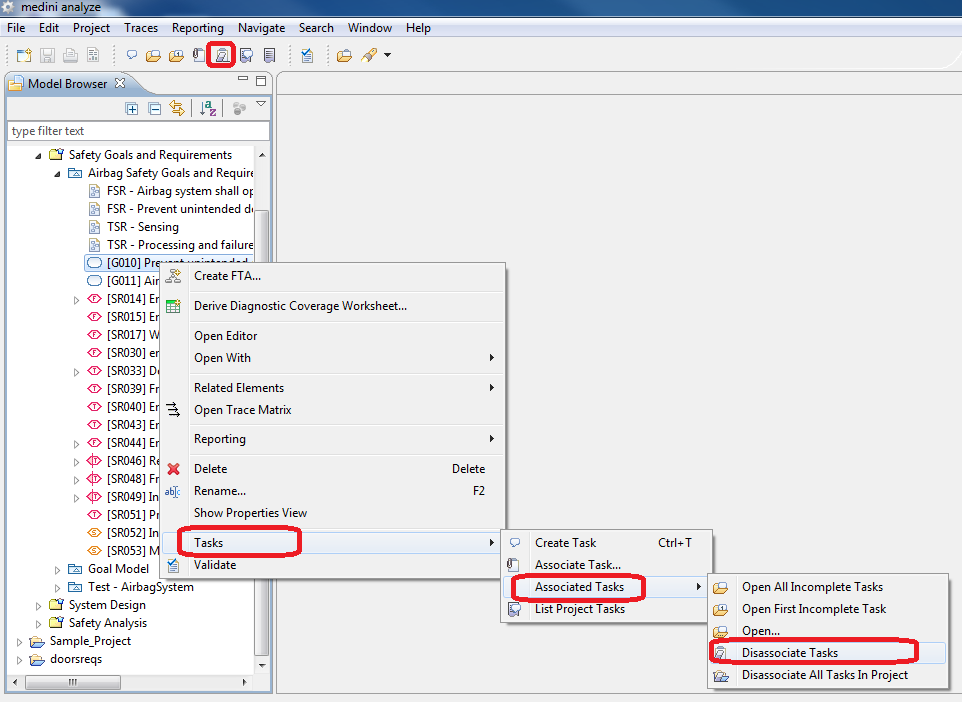
There is also a possibility to clean all task of a project at once.
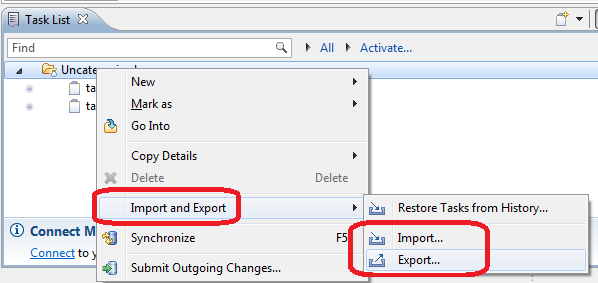
Task lists can be imported and exported as a zipped XML file. This is useful if e.g. a project with local tasks (i.e. without using a shared repository for tasks) should be exchanged via the file system. In that case, also the tasks can be exported, exchanged and imported back. The navigation links from the tasks to the model elements would still work in that case.
In order to export a task list, the context menu of node in the task list view can be used. The action "Import and Export -> Export" is used for export while "Import and Export -> Import" is used for import. In the upcoming dialog, a file has to be selected into which the task list is stored or from which a task list is imported.
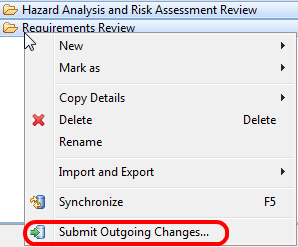
When working with tasks (e.g. while doing a review) typically a number of tasks are created, commented or just modified in general. The Task List view shows changed tasks with a special decoration, that indicates outgoing changes. However, submitting each tasks individually is cumbersome and time consuming. A separate action in the main task toolbar as well as in th context menu of the Task List, is able to submit all outgoing changes at once, either globally (when executed from the toolbar) or in a selected scope in the Task List.
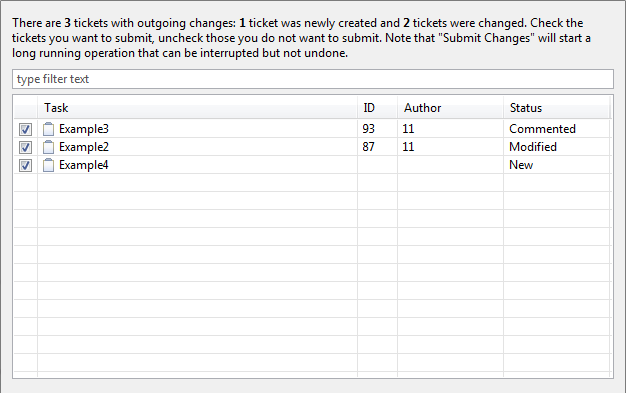
All changed tasks - i.e. tasks that have outgoing changes - are collected and listed in a dialog first. You are able to review all changes before submission and - in case individual tasks shall not be submitted - may uncheck those tasks. The dialog distinguishes between a "new" task - i.e. a task that has been newly created, a "commented" task - i.e. you have added a new comment to the task but has not changed it otherwise - and finally a "modified" task - i.e. the task attributes have changed and/or comments have been added.