


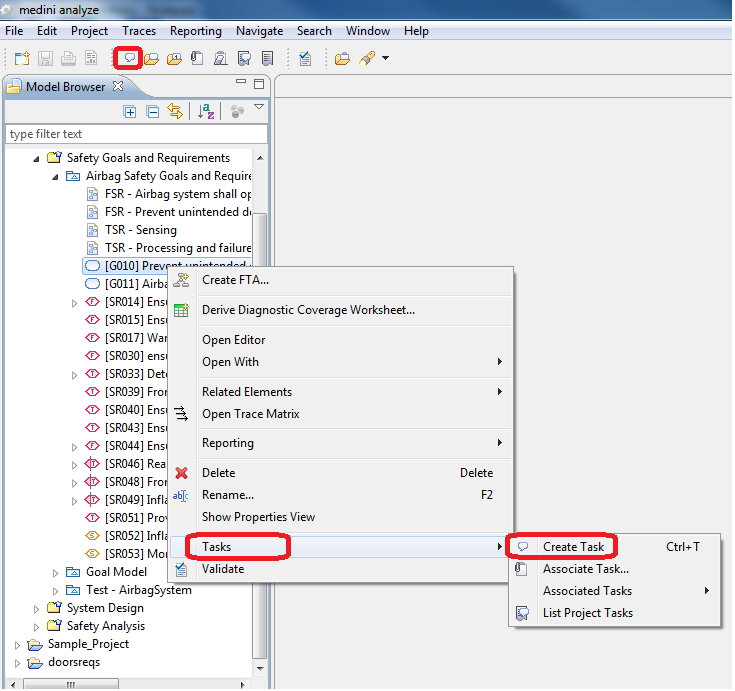
Tasks or comments can be created via the toolbar or the "Tasks" context menu of a model element in the model browser. The action to be used is "Create Task".
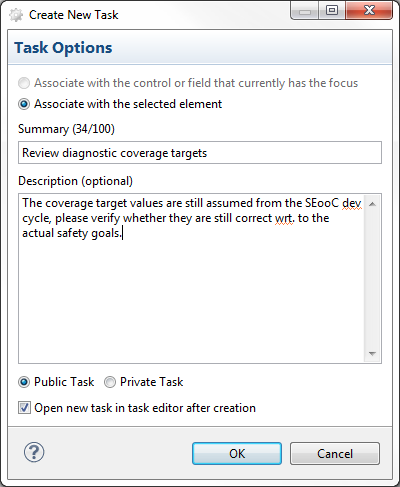
After the invocation of create task, you have to assign a title (summary) to the task and an optional detailed description. Furthermore you have to make the decision, whether the task is to be managed in the local private repository or in the associated public repository. (For information on how to associate a server side repository please refer to Connection to Repositories). With a check-box, you can make the decision to open the task in a task editor to specify further details (state, scheduling, assignment to users etc.) (see Scheduling and other Properties of Tasks for details of the task editor)
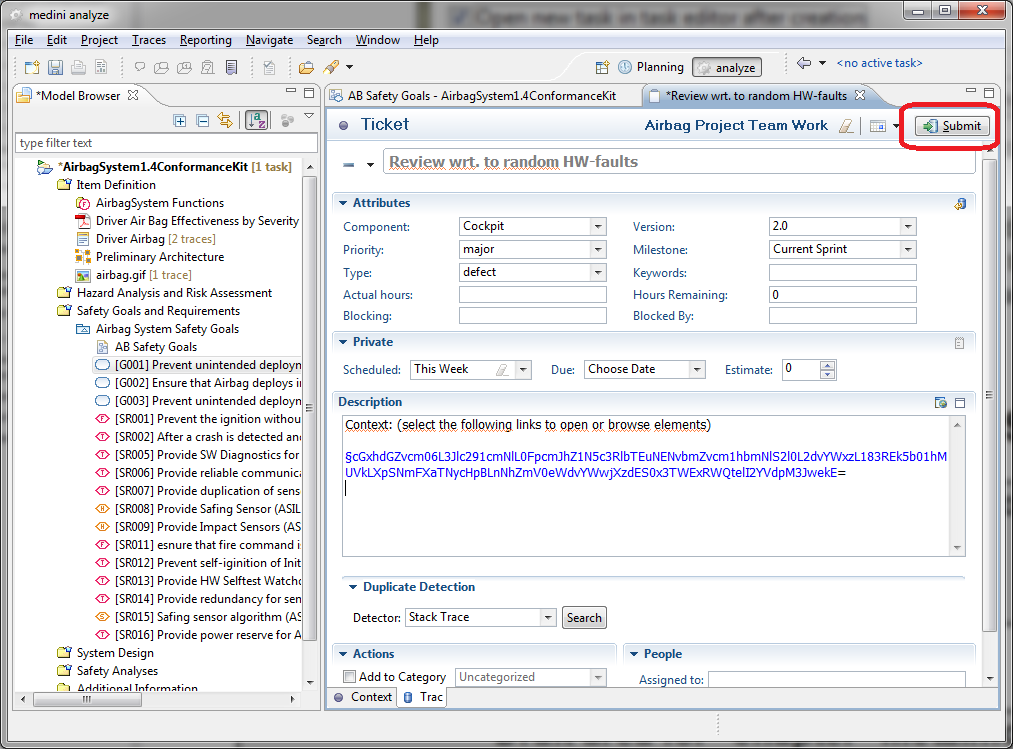
Please be aware that public tasks are not immediately communicated to the public repository. This requires a separate submit action. Since on the server side once created tasks cannot be deleted (just closed) this gives a chance to delete an accidentally created task.
In order to submit a created task to the server side repository, use the submit button in the task form editor or submit multiple tasks via the task list view. In order to delete the task use the delete button in the task list.
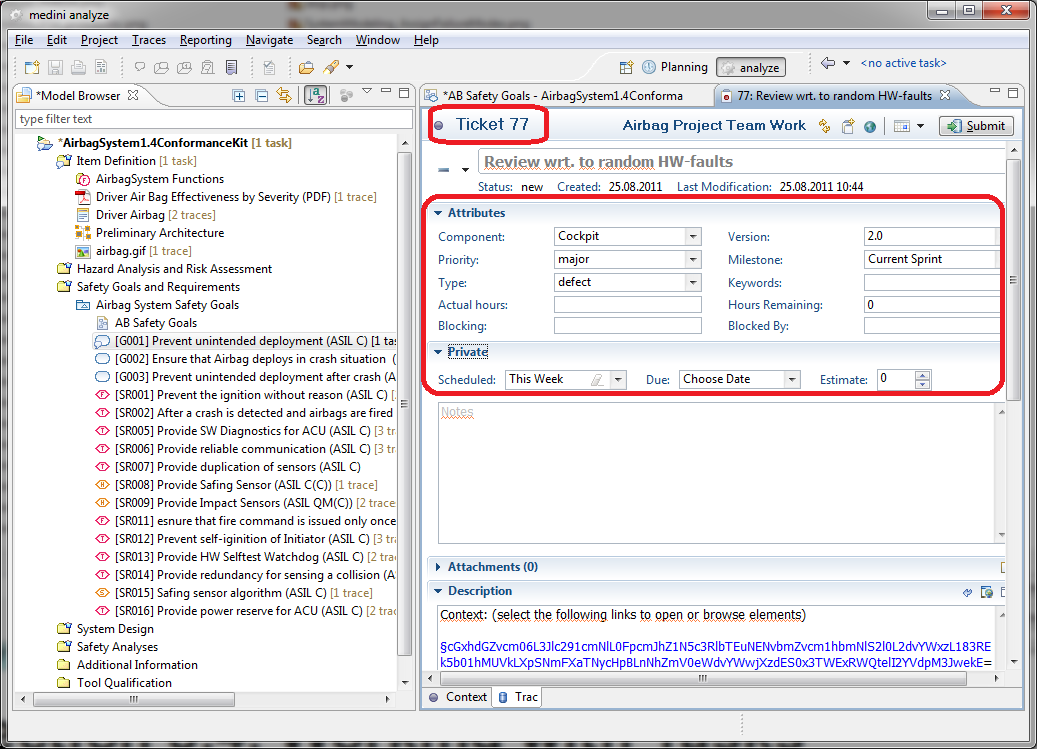
After the submission of a task into a server side repository, the task gets its ID (depends on the server side repository) and it is no longer possible to delete the task. The capabilities a user can facilitate with a task (priorities, scheduling, notification etc.) depend on the server system. Please note that all further changes to the task made in the task editor after submitting need to be submitted again in order to be available on the server.
Moreover, for certain table editors public tasks can be created and associated directly to cells of the table (more precisely to attributes of an element). For example in the hazard analysis table editor, tasks can be created based on a selected cell that will receive a small triangular decoration in the right corner as shown below:
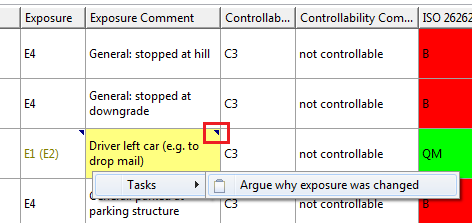
In addition to the decoration, a context menu provides easy navigation to the associated tasks.
Note that this annotation feature for cells is currently only available for public tasks.