Element libraries are used to share element types to be re-used within a project or across project boundaries. Besides this aspect, they offer the same modeling capabilities as other System/Function Models.
Libraries can be used via a separate Element Libraries view which is organized like the Model Browser. You can open the view via "Window | Show View -> Element Libraries". It shows all system library models that contain types and they can be used to by Drag&Drop into the graphcial SysML editor.
Library creation is described in Creating an Element Library.
Example:
The following screenshot shows the Element Library view with three libraries. The type has to be dragged from the Element Libraries view and can be dropped on any system/function model diagram. Once dropped, an instance is created that is linked with the type.
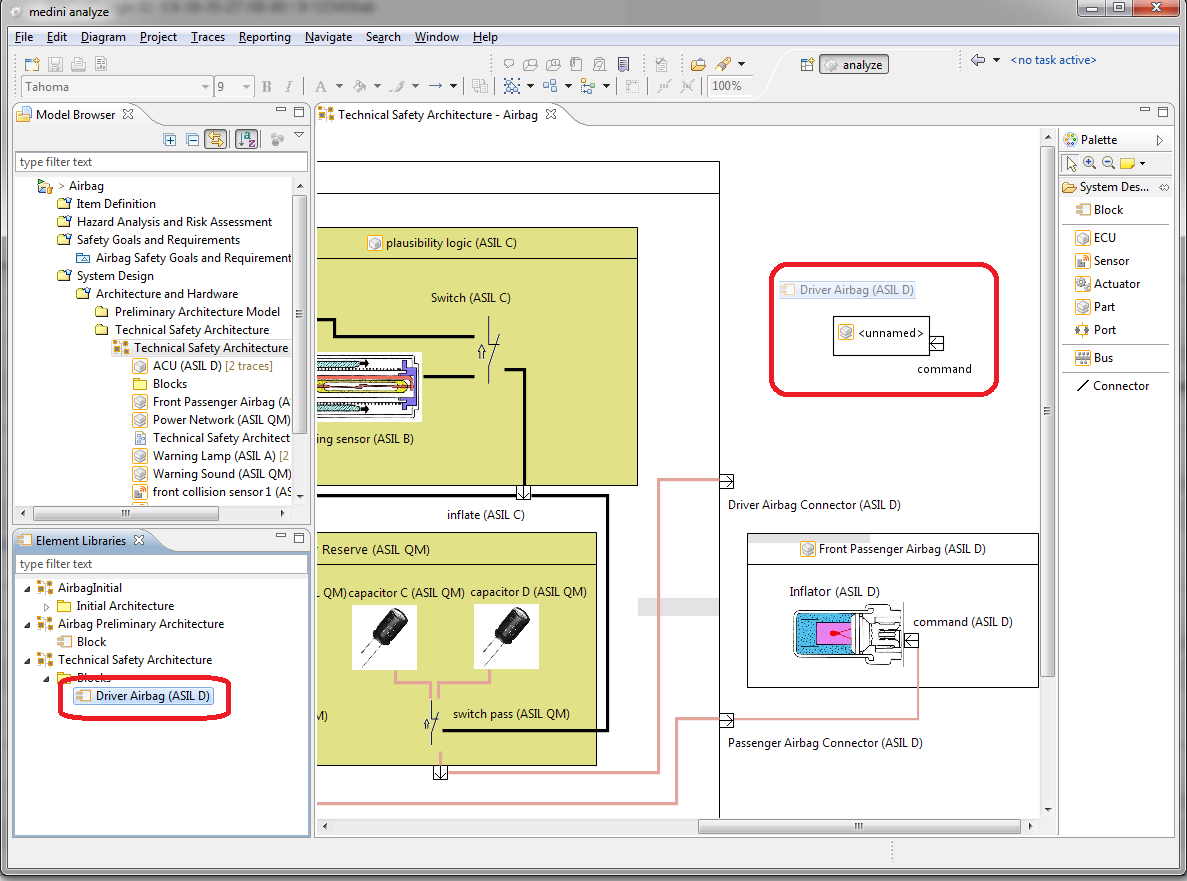
As to be seen in the example, the type "Driver Airbag" is dropped on the System/Function Model diagram and a new instance is created that shows the port which is defined for "Driver Airbag". This new instance can now be connected to other elements and used similar to other instances.
An Element Library can be created by:
Creation of a new System/Function Model as a library
Declaration of an existing System/Function Model as a library
Import of an existing library model from another project (see Importing an Element Library)
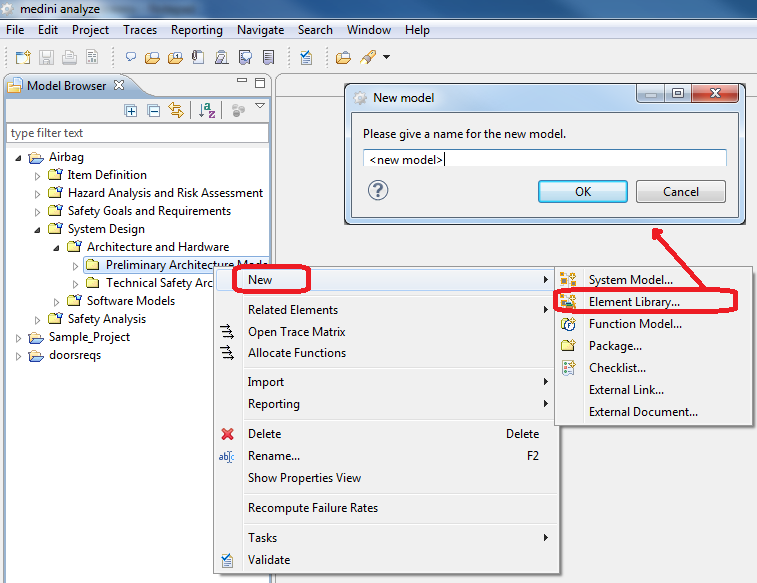
To create a new System/Function Model as an element library choose "New->Element Library..." from the context menu of the model browser. The action is available for every node in the model browser where the creation of System/Function Models is available.
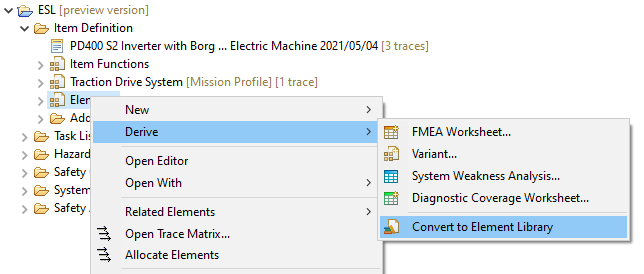
To declare an existing System/Function Model as an element library, choose "Convert to Element Library" from the "Derive" context menu of an existing System/Function Model in the model browser.
Element Libraries are used in medini analyze to share definitions of re-usable elements of System/Function Models across project boundaries. Element libraries can be imported from other projects that are open in the same workspace. (Refer to Using Element Libraries for the creation of element libraries.)
In order to import an element library into a project, the "Import->Element Library..." action from the context menu in the model browser has to be used. This action is available at all places where system design models can be created.
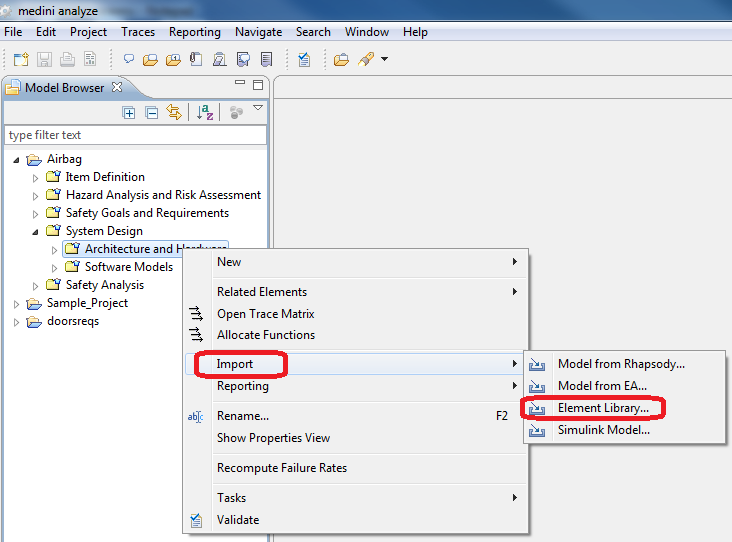
After the action is selected, an import wizard is shown. From the import wizard, you have to select the project from which the element library should be imported first.
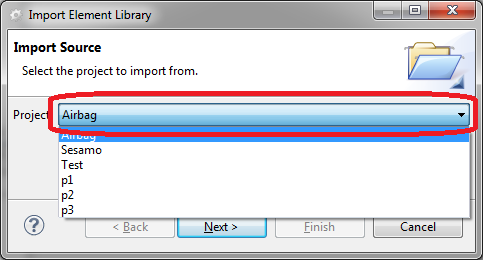
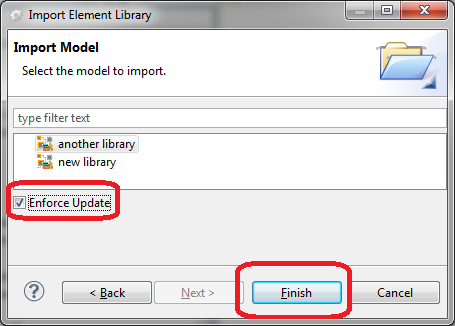
The selected project should contain at least one library. On the next page of the import wizard, the available libraries are shown. You may select a library to import from the list of libraries. The import is initiated via pressing the "finish" button.
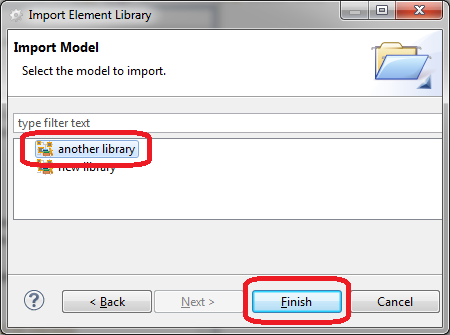
The imported library is now available in the model browser and tagged as being imported.
Element libraries imported from another project can be updated in case changes have been made to the library in its source project.
In order to update an element library the "Update Element Library..." action from the context menu of the element library in the model browser is used. The project as well as the library model has to be selected in the update wizard. The update is invoked by pressing the "Finish" button.
Since the imported library could have been modified locally (also this is not recommended), there is an "Enforce Update" option. If this option is activated, the update is enforced according to the same rules as described in Updating Imported SysML Models.